


Suppose we want to add the Lead Type (a custom choice field) to the Marketing Form’s form / form settings (RTM).
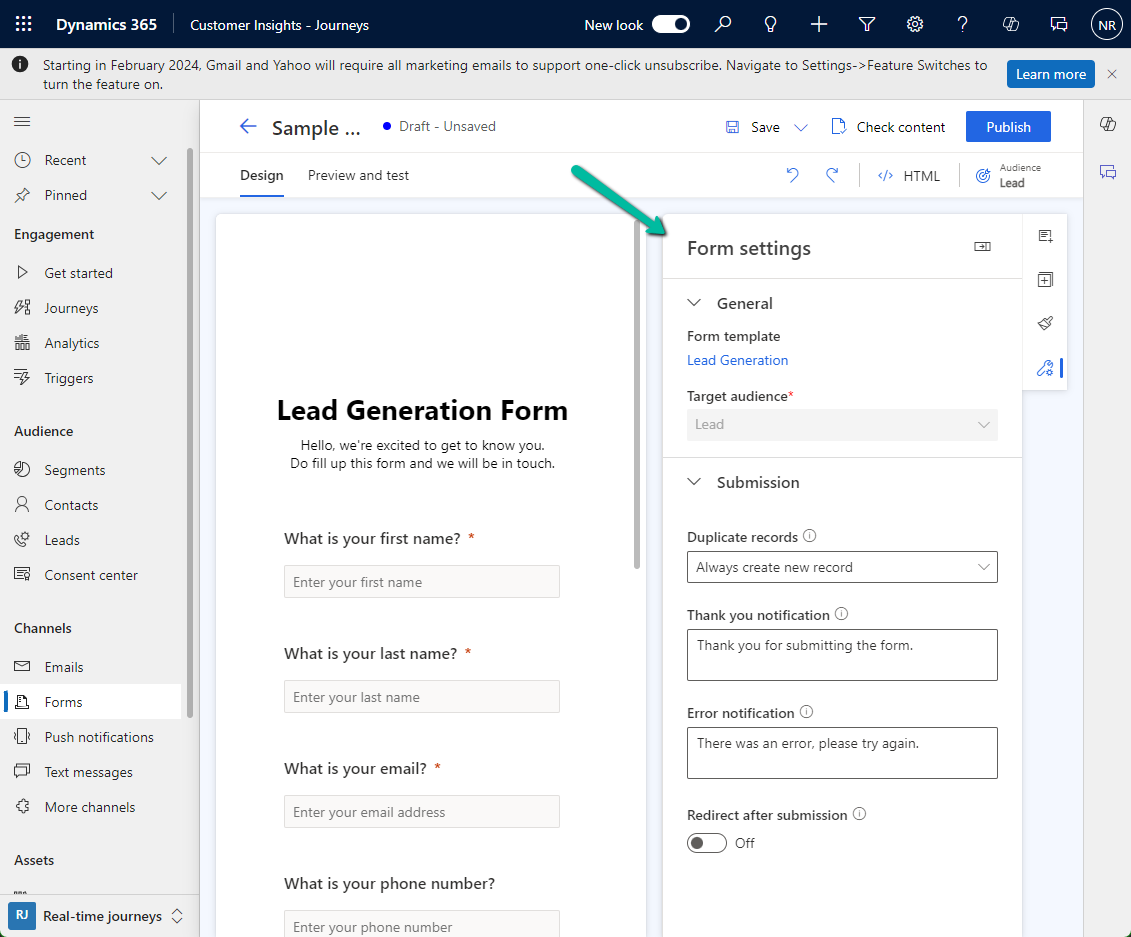
Open the Form table for customization, here we need to add the field to below 2 forms.
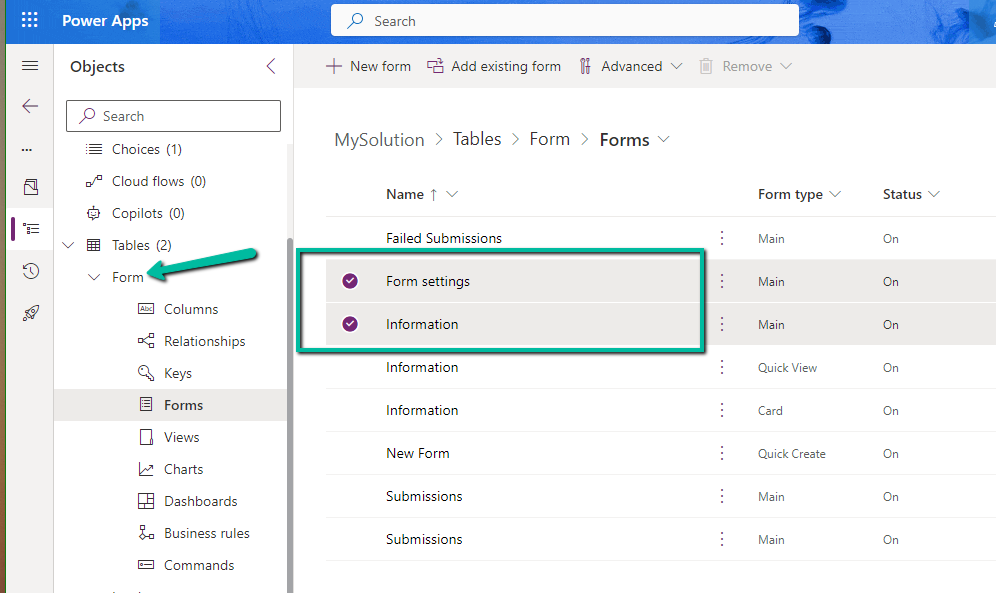
Starting with the Form Settings form, drag the field to the form.
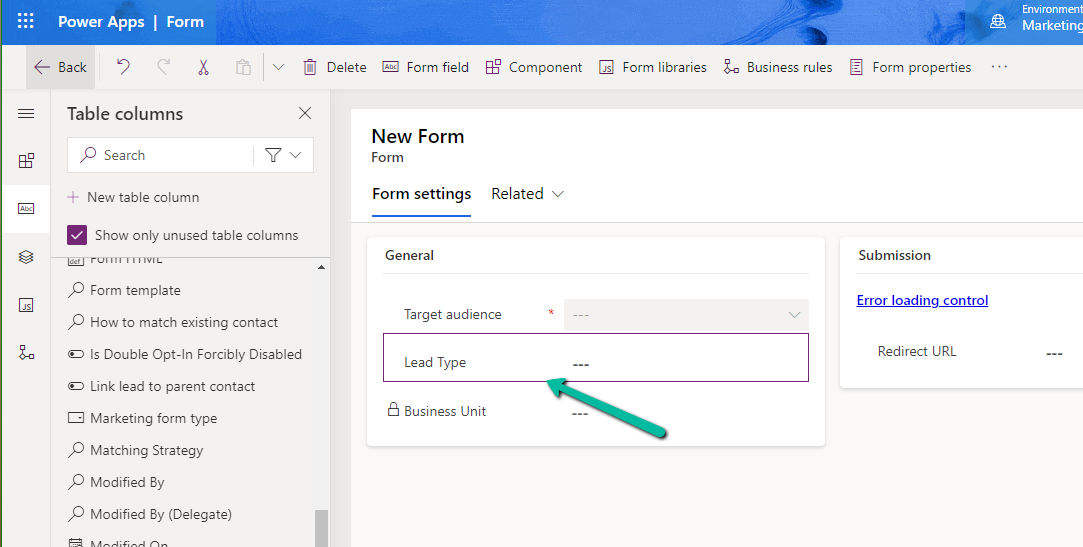
If we check the form now, it will ask us to add it to the main form.

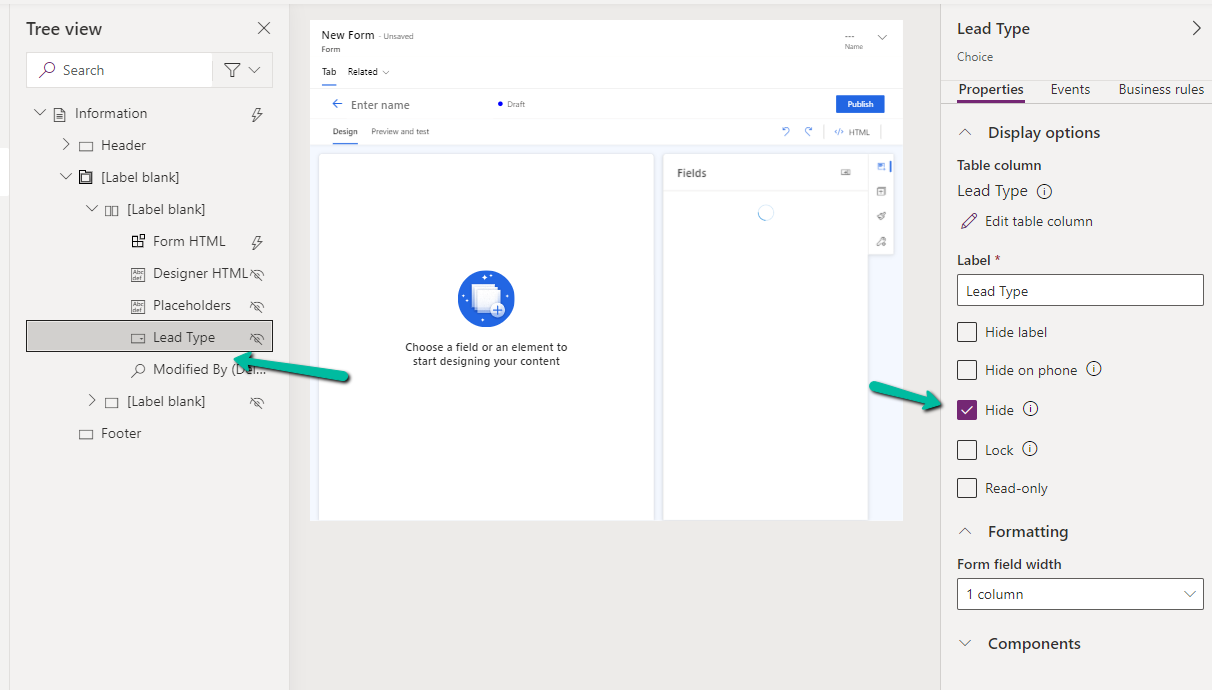
Open the Information (Main) form, double click the field to add it. As the field will not render in the form designer, select the field from the Tree View, and Hide it.
Or we can also open the form in the classic designer, there we will be able to see the field.
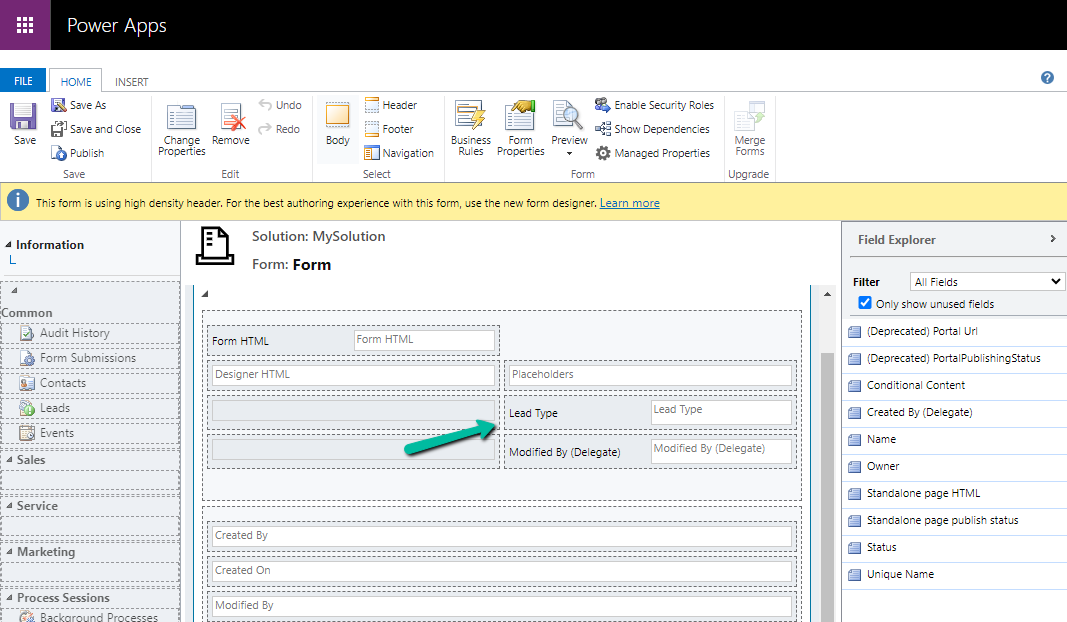
On saving and publishing the change, we can see our Lead Type field appearing on the Form Designer.

Please refer for more information –
Hope it helps..
Discover more from Nishant Rana’s Weblog
Subscribe to get the latest posts sent to your email.
Share It –

