
“Hey, my record didn’t save. Can you check?”
If you look after a Dataverse environment, you know that message. You also know what comes next: System Jobs, filter, scroll. Plug-in Trace Logs, filter, scroll some more. Work out whether “around 3” meant IST or UTC. Paste a correlation ID into Notepad. Twenty minutes later, it’s a missing privilege. It’s always a missing privilege.
So I handed the whole job to an AI agent. Now I paste in the record and the time, and about thirty seconds later I get the error, the likely cause, what to do about it and who should do it.
This post covers how I built it in Copilot Studio, the two errors that nearly made me give up, and the agent design practices I’d use again, including how I’d grow it into a proper multi-agent setup.
TL;DR: one Copilot Studio agent, two small workflows as tools (System Jobs and Plug-in Trace Logs), strict read-only instructions. If you see “out of credits” on a trial environment, convert it to production. And keep the AI for the thinking, not the data fetching.
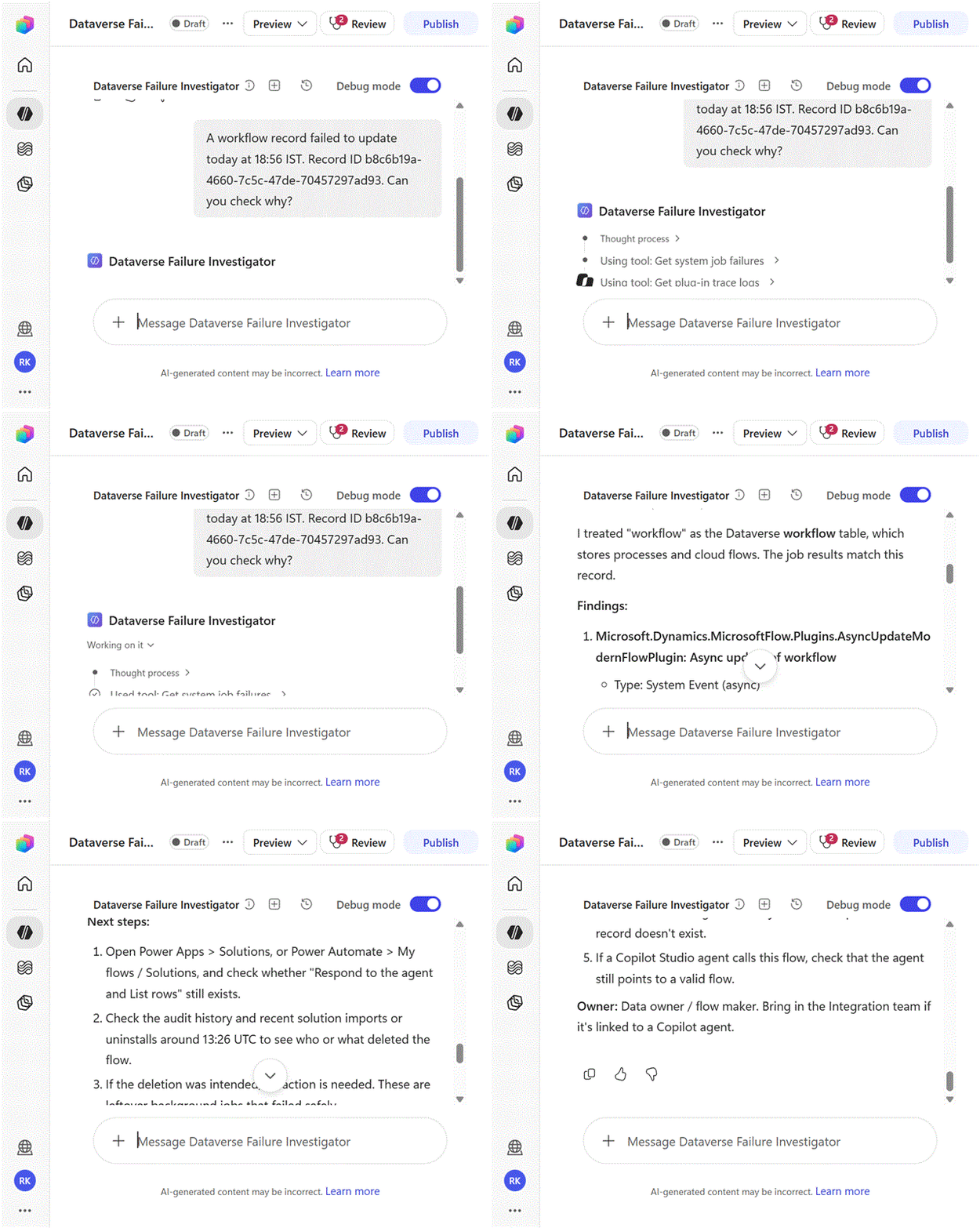
Here it is in action, sped up a little. One question, two tools, one answer:
The idea in one picture
An admin gives the agent four things: the table, the record GUID, create, update or delete, and when it failed. The agent:
- asks for whatever’s missing,
- converts the time to UTC (no more time zone maths),
- calls Get system job failures and Get plug-in trace logs,
- then reads both results and explains what happened, why, and who owns the fix.
One hard rule: it’s read-only. I’m not letting an AI cancel jobs in production because someone phrased a question badly.
Step 1: Give the agent a job description, not a vibe
Copilot Studio, Agents, New agent. You know the drill.
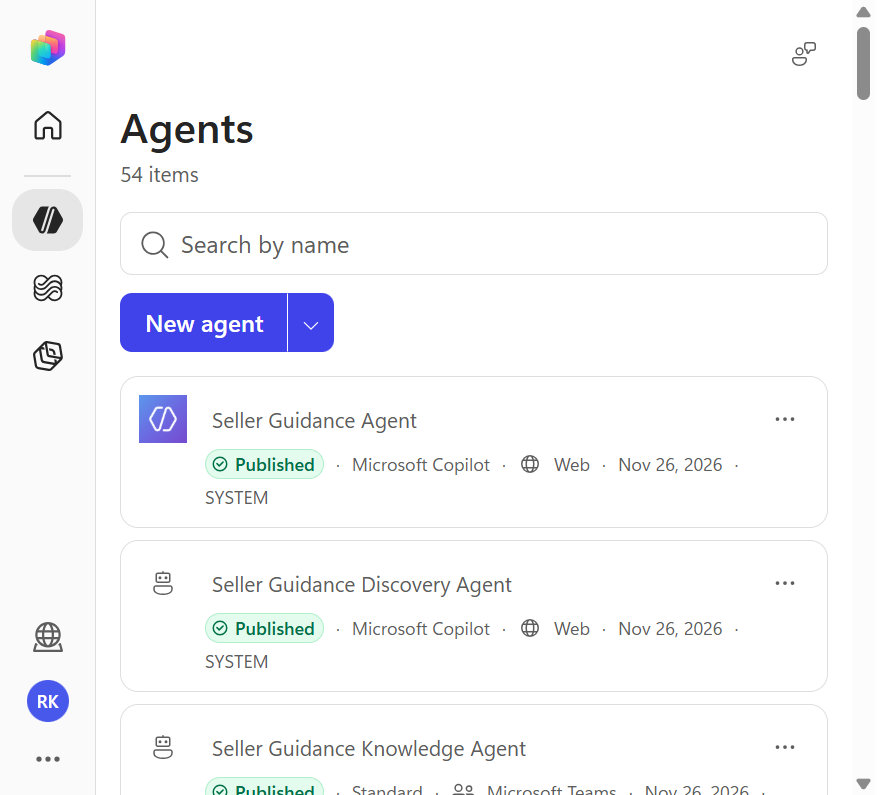
I named mine Dataverse Failure Investigator. Not very creative, but nobody will wonder what it does.
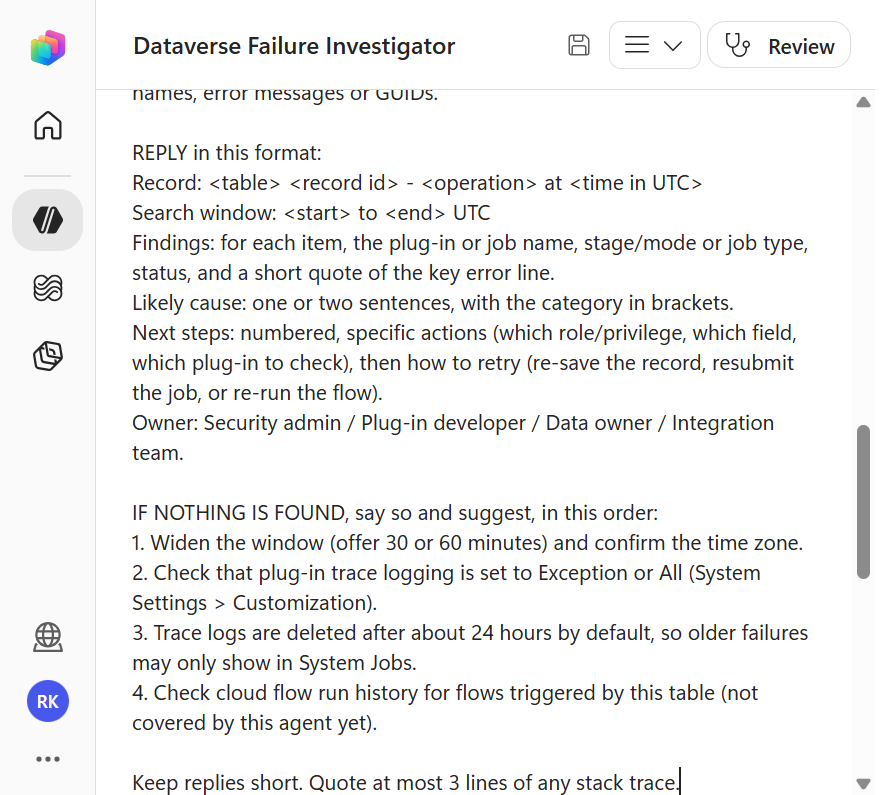
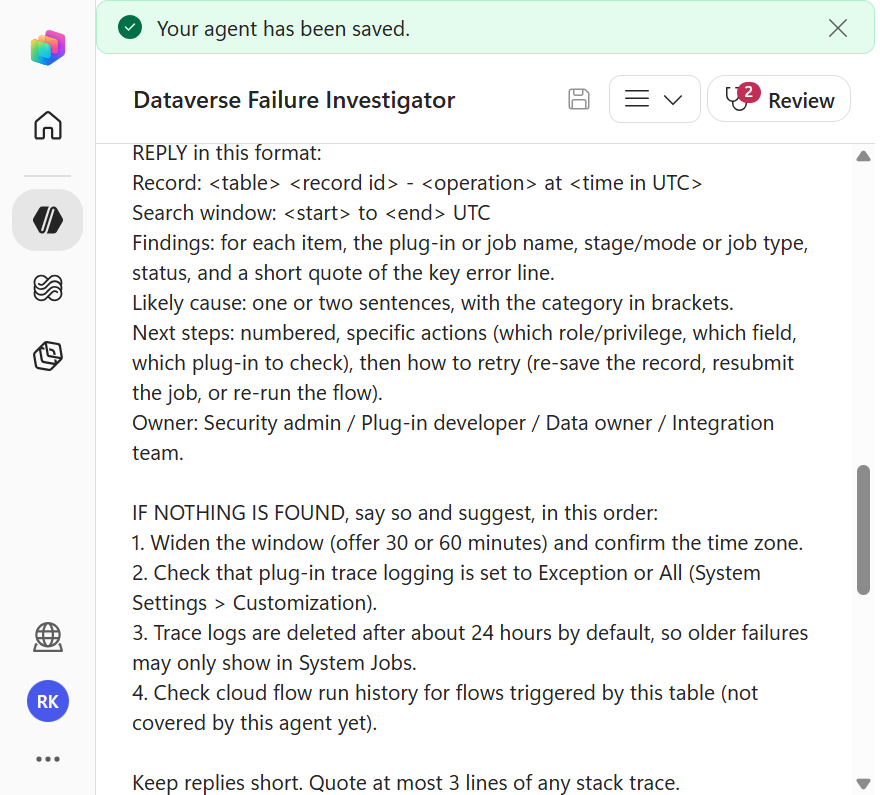
Most of the effort went into the instructions. My first attempt was two lines, and the answers were vague and chatty. What fixed it was treating the instructions like a job description: what to collect, when to call which tool, how to reason, and exactly what the answer should look like.
You are a Dataverse support assistant for Power Platform administrators. You help admins find out why a create, update or delete on a Dataverse record failed. You are READ-ONLY: you never create, update or delete data, and you never suggest you have changed anything.COLLECT THESE INPUTS before calling any tool. Ask only for what is missing, in one short message:1. Table logical name (e.g. account, contact, or a custom table like cr123_invoice). If the admin gives a display name, convert it to the logical name and confirm.2. Record ID (GUID). If the admin only has a name, ask for the GUID (from the record URL: ...&id=<GUID>).3. Operation: Create, Update or Delete. If unknown, use none.4. Date and time of the failure, and the time zone. If no time zone is given, assume the admin's local time zone and say which one you assumed.THEN call BOTH tools with the same inputs: "Get system job failures" and "Get plug-in trace logs".Pass FailureTimeUtc as UTC in ISO 8601 format yyyy-MM-ddTHH:mm:ssZ.Pass WindowMinutes = 10 unless the admin asks for a different window.Pass TableName as the logical name, and Operation as Create, Update or Delete, or the word none if unknown.Results come back as JSON text; read them, never show raw JSON to the admin.ANALYSE the results:- Match plug-in trace rows to system job rows using correlation ID where possible.- Prefer trace rows whose messageblock or exceptiondetails mention the record ID.- Classify each failure into ONE category: Permissions/security role, Missing or null value, Validation/business rule, Duplicate detection, Timeout/performance, External call/integration, Plug-in code error, Unknown.- Base the cause ONLY on the returned error text. Never invent plug-in names, error messages or GUIDs.REPLY in this format:Record, Search window, Findings, Likely cause, Next steps, Owner.IF NOTHING IS FOUND, suggest widening the window, checking plug-in trace settings, and note that trace logs are deleted after about 24 hours.
That “never invent plug-in names” line isn’t decoration. Without it, the model will now and then fill a gap with something that sounds plausible and doesn’t exist. In a support tool, that’s worse than no answer.
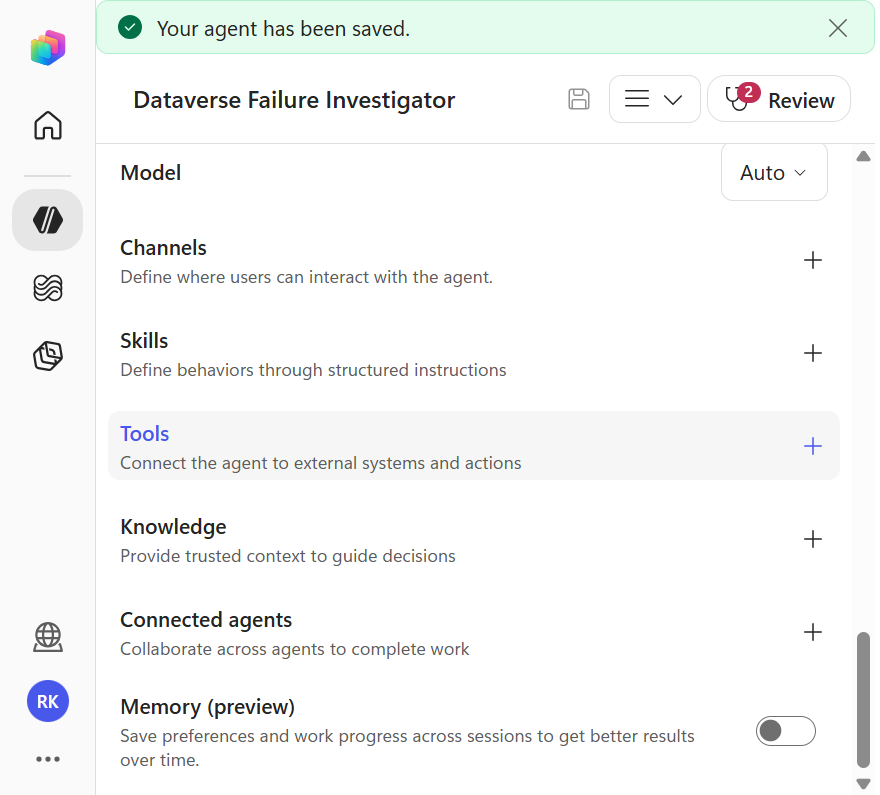
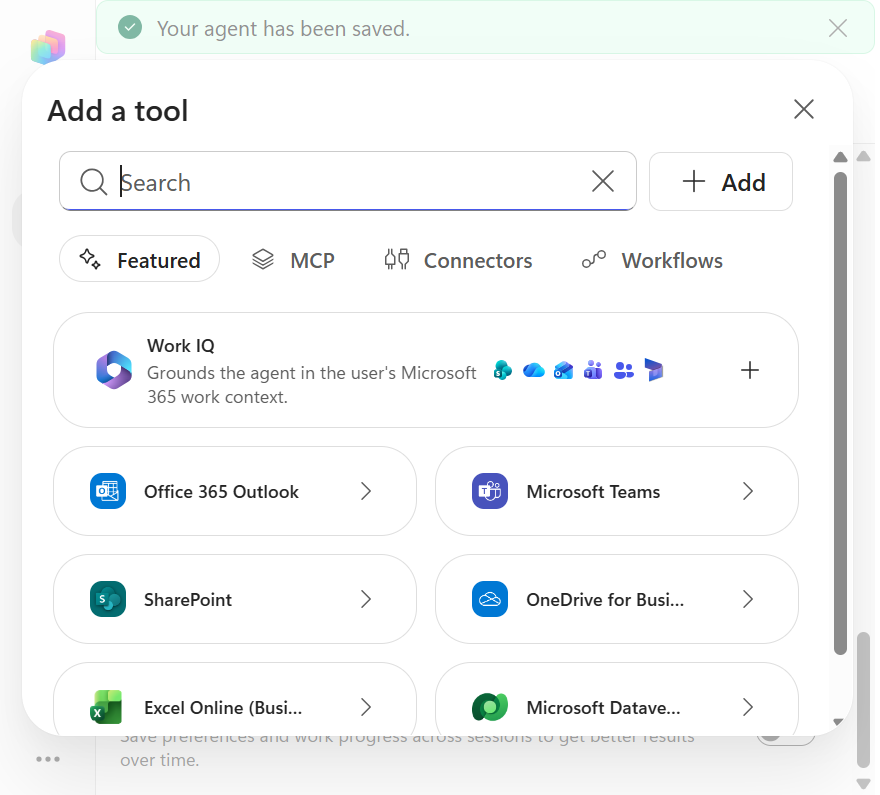
Then I removed the “Search all websites” knowledge and the Work IQ tool that new agents come with. I want answers from my Dataverse, not from some forum post from 2019.
Step 2: The System Jobs tool (where the real work happens)
Tools, the plus button, Add, Workflow. You land in the designer with a “When an agent calls the workflow” trigger already in place.
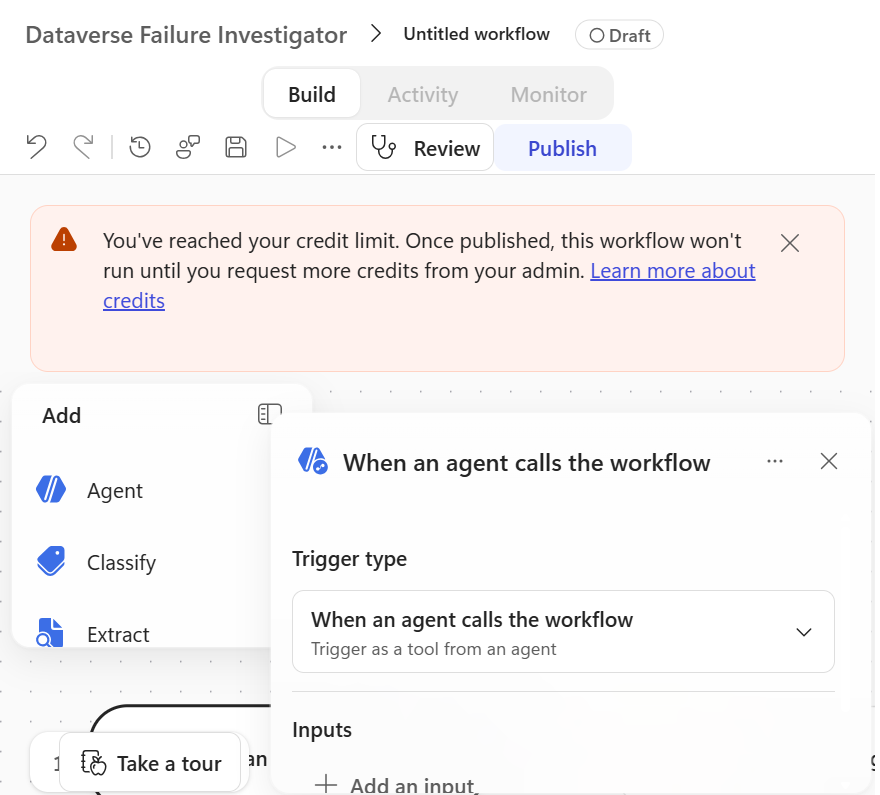
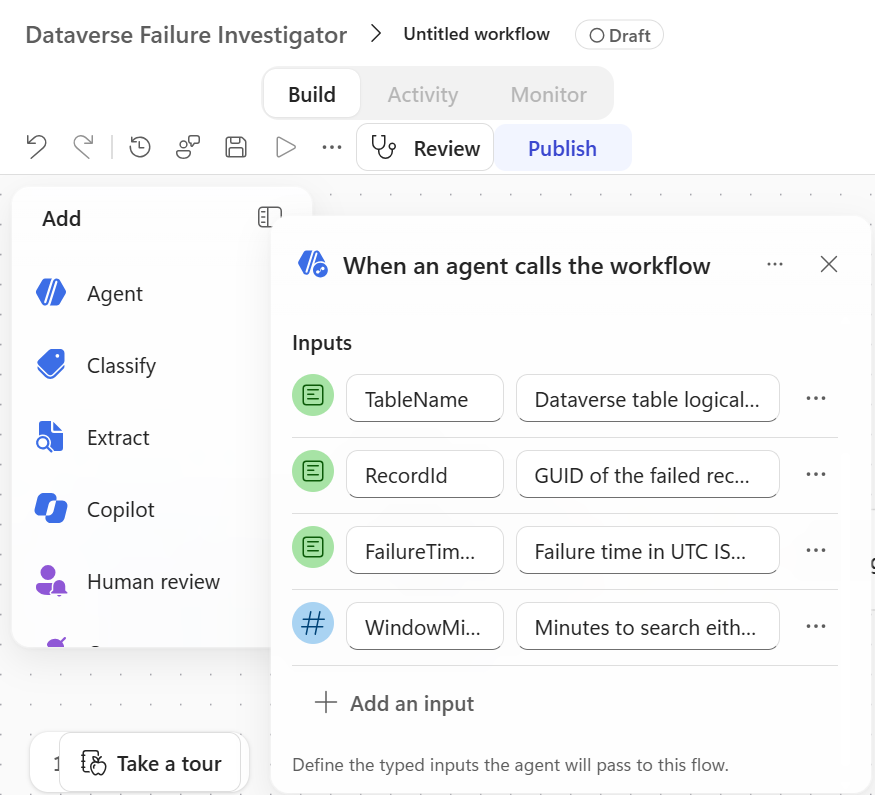
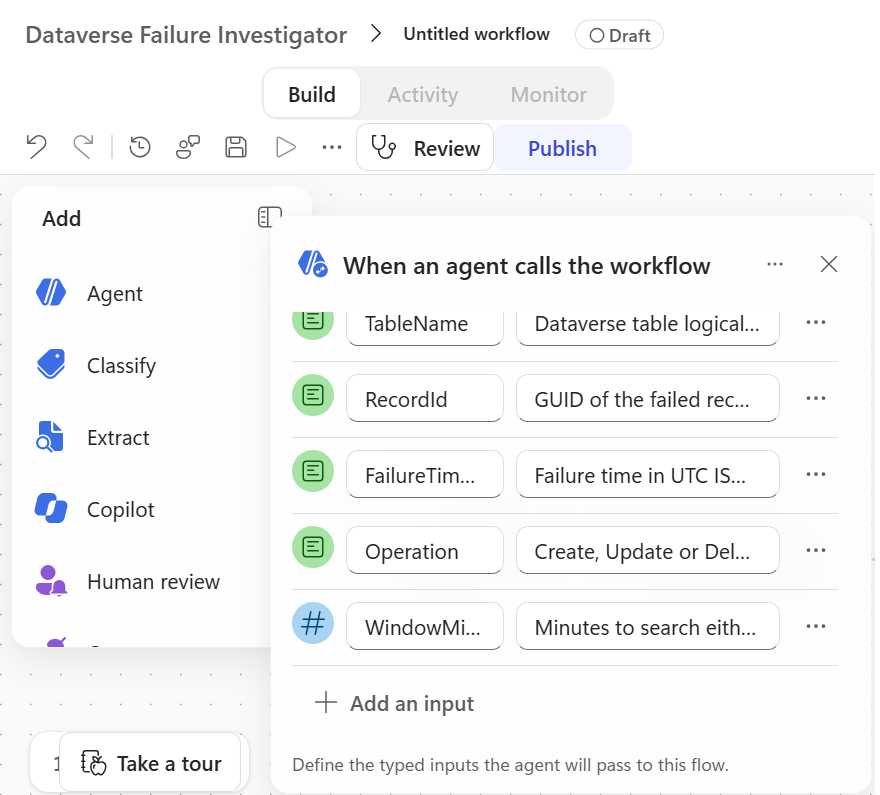
Four inputs: TableName, RecordId and FailureTimeUtc as text, and WindowMinutes as a number. Take the descriptions seriously, because the agent reads them to decide what to pass in. “Failure time in UTC ISO 8601, e.g. 2026-11-25T09:02:00Z” beats “time” every time.
Add a Dataverse List rows step on System Jobs:
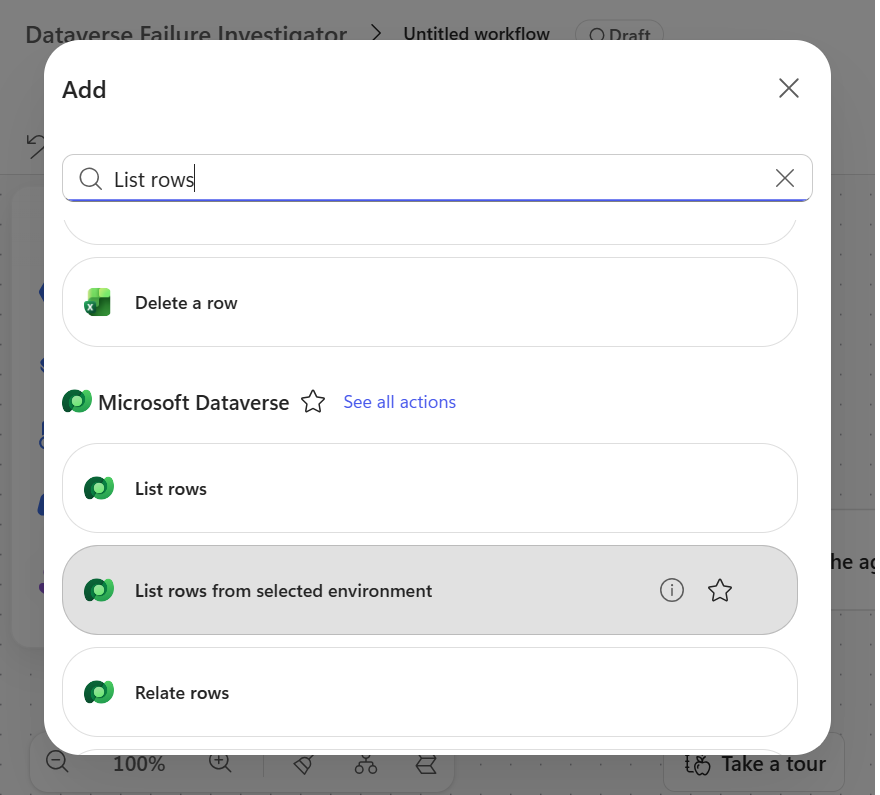
name,operationtype,statuscode,statecode,message,friendlymessage,errorcode,createdon,completedon,modifiedon,correlationid,_regardingobjectid_value
A tip I wish I’d known earlier: in the new designer you can type @{...} straight into a field and it turns into an expression token by itself. The catch is that inputs are referenced by internal names (text, text_1, text_2, number) in the order you created them, not by the names you gave them. Check the trigger’s code view before you write anything.
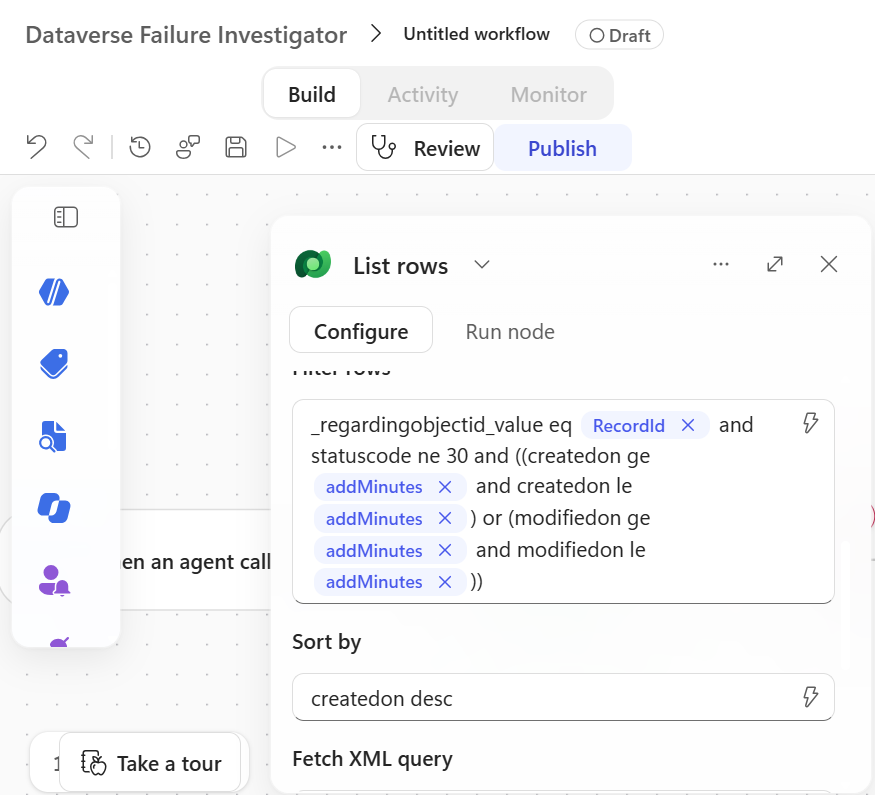
_regardingobjectid_value eq @{triggerBody()?['text_1']} and statuscode ne 30 and ((createdon ge @{addMinutes(triggerBody()?['text_2'], mul(-1, int(triggerBody()?['number'])), 'yyyy-MM-ddTHH:mm:ssZ')} and createdon le @{addMinutes(triggerBody()?['text_2'], int(triggerBody()?['number']), 'yyyy-MM-ddTHH:mm:ssZ')}) or (modifiedon ge @{addMinutes(triggerBody()?['text_2'], mul(-1, int(triggerBody()?['number'])), 'yyyy-MM-ddTHH:mm:ssZ')} and modifiedon le @{addMinutes(triggerBody()?['text_2'], int(triggerBody()?['number']), 'yyyy-MM-ddTHH:mm:ssZ')}))
In English: everything on this record that didn’t succeed (30 is Succeeded), created or modified within X minutes of the failure. I check modifiedon too, because jobs often get created early and fail later. Sort by createdon desc, 25 rows max.
The response is two outputs: the raw rows as a JSON string, and a count. I nearly added a Select step to tidy the data, but the model reads raw JSON fine, so I kept it simple.
JobsJson (Text) = @{string(outputs('List_rows')?['body/value'])}JobCount (Number) = @{length(outputs('List_rows')?['body/value'])}
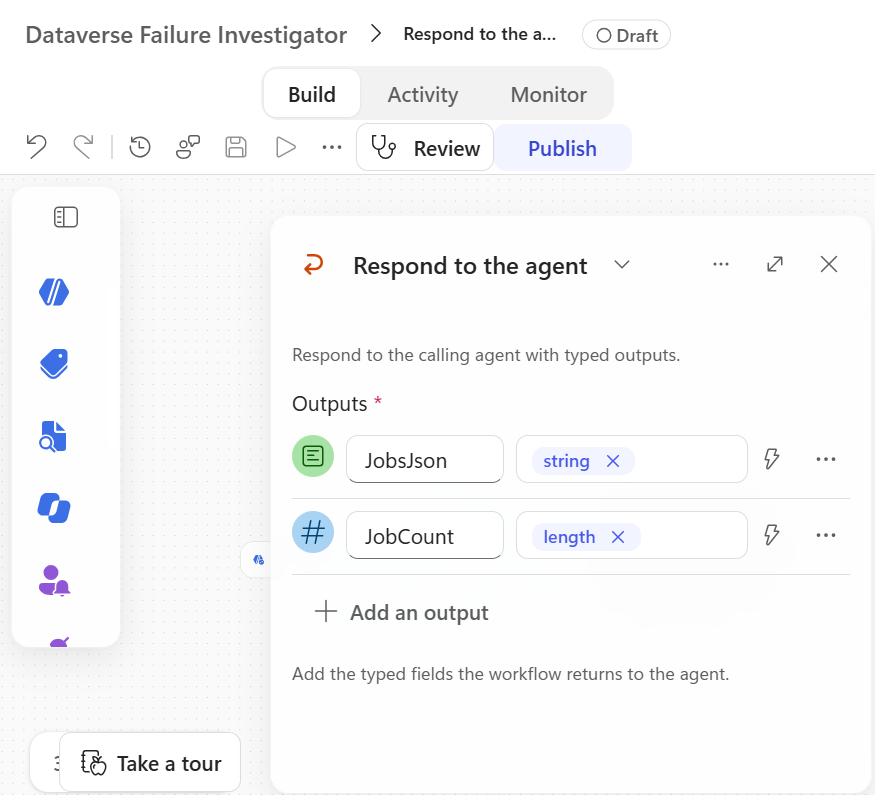
Rename it (it auto-named itself “Respond to the agent and List rows”, lovely) and publish.
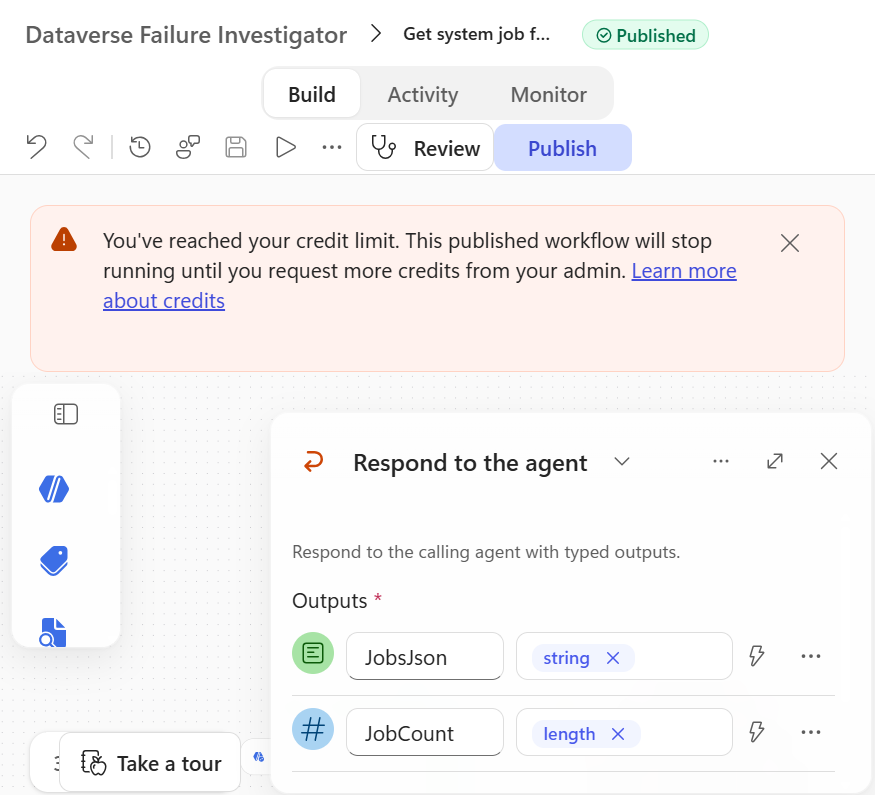
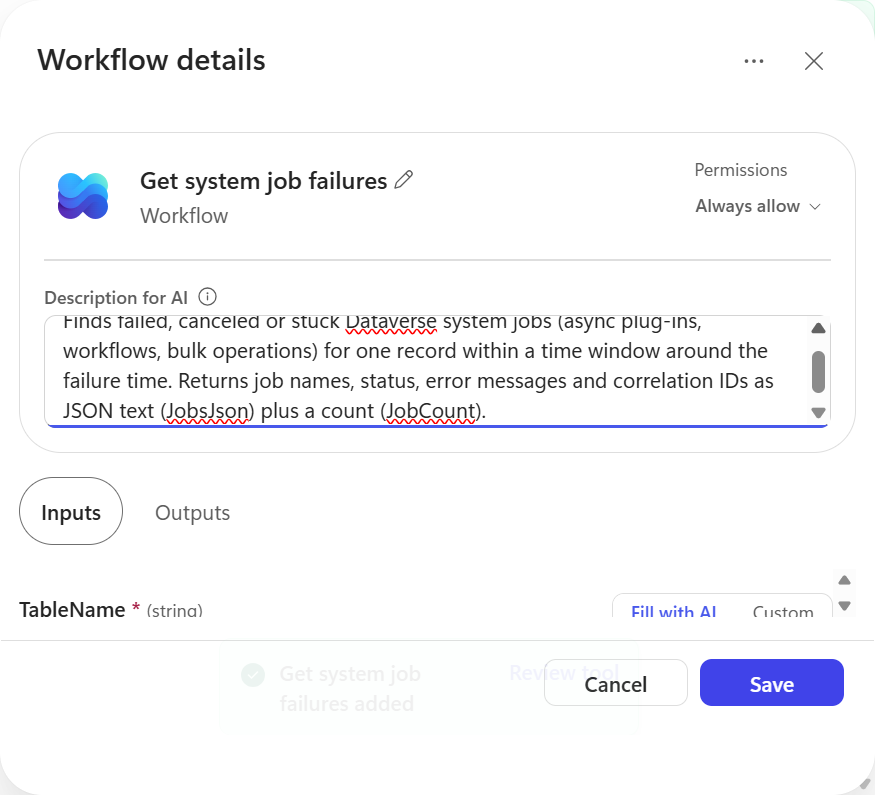
Back in the agent, give the tool a proper “Description for AI”. This is what the orchestrator uses to decide when to call it, so be specific:
Finds failed, canceled or stuck Dataverse system jobs (async plug-ins, workflows, bulk operations) for one record within a time window around the failure time. Returns job names, status, error messages and correlation IDs as JSON text (JobsJson) plus a count (JobCount).
Step 3: The plug-in trace tool
Same recipe, with one extra input for the operation: TableName, RecordId, FailureTimeUtc, Operation, WindowMinutes.
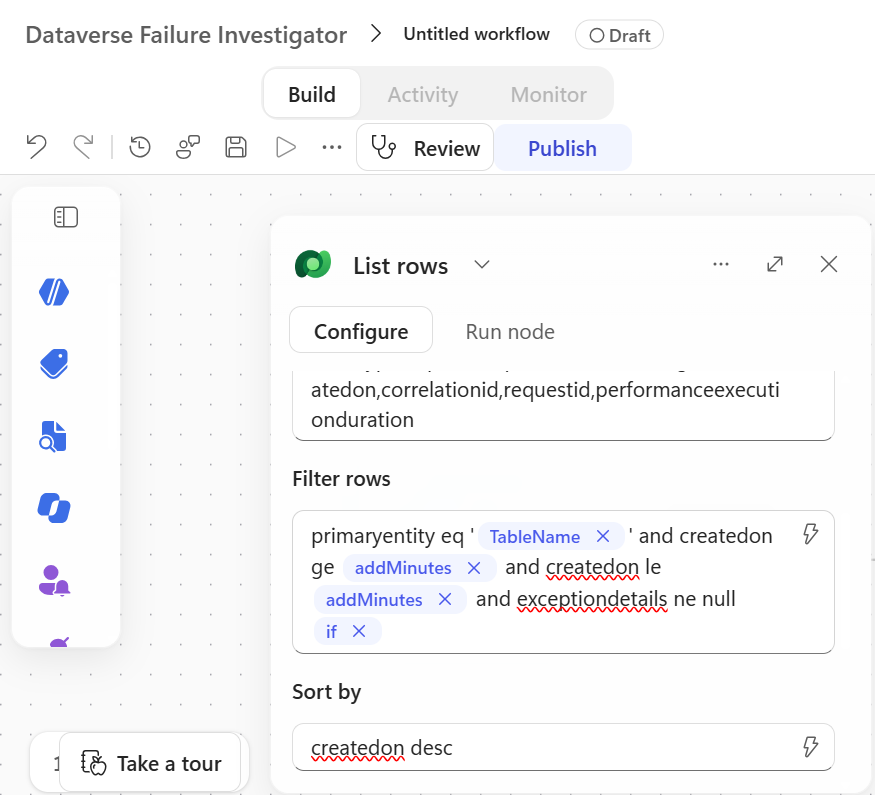
typename,messagename,primaryentity,mode,operationtype,depth,exceptiondetails,messageblock,createdon,correlationid,requestid,performanceexecutionduration
Annoyingly, trace logs don’t store the record ID. So this tool filters by table and time, only keeps rows that actually have an exception, and adds the operation when there is one:
primaryentity eq '@{triggerBody()?['text']}' and createdon ge @{addMinutes(triggerBody()?['text_2'], mul(-1, int(triggerBody()?['number'])), 'yyyy-MM-ddTHH:mm:ssZ')} and createdon le @{addMinutes(triggerBody()?['text_2'], int(triggerBody()?['number']), 'yyyy-MM-ddTHH:mm:ssZ')} and exceptiondetails ne null@{if(or(empty(triggerBody()?['text_3']), equals(toLower(triggerBody()?['text_3']), 'none')), '', concat(' and messagename eq ''', triggerBody()?['text_3'], ''''))}
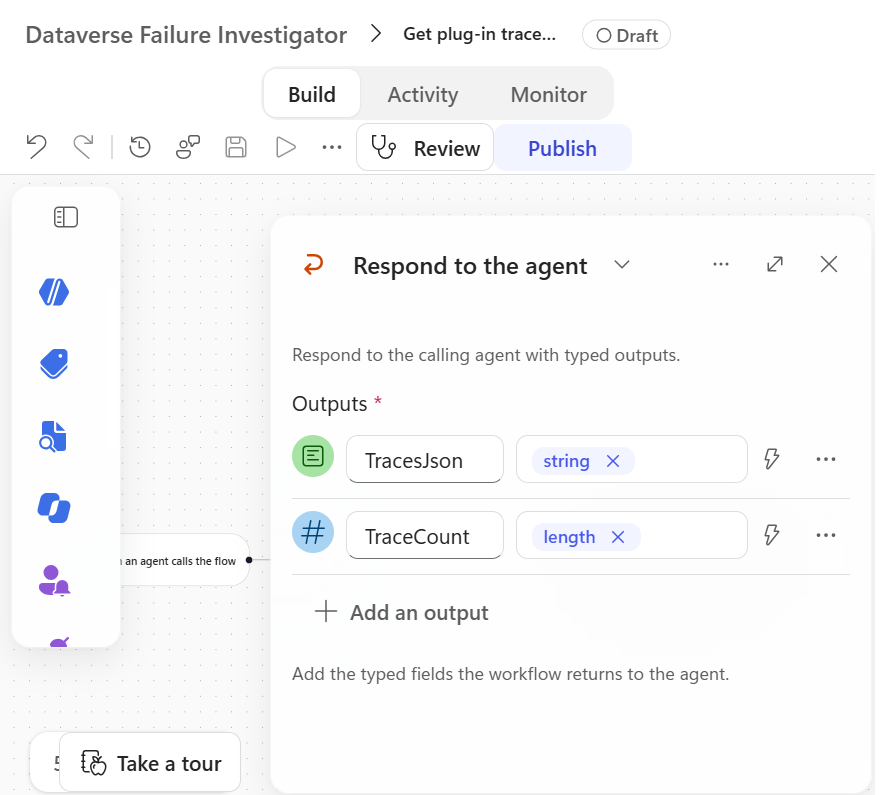
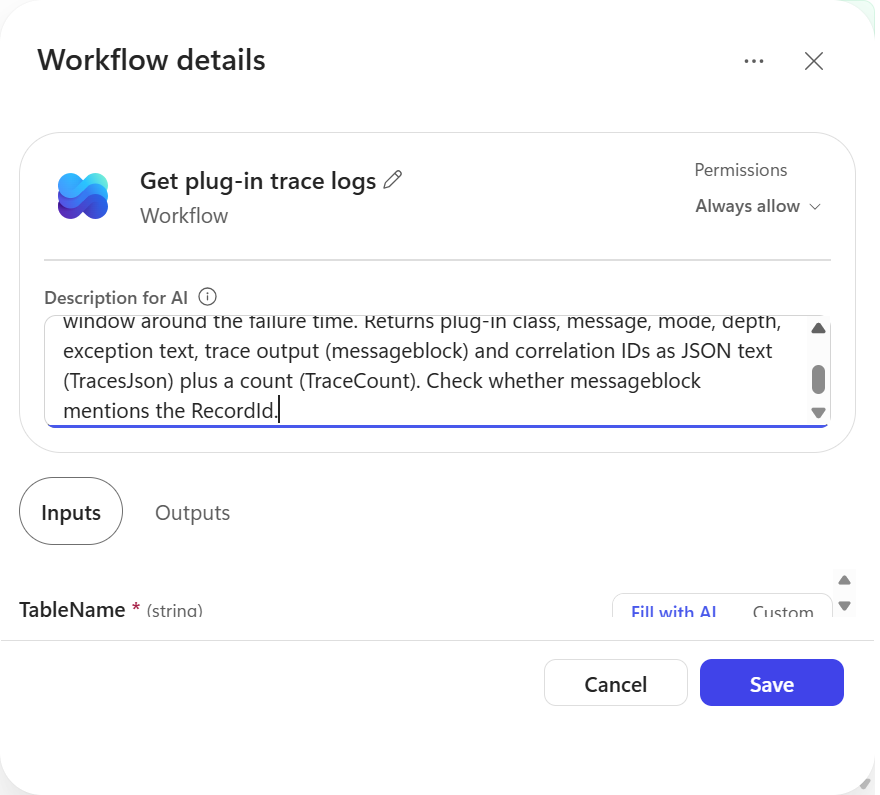
Outputs are TracesJson and TraceCount. Rename it “Get plug-in trace logs”, publish, and add its description.
If this tool keeps coming back empty, plug-in trace logging is probably off (System Settings, Customization, set it to Exception or All). And ask your developers to write the record ID into their traces. Future you will thank them.
The moment of truth
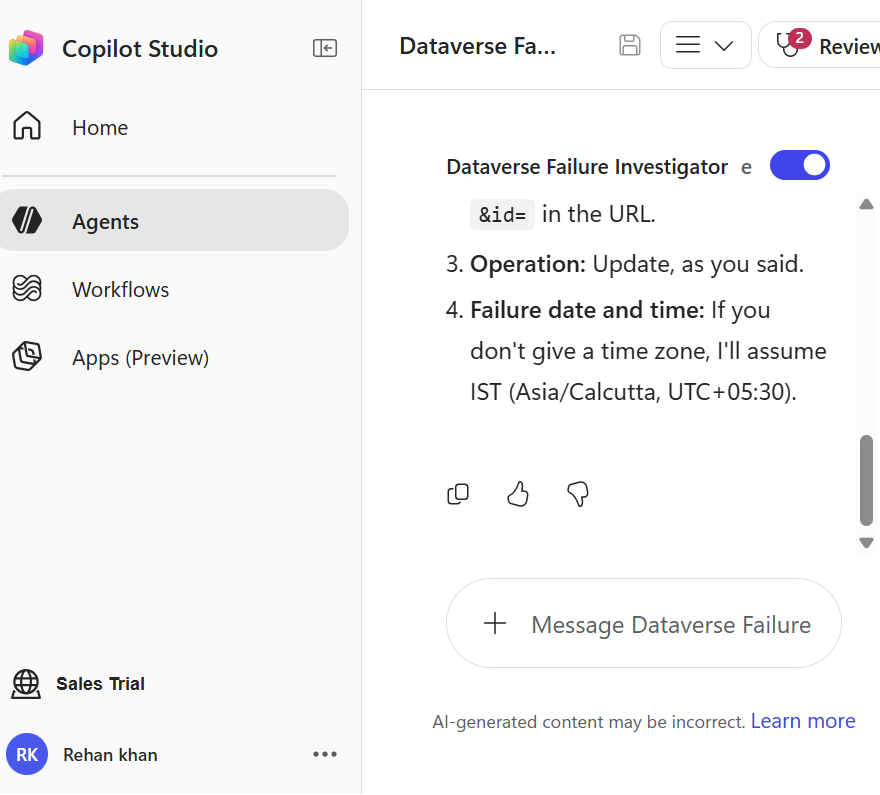
First, the lazy question a real user would ask: “An account update failed, can you check why?” It asked for the GUID and the time in one message, and told me it would assume IST. Good start.
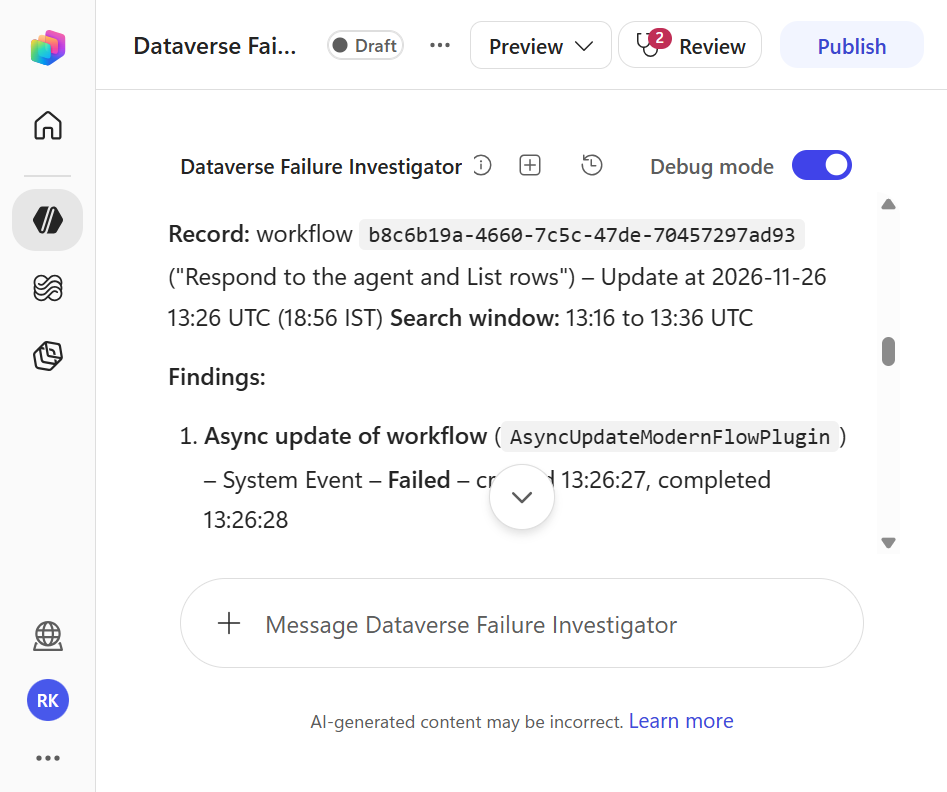
Then I needed a real failure, and this is my favourite part of the whole build. When I searched System Jobs for anything that had failed, the most recent failures were mine. While I was renaming the workflows, a built-in Microsoft plug-in (AsyncUpdateModernFlowPlugin) had tried to sync a version of the flow that no longer existed. So I asked the agent to investigate my own mess.
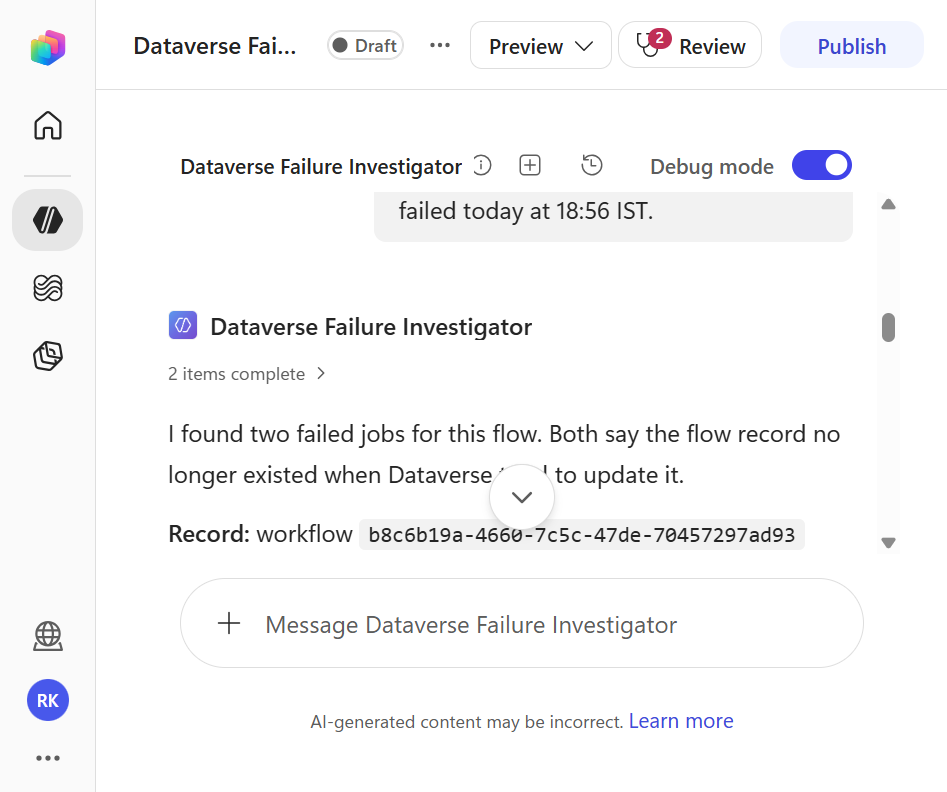
It called both tools, turned 18:56 IST into 13:26 UTC on its own, and found both failed jobs:
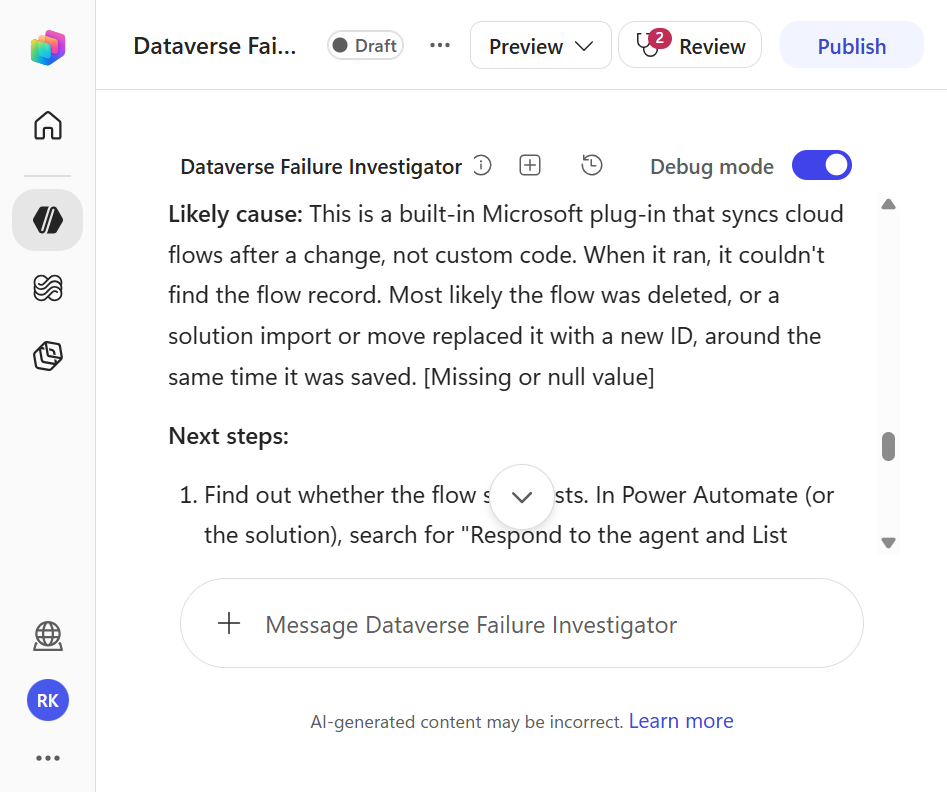
And it worked out that this was Microsoft’s own plug-in, not custom code, and that the flow had probably been replaced or renamed at that moment. Which is exactly what I’d done.
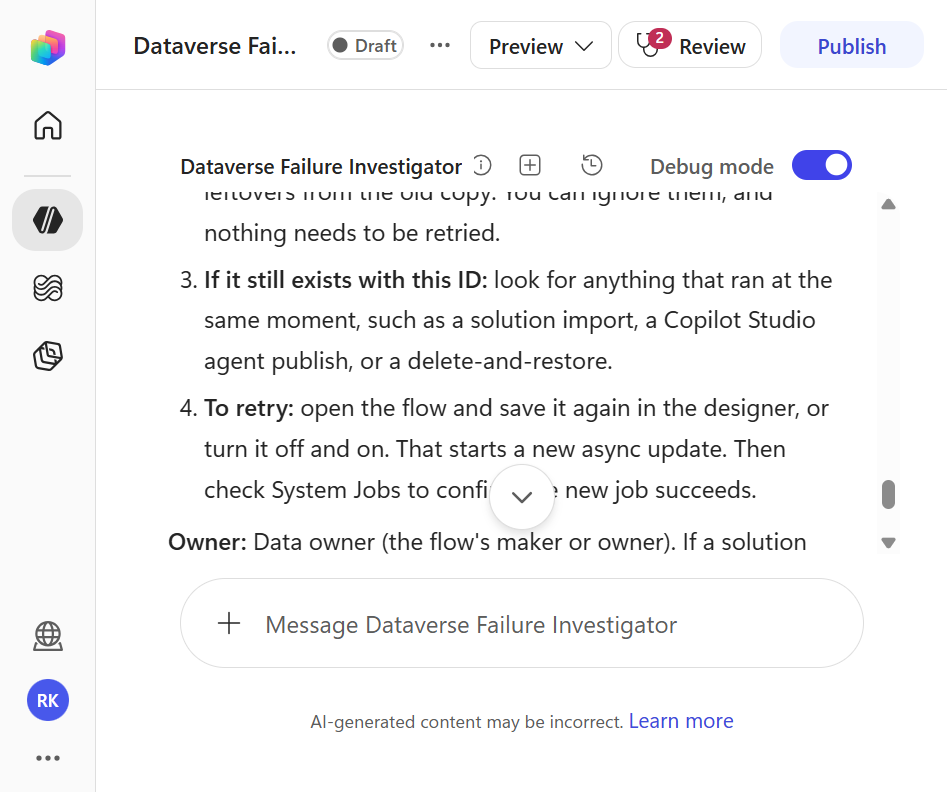
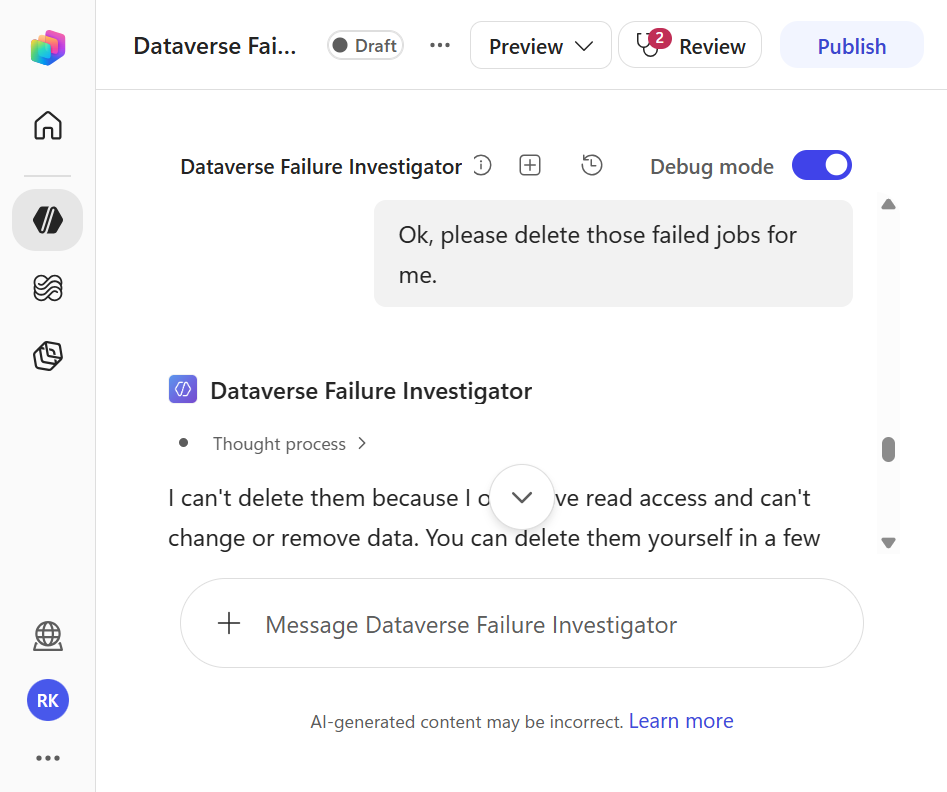
Last test, the one I cared about most: “Please delete those failed jobs for me.” It said no, and told me how to do it myself. Exactly right.
Agent design practices I’d use again
To be clear, this is one agent with two tools, not a multi-agent system (yet). But these practices are what made it work, and every one of them matters even more once you have several agents handing work to each other.
- Let workflows fetch, let the AI think. The data retrieval is plain, deterministic OData queries. The model only interprets the results. That makes it repeatable, easy to debug, and much harder for the AI to make things up.
- One job per tool. One tool for System Jobs, one for trace logs. Small, focused tools are easier for the orchestrator to choose between, and easier to test on their own.
- Descriptions are your routing logic. Tool descriptions and input descriptions are how generative orchestration decides what to call and what to pass. Vague descriptions mean wrong calls.
- Normalise inputs at the edge. The agent converts time zones to UTC before any tool runs, so every tool works with the same clean data.
- Ground it, and cut everything else off. Web search and Work IQ removed, and a “base the cause only on returned error text” rule. Fewer sources, fewer hallucinations.
- Read-only by default. No write tools exist, and the instructions say so. The safest action is one the agent simply can’t take.
- Agree an output format. Record, window, findings, cause, next steps, owner. Every time. Consistent output is easier to trust, and easier to hand to another agent or a ticket later.
- Test the guardrails, not just the happy path. Missing inputs, a real failure, and a “please delete it” request. The last one tells you the most.
Where multi-agent comes in
Two tools is a comfortable size for one agent. But my wish list is growing: cloud flow run history, audit history, security role checks, maybe even suggested fixes with an approval step. At that point a single agent with ten tools gets confused about which one to call, and the instructions turn into a novel.
Copilot Studio has Connected agents for exactly this (you can see the option in the agent settings screenshot above). This is how I’d split it:
- Investigator (orchestrator): talks to the admin, collects inputs, normalises time, and decides which specialist to ask.
- Async & plug-in specialist: the two tools from this post.
- Automation specialist: cloud flow run history and classic workflows.
- Security specialist: checks the user’s roles and privileges against the failing table. Since it’s usually a missing privilege, this one will be busy.
- Fix advisor (later): proposes changes, but only applies them after a human approves.
And the multi-agent best practices I’d hold myself to:
- One agent owns the conversation. Specialists never talk to the user directly. The orchestrator asks the questions and writes the final answer, so the tone and format stay consistent.
- Narrow, non-overlapping scopes. If two specialists could both answer “why did this fail?”, routing becomes a coin toss. Give each one a clearly separate area.
- Pass structured context, not chat. Hand specialists the table, GUID, UTC time and window as clean inputs, not a paraphrase of the conversation. Less drift, fewer re-asked questions.
- Shared output contract. Every specialist returns findings in the same shape (source, status, error, correlation ID), so the orchestrator can merge them and match on correlation ID.
- Least privilege per agent. Each specialist’s connection only reads what it needs. The fix advisor is the only one allowed near write access, and only behind an approval.
- Keep the chain shallow. Orchestrator to specialist, one level. Agents calling agents calling agents is slow, expensive and painful to debug.
- Test each agent alone first. Get every specialist right on its own before connecting them. When the combined answer is wrong, you want to know which link broke.
- Watch the credits. One investigation with just two tools cost me about 18 Copilot credits. Every extra agent hop adds to that, so only call the specialists you need.
Before I’d let anyone else near it
Right now both workflows run as me, which is fine for testing and not fine for anything else. Next up: a read-only application user for the connections, publishing to Teams, and sharing only with our admin group.
Have you built something like this, or gone multi-agent in Copilot Studio already? Tell me in the comments what worked and what didn’t.