

Now Reading: Locate the Tables for Database log – D365FO
-
01
Locate the Tables for Database log – D365FO


In Microsoft Dynamics 365 Finance and Operations (D365FO), the Database Log is a powerful tool for tracking changes to critical data. It allows administrators to monitor insert, update, and delete operations on selected tables and fields—providing visibility into who changed what, when, and how. This capability is essential for compliance, auditing, and troubleshooting.I`ve posted the steps to enable database log here .
Yet, one of the biggest hurdles in configuring the Database Log is finding the right tables from the long list of available tables. With thousands of system and application tables in D365FO, it can be overwhelming to find the ones which we need for logging.
This blog will guide you through the process of locating and selecting the tables from the extensive Database Log list.
The database log wizard shows the form listing all the tables and fields available in the system.
As mentioned earlier, locating the right table within the extensive range of sections can be quite challenging. For example, under the General Ledger section, there are multiple subsections, making it cumbersome to pinpoint the exact tables you need.

I discovered a simpler approach through the AOT by leveraging configuration keys.
For instance, if I want to enable logging for the Vendor table and specifically the Terms of Payment field, I can go to the AOT and navigate directly to VendTable.

Go to the Configuration Key to find the label so it will be easy to search in the DB log set up.
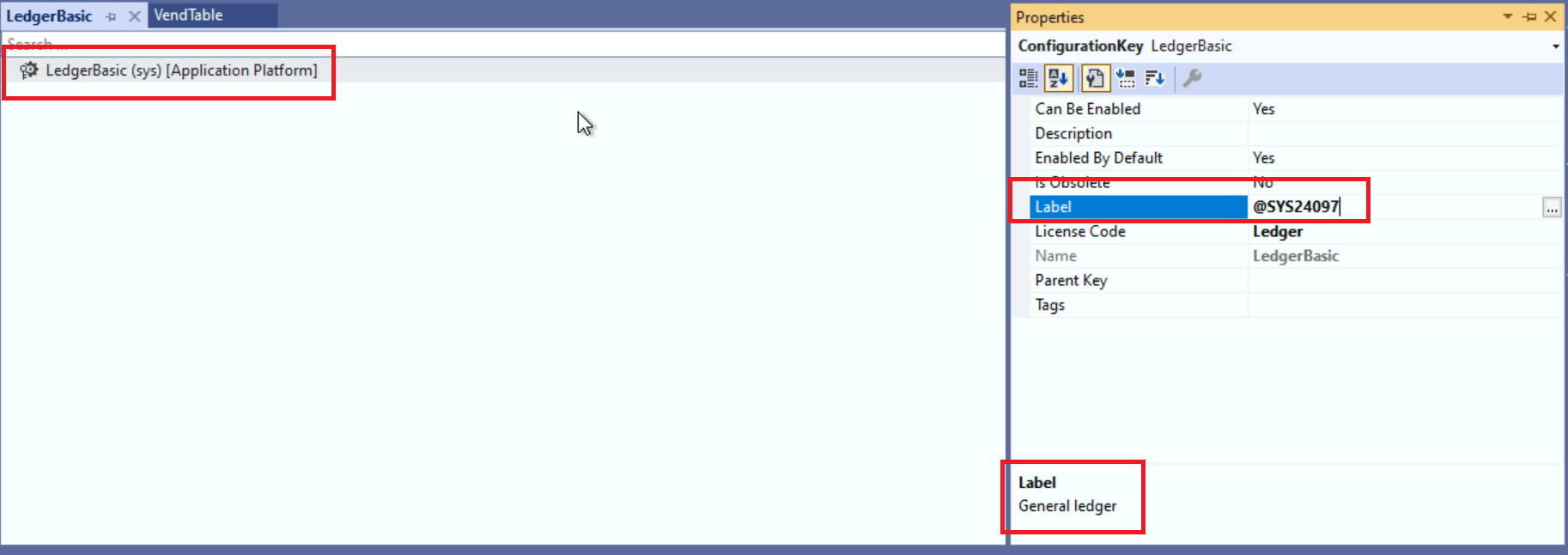
Now, go back to the db log set up and you will find the Vendor Table under the General Ledger section.

Scroll down to search your table name – in my case, I am looking for VendTable alias Vendors

Select the fields which requries the logging.
If you are familiar with the table and field names, the below options can be selected to list all the table (including the custom)
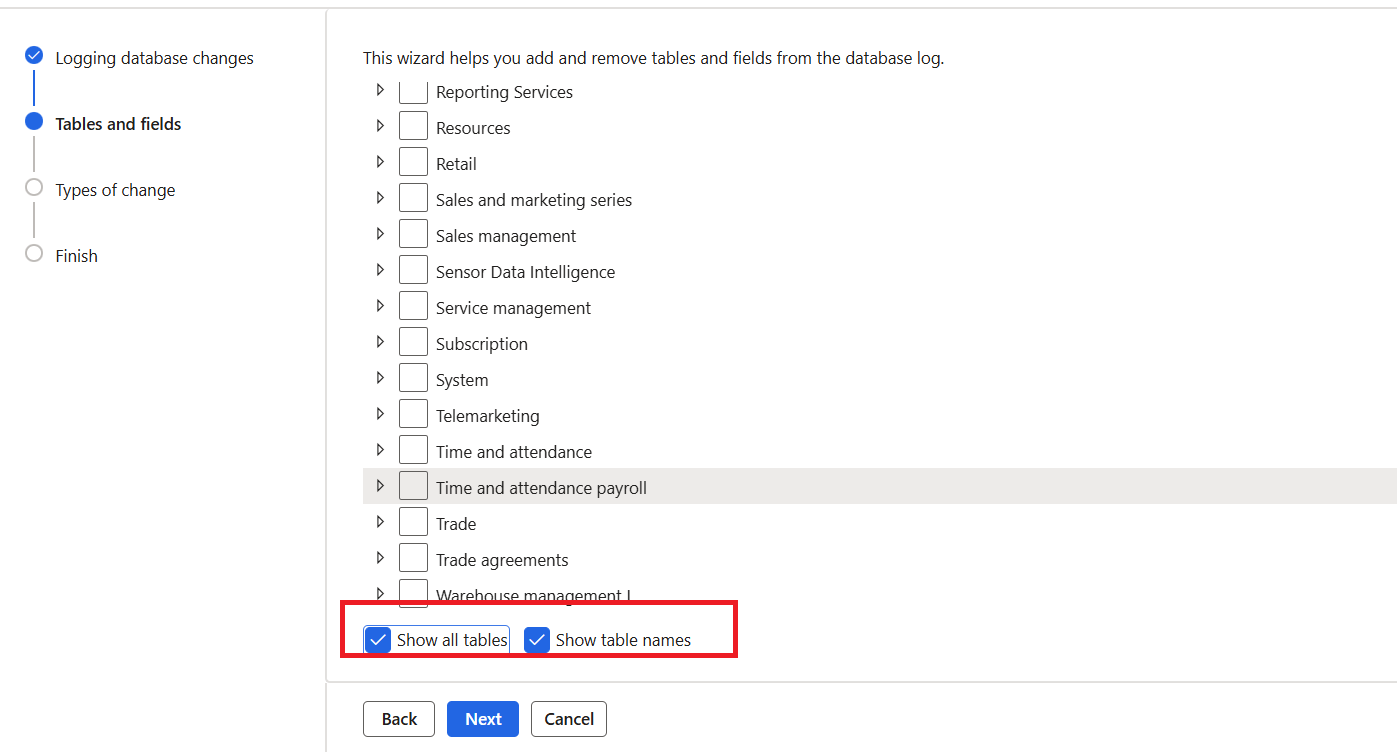
After selecting this option, click Back to return to the previous form, or choose Next to reload the same form—this time displaying the AOT table names and fields. Below is a snapshot of VendTable.”

The next question that naturally comes to mind is how to locate tables that don’t have configuration keys.
For example, the DirPartyTable doesn’t have a config key—so where should you look for it?
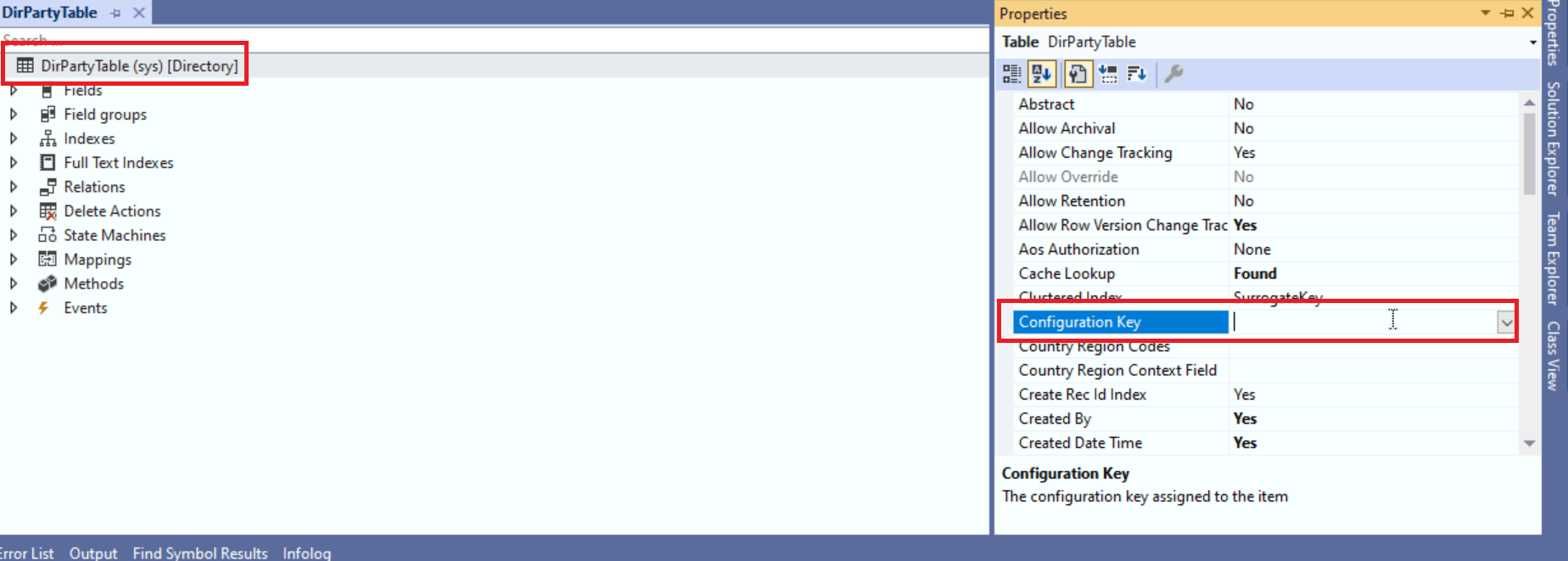
These tables will be listed under ‘Not specified’ section

DirpartyTable under ‘NotSpecified’ menu

Thus, we understood a simpler and more efficient way to identify the required tables—using the AOT and configuration keys as a shortcut, and handling cases where tables don’t have configuration keys.
This approach removes the guesswork, saves valuable time, and ensures you can quickly pinpoint the exact tables and fields you need for logging.
Original Post https://anithasantosh.wordpress.com/2025/12/16/locate-the-tables-in-d365fos-long-list/


