

Now Reading: The Ultimate UDE Playbook — Setting Up Unified Development for Modern D365FO Projects
-
01
The Ultimate UDE Playbook — Setting Up Unified Development for Modern D365FO Projects
The Ultimate UDE Playbook — Setting Up Unified Development for Modern D365FO Projects


Most of us are now familiar with UDE, USE, and UPE in the D365FO ecosystem.
While the foundational setup for these environments remains largely consistent, the screens, navigation paths, and configuration touchpoints continue to evolve with each platform update.
This post revisits the end‑to‑end setup of the Unified Development Environment in D365FO — a timely refresh to help teams stay aligned with the latest interface and configuration changes.
First, login to PPAC and click on Environments. you will see the list of environments if you have already created one.
Click ‘New’
There may be various options presented for environments types based on your subscription.
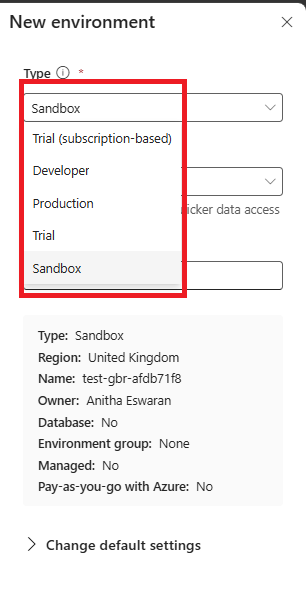
Our goal is to set up ‘Developer’ environment.
Select ‘Sandbox’ .
Choose your region, define the name
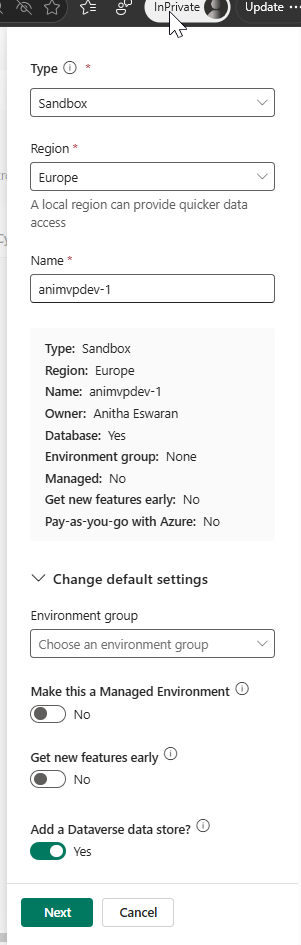
If you don`t enter the name of your choice , the default name presented by the system will be used.

Don`t forget to enable ‘Add a dataverse data store?’
Enabling this option creates a database and you can build apps by using Dataverse as a data store.
Enabling ‘Preview Early features’ lets you create environment that get updates first. Early release cycle environments allow you to validate scenarios that matter to you before updates reach your business-critical apps.
If you dont enable this during configuration, the only option is to move the environment by creating a copy of the existing one. So make sure to enable this if you need to validate the ‘Early Release’ features.
‘Make this a managed environment’ option – brings a suite of premium capabilities that allow admins to manage Power Platform at scale with more control, less effort, and more insights.Certain features can be configured upon enabling a managed environment. Once an environment is managed, it unlocks more features across the Power Platform.
Click ‘Next’

Select the reporting currency as per your organisation set up.
You can choose the CRM domain name – like how I mentioned as ‘animvpcrmdev’ .
‘Security Group’ is mandatory – Select ‘None’ if all the users across the tenant should have access. Else decide on the ‘Restricted access’ option.
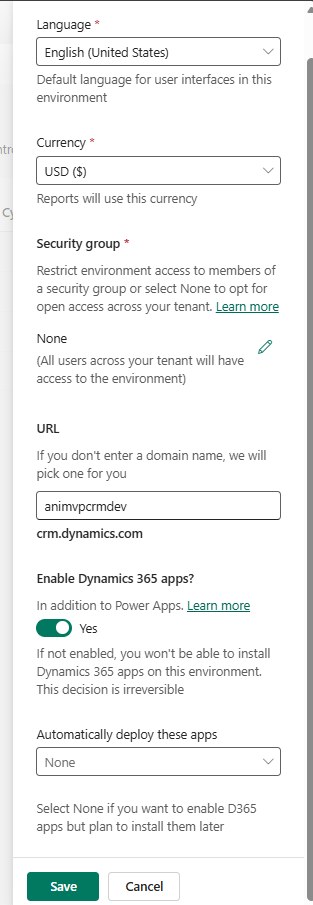
Make sure to select ‘ Enable Dynamics 365 apps’. If not selected, it is not possible to install the Dynamcics environment.
Please note the option cannot be enabled after the environment is prepared and ready.
Leave the option to ‘None’ in ‘Automatically deploy these apps’ . I will show you how to configure the FO tools once the environment is ready.
Click ‘save’.
The environment will be ‘Preparing’ state initially. It shows the ‘Dataverse’ as No till it completes the step.

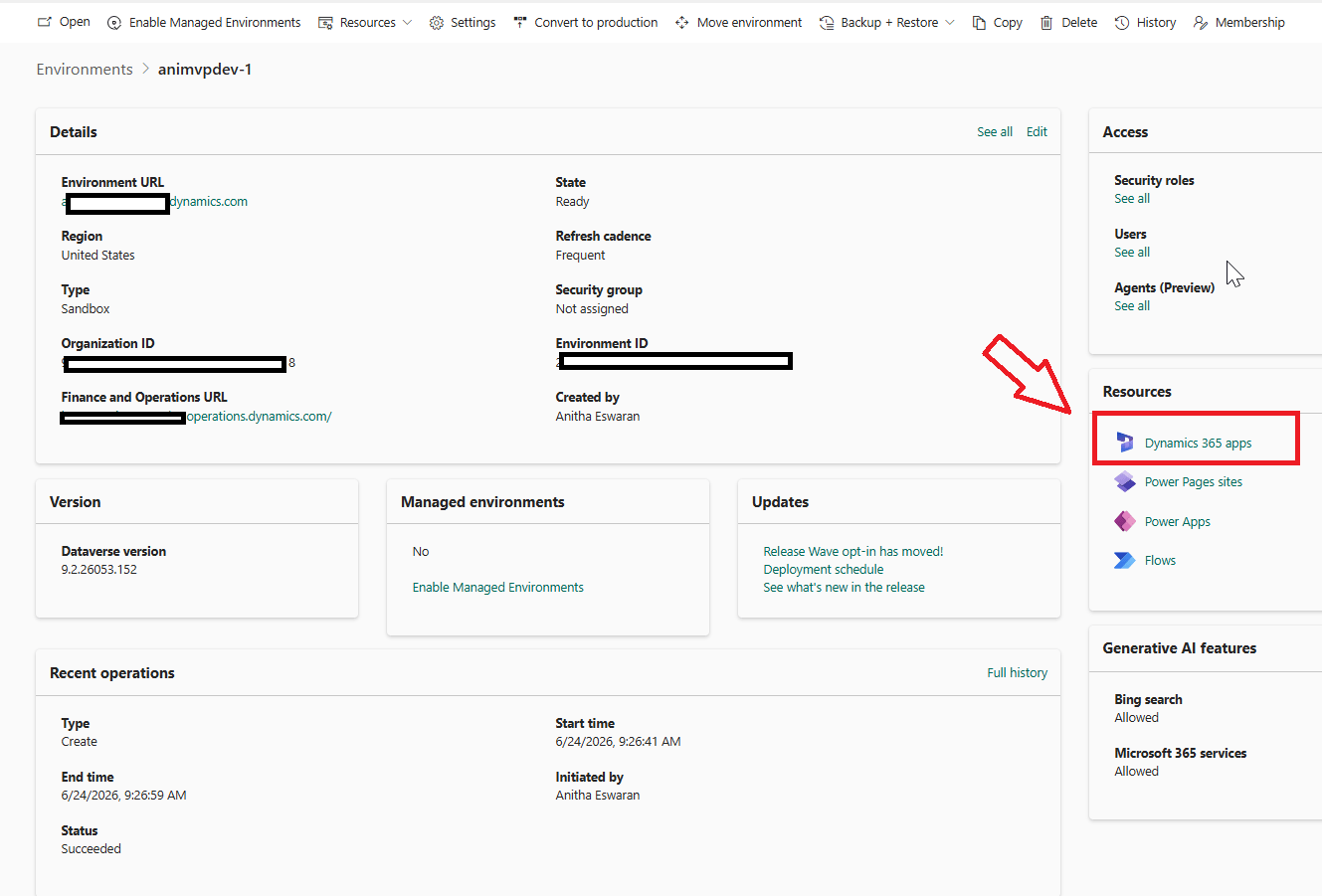
Once the process is completed, the status will be ‘Ready’
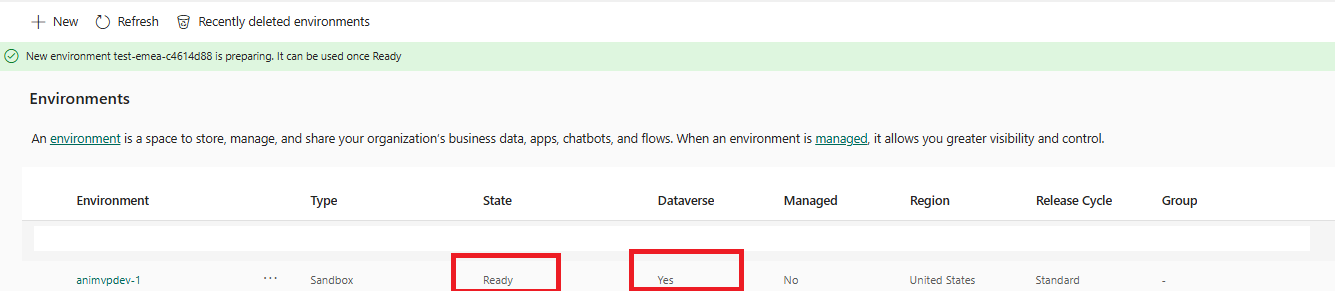
Click on the Environment which takes you to the ‘Detailed’ page. Click on ‘Dynamics 365 apps’
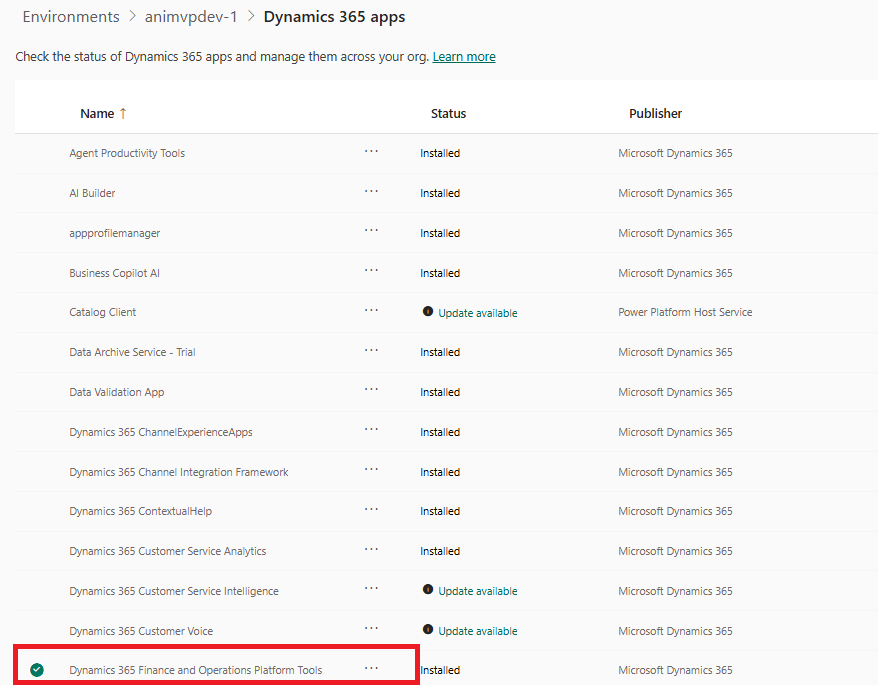
Click on ‘Dynamics 365 Finance and operations Platform tools’ and install.
Once installed, the status can be found from ‘Details’

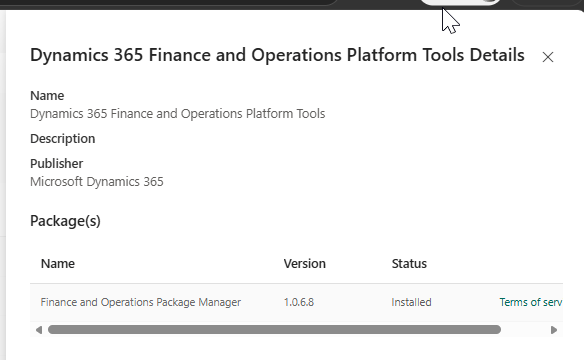
Now the tools are ready, next install the ‘Dynamics 365 Finance and Operations Provisioning App’
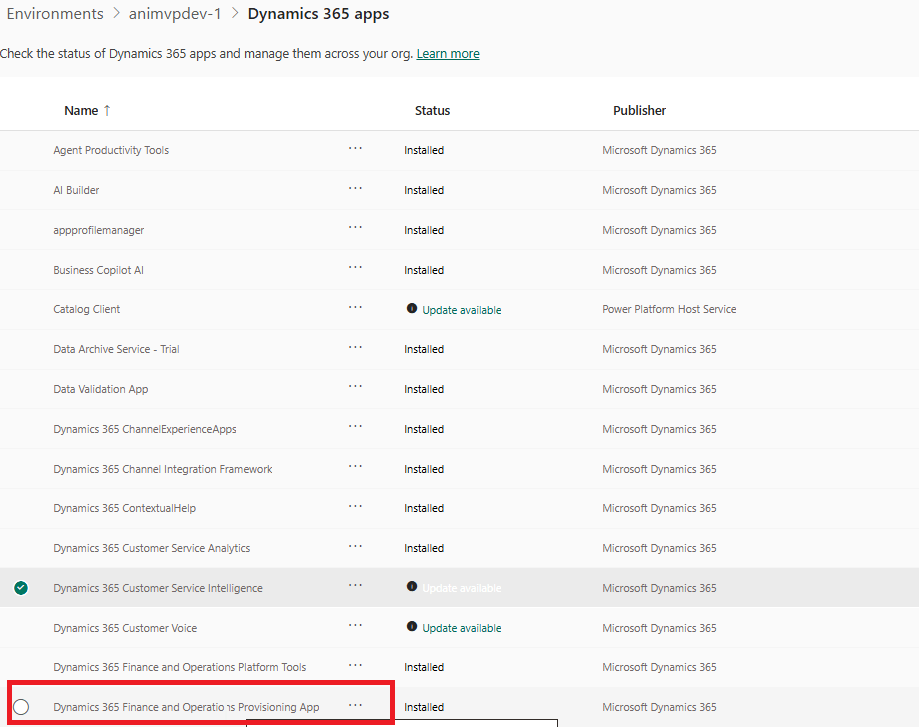
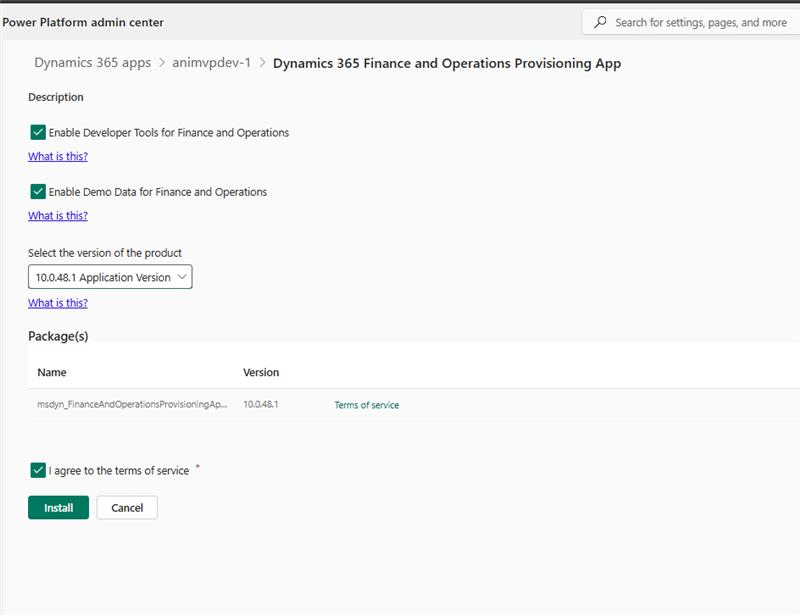
Dont forget to select ‘Enable Developer tools for Finance and Operations’ . this is needed to install the dev set ups in VS.
Also select ‘Enable Demo data for FO’ . you can skip this, if you dont need demo data for your environment.
Select the FO Version.
Click Install after agreeing to ‘Terms and Service’.
The process takes 45 mins to 1 hour to complete. Now our job is done with PPAC screens.
Install Visual Studio
Install VS 2019 or 2022.
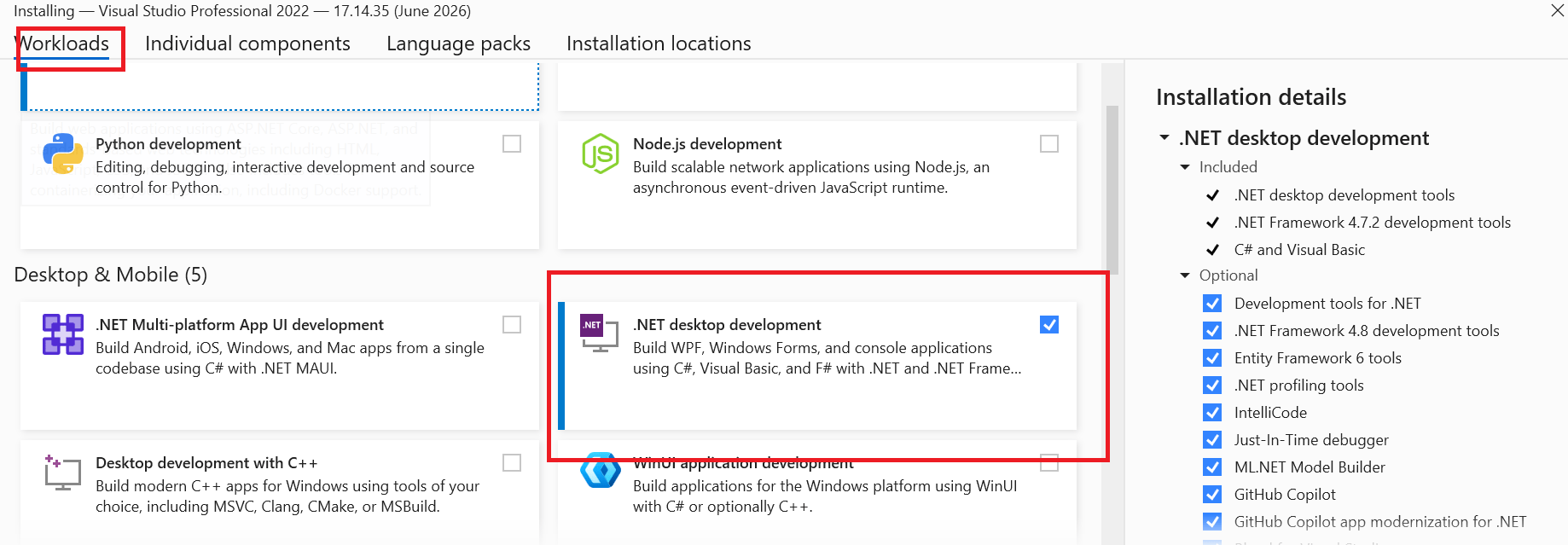
Select ‘.Net desktop development’ from Workloads.
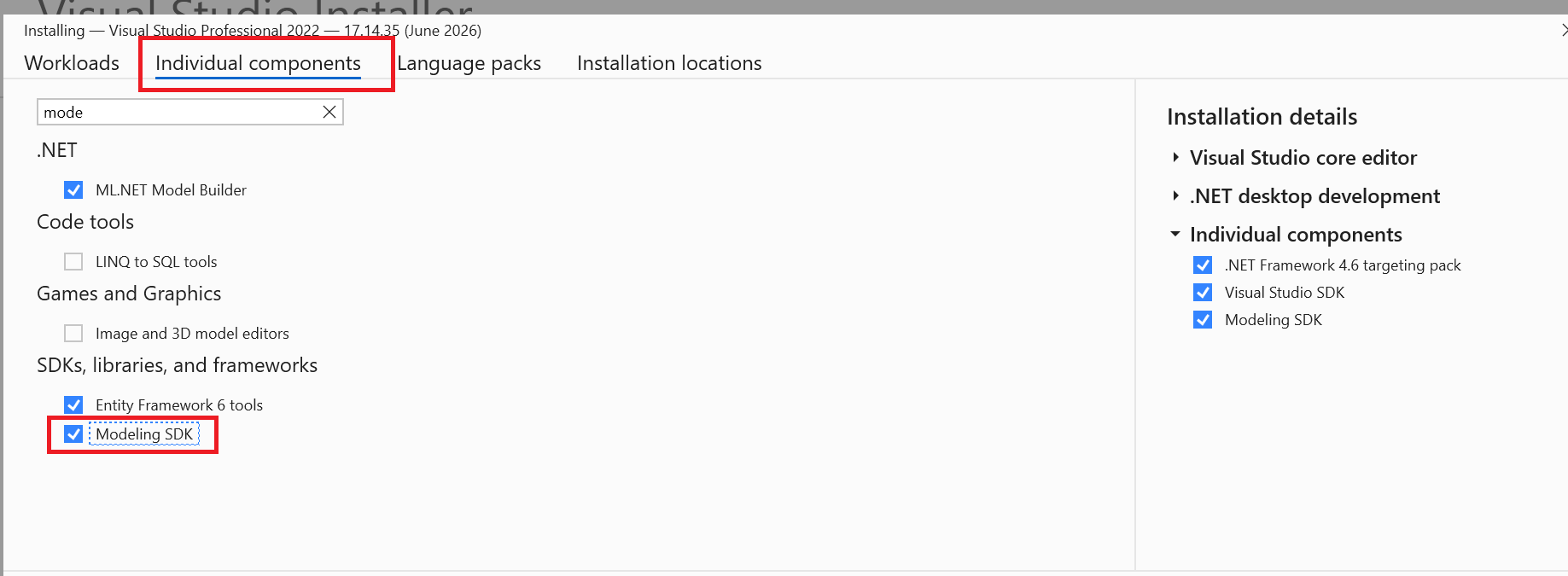
Modeling SDK from Individual components
DGML editor
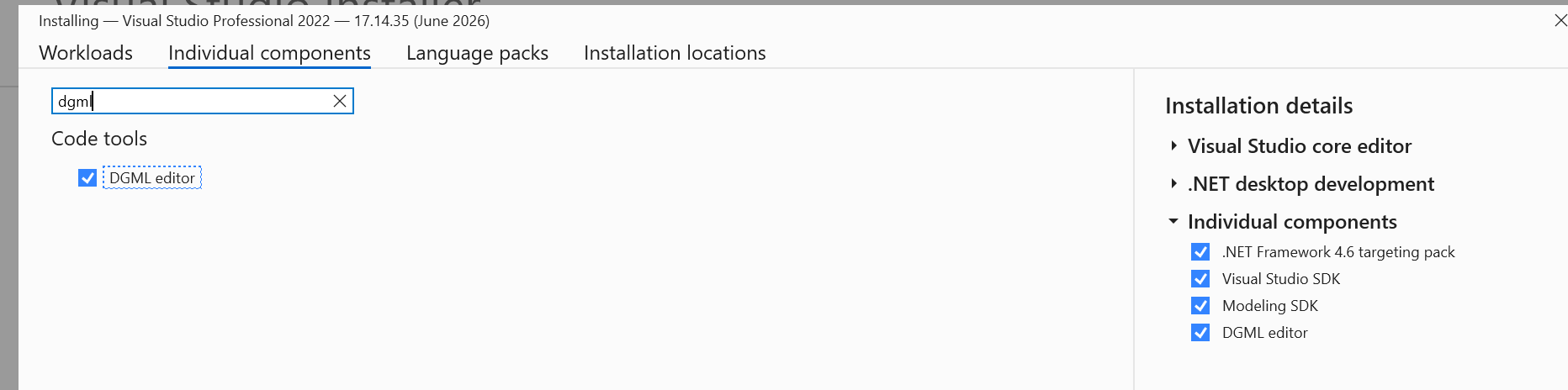
You will the components which are selected for installing on the right side of the VS screen
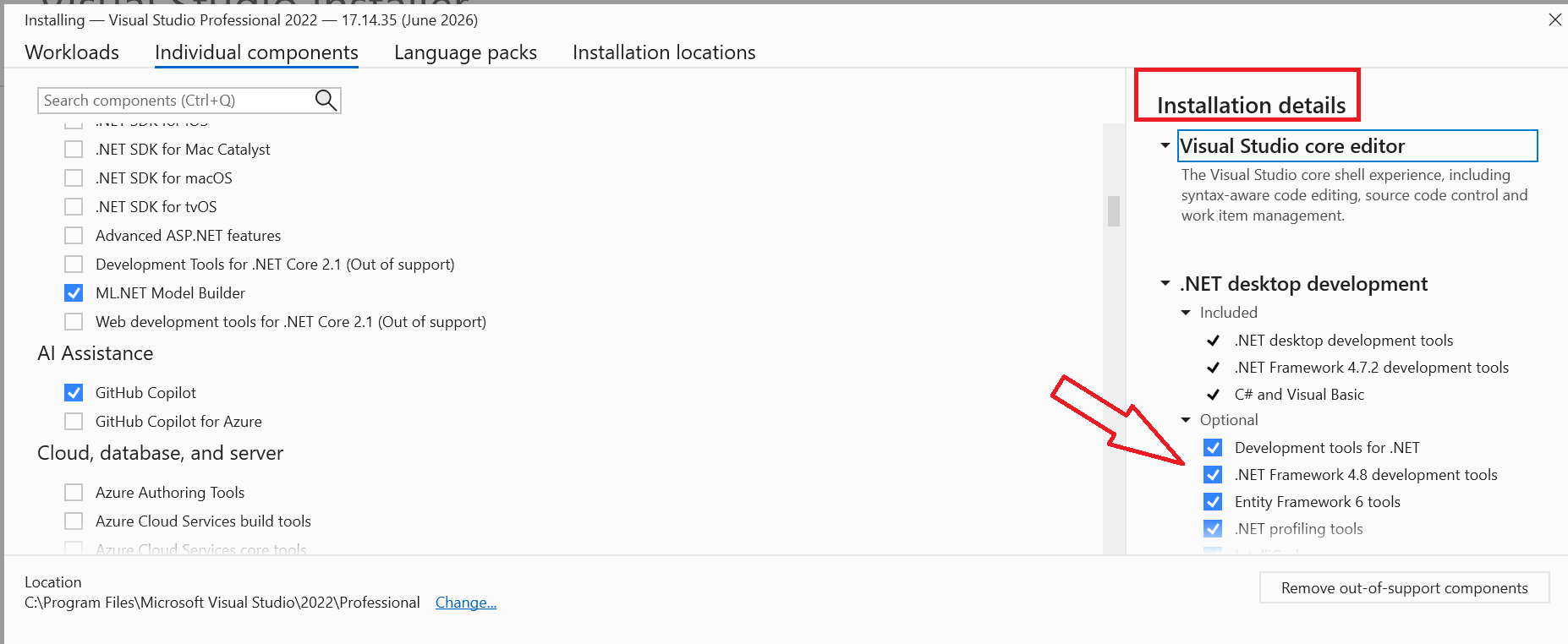
Click ‘Install’ and wait for the installation to complete.
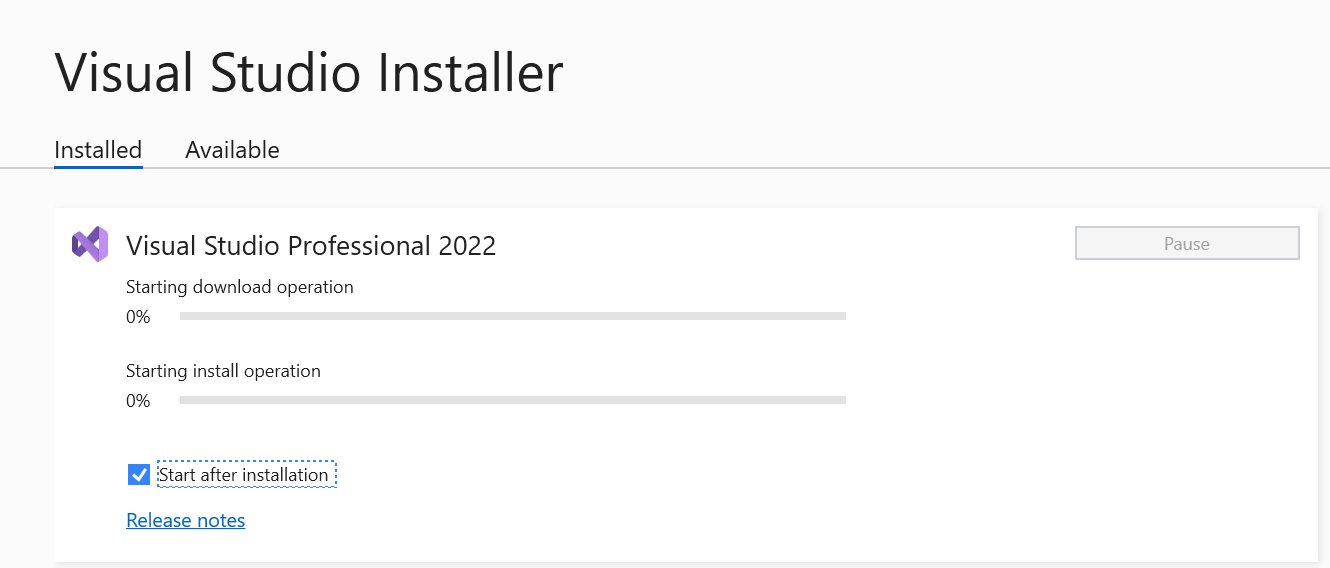
Next we need to install Power Platform Tools into Visual Studio
Refer the MS link for configuring the PP tool
In Visual studio, Extensions menu -> Manage extensions and search for Power Platform. Install the extension
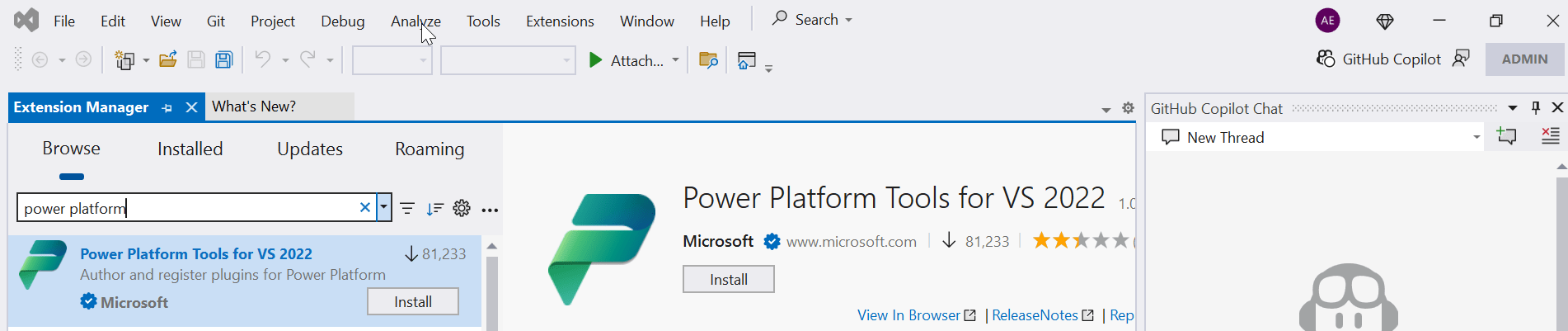
After the extension is installed, it will be in ‘Installed’ tab.

Make sure to restart the VS after this installation completes.
Start Visual Studio, and select Continue without code in the dialog. Optionally, you can open an existing project or create a new one.
Go to tools and you should see the options to connect to FO
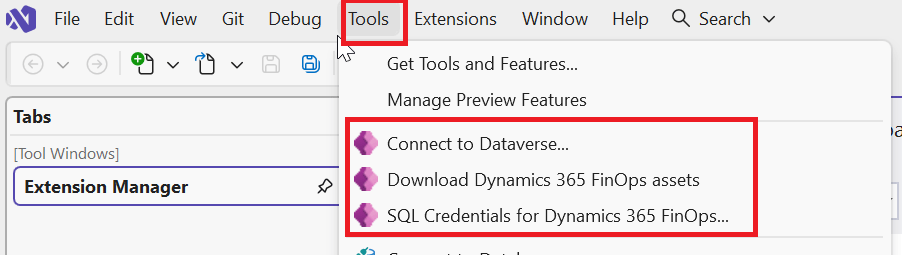
Click ‘Connect to Dataverse’
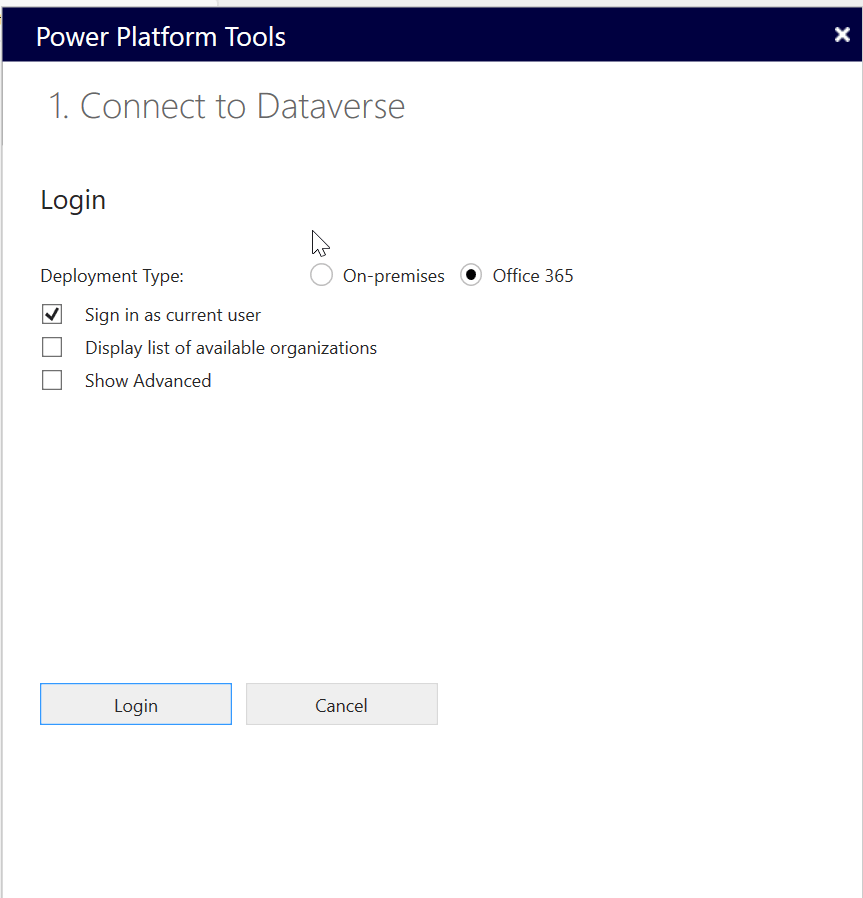
When I selected the above option to ‘Login as current user’ I ended up in error asking for User credentials.
So I selected the second option ‘Display list of organisation’ which listed my environments from where I chose the above environment.
Select the solution. I selected Default.
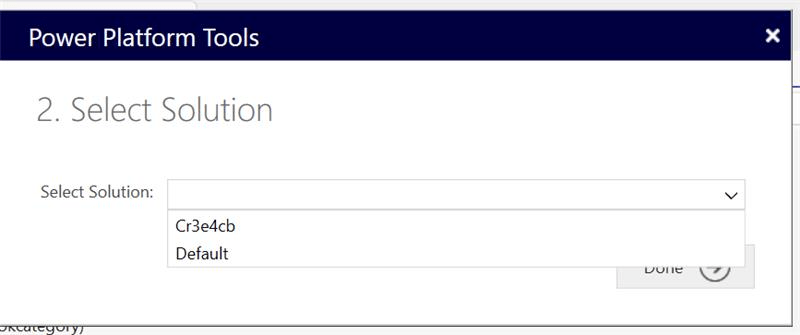
Click ‘Done’ and this completes the connection to Dataverse .
Next in the ‘Tools’ menu -> select ‘Download Dynamics 365 Finops assets’
It takes sometime to download . You can check the assets in
AppDataLocalMicrosoftDynamics365<ApplicationVersion>
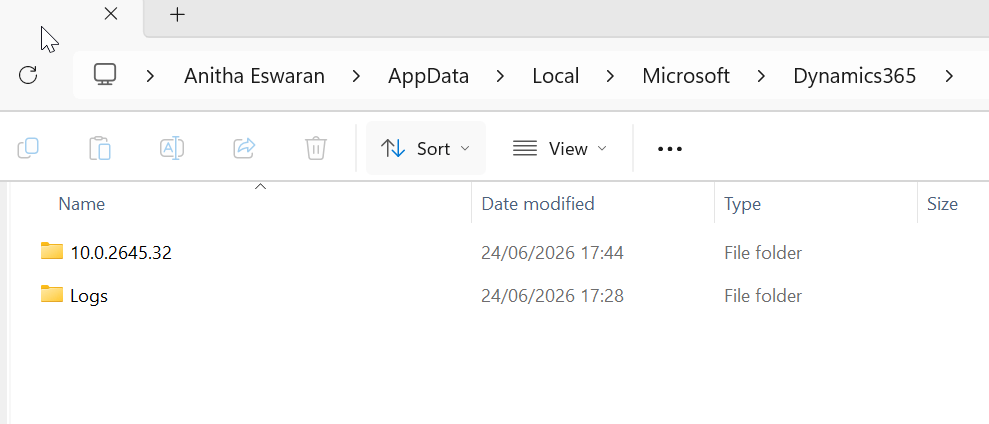
Select the version and run the extension manually.

Wait for the download to complete by checking the progress in ‘Output’ window.
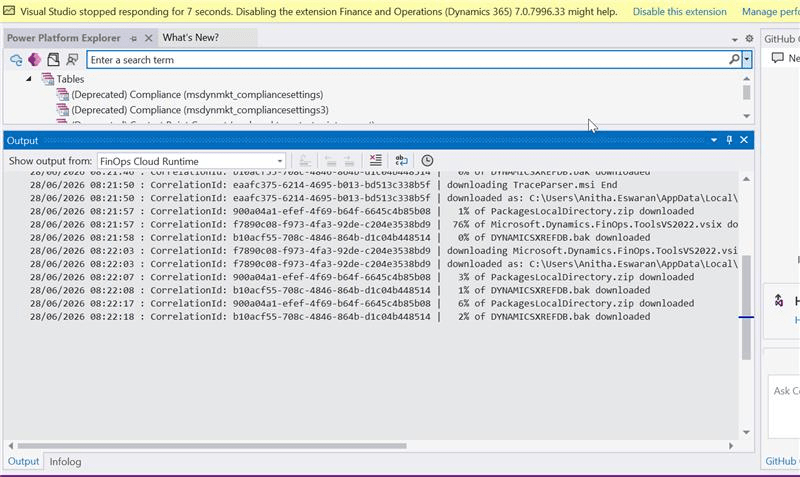
Restart Visual Studio once the download is complete.
Open VS after the installation is complete and Configure Metadata from ‘Extensions -> Dynamics 365 ‘
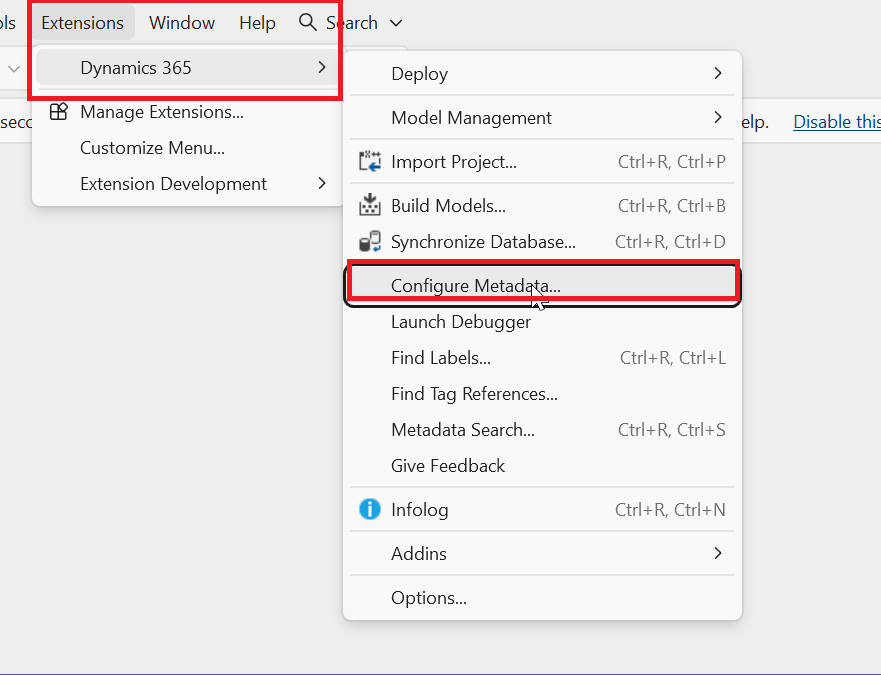
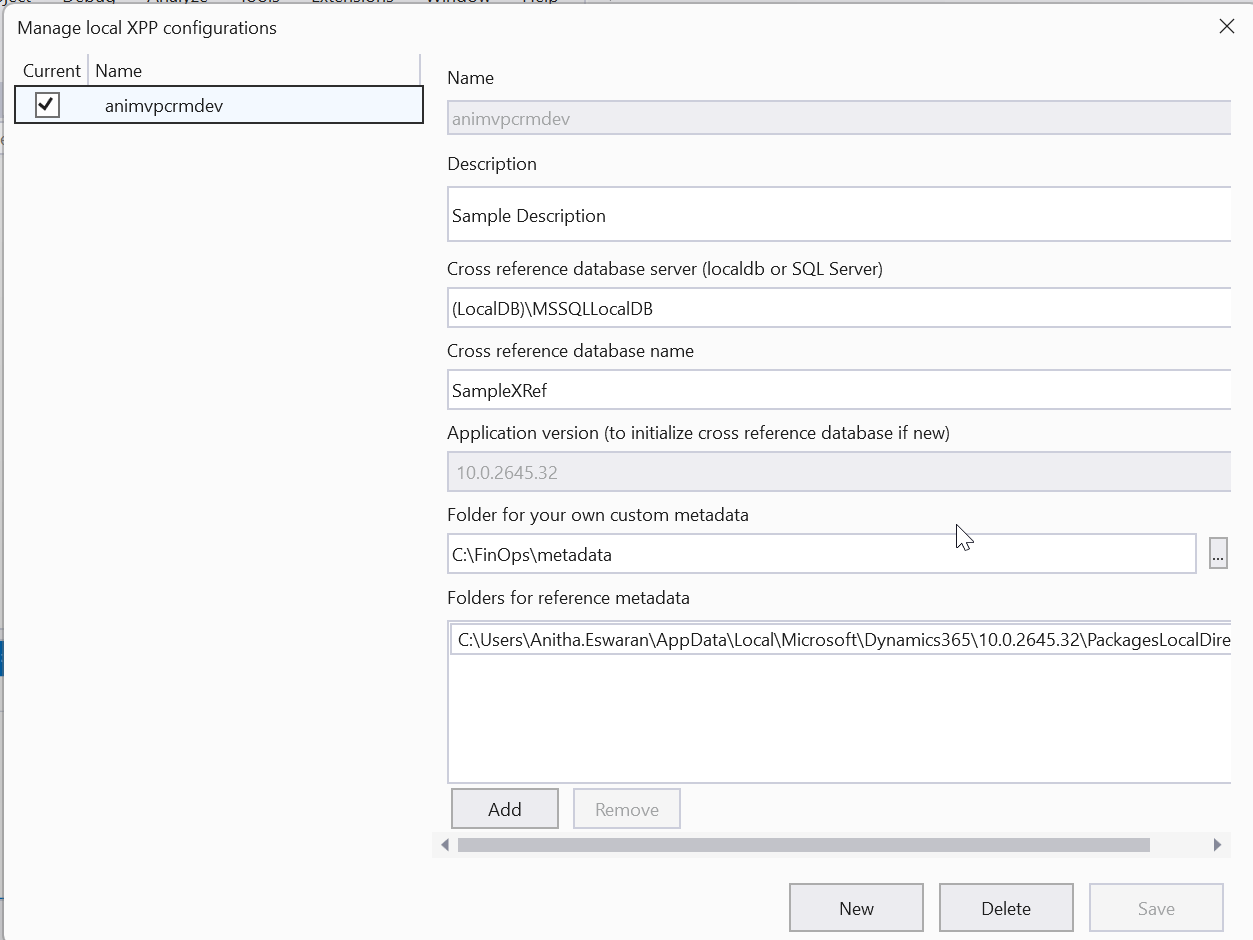
Below window opens with default values
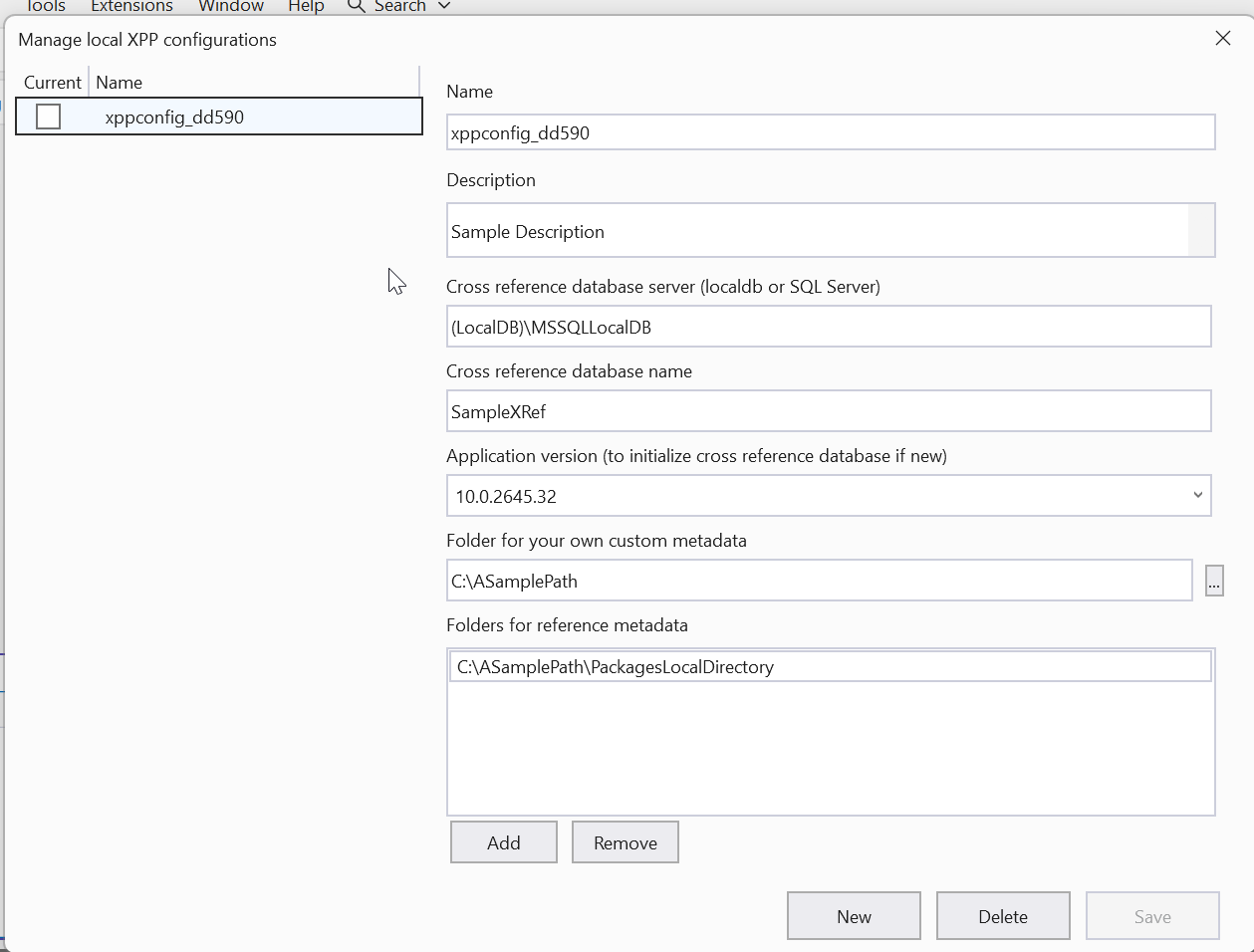
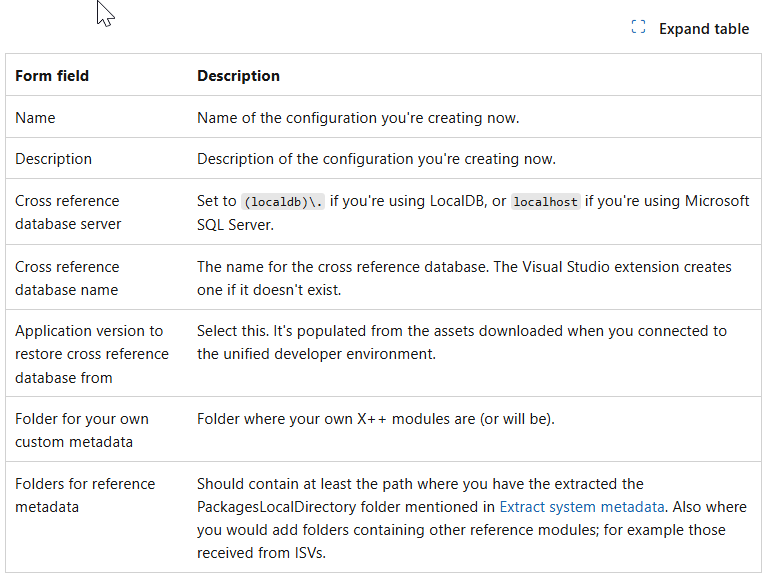
Given below the field descriptions for Configuration form (MS Link)
I modified the description and clicked save.
If you dont select atleast one active configuration, the save click throws error
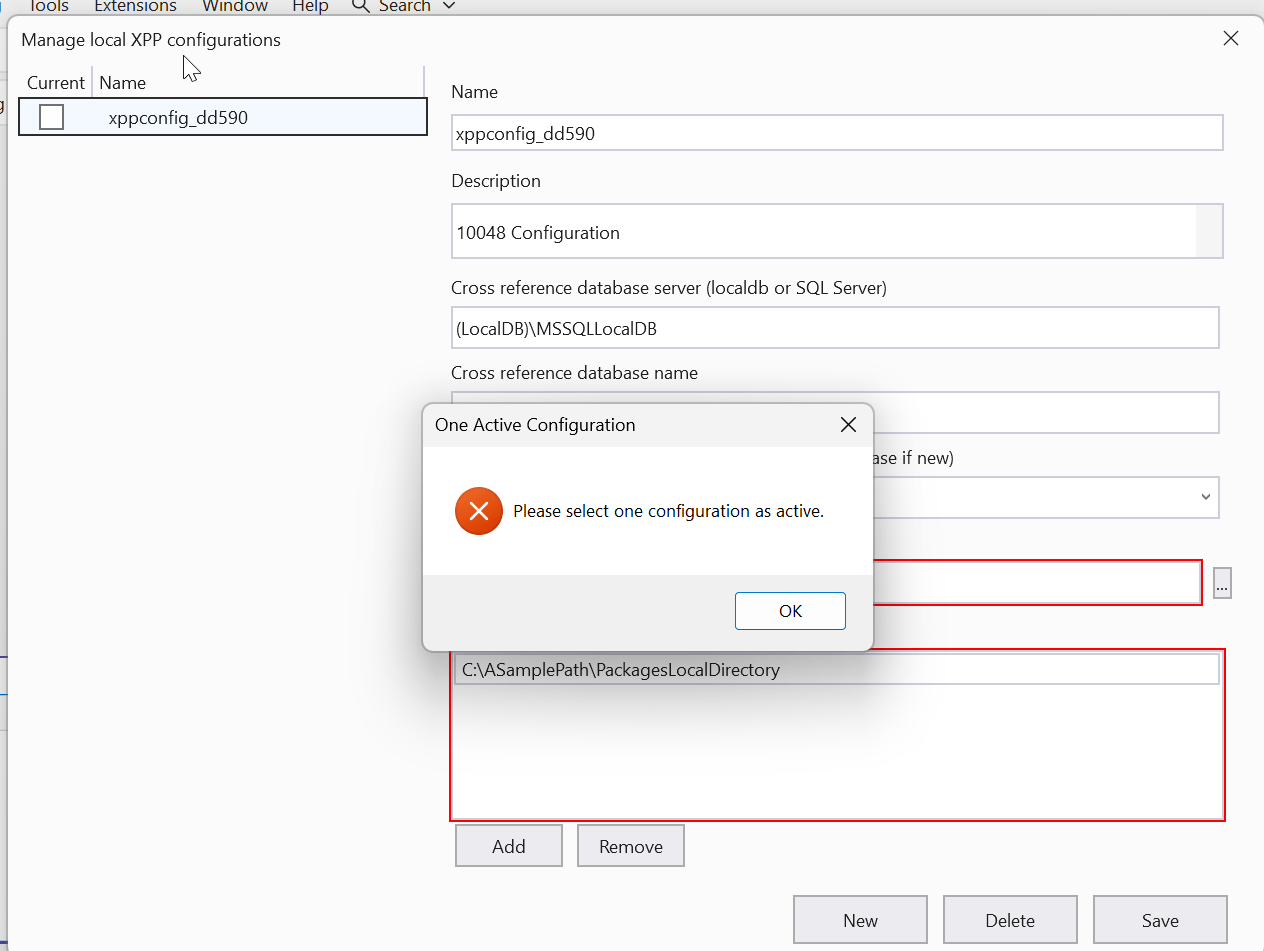
Now I am able to save
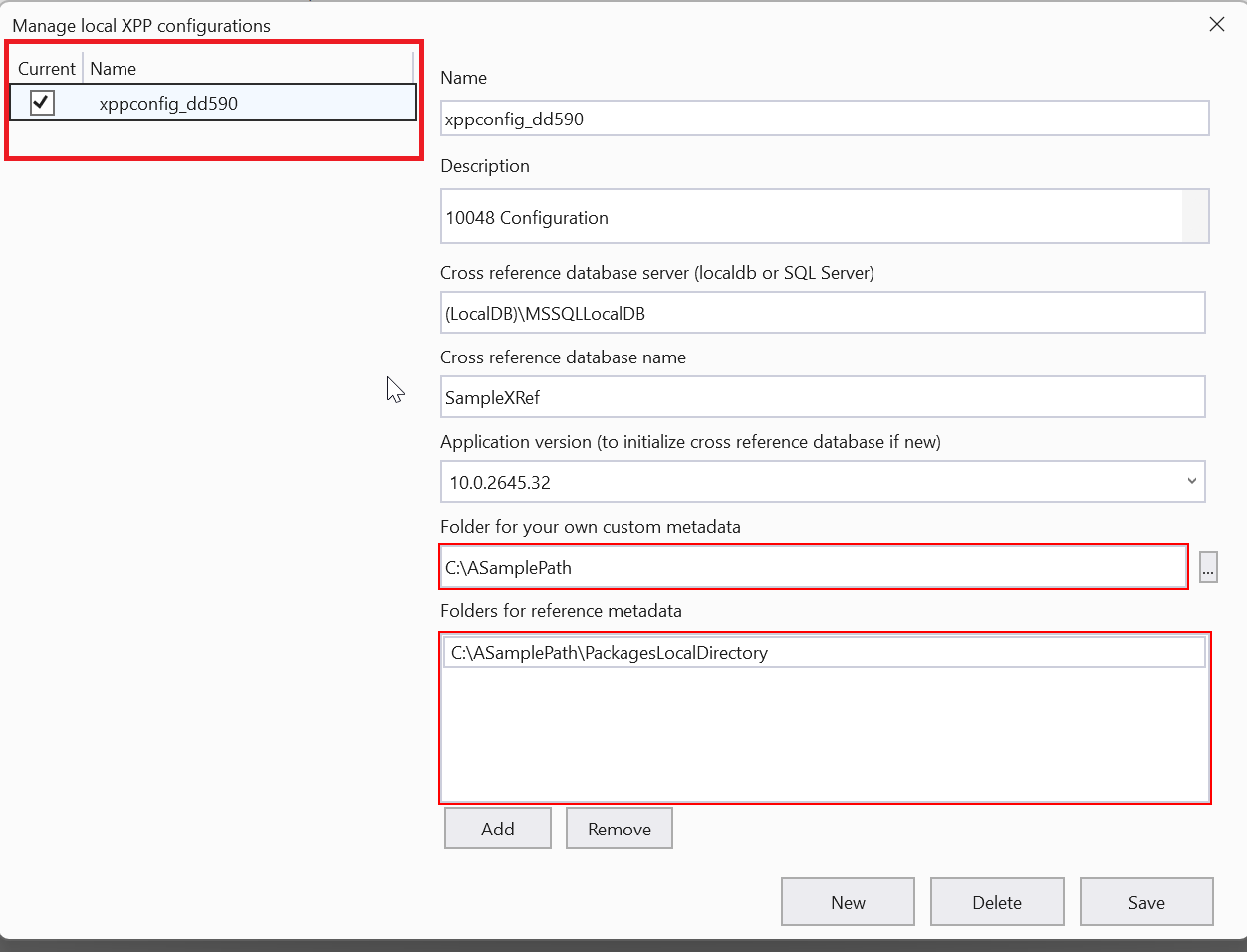
Ensure that you entered the correct values for fields with errors. For example, if you have invalid path, the boxes will be highlighted
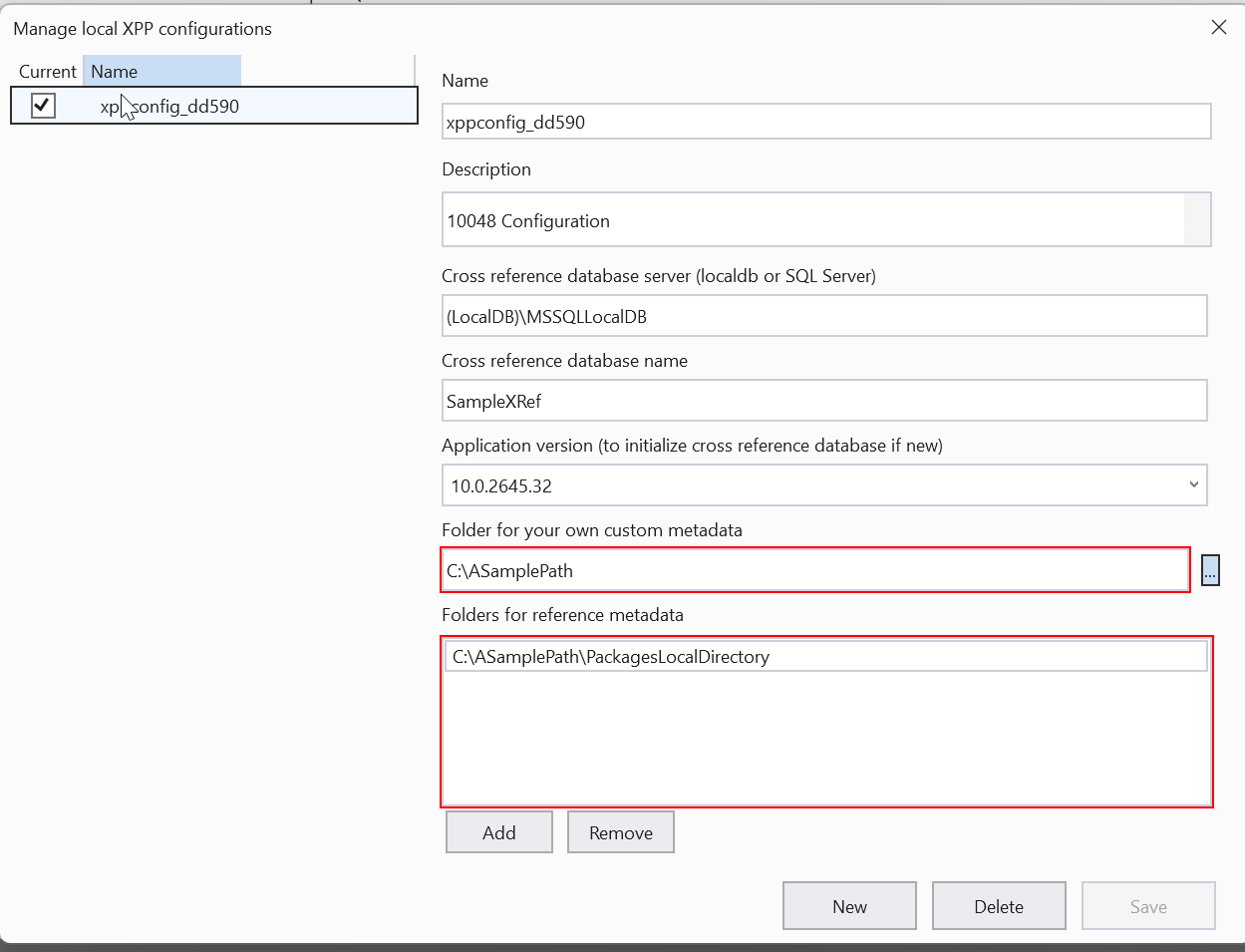
Corrected
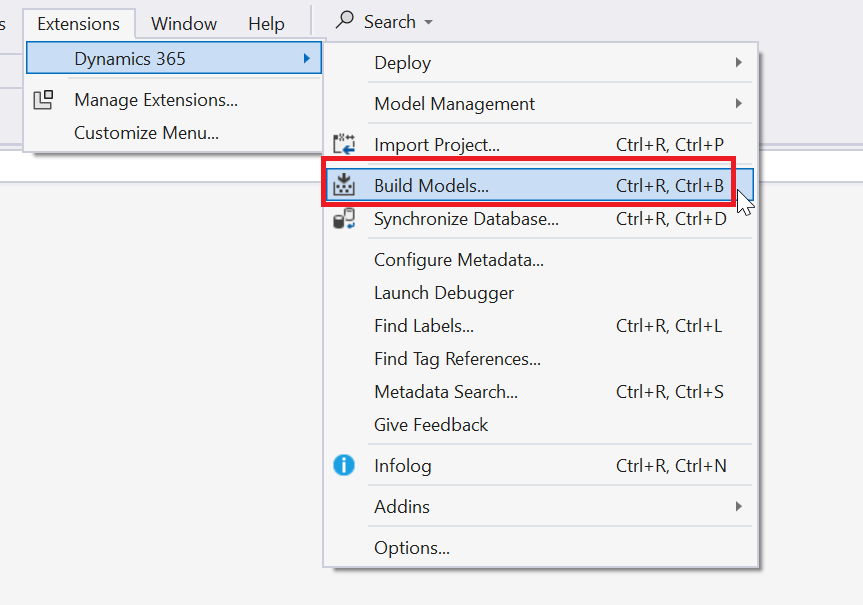
Trigger Build models and select all the models. Followed by Sync.
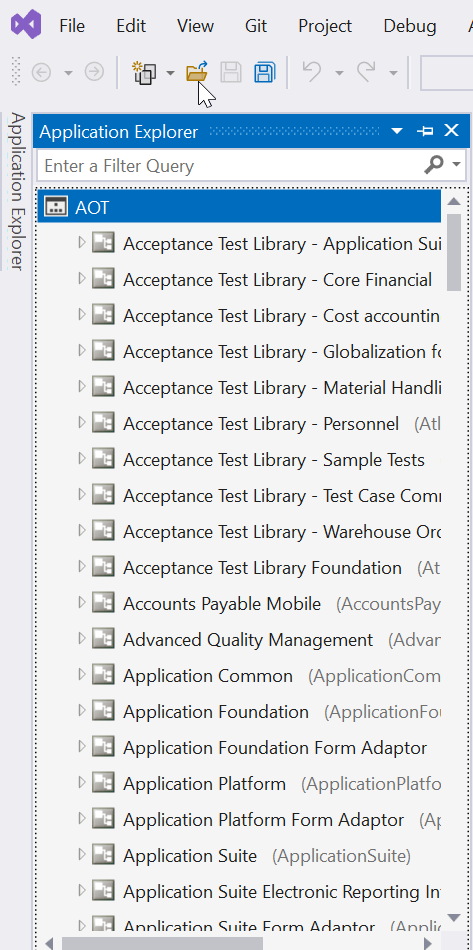
You can view the elements in ‘Application Explorer’
And that concludes our long post. Hope you found it useful (I am finding useful too as this post will be my quick reference to recollect the steps.)
Todays thought – Dont be the same – Be better everyday.


