

If you are already using Copilot via an M365 Copilot license and it is helping you in productivity already – you might want to take it a step further and enable it to also bring in your Dynamics 365 CE data together – be in Project Operations, Field Service, Sales, Customer Service etc.
Examples: Copilot is helping me with my emails, SharePoint files – summarizing and triaging information. But have to still log into Dynamics 365 to get work done. Well, by default this is not enabled for organizations and ready to use but your Admin team can help you enable this.
Make sure the users who will use this have an M365 Copilot license assigned to them and you have the right Admin privileges across M365, Power Platform Admin Center, Azure and Teams Development Portal.
Let’s see it how and make it work!
Step 1 – Register an App in Microsoft Entra
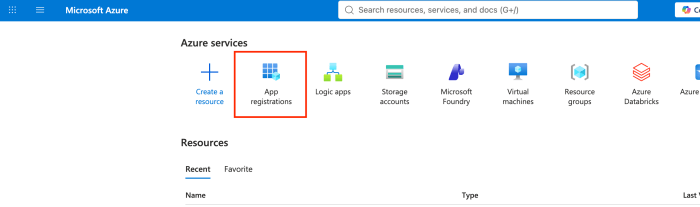
Give you have the right access to Azure with permissions, you need to create a new App Registration and follow the steps along –
- Add a new App Registration in Azure Portal.

- Then, enter the Name and select Web in the Redirect URI [https://teams.microsoft.com/api/platform/v1.0/oAuthRedirect]

- Once the App is registered. Save the App Registration ID and Tenant ID.
- Then, navigate to the Certificates & secrets. And add a new Client Secret there.

- Now, store the value before you refresh the page. You’ll need the Secret Value.

- Now, go to API Permissions as below.

- Select Dynamics 365 CRM and mcp.tools as Delegated access.
Then, grant the permissions.

And finally, Grant the permissions as below.

And check that the Permission is granted.

Step 2 – Allow the App on the Dataverse MCP Server using Power Platform Admin Center
- Given you have Dynamics 365 Admin privileges, navigate to Power Platform Admin Center. Navigate to your environment and look for Features under Settings.

- Then, navigate to Data Model Context Protocol and make sure Allow MCP clients to interact with Dataverse MCP server (GA version) is enabled. [Based on when you are reading this blog, the mention of version might change]
Click on Advanced Settings which will take you in Dynamics CE to.

- Click on new MCP Client.

- You already have the Application ID from Azure’s App Registration. Copy it as you’ll need it here.
Then, enter register the App Registration as an MCP Client here. Give it a suitable name, but also make sure to add prefix yourself. I just added “new_”
Set Is Enabled to Yes. Save the record.
This is set now.
Step 3 – Register the OAuth Connection in Teams Developer Portal
You need to register the OAuth Endpoint here.
- Navigate to Tools as shown and then select OAuth Registration.

- Register a new client. This will be similar to App Registrations you’ve used to doing before. Just that the information is to be borrowed from the App Registration on Azure we did above.
Click Register client.
- Fill in the details as asked

- Once created, copy the Reg ID. You’ll need this in the Reference ID asked in the Microsoft Copilot Portal below.

Here, you are now ready to consume this to create a new Custom Connector in M365 Admin Center’s Copilot area. Let’s see ahead.
Step 3 – Create the Connector in Microsoft 365 Admin Center
Given that you are an M365 Global Administrator, you need to now deploy this as a Custom Connector in M365 Admin Center under Copilot –
- Go to M365 Admin Center [https://admin.cloud.microsoft/]. Then, expand Copilot on the left hand pane and look for Connectors.

- Register your Connector. Enter the name and the info like the URL, and Description which are mandatory.

- Further, add more details as asked and the copied Reference ID from Teams Developer Portal app is to be pasted here. Refer Step 3 and point #3 from above.
Now, click Authorize.
- Then, click Authorize again. It should go through and show as below. Then click, Create at the bottom.

Once created, it’ll be available like this.

Now, let’s roll it out to the users!
Step 5 – Roll it out to your Users
Now, let’s roll it out to the users. Follow the steps below –
- Navigate to the Copilot area in the the left hand pane. Look for Connectors, under Your Connections, wait for a bit for the list to refresh. You’ll find yours there. Click on the three dots and then click Add Staging.

It takes a few mins for this to be available to the selected users.
Step 6 – Connect from Copilot Chat
Now, let’s test!
- In your Copilot Chat, look for the gear icon next to your profile, then navigate to Settings.

- Look for Sources, you’ll see list of Connectors available.

- Search for your Connector there and it’ll show up. Once you find it, click Connect on the Connector. It’ll authenticate you in.

- Click Continue and you should be connected in a moment.

- Then, you can also look at what tools are available for you to use.

And you are all set. Let’s test.
Query your CRM data here!
Now, you can start by querying your CRM data here – just ask anything from the environment and validate if it is returning correct answers. Involve System Admins and the ones who deployed if you need to further fine tune your Connector.
Hope this was helpful!
Here are some more Dataverse and Copilot posts you want to check out –
- Code Apps for Dataverse – Part 1
- Code Apps for Dataverse – Part 2
- Finding Indexed Columns in Dataverse Search
- Time and Expense Agent [Production Ready Preview] – Part 1
- Enable Copilot for Dynamics 365 Sales environment
- Create Project Plan using Copilot in Project Operations
- Environment Groups in Power Platform Admin Center
And some popular Power Automate posts –
- Select the item based on a key value using Filter Array in Power Automate
- Select values from an array using Select action in a Power Automate Flow
- Call a Flow from Canvas Power App and get back response | Power Platform
- Parsing Outputs of a List Rows action using Parse JSON in a Flow
- Asynchronous HTTP Response from a Flow | Power Automate
- Converting JSON to XML and XML to JSON in a Flow | Power Automate
Thank you!