



In some business scenarios, we might need to update the Business Process Flow (BPF) stage of a record during an Excel import — especially during data migration or bulk record manipulation. In this blog post, we’ll walk through how to set a desired BPF stage (based on the stage name) and automatically move the record to that stage using Power Automate.
We’re working with a custom Dataverse table called Test(cr1a7_test) and a Business Process Flow named My Business Process Flow, which includes the following stages:
“select processidname,stagename, processstageid from processstage where processid = [processGUID]”
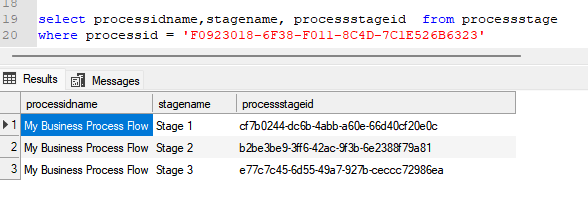
Our goal is to allow users to specify the stage name (e.g., “Stage 2”) through Excel import, and have a Power Automate flow update the record’s BPF instance to the corresponding stage automatically.
For this –
- We’ll add a field called the Desired BPF Stage choice field on our table to store the desired stage name.
- We’ll create a Power Automate flow that triggers on create or update.
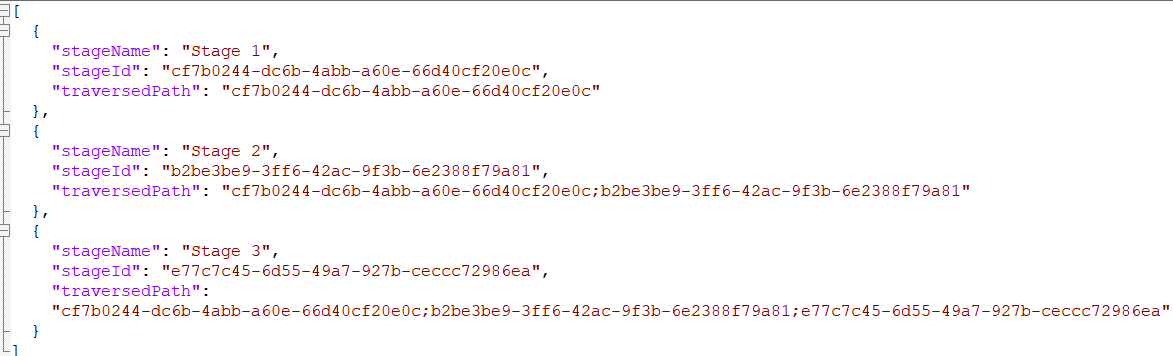
- We’ll maintain a static JSON mapping of stage names to stage IDs and their traversed paths.
- We’ll look up the corresponding stage ID and traversed path from the JSON.
- We’ll fetch the BPF instance for the record.
- We’ll update the BPF instance with the new active stage and traversed path.
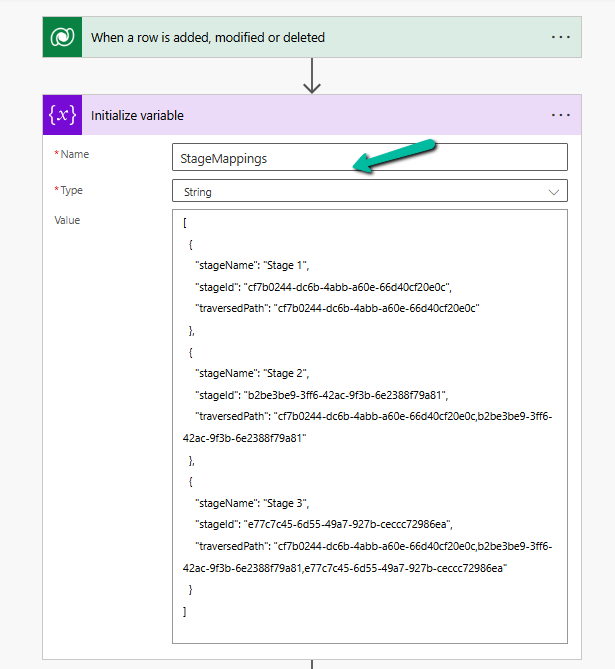
Below is how we can define our JSON structure for mapping, which we will store either in a variable inside Power Automate or save as an environment variable.
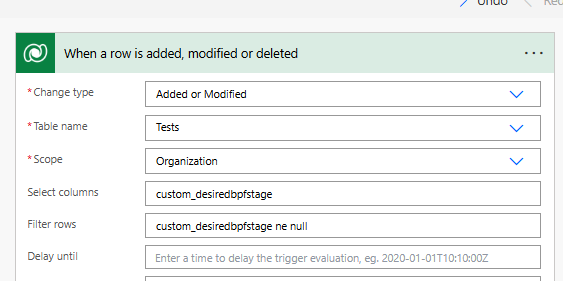
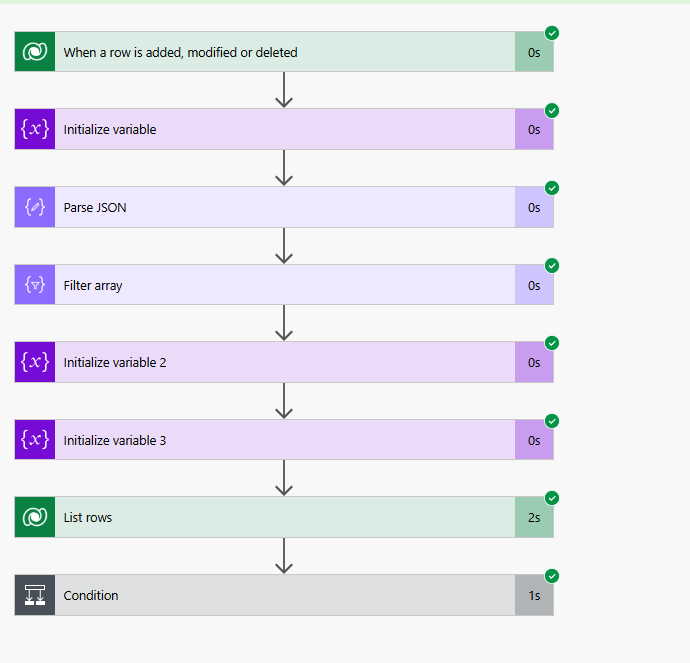
Trigger – When a row is added or modified.
Initialize Variable with JSON mapping
Parse JSON – using the sample data

Use a “Filter array” action to find the object where stageName matches custom_desiredbpfstage.

Initialize variables to store the Stage ID and traversed path.
- first(body(‘Filter_array’))?[‘stageId’]
- first(body(‘Filter_array’))?[‘traversedPath’]
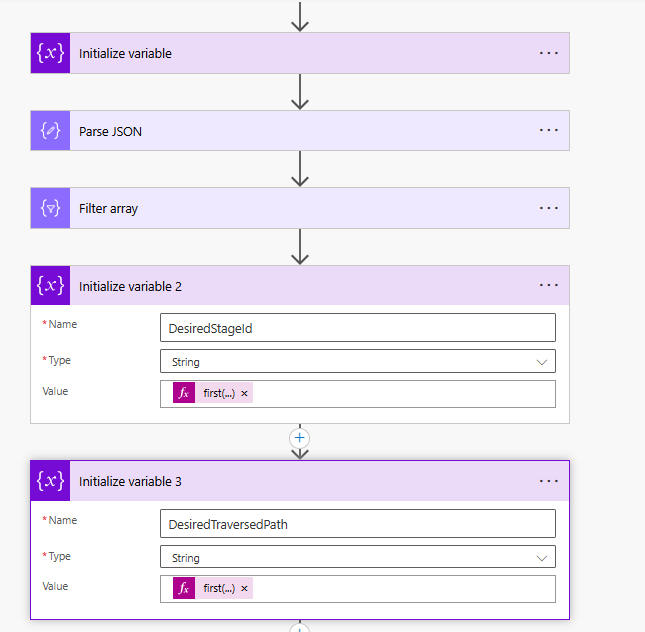
Use List Rows to check if BPF Instance exists or not, if not we will create it or update it.
- length(outputs(‘List_rows’)?[‘body/value’]) > 0

Update or Create a new BPF instance associated with the record.

Below we can see the user specifying the Stage 3 value for the Desired BPF Stage column in the Excel to be imported.
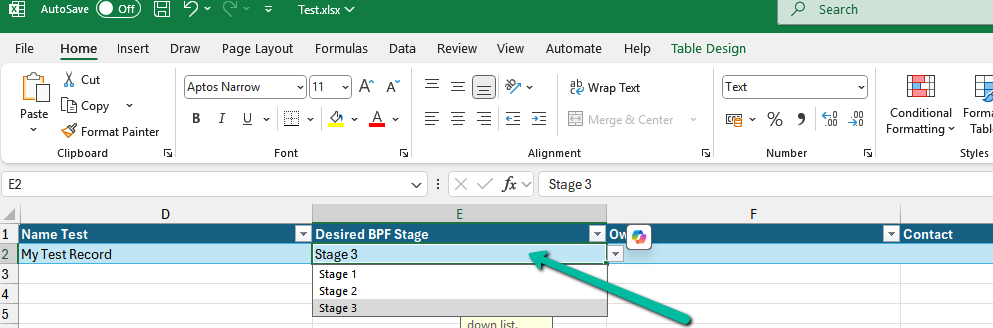
We can see the Excel imported successfully.

Below we can see our flow running successfully.
And the record in Stage 3 of the BPF.

Hope it helps..
Discover more from Nishant Rana’s Weblog
Subscribe to get the latest posts sent to your email.
Share It –

