



Double Opt-In is a two-step process for email subscription:
- The contact fills out a subscription form (initial opt-in).
- They receive an email with a confirmation link. Only after clicking that link is their subscription considered confirmed (final opt-in).
This process ensures that the person who signed up wants to hear from us—and that the email address is valid.
Enable the Double Opt-In Feature
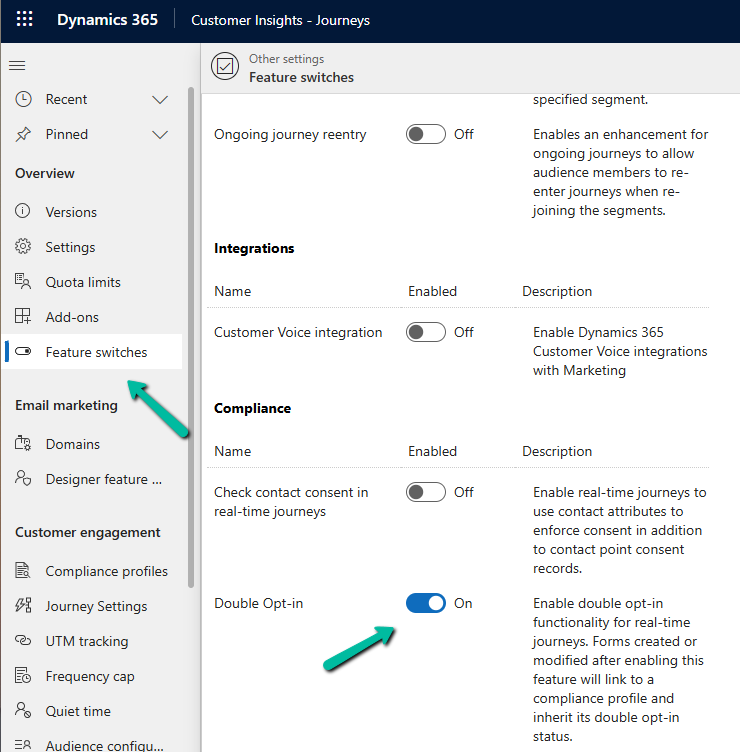
Below is how we can enable it in Dynamics 365 Customer Insights – Journey
Go to Settings > Feature Switches > Compliance (Double Opt-In)
Create or Configure a Compliance Profile
The Compliance Profile is what governs how consent is collected and managed in real-time marketing.
Go to Settings > Customer engagement > Compliance profiles
Here we will enable it in the existing default compliance profile. We can have different compliance profiles for different regions, languages, or purposes.
Navigate to the Double opt-in tab.
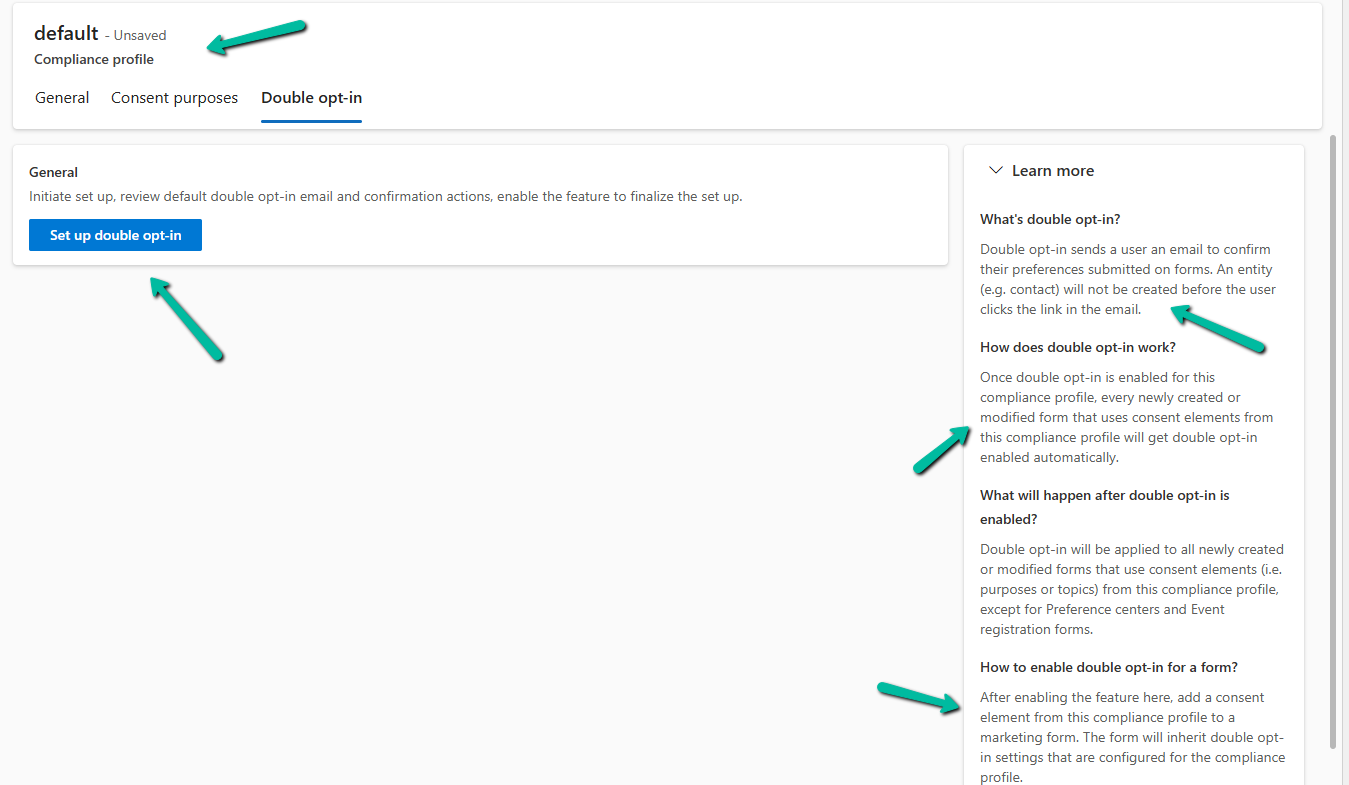
As part of the setup, the system creates the Double opt-in email and the journey required as part of the process for that particular compliance profile.

We can see it configured after a few minutes.
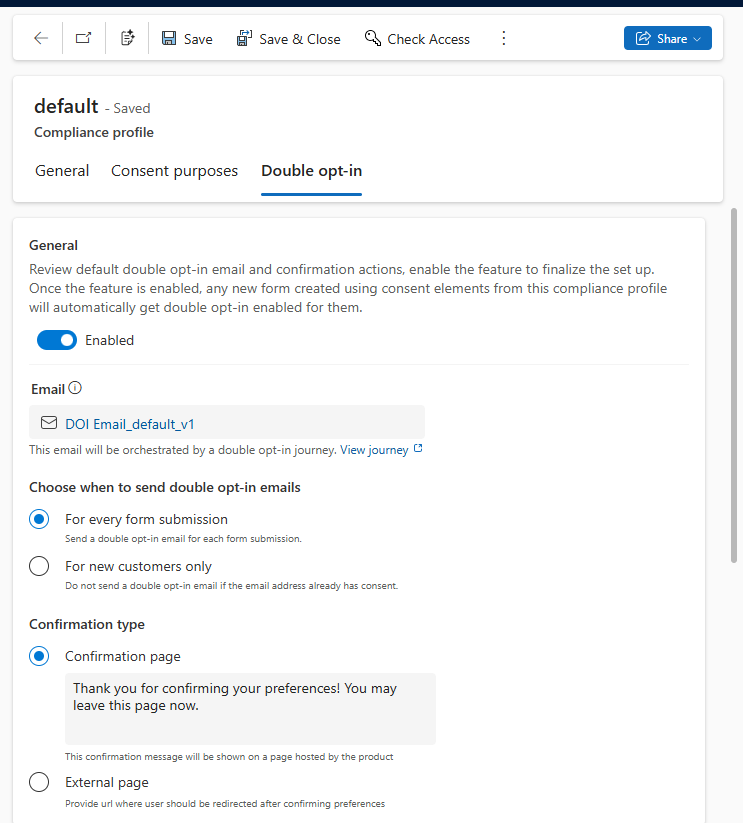
Below is the email created by the system that will be used for the journey generated. Notice its state will be Ready to Send.

Similarly, we will have the journey created, with Status = Live.

Link Compliance Profile to the Form
Open an existing marketing form or create a new one.
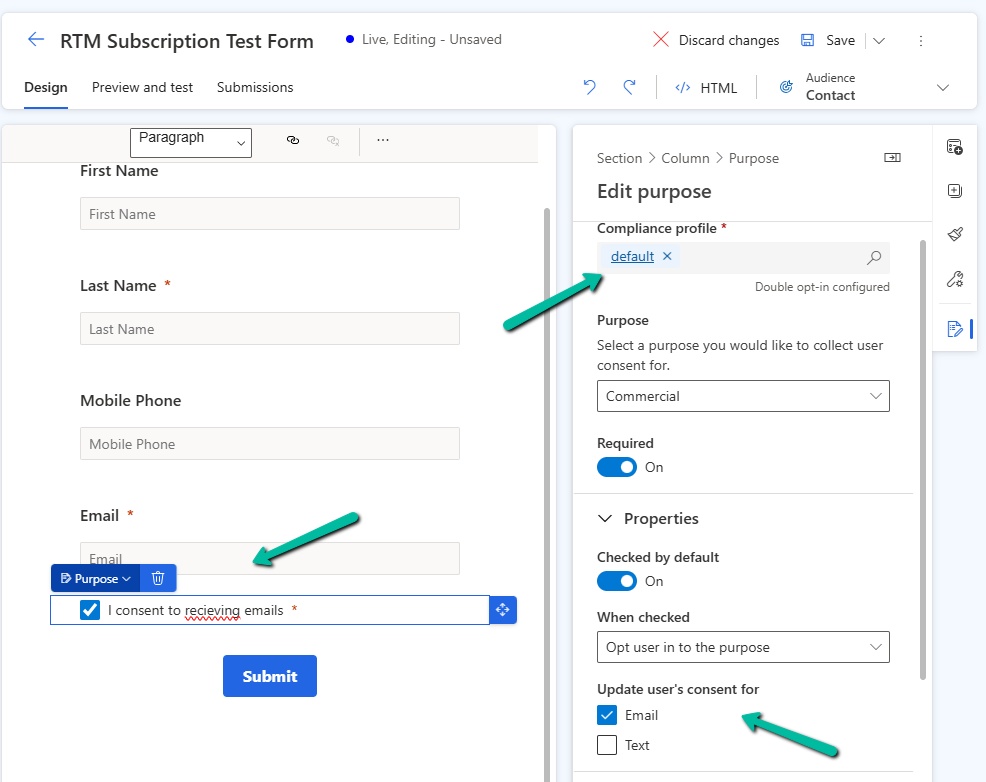
In the form editor, drag a Consent field.
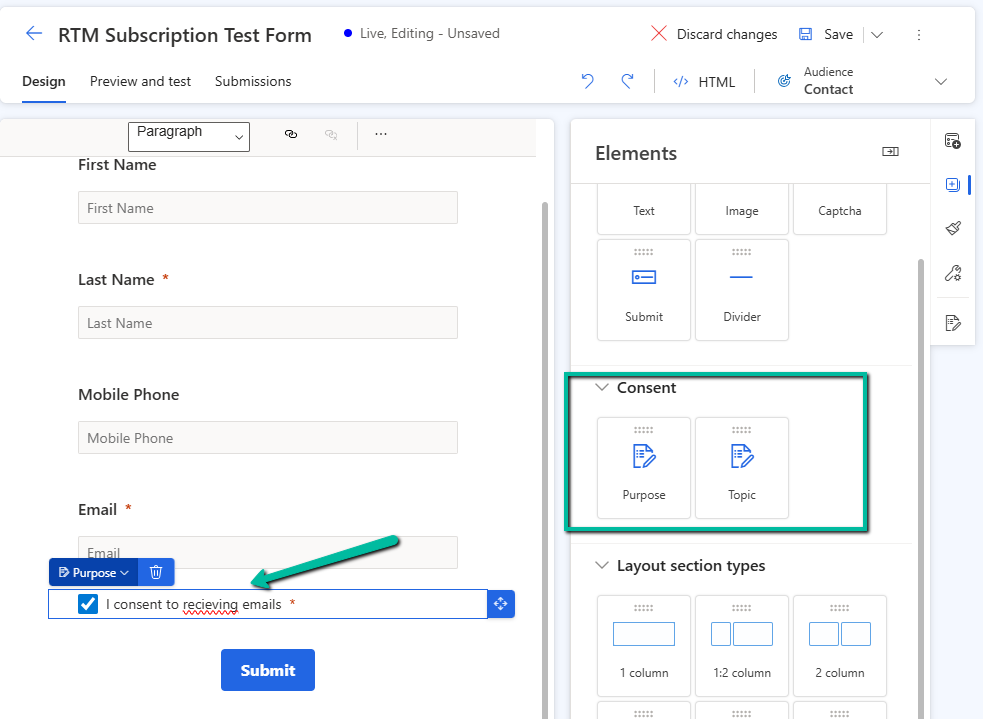
In the property pane for the Consent element, select the compliance profile (default one in our case), specify the purpose, and other required properties.
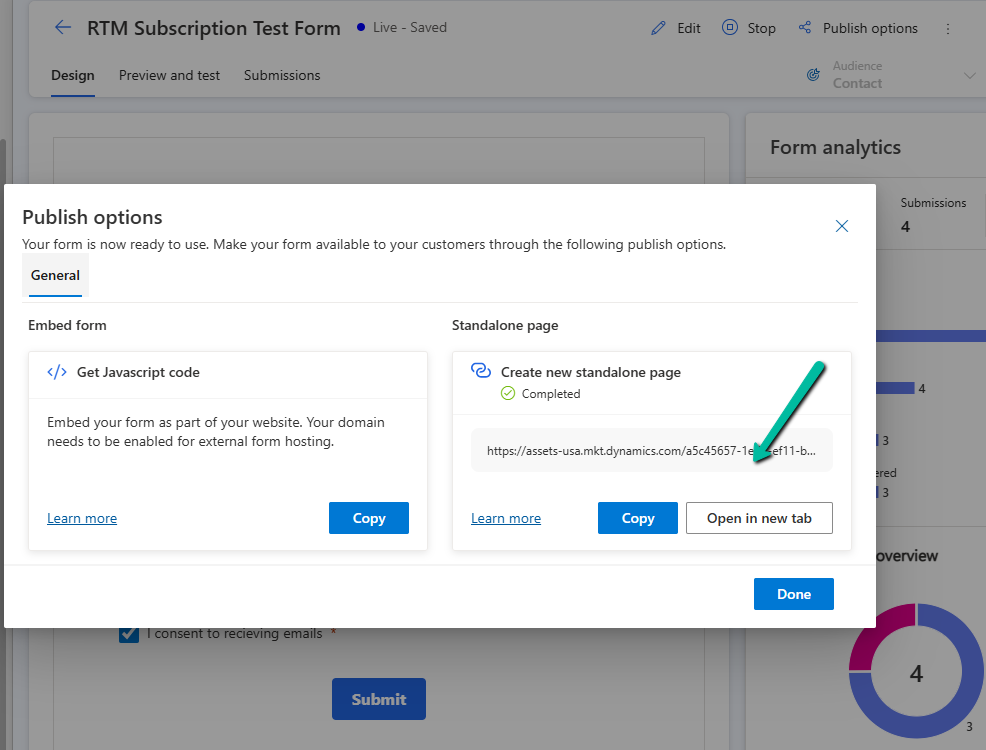
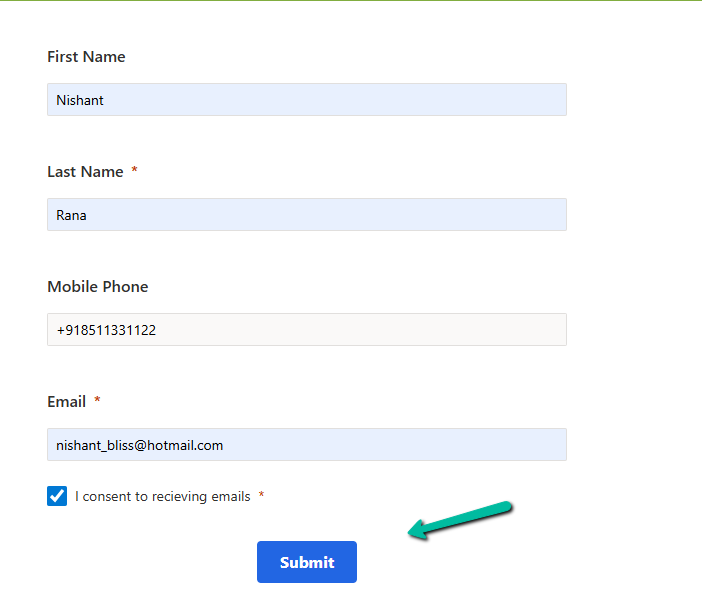
To see it in action let us submit the form using the standalone page.

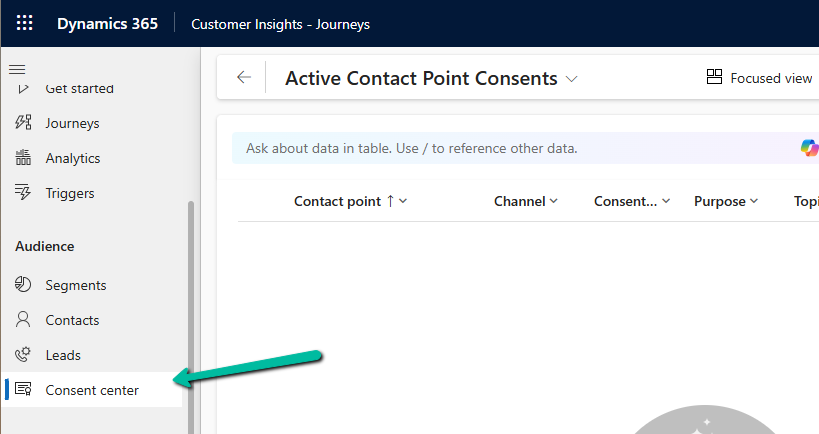
Till this point, we do not see any contact point consent record created.
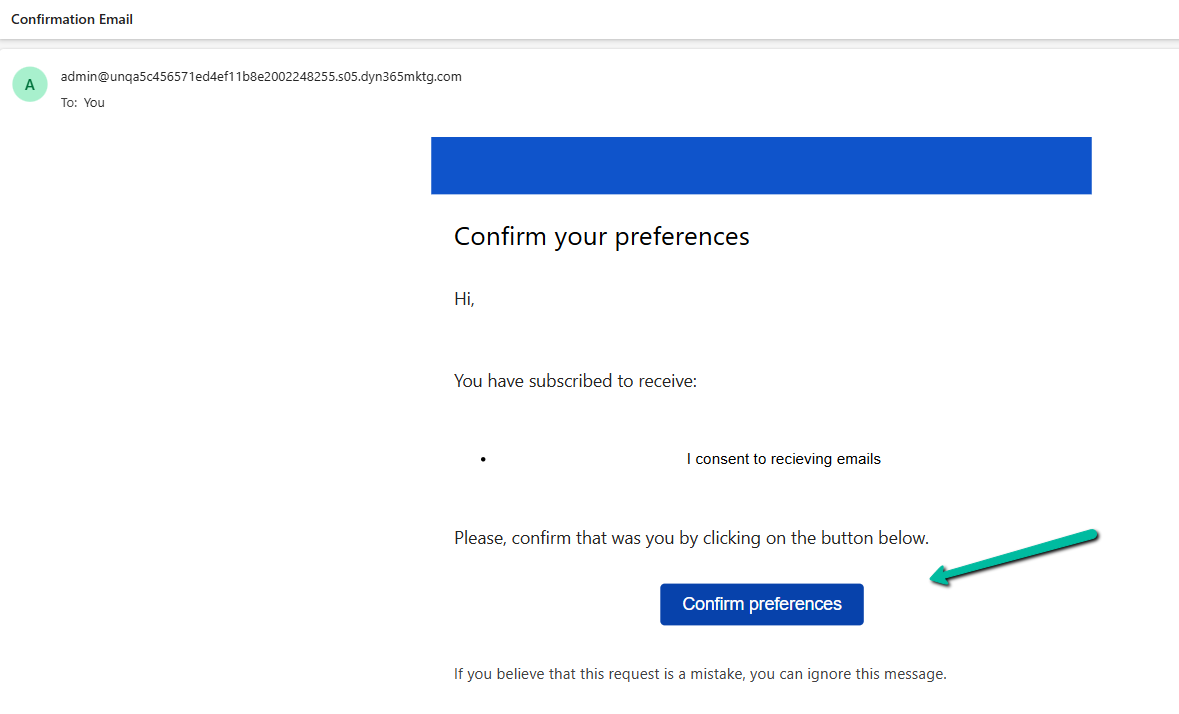
We can see the confirmation email received in our mailbox. From there we can confirm it.
After confirmation, we can see our consent record created with the appropriate consent status.

Get all details
Also check out this wonderful tutorial – Dynamics 365 Customer Insights Journeys: How Consent Management Actually Works | Deep Dive Tutorial by Nathan Rose.
Hope it helps..
Discover more from Nishant Rana’s Weblog
Subscribe to get the latest posts sent to your email.
Share It –

