
Introduction
At the Power Platform Community Conference in Las Vegas, low-code (as we know it) was declared dead.

In Power Apps, we’ve seen Generative Pages, Code Apps, and now vibe.powerapps.com as new ways to take the ultimate form of “low code” (that being natural language) to generate pro-code (usually being TypeScript or JavaScript with the React framework), creating powerful enhancements and applications. The era of arranging and configuring elements on a canvas and enhancing with formulas is coming to a close.
Prefer to watch? Check out the YouTube version of this post:
But what about Power Pages?
In this post:
- Introduction
- New era of building external facing websites on the Power Platform
- Tutorial: Build a React-based website and host in Power Pages.
- Create React scaffolding
- Build a custom website
- Upload website to Power Pages
- Add Power Pages WebAPI helper
- Enable Dataverse tables for Power Pages WebAPI
- Configure Table Permissions and Web Roles
- Read and display Dataverse records
- Configure Power Pages Authentication
- Build Sign-in and Sign-out features in your web application
- Control access to Dataverse data based on signed-in user
- Complete sample code
- Summary
New era of building external facing websites on the Power Platform
Power Pages has a lot of low-code features in regards to being able to build external based applications connected to Dataverse. Of course, anyone who has worked on a Power Pages project knows that usually requirements go beyond simple lists and forms. Generally, more complex web templates and other customizations are built using JavaScript and Liquid.
Early on in many projects a debate occurs within the implementation teams of why bother to build a web application using Power Pages when a much richer experience could be built using React or other front-end frameworks? Power Pages provides a secure hosting environment, integrated authentication, and tight Dataverse security using web roles and table permissions; features that become incredibly difficult to build, maintain, and support just using React.
The new feature (that is scheduled to be GA on January 31st) is Power Pages single page applications allows the best of both worlds; the ability to build a React based web application with rich user interfaces and flexibility, AND Power Pages secure hosted environment, authentication, and Dataverse security. This has also been referred to as “bring you own code” to Power Pages.
The following tutorial provides a step by step process to build a React based website, display records from a Dataverse table, enable authentication, and implement security to control what the logged in user can see and do.

Tutorial: Build a React-based website and host in Power Pages.
What you’ll need:
- Visual Studio Code installed
- Node.js installed
- Power Platform Tools enabled in Visual Studio Code
- A Power Platform environment (NOT PRODUCTION!)
- Ideally an AI code assistance tool (like GitHub Copilot)
Create React scaffolding
The first step is to create a simple website using Vite and the react template.
Vite is being used to speed up development and provide enhanced build tools.
Open a terminal in Visual Studio Code. Navigate to a new directory and enter the following command:
npm create vite@latest <> -- --template react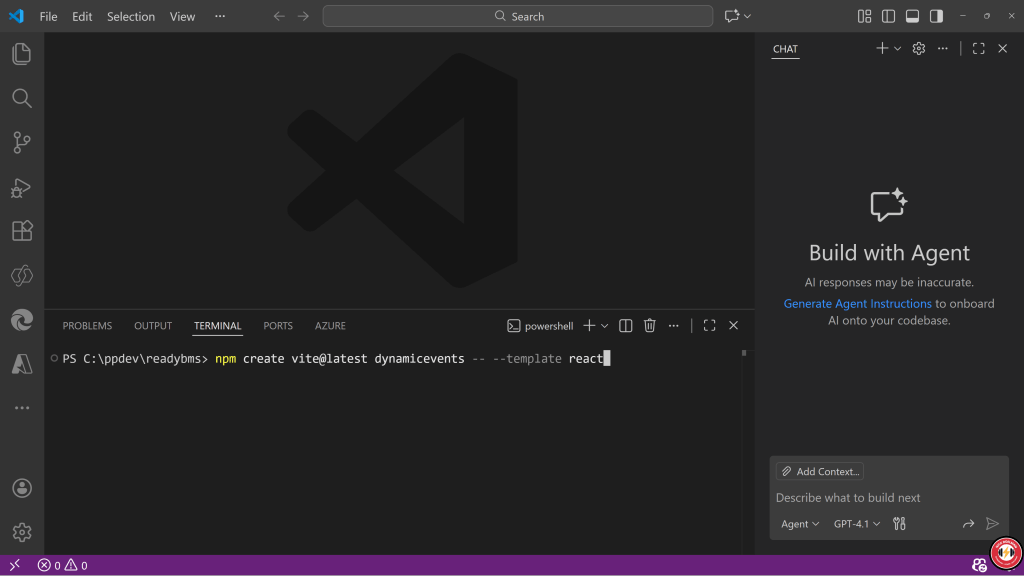
After a few moments, a basic React based website structure is built. You can open the folder and view the contents in Visual Studio Code. Take a look at the html and jsx files to see the basic structure of a React based website. The core file is the App.jsx.
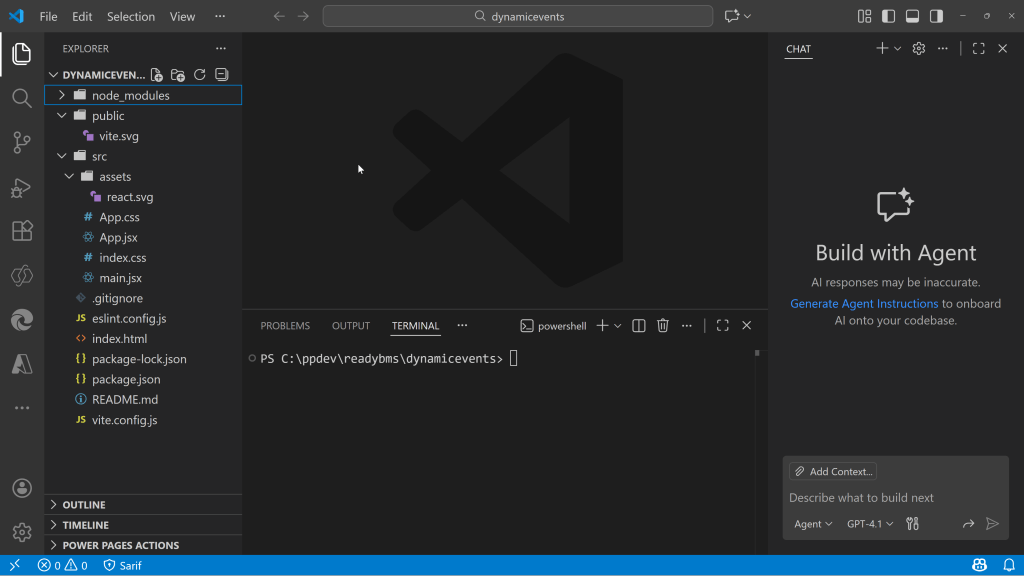
Enter npm run build in the terminal window to compile the site.
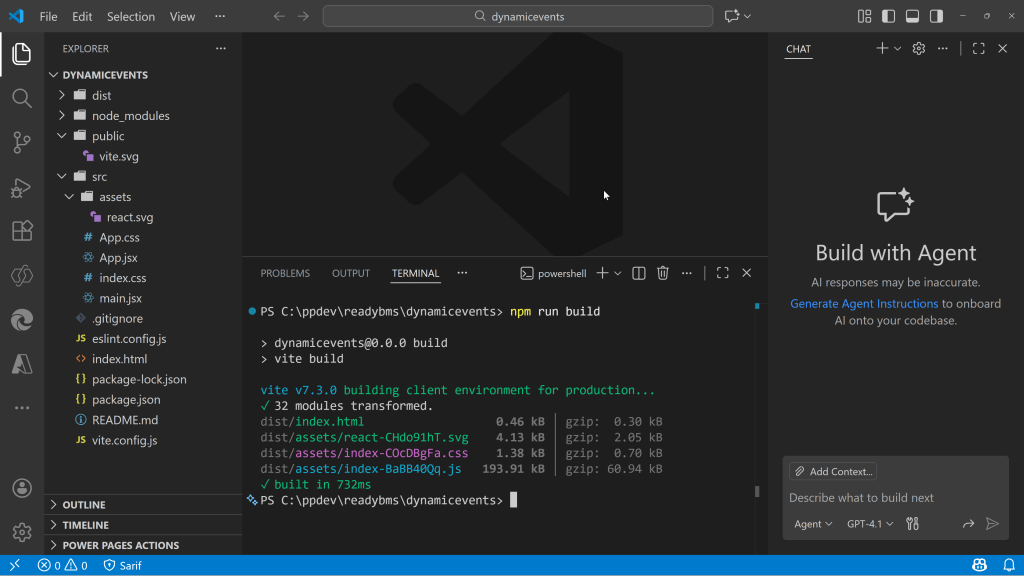
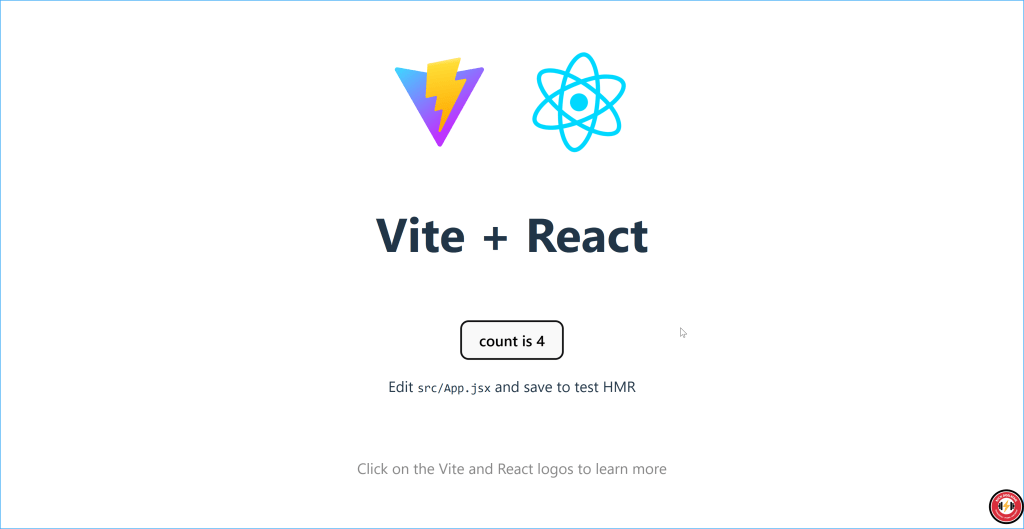
One the site is built, enter npm run preview and select the link to view the site locally on your machine.

You will see a very basic React demo app. Select the “count” button to see how React will update the user interface based on data changes. Notice there are no page reloads or noticeable screen refreshes.
Build a custom website
Now that we have a basic website, lets customize to something we want to build for ourselves. If you are comfortable creating React websites, you can start coding from scratch. However, if you want to vibe code the site, I would recommend you work piece at time to get the feeling of how the site is built and how the new components will affect it. Below is an example prompt to build an event website, but you can create whatever site you want. Make sure the prompt has all the details you need, and you may have to iterate a few times to get the site correct.
Sample prompt: Simple static event website
Create an event website for a company called Dynamic Events using React and Vite. The requirements are:
    • Use React Router for navigation.
    • Create a fixed header at the very top, spanning the full width, with the company name "Dynamic Events" on the left and a navigation menu (Home, About Us, Sessions) on the right, all on the same line. Use a red, black, and white color scheme.
    • The footer should be fixed at the bottom, full width, styled in the same color scheme, and display the copyright.
    • The Home page should have a warm, generic welcome message and a brief description of the company’s services.
    • The About Us page should describe the company and its mission.
    • The Sessions page should list several example event sessions.
    • Ensure the header does not overlap the body content on any page.
    • Use clean, modern CSS for all components, and ensure the layout is responsive and visually cohesive.
    • Place all components and pages in appropriate folders (components, pages).
Do not include any default Vite/React demo content.
After a few moments, the code should have updated. Note you may have been prompted to load additional libraries. Since this is generative AI, the results may be slightly different each time you use this prompt.
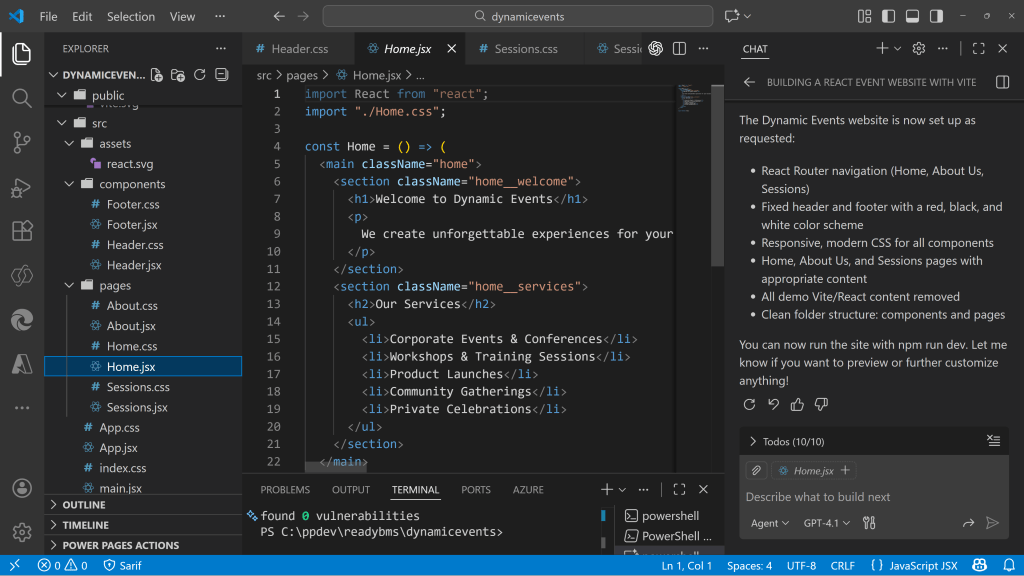
Run the npm run build and npm run preview commands in the terminal to build and run the site. If you get any build errors, use GitHub Copilot to assist in resolving the issues.
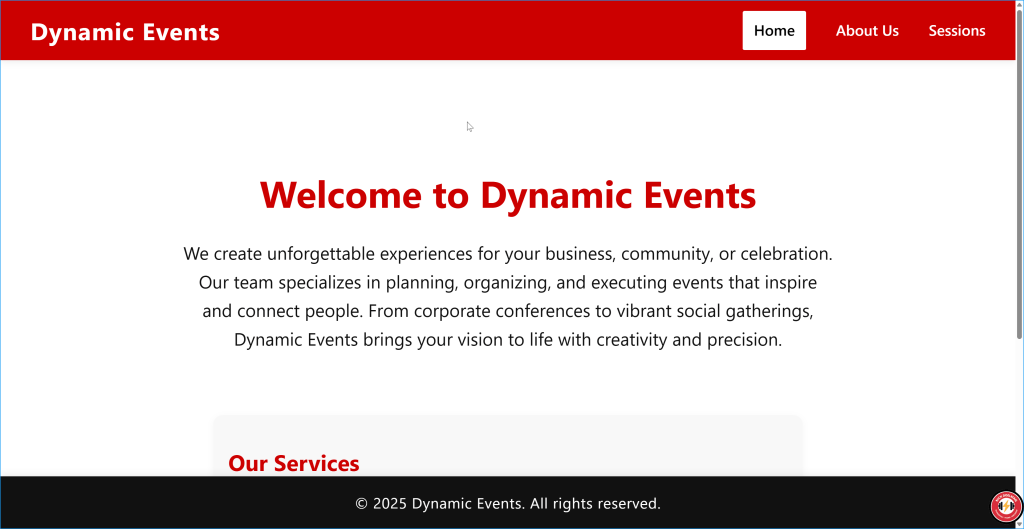
If all has worked, you may see something similar to the following:
Upload website to Power Pages
Currently, our site only runs locally. If we wanted to “publish” the site for public use, we’d need to upload and host it on some kind of cloud service, server or container. We’d also need to configure other infrastructure like firewalls or content deliver networks. We would also need to monitor traffic and scale our app as required.
In this case, we can use Power Pages to host the site, and it will take care of lot of those infrastructure issues.
Connect to your Power Platform environment in Visual Studio Code terminal window using the PAC CLI command:
pac auth create -env <<environment id>>You can get the environment id from the Session details from the Power Pages home page.

Once you have connected to an environment, then enter the following terminal command to upload the React site to Power Pages:
pac powerpages upload-code-site -rp <root path> -cp <compiled path> -sn <sitename>The root path is where your local React project is located, the compiled path usually is the root path + “dist” folder.
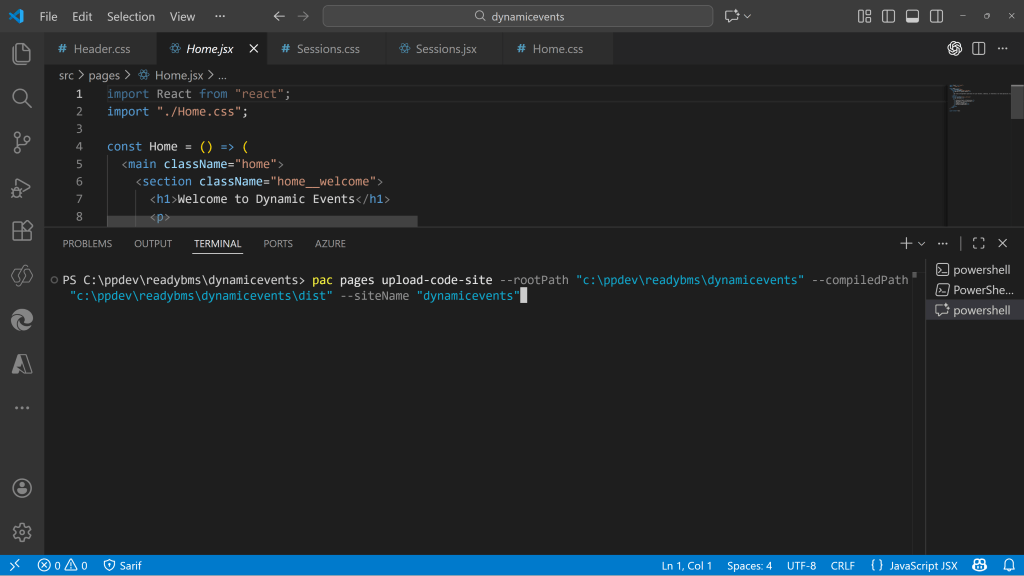
Once the site has finished uploading, the site will appear in the inactive sites on the Power Pages home page. You can reactivate the site the same way you would any other Power Pages site.
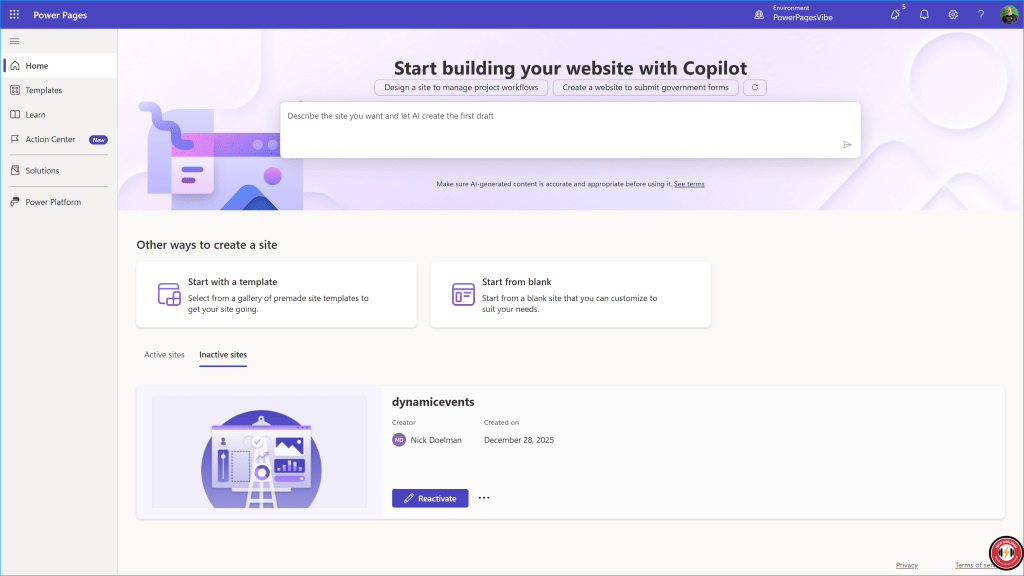
The site will take a few minutes to be ready.
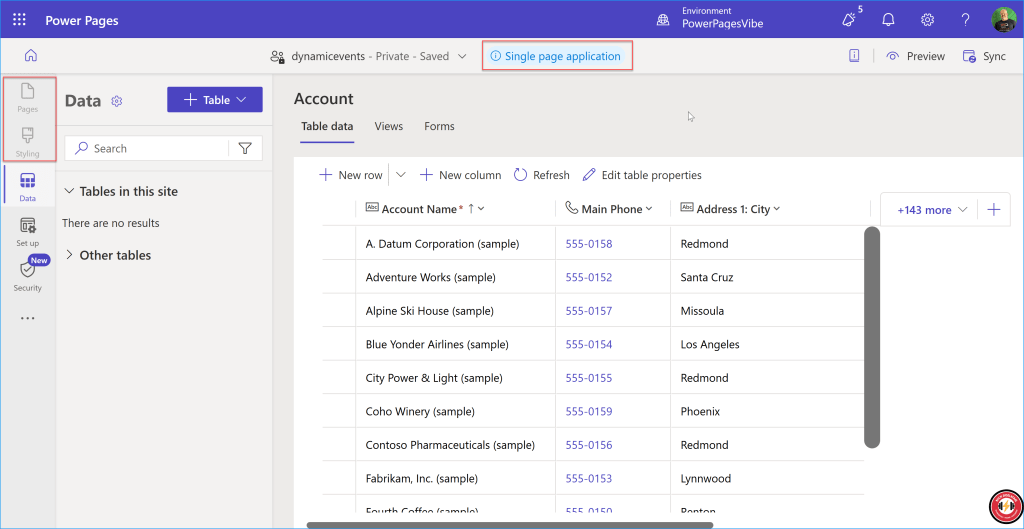
The site will open automatically in the Power Pages design studio. You will notice the single page application label and the fact the pages and style workspaces are grayed out.
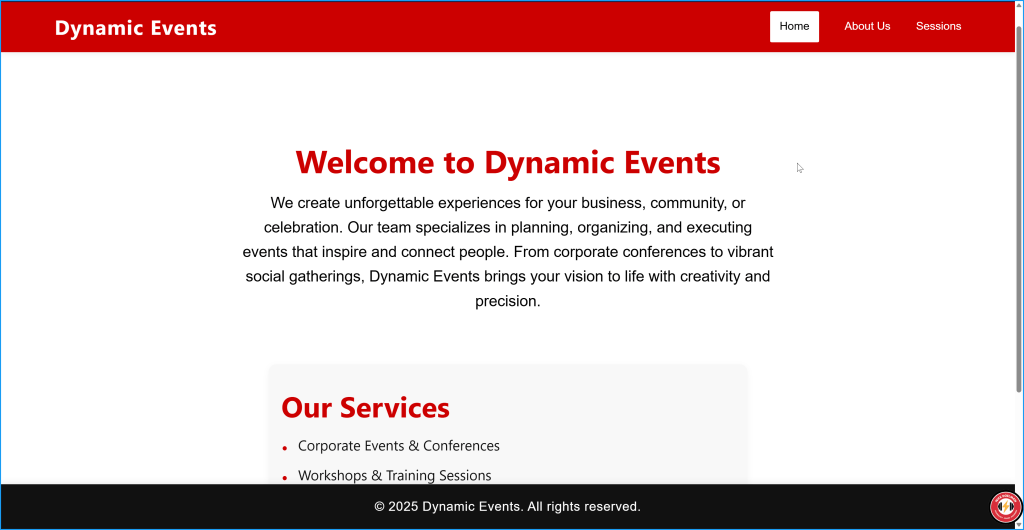
You can select preview to view your web application, however it will now be hosted in Power Pages. Note that you will also see the banner that the site is set to private mode.
If you get an error message, wait a few moments as the site needs a few moments to initialize.
This is a simple example of a full “coded” site hosted in Power Pages.
At this point, Power Pages is providing infrastructure and features like web application firewall, content distribution and basic hosting. However, the real power of Power Pages is the ability for external users to interact with Dataverse. The following steps will show you how to configure you website to use the Power Pages WebAPI to display records from a Dataverse table.
Add Power Pages WebAPI helper
As with writing Power Pages WebAPI code with traditional Power Pages projects, we need to add the helper code to interact with the Power Pages WebAPI using Cross-Site Request Forgery (CSRF) token to ensure our communication is legit and secure.
In Visual Studio Code, you can add the helper file or use GitHub Copilot to create it. The following is an example prompt to create this file. Note you can use the same code for different web sites with no additional modification.
Sample Prompt: Create portalApi.js (helper file)
Generate a JavaScript helper module within this project in an API folder for Power Pages Web API integration called portalApi.js. Follow these requirements and references:
References:
https://learn.microsoft.com/en-us/power-pages/configure/write-update-delete-operations#wrapper-ajax-function
https://learn.microsoft.com/en-us/power-pages/configure/create-code-sites
https://github.com/microsoft/power-pages-samples
Requirements:
Implement an async function getPortalToken() that returns a Promise resolving to the CSRF token, using window.shell.getTokenDeferred() (or window.top.shell.getTokenDeferred()), and converts the jQuery Deferred to a native Promise.
Implement an async function portalFetchJson(path, options) that:
Calls getPortalToken() to get the CSRF token.
Adds the token to the __RequestVerificationToken header, along with Accept, Content-Type, and X-Requested-With headers.
Uses fetch to make the request, with credentials: "same-origin".
Throws an error if the response is not OK, including the status and response text.
Returns the parsed JSON response.
Use clear comments explaining each function.
Do not include any extra code or example usage.
The code should be clean, modular, and ready for use in a React/Vite project.
You should now have a portalApi.js file in your project. You can keep of copy of this file and use it for other projects.

Enable Dataverse tables for Power Pages WebAPI
For each table and columns that you want to interact with, you will need to create and enable them in the Power Pages management app by adding appropriate site settings.
The Power Pages management app is a model-driven Power App to manage Power Pages metadata. It can be launched from the Design studio.

In the Power Pages management app, you should see you website listed. Select it and then choose the Site Settings tab.

Add the following Site Settings to enable the table and column to be available for the Power Pages WebAPI:
| Site Setting | value |
|---|---|
| Webapi/<<tablename>>/enabled | true |
| Webapi/<<tablename>>/fields | names of the table columns used, seperated by commas (,). It is not best practice to use “*” which will expose all columns. |
Configure Table Permissions and Web Roles
You will also need to configure table permissions for the tables you want to integrate with your website. For now, we will surface all the table information to all users, just as an example.

Read and display Dataverse records
Once we have our settings and security in place, the next step will be to write (or vibe) the code to read Dataverse via the WebAPI and display the records on a page.
In our example, we will modify the Sessions.jsx page to replace the sample static content with information from our sessions table in Dataverse.
The following is an example prompt that I used to modify the code, instructing it to use the portalAPI.js file I created earlier. I provided actual logical names as well as references to MS Learn.
Sample prompt: Read and display Dataverse data
Replace the code in this page. It will reference the portalApi.js. The goal is to read all records from a Dataverse table using the Power Pages WebAPI called docs_session and retrieve the fields called docs_sessionname and docs_sessiondescription. The docs_sessionname should be a bold heading and the docs_sessiondescription in paragraph form. Both fields should be left justified with spacing between each record. The code should be clean, modular, and ready for use in a React/Vite project.
References:
https://learn.microsoft.com/en-us/power-pages/configure/read-operations
https://learn.microsoft.com/en-us/power-pages/configure/web-api-http-requests-handle-errors

Requirements:
- Use React functional components and hooks.
- Import and use portalFetchJson from portalApi.js to fetch data from the Power Pages Web API.
- Fetch all records from the docs_session table, retrieving docs_sessionname and docs_sessiondescription fields.
- Display docs_sessionname as a bold heading and docs_sessiondescription as a left-justified paragraph, with spacing between each record.
- Handle loading and error states gracefully.
- The code should be clean, modular, and ready for use in a React/Vite project.
- Do not include any extra code or example usage.
The prompt should update the existing sessions.jsx code, you may have to clear out the sample information that was part of the original creation.
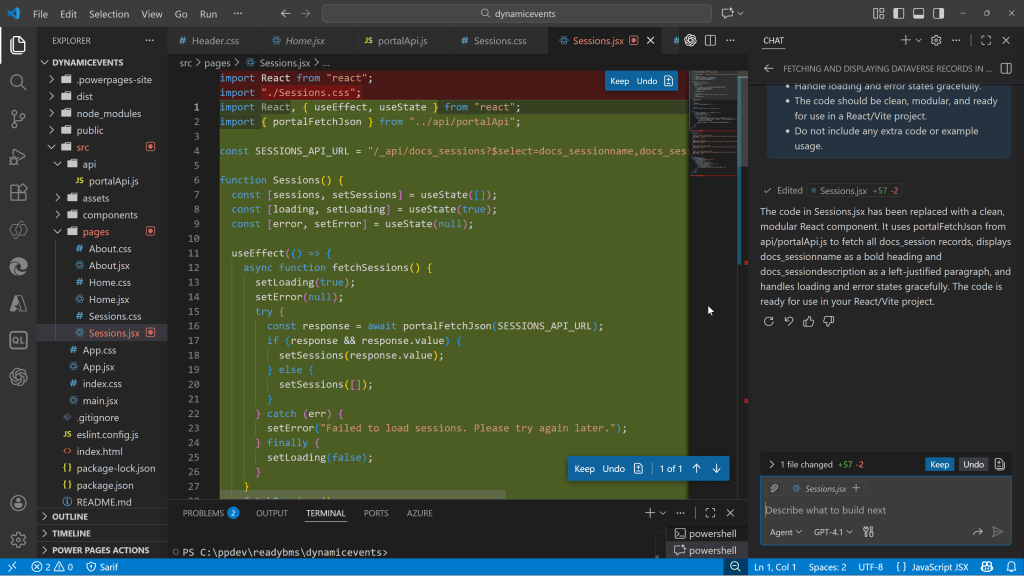
Take a look at the code to see how React works. Note how useState monitors the state of page, and how useEffect runs the code, specifically when the Power Pages WebAPI begins to return actual Dataverse data.
Build the code again using npm run build, at this point, we haven’t configured our local server to be able to interact with Dataverse, so we will upload the code again using the pac cli command.
NOTE:
Since we added a “js” file, you may have to update your environment settings to allow JS attachments. Microsoft is aware of this issue.
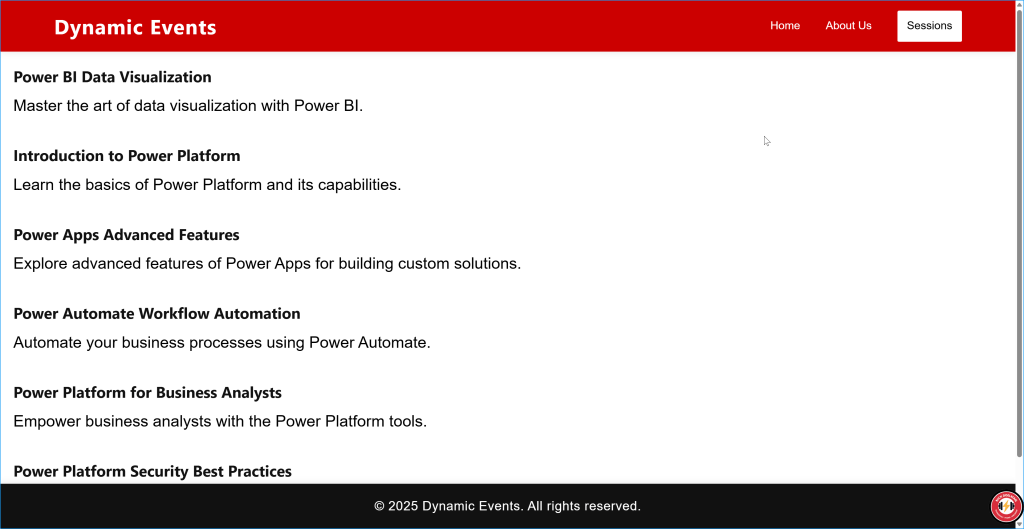
If everything worked correctly, when you launch the site, and navigate to the Sessions page, you should see a list of records from the Dataverse table.
Configure Power Pages Authentication
Showing publicly available data to an unauthenticated user audience is OK for some scenarios, but in most cases, you would want to control who can see what data. Especially if the data relates to the user logging in (think invoices, cases, payment information, etc). When you bring your own code to Power Pages, you can utilize the native authentication provider integration within your code to authenticate your external users to your site.
For our example, we will use Microsoft Entra External ID as the authentication provider. You can set it up the exact same way you would for any other Power Pages website.
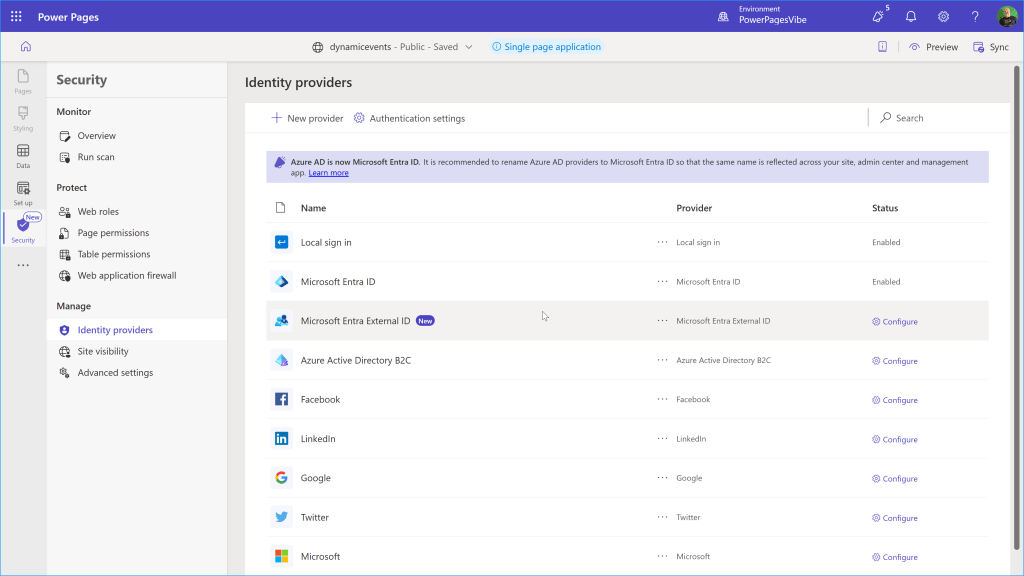
See my post on setting up Microsoft Entra External ID for more info:
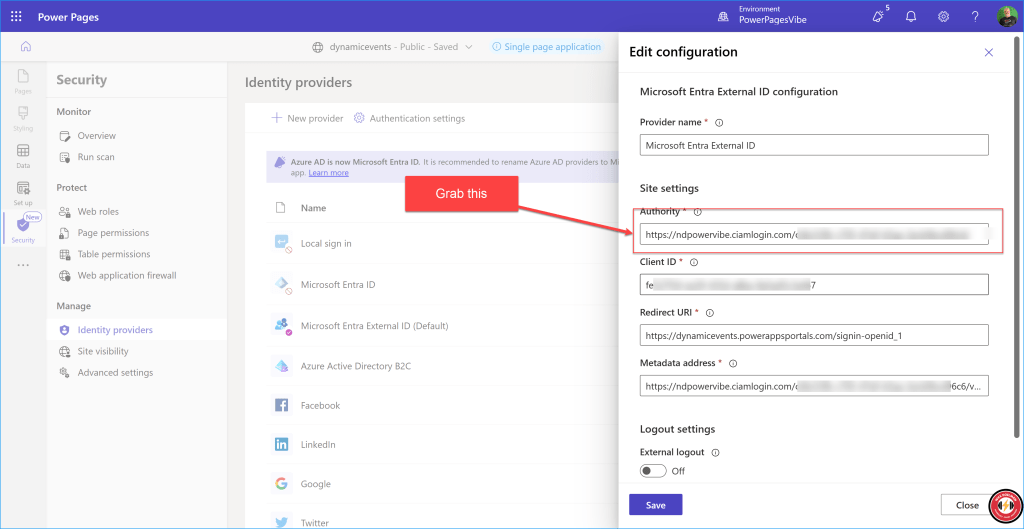
Once you have configured Entra External ID, you will need to copy the authority URL as we will need this to extend and update our code to allow users to sign-in to our site.
Build Sign-in and Sign-out features in your web application
In our code, we will want to add sign in and sign out buttons as well wire in the links to the Entra External ID authentication.
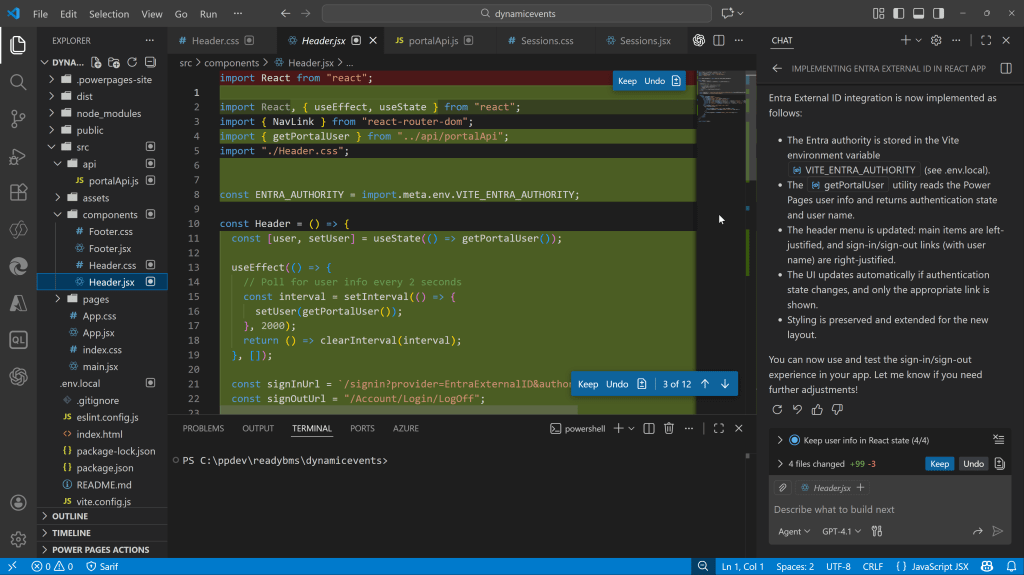
The following is a sample prompt to integrate Entra External ID to your site. In my experimenting, I found that the checking if a user was authenticated could only be determined by looking at the properties of the window.Microsoft.Dynamics365.portal.user object, and there wasn’t a native “isauthenticated” flag (GitHub Copilot seemed to think this was a thing). I also needed to specify the Entra URLs specific for Power Pages to get around some further hallucinations.
Sample prompt: Integrate Entra External ID authentication
I want to implement Entra External ID to this site. The provider authority is <<ENTER YOUR AUTHORITY URL>> but it should be kept in an environment variable. Power Pages exposes the current user info on the global Microsoft.Dynamic365.Portal.User object (when authenticated). Read from that and keep it in React state so the UI updates predictably. Add sign-in and sign-out links in the header menu, right justified. Maintain the rest of the existing formatting and styling.
Note format of Power Pages sign-in link is
`/signin?provider=EntraExternalID&authority=${encodeURIComponent(authority)}`;
Move the rest of the menu items to the left. Only show the appropriate sign-in or sign-out depending if a user is signed in. Display the signed in user name (contcatenation of firstname and lastname) on the header if they are signed in.
**Implementation Notes:**
- Store the Entra External ID provider authority in a Vite environment variable (e.g., `VITE_ENTRA_AUTHORITY`).
- Read the current user info from `window.Microsoft?.Dynamic365?.Portal?.User`.
- Implement a `getPortalUser` utility that determines if the user is authenticated by checking for properties like `contactId`, `userName`, or `email` on the user object. Return an object with `isAuthenticated` and `userName`.
- Keep the user info in React state and update it periodically (e.g., using `setInterval` in a `useEffect`) so the UI updates predictably if authentication state changes.
- In the header, left-justify the main menu items and right-justify the authentication links (sign-in/sign-out) and user name.
- Only show the sign-in link if the user is not authenticated, and only show the sign-out link and a concatenation of the user firstname and lastname if the user is authenticated.
- The sign-in link should use the authority from the environment variable as a query parameter.
- The sign-out link should point to `/Account/Login/LogOff` (the correct Power Pages sign-out endpoint).
- The signed-in user's name should be displayed in the header when authenticated.
- The code should be clean, modular, and ready for use in a React/Vite project.
The code should be updated.
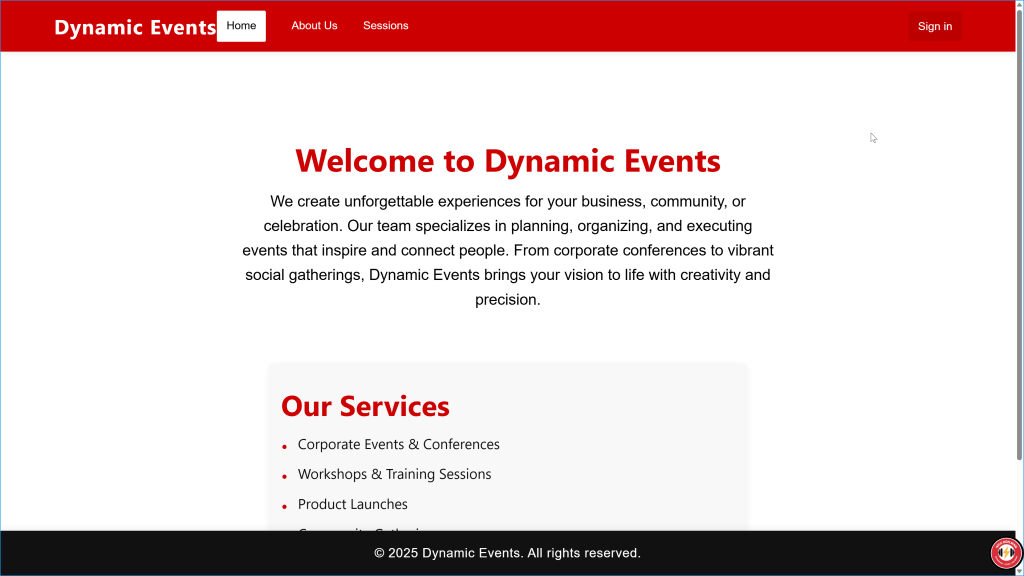
Compile the code, and upload into Power Pages and preview the site. Notice that there is now a sign in button on the menu.
When you select it, you may see other authentication providers (I made Entra External ID as the default and disabled the others). You should be prompted to sign-in (and you can create a new Entra External ID if you don’t have one).
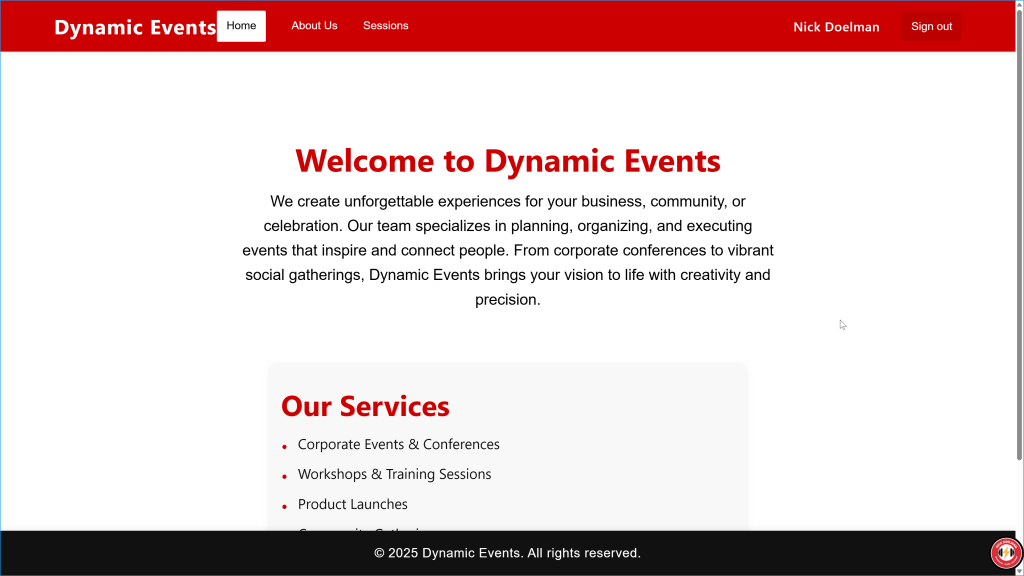
Once you have signed in, should see your name in the header (showing that you are signed in) and the button should have changed to be “sign out”.
Control access to Dataverse data based on signed-in user
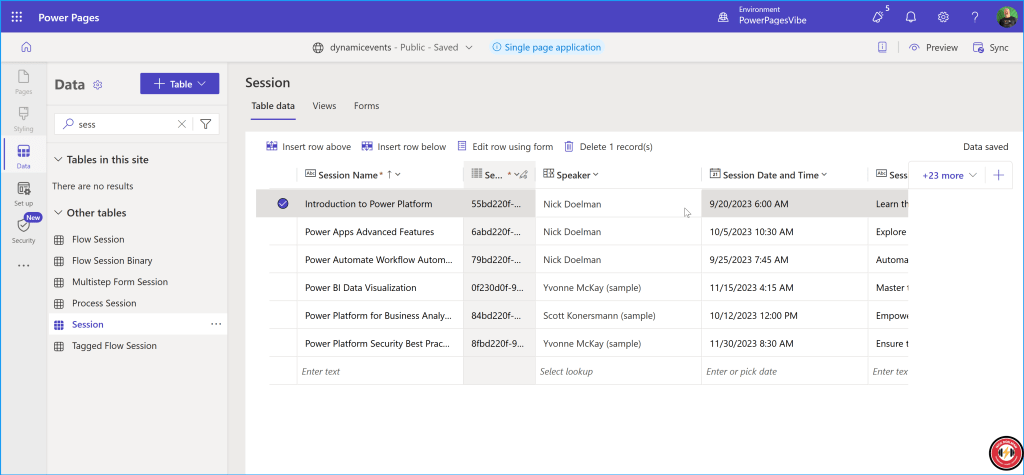
The whole point of having authenticated users is so you can control what they can see based on who they are. In our example, I updated the session records to show that the speaker is my own website login.
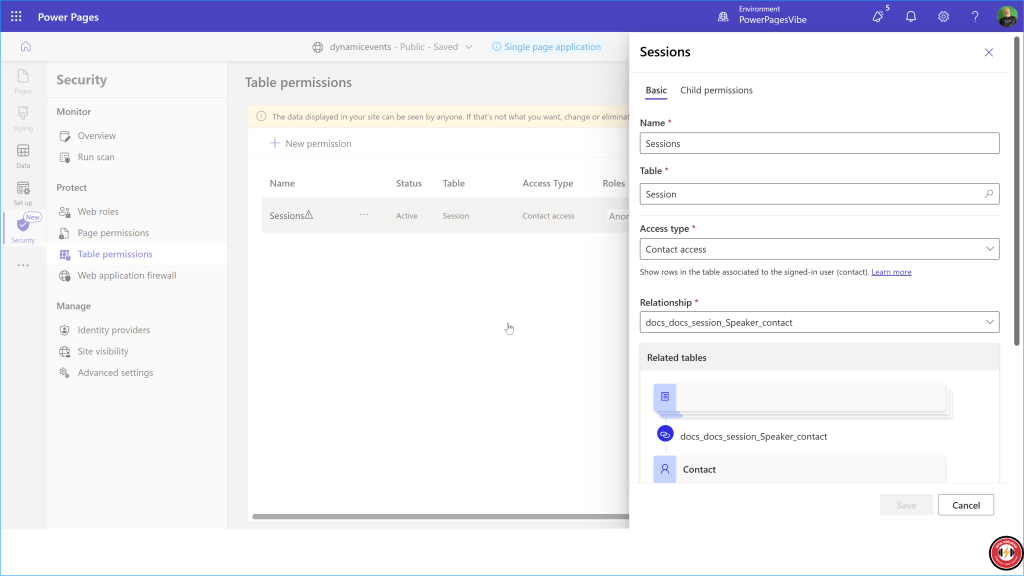
I also updated the table permissions so that only authenticated users could see their own session records. This is the same process as what we would configure for traditional Power Pages websites.
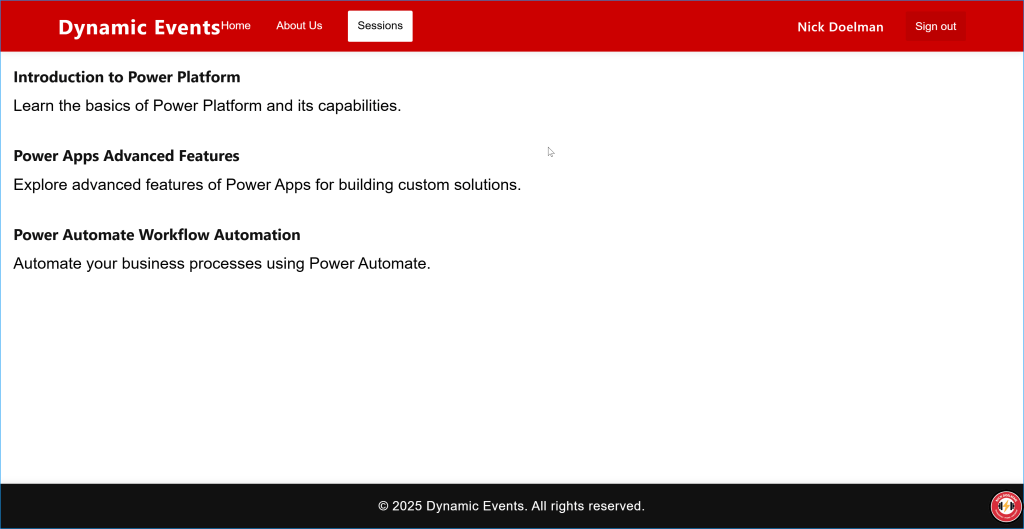
Previewing the website, if everything worked correctly, you should only see the records related to the logged in user.
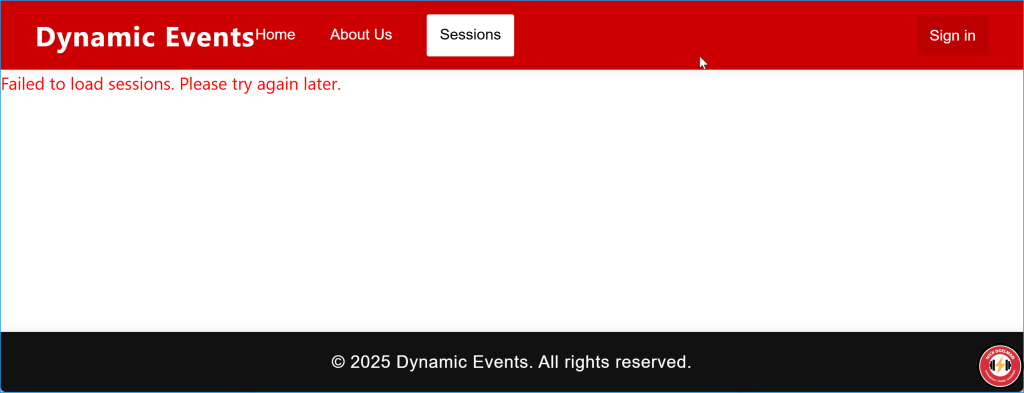
If the user signs out, then none of the Dataverse data should be returned.
Complete sample code
I have a version of this website in my public GitHub. Note that it is not exactly the same, but was used to generate the prompts that I provided to create the site.
https://github.com/readyxrm/eventsite
Summary
The concept of “bring your own code” (BYOC) to Power Pages opens up a huge amount of possibilities in building web applications with specific and custom users interfaces and experiences as well being able to utilize all the utility functions of Power Pages (security, authentication, hosting, etc.).
Furthermore, the ability for traditional low-code makers to build a site through a series of prompts and iterations makes building pro-code websites approachable. I feel that some skill and knowledge around JavaScript/TypeScript and React frameworks is hugely beneficial to success. However, the tools are much more accessible and functions not only as a way to build a pro-code website, but to learn as well.
Nick Doelman is a Microsoft MVP, podcaster, trainer, public speaker, and competitive Powerlifter. Follow Nick on X at @readyxrm, Instagram, LinkedIN, and Bluesky.
Need Power Platform expertise, training or implementation help? Check out Nick’s website for more details.
Listen or watch the the Power Platform Boost podcast with Nick and co-host Ulrikke Akerbæk every second week for news and updates from the Power Platform community!