



If we’re logging into the Plugin Registration Tool using an account protected with Multi-Factor Authentication (MFA), there’s one small setting that can cause login failures — Show Advanced.
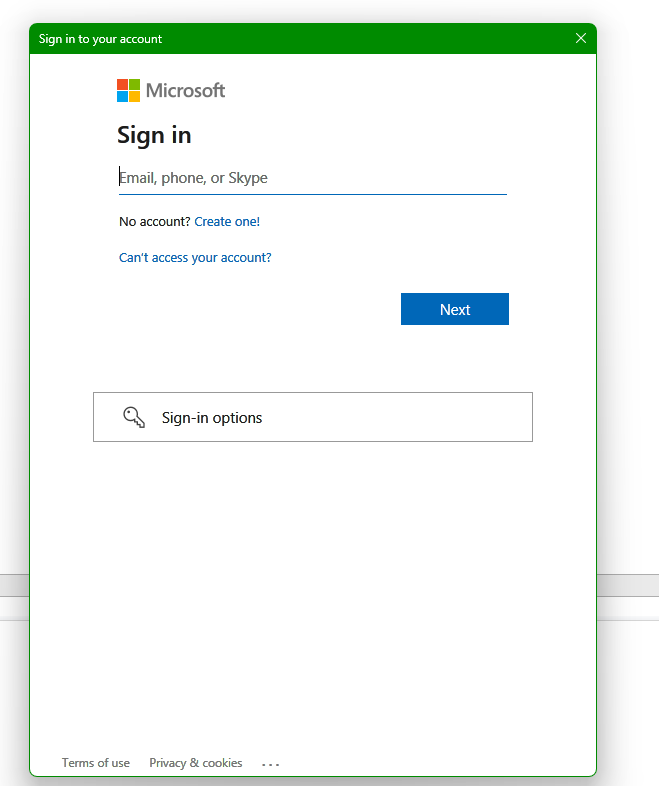
We need to make sure “Show Advanced” is unchecked before clicking Login. When this option is selected, the tool exposes legacy Username and Password fields, which do not support modern Azure AD MFA authentication. Leaving it unchecked forces the tool to open the modern Microsoft login prompt, where we can complete your MFA challenge successfully.
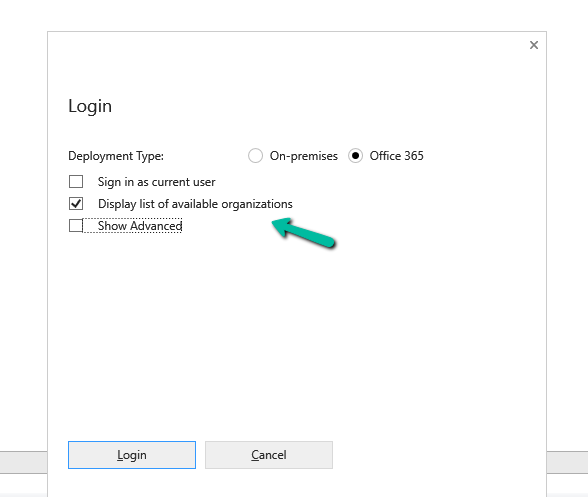
Clicking on Login.
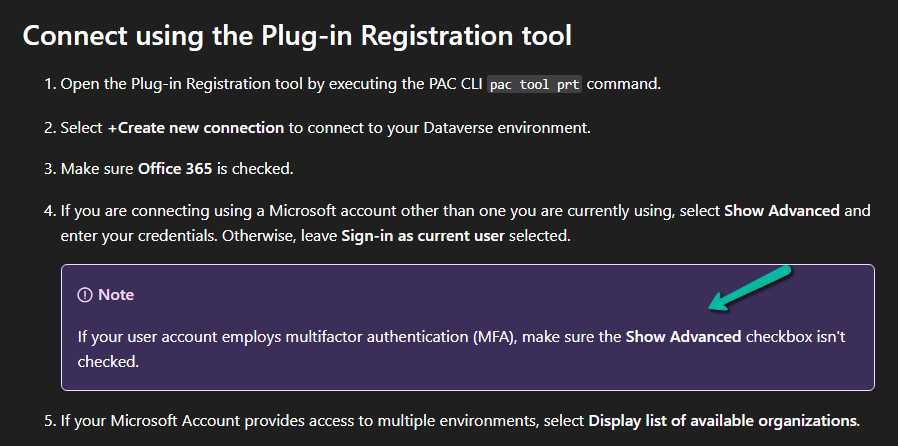
Microsoft also mentions this behavior in the official documentation under the plugin registration tutorial.
Reference:
Microsoft Learn – Register a plug-in
Hope it helps..
Discover more from Nishant Rana’s Weblog
Subscribe to get the latest posts sent to your email.
Share It –

