


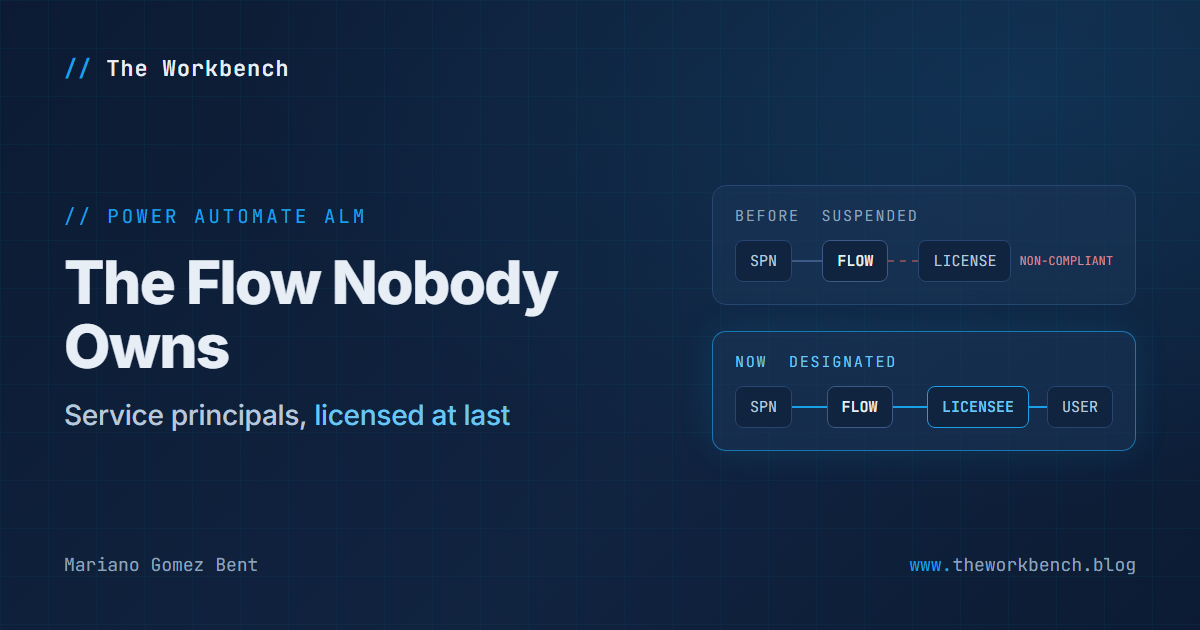
If you have done any serious application lifecycle management work in Power Platform, you know the pattern: you move flow ownership off a human being and onto a service principal, because people change roles, people leave, and a mission critical flow should not stop working because somebody’s manager reassigned a license on a Tuesday. It is good practice, and I have watched it save projects.
It also had a sharp edge, and in mid-August Microsoft filed it down.
Background
Here is the edge. A service principal application user is a non-interactive user, which means you cannot assign it a license. So the moment your service principal owned flow used anything premium (a premium connector, a custom connector, an HTTP action), you had a compliance problem. Your options were a Power Automate Process license assigned to the flow itself, which requires the flow to be solution-aware, or a Process license on a flow group sharing that capacity. Both are real answers. Both cost money that, in a lot of cases, you had already spent on a perfectly good user license sitting right there.
And if you did neither, the flow got suspended, with a message that will be familiar to anyone who has been on the receiving end of it:
This flow was suspended because flows owned by service principals are not compliant.
Now, as of a new article published on August 15, 2026, there is a third option: designate a licensed user, and the flow runs under that user’s Power Automate entitlement while the service principal remains the owner.
This is not a documentation-only change. The existing Support for service principal owned flows article was edited the same week, and where it listed two licensing routes it now lists three. Two independent pages moving the same direction in the same week is usually how you tell something actually shipped.
What you get, and what it costs you
Designating a user license means the flow runs under that user’s entitlement, and that user’s action limits apply. A Process license, by contrast, is capacity attached to the flow itself, entitling it to 250,000 actions per day independent of any user, and it can be shared across up to 25 flows in a flow group.
So the new option is cheaper and simpler, and you pay for it in headroom. A high-volume integration flow that would chew through 250,000 daily actions is not a good candidate for somebody’s personal entitlement. A nightly reconciliation flow that fires forty times a day absolutely is.
The two prerequisites that will bite you
The first: the designated user must be a co-owner of the flow. Not merely a licensed user in the tenant. A co-owner. If they are not, share the flow with them first.
The second is the important one: the user’s license must cover every premium feature the flow uses. The documentation names premium connectors, custom connectors and HTTP actions, says a Power Automate Premium license covers these, and then says something worth reading twice: a Microsoft 365 seeded license does not, and the flow stays noncompliant if you designate a user who only has one.
That is the failure mode. You designate a user, the save succeeds, the UI looks right, and the flow is still out of compliance because the person you picked has a seeded license. If you are troubleshooting a flow that stayed suspended after you “fixed” it, check that first.
Why it matters
For makers, the ALM-correct thing is no longer the expensive thing. Moving ownership to a service principal used to come with an invoice attached, and that invoice was enough to talk a lot of teams out of doing it properly. The workflow itself is short: open the flow’s Details page, find User license in the licensing section, pick the user, save.
For professional developers, two things. It is cleanly scriptable, because the designation is stored in Dataverse as the Licensee column on the flow’s row in the Process (workflow) table, a lookup to a User (systemuser) record. Setting it programmatically is, in the documentation’s words, equivalent to using the Details page.
And then the one I would put on a wall: the designation points to a user record in a specific environment, so it is not carried in a solution. Deploying through a managed solution or a pipeline does not reapply it in the target. Think about what that means. You promote the flow to production, everything imports green, the flow turns on, and it is unlicensed there because the designation never travelled. Nothing failed. Nothing warned you. You find out when it gets suspended.
The demo concept
A post-deployment licensing step: one script, run after solution import, that resolves the identifiers, sets the designation, and reads it back to prove it landed. Here is the request that does the work, straight from the documentation:
PATCH [Organization URI]/api/data/v9.2/workflows(<workflowId>) HTTP/1.1
Content-Type: application/json

{
    "licensee_systemuserid@odata.bind": "/systemusers(<systemUserId>)"
}
The @odata.bind annotation is how the Web API sets a lookup: you are binding a reference to a row in another table, which is why the value is a path and not a bare GUID. This is a PATCH against the workflows entity set, which is the Process table, because cloud flows are rows there where Category is Modern Flow. You need two identifiers: the flow’s workflowid, which also appears in its URL in the portal, and the user’s systemuserid.
Wired together, and trimmed to the essentials:
$api = "$OrgUrl/api/data/v9.2"
$headers = @{ Authorization = "Bearer $token"; 'Content-Type' = 'application/json' }

# Category 5 is Modern Flow. Refuse to act unless exactly one row matches.
$flows = (Invoke-RestMethod -Headers $headers -Uri
    "$api/workflows?`$filter=category eq 5 and name eq '$FlowName'").value
if ($flows.Count -ne 1) { throw "Expected 1 flow, found $($flows.Count). Refusing to guess." }

$users = (Invoke-RestMethod -Headers $headers -Uri
    "$api/systemusers?`$filter=domainname eq '$UserUpn'").value
if ($users.Count -ne 1) { throw "Expected 1 user, found $($users.Count)." }

$body = @{ 'licensee_systemuserid@odata.bind' = "/systemusers($($users[0].systemuserid))" } |
    ConvertTo-Json
Invoke-RestMethod -Method Patch -Headers $headers -Body $body `
    -Uri "$api/workflows($($flows[0].workflowid))"
A few things to note, because there is more opinion here than code. Both lookups refuse to proceed unless they match exactly one row: a script that silently picks the first of three similarly named flows will license the wrong one and you will not find out for a month. The backticks before $filter are PowerShell escapes, because $ starts a variable in PowerShell and OData query options genuinely begin with a dollar sign; leave them out and you send a URL with the query options silently deleted. And $token is whatever your pipeline already uses to authenticate against the environment.
Then verify, because a PATCH returning 204 tells you the request was accepted, not that the designation is what you wanted:
GET [Organization URI]/api/data/v9.2/workflows(<workflowId>)?$select=name,_licensee_value HTTP/1.1
Prefer: odata.include-annotations="OData.Community.Display.V1.FormattedValue"
That Prefer header is the point. Without it you get a raw GUID in _licensee_value and you will spend ten minutes looking it up by hand. With it, Dataverse also returns the user’s display name, and your pipeline log becomes evidence rather than a promise. The underscore-prefixed column name is the standard convention for reading a lookup’s value, and it trips up everyone exactly once.
To remove a designation, DELETE the same path with /licensee_systemuserid/$ref appended. The article notes it succeeds even when no user is designated, which makes it safe in a teardown script.
Doing it from a flow instead
If your deployment process is itself a cloud flow, the documentation gives this path:
1) Add the Update a row action from the Microsoft Dataverse connector.
2) In Table name, select Processes.
3) In Row ID, enter the workflowid.
4) In Licensee (Users), enter /systemusers(<systemUserId>). If the field is not shown, select Show advanced options. Leave it empty to remove the designation.
NOTE: the documentation does not spell out the navigation to the flow’s Details page for the manual route, it simply says to open it, so I am not going to invent a click path. It is the page you land on when you select the flow by name from My flows or from the solution.
Companion repo sketch
Three scripts and a pipeline step: Set-FlowLicensee.ps1 as above, Remove-FlowLicensee.ps1 for the $ref teardown, and the one that earns its keep long term, Get-FlowLicensee.ps1, which lists every Modern Flow owned by an application user and reports which have a designation and which do not. That is your compliance drift report in about thirty lines. The pipeline step exists purely because the designation does not travel in a solution, so it must be reapplied per environment by something that cannot forget.
Final Notes
I like this change more than its size suggests. It removes a real disincentive to doing ALM properly, and the disincentive was purely financial rather than technical, which is the most annoying kind.
If you carry away one thing: the designation is per environment and solutions do not move it. Everything else here is a five minute configuration change. That one is an architectural fact about your deployment pipeline.
What I learned from this exercise: “it deployed successfully” and “it is licensed” are two different claims, and only one of them shows up green in your pipeline.
Until next post!
MG.-
Mariano Gomez Bent
Former Microsoft BizApps MVP