

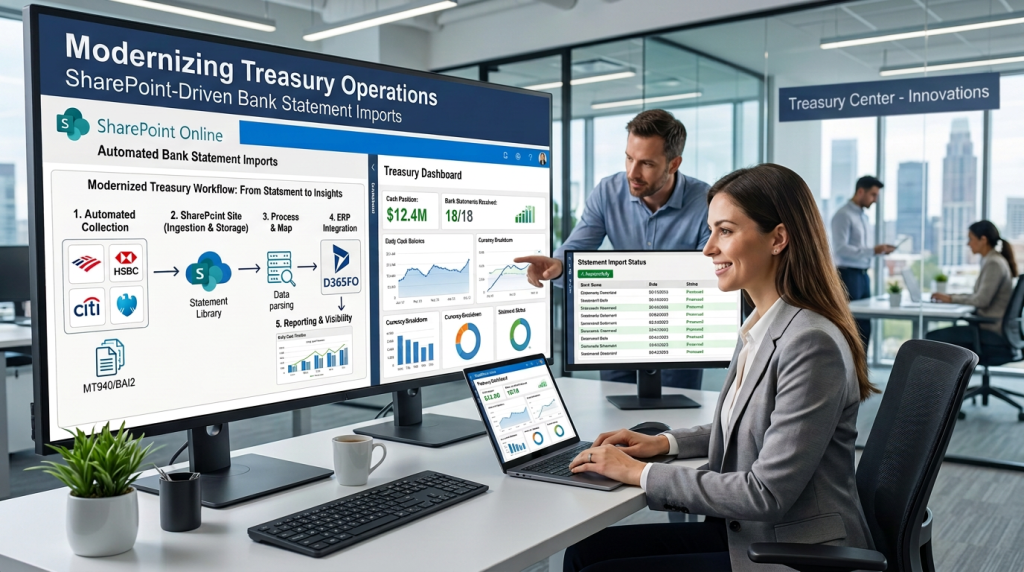
Bank statement imports are a critical part of treasury and cash management processes. While Dynamics 365 Finance & Operations provides an out-of-the-box approach using Data Management (DIXF) entities for importing bank statements, organizations often look for a more automated and low-maintenance solution.
Microsoft has documented the standard bank statement import process in their official documentation. In this post, we’ll explore how to automate bank statement imports directly from SharePoint using Electronic Reporting (ER), eliminating the need for DIXF-based integrations.

Step 1: Configure SharePoint Connectivity
Establish and test the connection with Sharepoint from
Organisation Administration -> Document Management -> Document Management Paramters -> Sharepoint

Validate both interactive & Batch connections.

When the connection is successful, then proceed with the next step

Note : User might face the issue regarding authorization upon trying to test the Sharepoint connection. If such error is displayed, make sure the access is granted by adminstrator.
Step 2: Create SharePoint Folders
Create 3 folders in Sharepoint – INPUT/ARCHIVE/ERROR
| Folder | Purpose |
|---|---|
| INPUT | Receives incoming bank statement files |
| ARCHIVE | Stores successfully processed files |
| ERROR | Stores files that failed processing |

Step 3: Create SharePoint-Based Document Types
Go to Organisation administration -> Document Management -> Document Types -> Create New

Select Sharepoint in the Location . Once this option is selected , ‘Sharepoint Address’ field will be enabled.
Click on the ‘Pencil’ icon and it opens the Sharepoint site . Select the Sharepoint Folder which was created for receiving the file . In our case, it is Input.
Similarly create another Document Type for Archive and configure Sharepoint folder created for Archive.
Step 4: Import Advanced Bank Reconciliation Configurations
Go to Workspace -> Electronic reporting -> Configuration Provider
Select your configuration Provider and Click on Repositories .
Below one is the Microsoft Provider which I`ve given for reference purpose.

Click on Dataverse and Open

Select and import the configuration requried for your process

Upon clicking ‘Import’ , a dialog box appears to ask for confirmation. If the latest version doesnt exist , it will populate. Else, the ‘Exists’ check box will be marked and imported again.


Step 5: Verify Electronic Reporting Formats
Click the Reporting Configurations

Check the mapping for your model

Step 6: Configure Bank Statement Formats
Go to Cash and Bank Management -> Set up -> Advanced bank reconciliation set up -> Bank Statement format
Click New and add the format required for the business.

Step 7: Configure Bank Accounts
Go to Cash and Bank Management -> Bank Accounts -> Bank accounts -> Reconciliation tab

If Reconcile after Import is selected, the bank statement will be reconciled automatically based on value in Default matching rules set field after import successfully.
Step 8: Configure Electronic Reporting Sources
Go to Electronic reporting Source

Click New and configure for the format

In the settings, select the Sharepoint as Enabled and map the document types for Input/Archive/Failed

If File name mask is empty, the process will pick all the files from the input folder.
| Value | Behavior |
|---|---|
| *.xml | Imports only XML files |
| *.txt | Imports only TXT files |
| Blank | Imports all files |
Now the set up is ready.
Schedule Automated Imports:
The next step is to configure the recurrence for the Import.
Go to Bank and Cash Management -> Bank Statement Reconciliation -> Bank Statements -> Import Statement
Specify the Bank Account if only a particular bank statement should be imported.

If Multiple bank statements should be imported, click ‘Import statement for mulitple bank accounts’. In this case, Bank account option will be greyed out.

Select the recurrence and click ok.
Monitoring and Results:
You can view the results of the import from File States


After import, bank statement would appear in the ‘Bank Statements’

Challenges We Faced and How We Solved Them:
Every post is an outcome of crossing many challenges. This is not an exception.
Challenge 1: “File is not selected from the source to import


Initially, we suspected SharePoint authentication issues and spent time validating permissions, registrations, and document management settings. . The details are in Microsoft link.
But we verified the registration was done to allow the necessary permissions.

SOLUTION: Since our integration exclusively receives XML files, we removed the file mask entirely. Once removed, the import process started working successfully.
 Lesson Learned: If files are not being detected, test by temporarily removing the file mask.

Challenge 2: ER Mapping Error Invalid expression ‘Evaluating expression for path ‘ChargeRate’. Path ‘Statement/StatementLine/ChargeRate’ is not bound’

Though we had not made any changes to the ER mapping or model, we faced this error after solving the first one. We were glad to see this error message as we felt this was a good progress we made after struggle with the above error.

Re-importing the ER configuration from Dataverse resolved the issue.
Sometimes a surprisingly simple fix consumes the most troubleshooting time.
Lesson Learned: Before deep investigation, try refreshing or re-importing ER configurations.
Challenge 3: Only One File Processed per Batch Run
Initially, we expected all files in the SharePoint folder to be processed during a single execution.
However, we observed that only one file was imported during each scheduled run.
Observation
- Recurrence set to 10 minutes → 1 file processed every 10 minutes.
- Recurrence set to 1 minute → 1 file processed every minute.
The import was functioning correctly, but the behavior was different from our expectations.
Monitoring the File States page helped us understand the progression and verify processing.
Lesson Learned: Understand the file-processing behavior before assuming there is an issue with the integration.
Final Thoughts
By leveraging SharePoint and Electronic Reporting, organizations can automate bank statement imports without developing custom integrations or relying on DIXF-based processes. The solution is lightweight, maintainable, and aligns well with Microsoft’s standard product capabilities.
While the setup requires several configuration steps, the resulting automation significantly reduces manual effort and improves the reliability of treasury operations.