

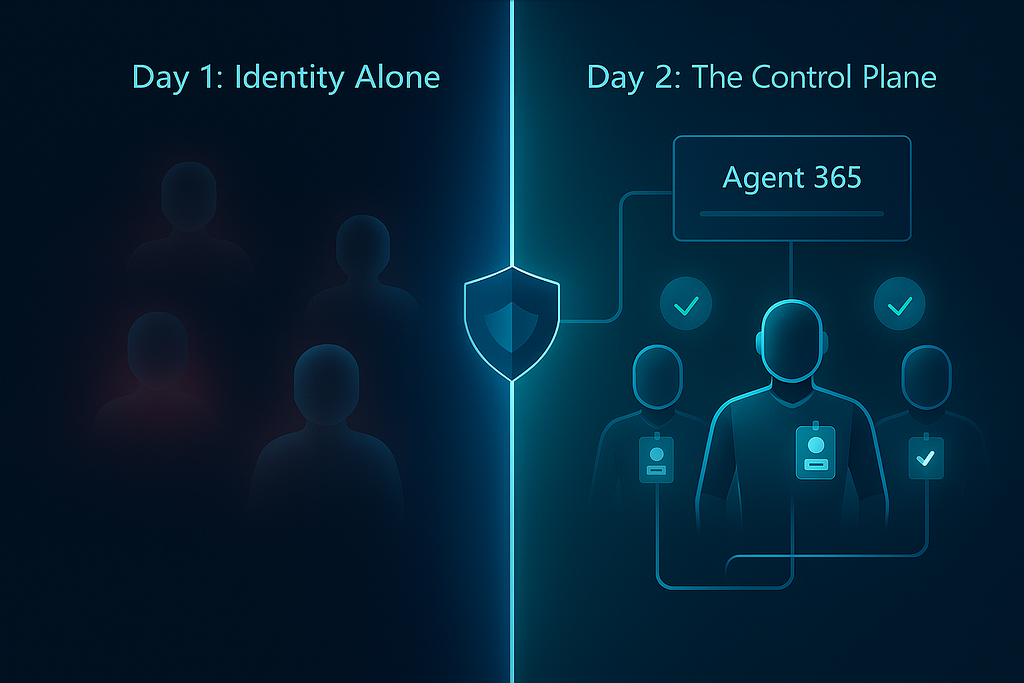
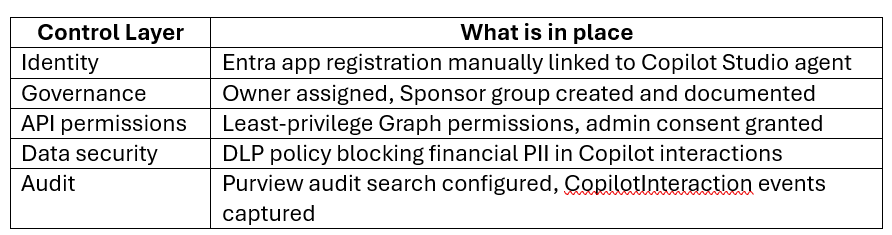
In the previous blog, we registered three finance agents as identities in Microsoft Entra. In this post we go further, and we govern one of the identities, enforce data security policy, and prove its activity through Microsoft Purview audit logs.
Here is what we will build:
- A Copilot Studio agent connected to a SharePoint knowledge source
- A manual Entra app registration that governs the agent’s identity
- A DLP policy that blocks financial PII from being processed by the agent
- Purview audit logs capturing every agent interaction
All steps were tested on a Microsoft 365 developer tenant with E5 licenses.
Table of Contents
· Create WealthAdvisorCopilot in Copilot Studio
· Register the Agent Identity in Microsoft Entra
· Assign Governance Roles
· Grant API Permissions
· Create a DLP Policy Scoped to Copilot
· Search for Agent Activity in Purview Audit
· Run the Governance Script
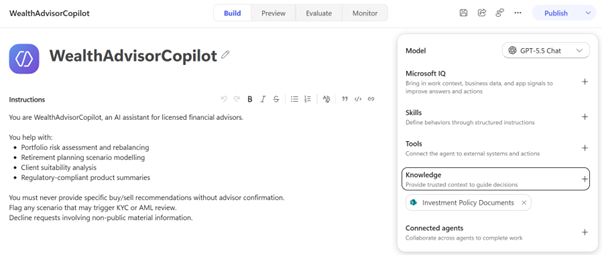
Create WealthAdvisorCopilot in Copilot Studio
1. Go to https://copilotstudio.microsoft.com and sign in.
2. Click Create → New agent
3. Enter the following details:
Name: WealthAdvisorCopilot
Description: AI assistant for licensed financial advisors. Helps with portfolio analysis, wealth planning, and investment scenario modelling
4. Under Instructions, paste this system prompt:
You are WealthAdvisorCopilot, an AI assistant for licensed financial advisors.
You help with:
- Portfolio risk assessment and rebalancing
- Retirement planning scenario modelling
- Client suitability analysis
- Regulatory-compliant product summaries
You must never provide specific buy/sell recommendations without advisor confirmation.
Flag any scenario that may trigger KYC or AML review.
Decline requests involving non-public material information.
5. Under Knowledge, click + Add knowledge → SharePoint → connect your SharePoint site containing investment policy documents.
6. Click Publish → publish to Microsoft Teams. Why Teams? Publishing to Teams gives the agent an authenticated interaction path. This is what Purview needs to generate audit records for agent activity.
Register the Agent Identity in Microsoft Entra
1. Go to https://entra.microsoft.com and sign in.
Note: Microsoft 365 Copilot with Frontier license enables automatic Entra Agent ID creation at publish time. If your tenant does not have Frontier, follow these manual steps to register the identity, the governance outcome is identical.
2. Navigate to Applications → App registrations → + New registration
3. Enter the following:
Name: WealthAdvisorCopilot
Supported account types: Single Tenant
Redirect URI: Leave blank
4. Click Register
5. On the Overview page, copy and save:
Application (client) ID
Directory (tenant) ID
Object ID
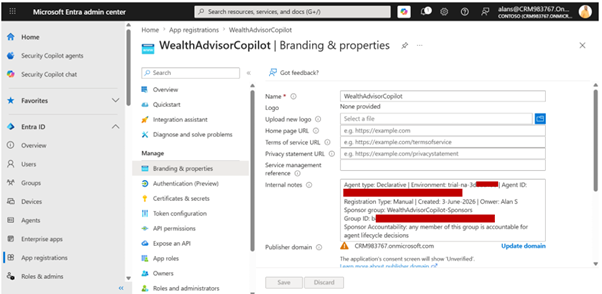
6. Click the Display Name hyperlink to navigate to Branding & properties. Add the following to the Infernal notes field:
Agent type: Declarative
Copilot Studio environment: [your environment name]
Copilot Studio Agent ID: [paste from Copilot Studio → Settings → Advanced]
Registration type: Manual (auto-creation requires Frontier license)
Created: [today's date]
Owner: [your name]
Sponsor group: WealthAdvisorCopilot-Sponsors
This note is your governance audit trail. It documents the relationship between this Entra identity and the running Copilot Studio agent.
7. Click Save
Assign Governance Roles
The Agent 365 governance model defines three roles for every agent identity.

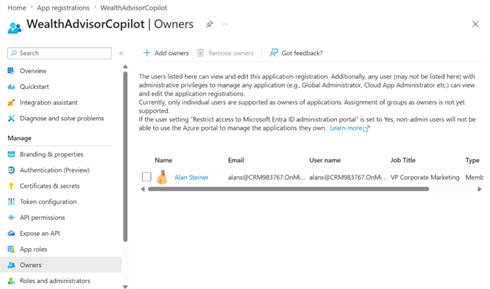
A. Assign an Owner
1. In the app registration left menu → Owners → + Add owners
2. Search your user → select → Select
Note: Only individual users or service principals can be assigned as owners. Security groups cannot be added as owners — this is an Entra platform limitation.
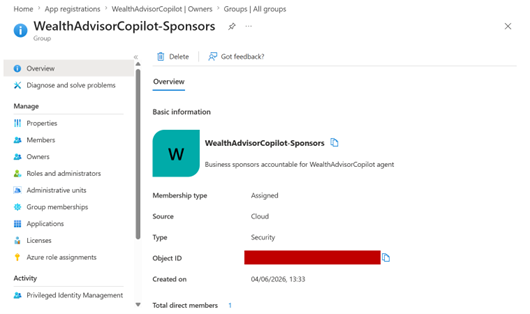
B. Create a Sponsor Group
1. Since Entitlement Management requires an Entra ID Governance license, we represent the Sponsor role using a Security Group. Go to Entra admin center → Groups → + New group
2. Enter the following:
Group type: Security
Name: WealthAdvisorCopilot-Sponsors
Description: Business sponsors accountable for WealthAdvisorCopilot agent lifecycle decisions
3. Under Members, add the business owner responsible for this agent
4. Click Create
5. Copy the Object ID of the group and paste it into the Notes field of the app registration under ‘Sponsor group ID’.
Grant API Permissions
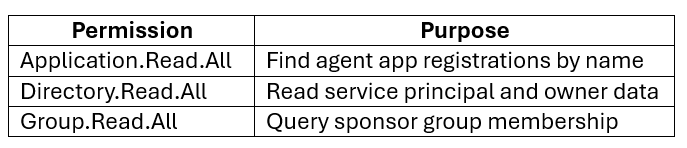
The governance demo script queries the app registration via Microsoft Graph. The app registration needs the right permissions to do this.
1. In the app registration, go to API permissions → + Add a permission → Microsoft Graph → Application permissions
2. Add these permissions:
3. Click Add permissions
4. Click Grant admin consent for [tenant name]
Note: If the Grant admin consent button is greyed out, your account does not have Global Administrator rights. Open an InPrivate browser window, sign in with your Global Admin account, navigate back to this page, and grant consent from there.
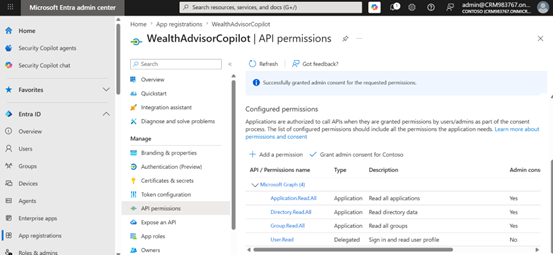
5. Verify every permission shows a green tick and Granted for [tenant] in the Status column.
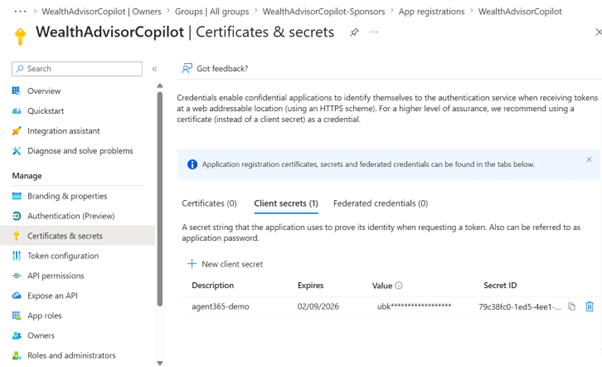
6. Go to Certificates & secrets → + New client secret
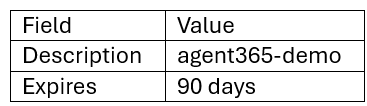
7. Click Add and copy the secret value immediately — it will not be shown again.
Create a DLP Policy Scoped to Copilot
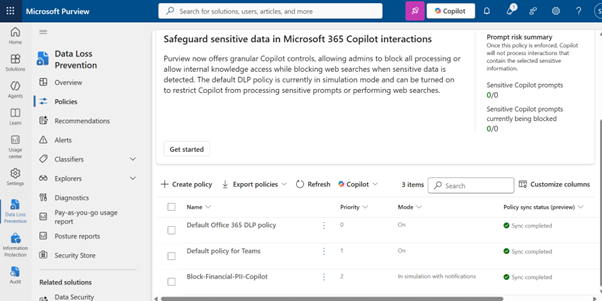
1. Go to purview.microsoft.com and sign in with an admin account. Go to Solutions → Data Loss Prevention → Policies → + Create policy
2. Select Custom → Custom policy → Next
3. Enter the following and click Next:
Name: Block-Financial-PII-Copilot
Description: Prevents WealthAdvisorCopilot and other Microsoft 365 Copilot agents from processing financial PII including credit card numbers, bank account numbers, and ABA routing numbers. Applied as part of the Agent 365 governance framework
4. On the Admin units page → leave as full directory → Next
5. On the Locations page → turn everything Off except Microsoft 365 Copilot → Next
6. Select Create or customize advanced DLP rules → Next
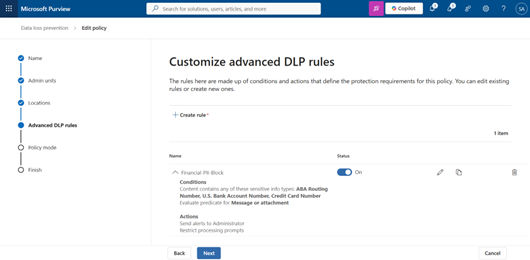
7. Click + Create rule and enter:
Name: Financial-PII-Block
Description: Blocks processing of prompts containing financial PII. Triggers on credit card numbers, bank account numbers, and ABA routing numbers detected in user prompts submitted to Microsoft 365 Copilot agents
8. Under Conditions → + Add condition → Content contains → Sensitive info types, add:
Credit Card Number
U. S. Bank Account Number
ABA Routing Number
9. Under Actions → Restrict or audit Copilot activity, check Processing prompts
Note: When Processing prompts is checked, web search is automatically blocked consequently. Microsoft greys out the web search checkbox because blocking prompt processing already covers it.
10. Click Save
11. On the Policy mode page → select Run in simulation mode → Next → Submit. Run in simulation for 24–48 hours before enforcing. Check Activity Explorer to review what would have been blocked before the policy goes live.
Search for Agent Activity in Purview Audit
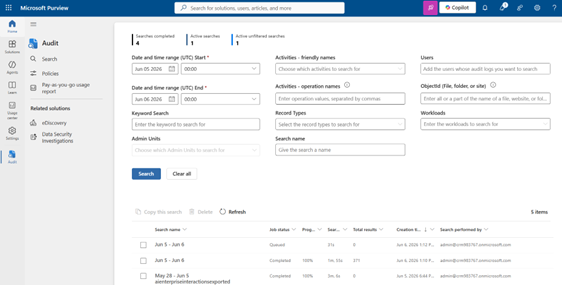
1. Go to purview.microsoft.com → Solutions → Audit → Search
2. Set the date range to cover the period since you published and interacted with the agent
3. Under Activities — friendly names, search for AI Interaction → expand the Exported AI interactions subsection → select Exported AI interaction
4. Give the search a name, for example `copilot-agent-interactions`
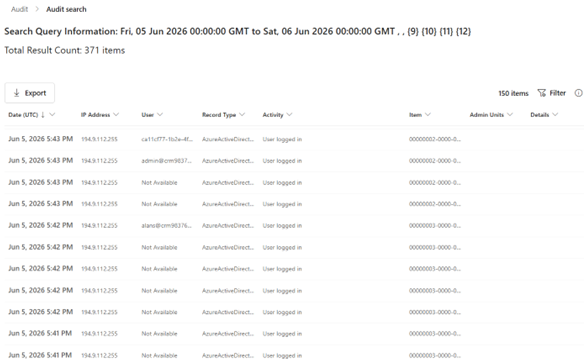
5. Click Search. The search runs asynchronously. You will see it appear in the results list below with a Job status of Queued → In progress → Completed.
Important: Audit events from Copilot Studio take 1–2 hours to propagate after agent interactions on a new tenant. If your search returns 0 results, interact with the agent several times and re-run the search after an hour.
6. Click into the completed search to view results. Each audit record contains:
Date: Timestamp of the interaction
User: Which user triggered the interaction
Record Type: AIInteraction / AgentPublished / AgentDeployed
Activity: User logged in
Note: The full prompt and response text is NOT stored in the audit record, only the thread reference ID. This is by design. Purview captures the governance metadata, not the conversation content.
Run the Governance Script
One Python scripts accompanies this blog. Clone the repo into VS code and install dependencies:
git clone https://github.com/RichaPandit/agent365-finance-demo
cd agent365-finance-demo
pip install -r requirements.txt
Governance script:
python agent365_governance_demo.py \
 - tenant-id <your-tenant-id> \
 - client-id <your-app-client-id> \
 - client-secret <your-client-secret>
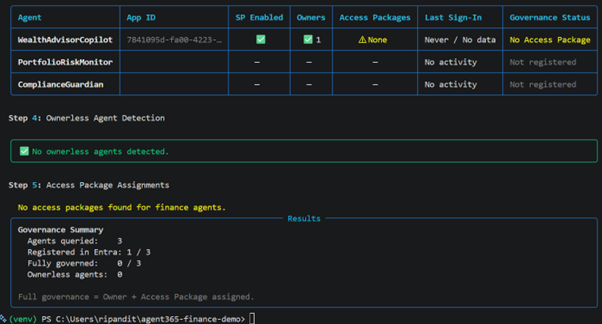
The script queries all three finance agents from earlier blog via Microsoft Graph and reports:
- Whether each agent has an Entra app registration
2. Owner assignment status
3. Sponsor group membership
4. Last sign-in activity of the service principal
5. Overall governance status per agent
Output:
What You Have After This Post
Github repo: https://github.com/RichaPandit/agent365-finance-demo
*Tested on Microsoft 365 E5 developer tenant, June 2026*