
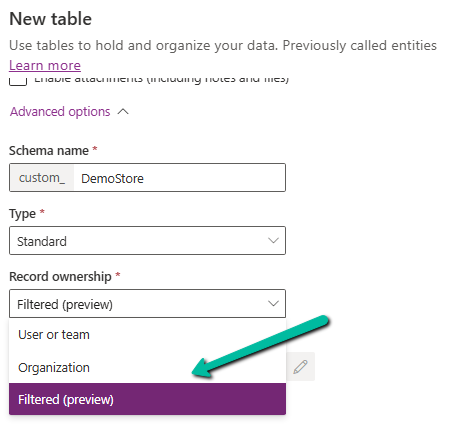
In the previous post, we looked at Filtered Record Ownership, where filters become the primary mechanism for record access. In this post, we will look at a related capability: adding filter-based security to an existing User/Team-owned table.
Filtered Record Ownership: A New Approach to Row-Level Security (Dataverse / Dynamics 365)
What is Filtered View Security?
Suppose we already have a User/Team-owned Store table and want to give a Test User 1 access to additional records based on a business condition, such as City = Christchurch.
Instead of changing ownership, sharing individual records, or creating another team, we can add a Record Filter and grant access to that filter through a security role.
The important difference: the existing ownership and security model remains in place. Filter-based security adds another way to grant access.
Our Store Example
We will use a custom table called Store. Unlike the previous example, this table is created with Record ownership = User or team.
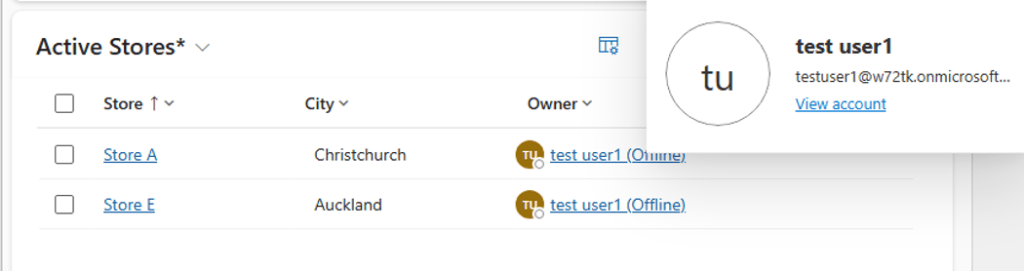
We have the following Stores record.
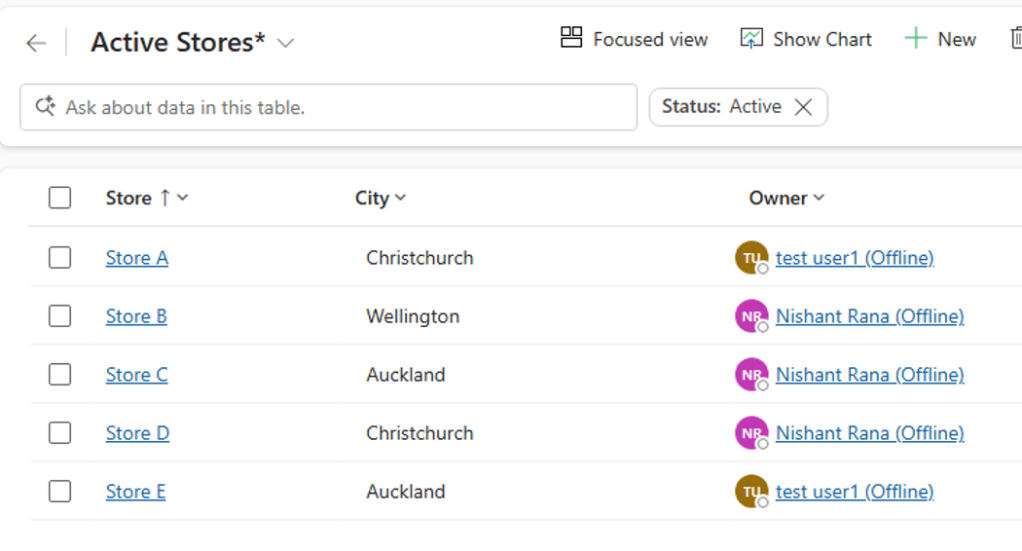
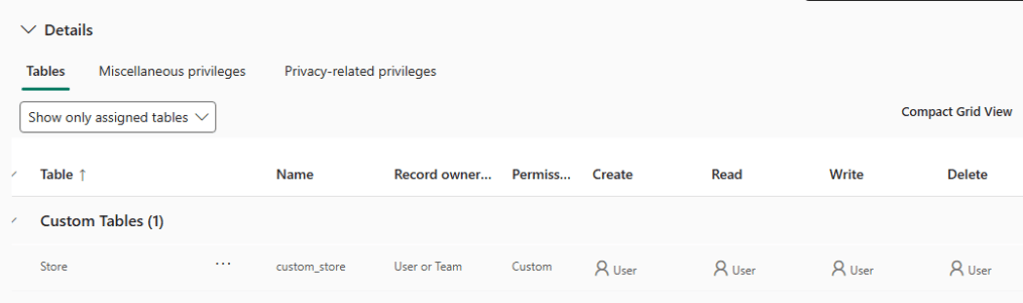
Currently, Test User 1 has access to only the records owned by him, as he has user-level access to the Store table.
The Requirement
Test User 1 should be able to access all stores in Christchurch, even when those records are owned by another user.
For example, Store D is owned by User B, but because its City is Christchurch, Test User 1 should receive additional Read access to it through the filter.
Before the Filter
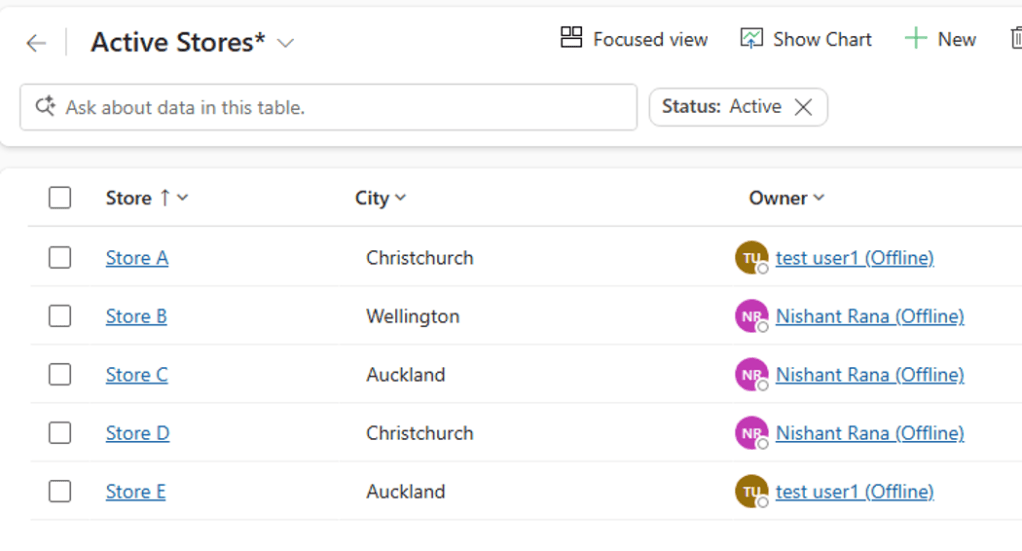
| Store | City | Owner | Test User 1 |
| Store A | Christchurch | Test User 1 | ✓ |
| Store B | Wellington | User B | ✗ |
| Store C | Auckland | User B | ✗ |
| Store D | Christchurch | User B | ✗ |
| Store E | Auckland | Test User 1 | ✓ |
Configuration Steps
1. Create the Store table
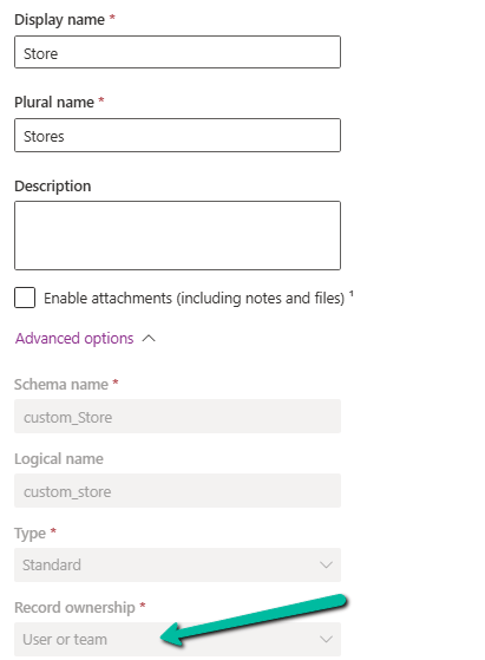
Create the Demo Store table and select User or team for Record ownership. Save the table and add the required City column.
2. Add sample records
Create a few Store records with different City values and assign them to different users.
3. Create the Record Filter
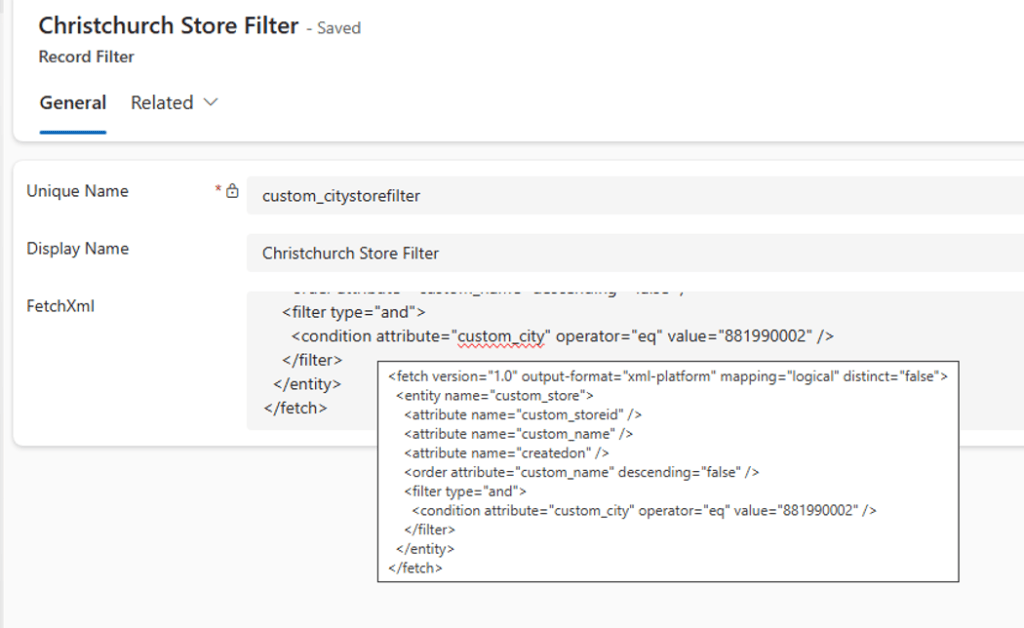
Create a Record Filter that identifies the records that should receive additional access. Example filter: City = Christchurch. The filter can be created using the appropriate FetchXML condition. Advanced Find can also be used to build the condition and download the FetchXML.
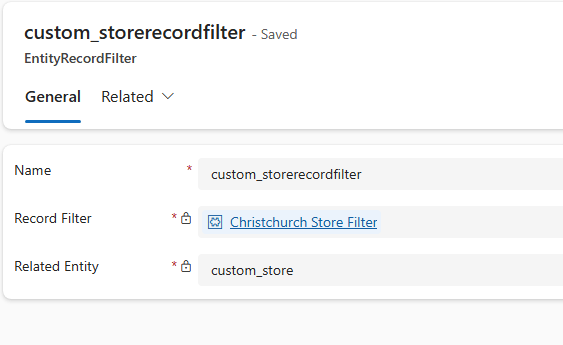
4. Create the Entity Record Filter
Create an EntityRecordFilter and associate the Christchurch Store filter with the Store table.
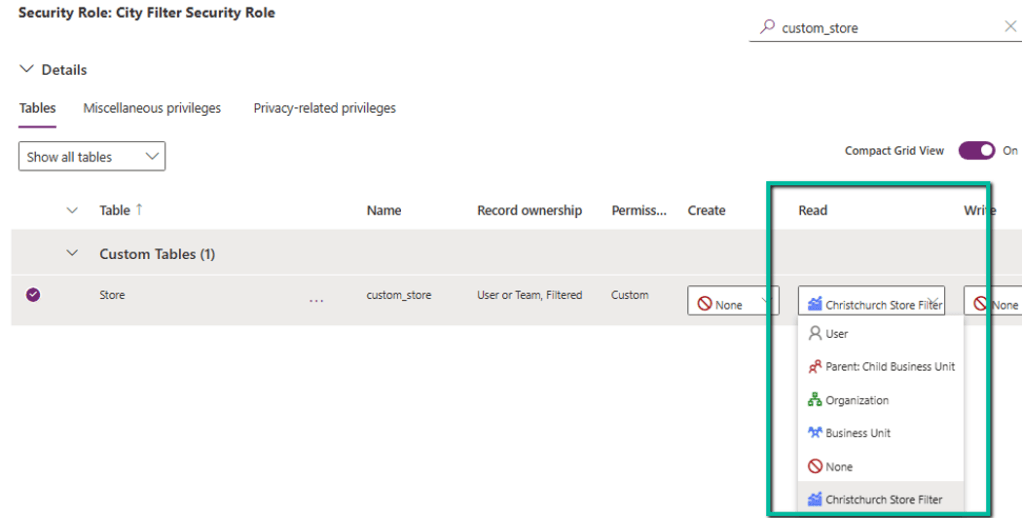
5. Configure the Security Role
Create or update a security role and grant the required filter privilege. For our first test, grant Read access to the Christchurch Store filter.
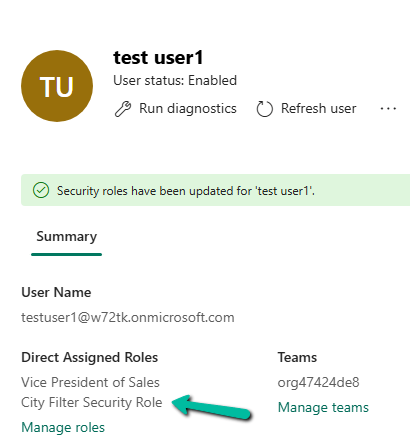
6. Assign the role
Assign the filter security role to Test User 1 and test the Store table using that user’s account.
The Result
After assigning the filter role, Test User 1 keeps the access they already had through the normal ownership model and receives additional access to records where City = Christchurch.
| Store | City | Owner | Test User 1 after filter |
| Store A | Christchurch | Test User 1 | ✓ Existing access |
| Store B | Wellington | User B | ✗ |
| Store C | Auckland | User B | ✗ |
| Store D | Christchurch | User B | ✓ Filter access |
| Store E | Auckland | Test User 1 | ✓ Existing access |
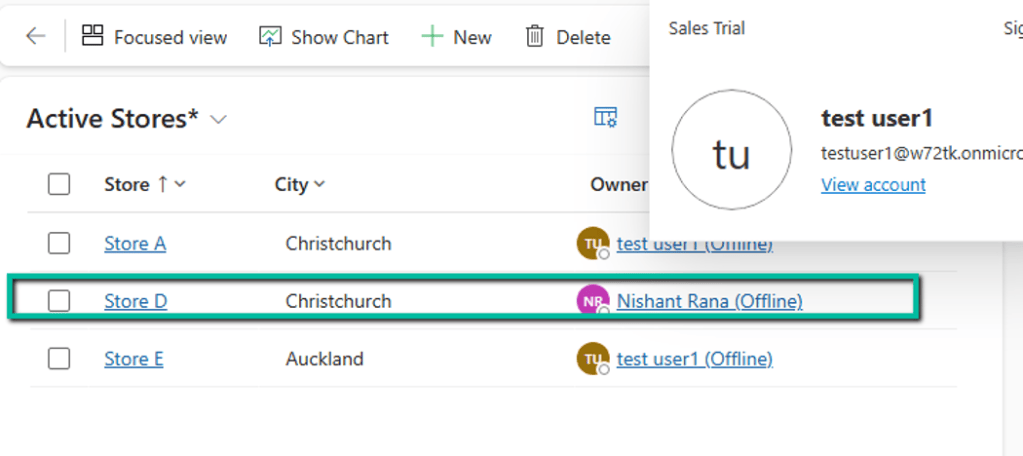
This is the key point of the experiment: the filter did not replace ownership. It added access to matching records.
Filtered View Security vs a View
A normal Dataverse view controls which records are displayed. Filter-based security controls which records the user is allowed to access.
| Normal View | Filtered View Security |
| Controls what is displayed | Controls record access |
| Does not grant security access | Can grant additional access |
| Used for presentation/navigation | Used for row-level security |
A Few Important Points
- The existing User/Team ownership model remains in place.
- Filter-based security can add access to matching records.
- Multiple authorized filters can contribute to a user’s access.
- Filter privileges can be configured for operations such as Read, Write, Create, and Delete.
- Filter design can affect query performance because filter permissions are evaluated with queries.
- The feature is currently a Preview capability.
Conclusion
Filtered View Security gives us another option for row-level access in Dataverse. Instead of changing ownership or sharing records individually, we can use a business condition to provide additional access.
In our Store example, Test User 1 continued to use the normal ownership model while gaining access to all Christchurch stores through a filter. This makes the capability particularly interesting for scenarios where access needs to follow attributes stored in the data.
As this is a Preview capability, it is best evaluated in a non-production environment before considering it for a production solution.
Microsoft Reference
Add filtered view security to record ownership tables (preview)
Hope it helps..
Discover more from Nishant Rana’s Weblog
Subscribe to get the latest posts sent to your email.
