

Not long ago, I set out to build a support agent in Microsoft Copilot Studio for a product in the Dynamics ecosystem: the kind of agent that answers customer questions grounded in your content, meaning Dataverse knowledge articles plus a custom table of curated case resolutions. No web browsing, no model knowledge; the knowledge sources are the agent’s entire world. And since I treat agents as code (YAML in source control, pac copilot pack, solution import, repeatable deployments), I ran head-first into a wall you may have hit yourself:
Dataverse knowledge sources can only be added through the Copilot Studio UI.
That is what the documentation implies, that is the line the community tooling holds, and pac copilot pack enforces it: put a Dataverse source definition in your workspace’s knowledge/ folder and pack rejects it outright. Public website sources? Fine in YAML. SharePoint? Fine. Dataverse tables, the one source type that lives in the same platform as the agent itself, are clicks only.
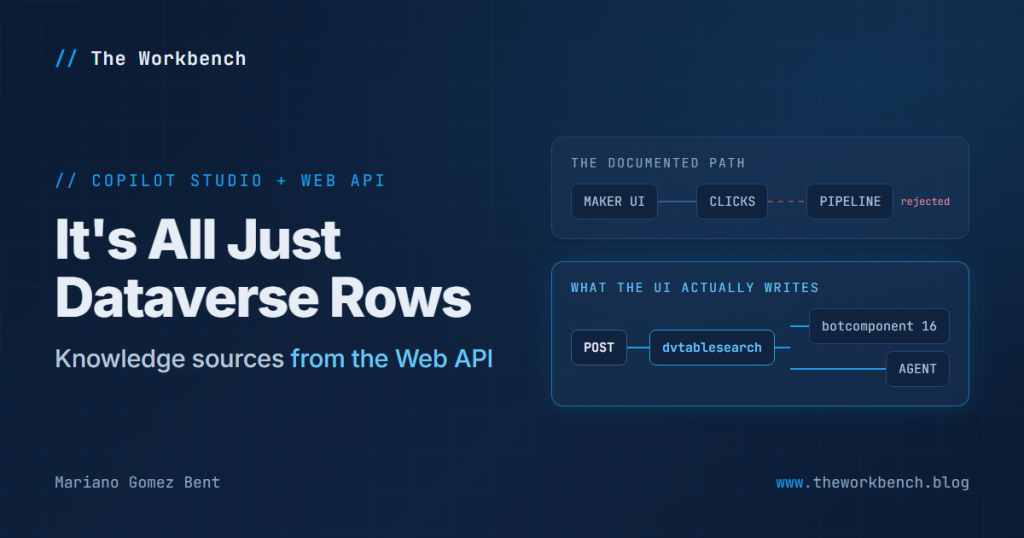
Except, as it turns out, that is not quite true. Copilot Studio is built on Dataverse. Every knowledge source you click together in the maker portal materializes as plain Dataverse rows, and anything that is plain Dataverse rows can be created with the Web API: inside a solution, from a pipeline, repeatably. So, in this article I will walk through the recipe, battle-tested twice now: once in a production-grade Dynamics 365 CE org, and once in a freshly provisioned vanilla environment, where it surfaced several extra lessons you will want in hand before trying this yourself.
First, which kind of agent? (This one matters)
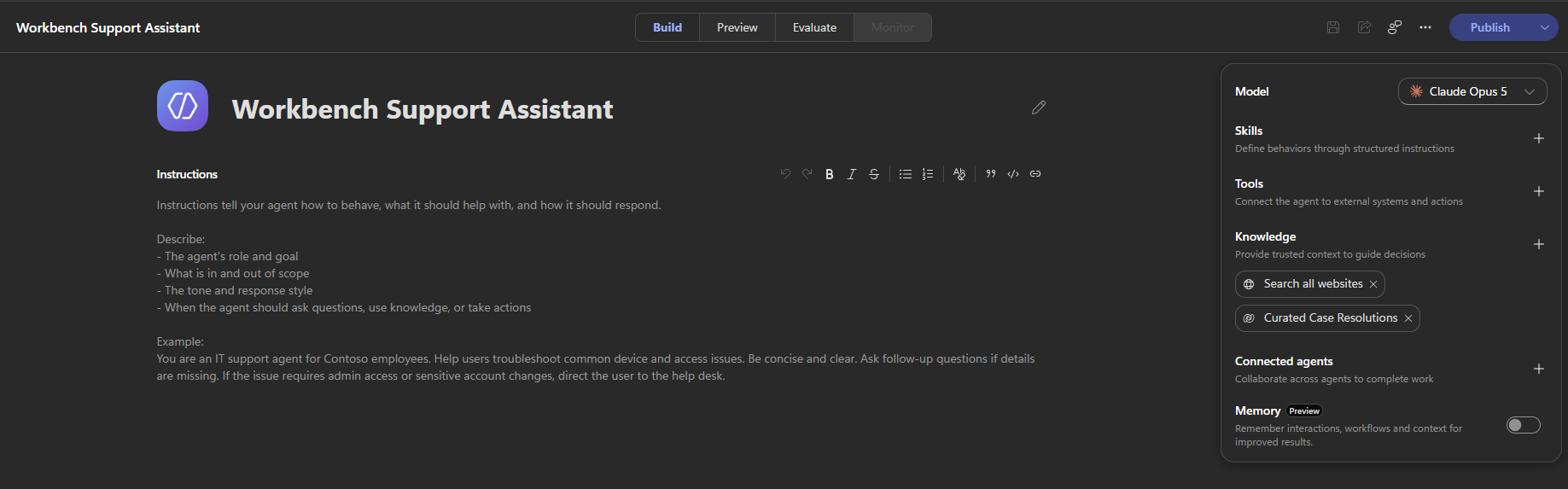
Copilot Studio now ships two agent runtimes, which Microsoft calls harnesses. The standard harness is the classic experience: topics, the full Knowledge pane, solution-first ALM. The GitHub Copilot harness is the new streamlined agent builder, with its Build, Preview, and Evaluate tabs and a model picker.
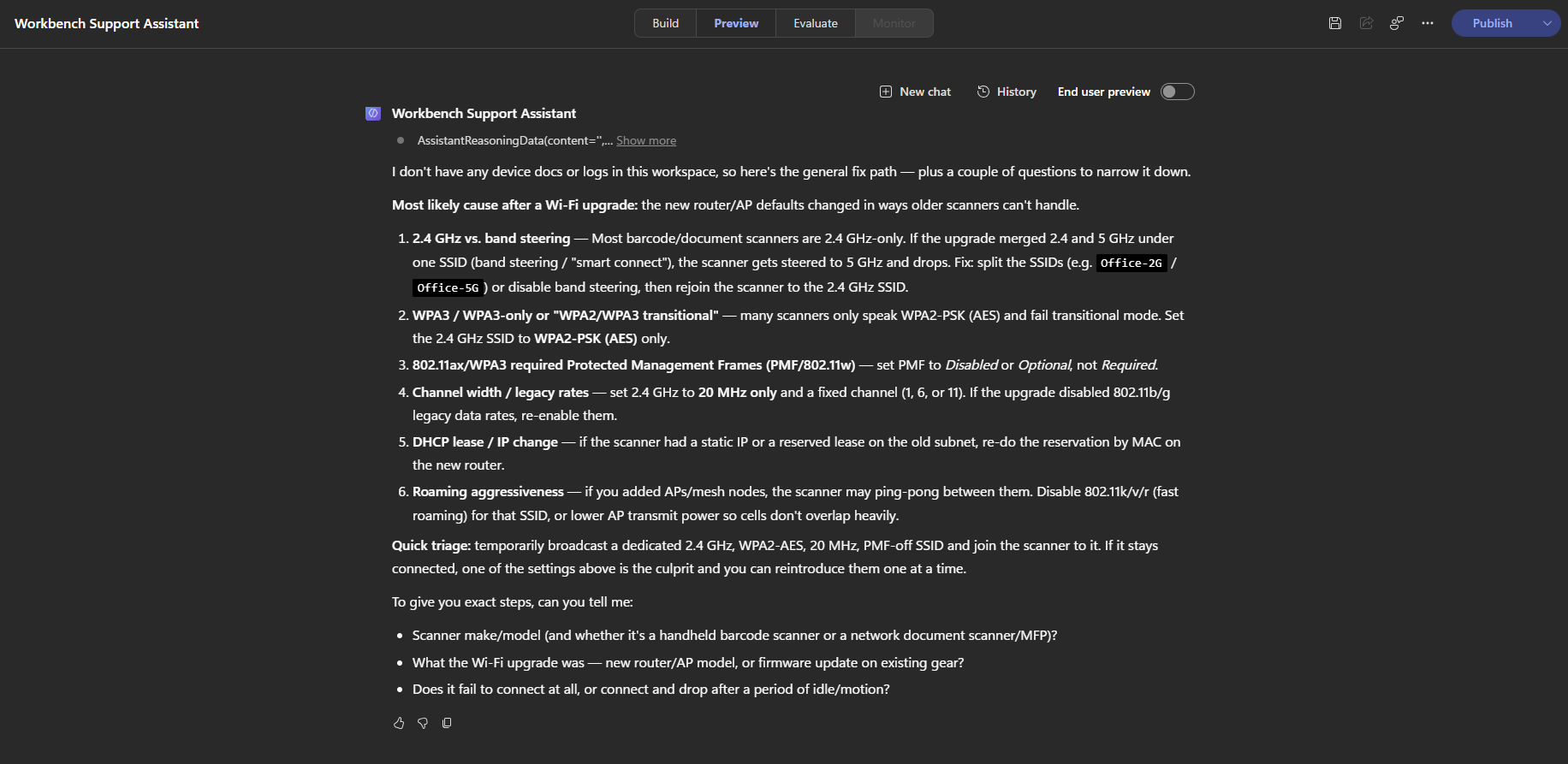
Dataverse knowledge is a standard-harness feature. The new experience does not offer Dataverse in its Add knowledge dialog at all, and here is the trap that cost me an evening: if you create your knowledge component via the API against a new-experience agent, the Knowledge panel will happily display it (the panel reads the same component table) while the runtime silently never queries it. The agent will cheerfully answer from its own general knowledge and tell you it has no documents. No error anywhere!
So check your agent’s runtime before wiring anything, as follows:
GET /api/data/v9.2/bots?$select=name,schemaname,templateA template of default-2.1.0 (or a similar default-*) means the standard harness; proceed. A template of cliagent-1.0.0 means the new experience, and this recipe will not ground there. To build standard-harness agents, flip the “New experience” toggle off on the Copilot Studio homepage, or pick “Other ways to build.”
NOTE: a fun fact discovered along the way. In the new experience, the default “Search all websites” knowledge chip is not a knowledge source row at all; it is an enableWebSearch flag inside the bot’s configuration JSON. Different harness, different bookkeeping.
Why bother?
If you are happy clicking the UI once, close this tab with my blessing. But if any of the following apply, read on:
- Your dev environment is a sandbox that gets refreshed from production periodically, wiping everything you built. Mine was! With the agent rebuildable from a git repository, knowledge sources included, a refresh becomes a non-event instead of a lost week.
- You deploy the same agent to multiple environments and want identical knowledge wiring in each without a click-checklist taped to the monitor.
- You want knowledge sources inside your solution, versioned and transported like everything else you ship.
Finding the shapes: mirror a working example
The trick that unlocked everything is almost embarrassingly simple: find a working reference implementation in the same environment and mirror its record shapes. If your org runs Dynamics 365 Customer Service, Microsoft’s own first-party copilots ship as solution components, and their Dataverse knowledge sources are sitting right there in the very same tables yours will use; that is what I mirrored. In a clean environment with no first-party copilots, make your own reference: click one knowledge source together in the UI, then query what it wrote. Either way, the shapes reveal themselves:
GET /api/data/v9.2/botcomponents?$filter=componenttype eq 16
  &$select=name,data,schemaname
Four moving parts emerge from that inspection:
| Piece | What it is |
|---|---|
dvtablesearch |
A named “table search” configuration: the knowledge source’s identity |
dvtablesearchentity |
A child row per table being searched, pointing at its parent via the DVTableSearch navigation property and naming the table in entitylogicalname |
botcomponent (componenttype 16) |
The agent-side knowledge component; its data column holds KnowledgeSourceConfiguration YAML whose skillConfiguration names the dvtablesearch |
botcomponent_dvtablesearch |
The N:N association tying the component to the search config |
A few things to note before we build. First, the component attaches to your agent through its parentbotid lookup, and not, as you might reasonably guess, through the bot_botcomponent N:N relationship. That relationship exists in the schema, but for knowledge components it stays empty; the parent lookup is what the platform actually uses. Ask me how long that one took! Second, on naming, because it bit me: dvtablesearch.name is a machine-style identifier (the component YAML references it verbatim), while the friendly display name your makers see in the Knowledge tab lives on the botcomponent.name. Keep them distinct on purpose.
Step 0: the custom table (if you are grounding on one)
My scenario grounds the agent on a custom curated-resolutions table. If you only need standard tables like knowledgearticle (which, by the way, is a base Dataverse table, present even in environments without any Dynamics 365 apps), feel free to skip ahead to Step 1. Otherwise, three gotchas await, and the third one is the difference between an agent that grounds and one that shrugs.
Gotcha 1: Memo columns want an explicit format. Declare Format: TextArea on each MemoAttributeMetadata. That is plain multi-line text, which is what the knowledge indexer expects, and a working column reads back with both Format and FormatName as TextArea. Here is the whole table, one create:
POST /api/data/v9.2/EntityDefinitions
MSCRM.SolutionUniqueName: WorkbenchSupportAssistant

{
  "@odata.type": "Microsoft.Dynamics.CRM.EntityMetadata",
  "SchemaName": "wrk_caseresolution",
  "DisplayName": { "LocalizedLabels": [ { "Label": "Case Resolution", "LanguageCode": 1033 } ] },
  "DisplayCollectionName": { "LocalizedLabels": [ { "Label": "Case Resolutions", "LanguageCode": 1033 } ] },
  "OwnershipType": "UserOwned",
  "HasActivities": false,
  "HasNotes": false,
  "SyncToExternalSearchIndex": true,
  "Attributes": [
    { "@odata.type": "Microsoft.Dynamics.CRM.StringAttributeMetadata",
      "SchemaName": "wrk_title", "IsPrimaryName": true, "MaxLength": 300,
      "RequiredLevel": { "Value": "ApplicationRequired" },
      "DisplayName": { "LocalizedLabels": [ { "Label": "Title", "LanguageCode": 1033 } ] } },
    { "@odata.type": "Microsoft.Dynamics.CRM.MemoAttributeMetadata",
      "SchemaName": "wrk_symptom", "Format": "TextArea", "MaxLength": 4000,
      "DisplayName": { "LocalizedLabels": [ { "Label": "Symptom", "LanguageCode": 1033 } ] } },
    { "@odata.type": "Microsoft.Dynamics.CRM.MemoAttributeMetadata",
      "SchemaName": "wrk_resolution", "Format": "TextArea", "MaxLength": 10000,
      "DisplayName": { "LocalizedLabels": [ { "Label": "Resolution", "LanguageCode": 1033 } ] } }
  ]
}
One POST, one 204, done! And notice SyncToExternalSearchIndex: true riding along in the create payload. Which brings us to…
Gotcha 2: Dataverse search must be on, and the org-level flag is just a column. Copilot Studio’s Dataverse knowledge rides Dataverse search. The admin-center setting (now two checkboxes in the modern admin UI, one for “AI and agent experiences” and one for the global search bar) ultimately reflects a boolean on the organization record, and yes, you can flip it via API:
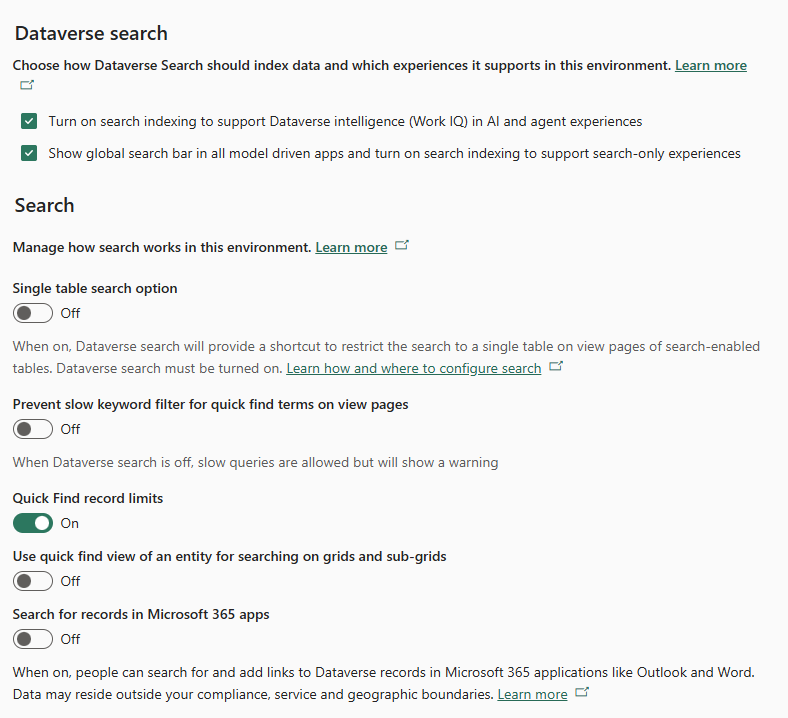
PATCH /api/data/v9.2/organizations(<orgid>)
{ "isexternalsearchindexenabled": true }
But budget real time for what happens next. On a freshly provisioned environment, initial index provisioning took about two hours before my rows became searchable. And do not trust GET /api/search/v1.0/status to tell you how it is going; it reported “0 tables indexed” even while queries were returning hits. The only reliable readiness probe is an actual query:
POST /api/search/v1.0/query
{ "search": "scanner", "entities": ["wrk_caseresolution"], "top": 5 }
For a table that already exists and needs the sync flag flipped, resist the urge to PATCH the entity definition, because metadata entities cannot be updated with PATCH. Updates replace the whole definition: GET it, modify, PUT the entire document back with an MSCRM.MergeLabels: true header (or kiss your localized labels goodbye, since omitted properties reset to their defaults), then call the PublishXml action. You may be asking whether all that ceremony is really necessary for one boolean. It is! Which is exactly why you set it at create time.
Gotcha 3: find columns ARE the search index. This is the one that separates “source attached” from “agent grounded.” Dataverse search indexes the columns configured as find columns on the table’s Quick Find view, and a fresh custom table’s Quick Find view has exactly one: the primary name. Your beautiful Symptom and Resolution text? Invisible to search, and therefore to your agent, until they are added.
NOTE: and here is the kicker. Updating the view’s fetchxml via the Web API fails with an opaque 0x80040216 on every route I tried (record PATCH, single-property PUT), in two different orgs, while layoutxml on the very same record updates fine. Whatever message the maker UI sends, the Web API’s savedquery update path is not it. Budget one manual click-step: go to Power Apps, then Tables, then your table, then Views, open the Quick Find view, click Edit find table columns, add your text columns, and Save and publish. That is the fastest route, and it is the one I used here. Now, it is not the only route: the same change can be made at the solution level, by exporting the solution, editing the view definition inside it, and importing it back, which automates cleanly. That belongs to a bigger story about treating agents as source-controlled artifacts, and it is where I am headed next!
Seed a few rows while you are here. An empty table grounds nothing!
Step 1: create the dvtablesearch
First surprise: the entity-set name is dvtablesearchs. Yes, really, that plural! Ask $metadata if you do not believe me; I did, twice:
POST /api/data/v9.2/dvtablesearchs
MSCRM.SolutionUniqueName: WorkbenchSupportAssistant

{ "name": "wrk_case_resolutions_search" }
That single property is genuinely the whole payload; verified. Machine-style name, remember: this exact string gets referenced by the component YAML in Step 3. And keep an eye on that MSCRM.SolutionUniqueName header, because it is doing quiet but important work in every call in this article. It lands each row in your solution instead of the default one, which is the whole ALM point of the exercise.
Step 2: add the table(s) to it
One dvtablesearchentity per table the source searches, bound to its parent via the single-valued navigation property, as follows:
POST /api/data/v9.2/dvtablesearchentities
MSCRM.SolutionUniqueName: WorkbenchSupportAssistant

{
  "entitylogicalname": "wrk_caseresolution",
  "DVTableSearch@odata.bind": "/dvtablesearchs(<dvtablesearch-guid>)"
}
Step 3: the botcomponent that makes it a knowledge source
This is the piece that surprises people: the knowledge source your agent sees is a botcomponent row of componenttype 16 whose data column is… YAML. A KnowledgeSourceConfiguration document whose skillConfiguration property names the dvtablesearch from Step 1, and whose parentbotid lookup attaches it to your agent, all in one create:
POST /api/data/v9.2/botcomponents
MSCRM.SolutionUniqueName: WorkbenchSupportAssistant

{
  "name": "Curated Case Resolutions",
  "componenttype": 16,
  "schemaname": "wrk_WorkbenchSupportAssistant20.knowledge.wrk_case_resolutions",
  "data": "kind: KnowledgeSourceConfiguration\nsource:\n  kind: DataverseStructuredSearchSource\n  skillConfiguration: wrk_case_resolutions_search\n",
  "parentbotid@odata.bind": "/bots(<bot-guid>)"
}
That data YAML, unfolded so you can actually read it:
kind: KnowledgeSourceConfiguration
source:
  kind: DataverseStructuredSearchSource
  skillConfiguration: wrk_case_resolutions_search
A few things to note here. The schemaname follows the convention <botSchemaName>.knowledge.<componentName>, and that is the bot’s schemaname, which you should read rather than guess: the same GET /bots from the harness check gives it to you, and agents created in the new experience even carry a random suffix in theirs. And the friendly name is what your makers will see in the Knowledge tab, so make it read like a knowledge source, not like a database object.
Step 4: tie the component to the search config
The N:N association that closes the loop:
POST /api/data/v9.2/botcomponents(<component-guid>)/botcomponent_dvtablesearch/$ref

{ "@odata.id": "https://yourorg.crm.dynamics.com/api/data/v9.2/dvtablesearchs(<dvtablesearch-guid>)" }
Verify like the maker UI is watching
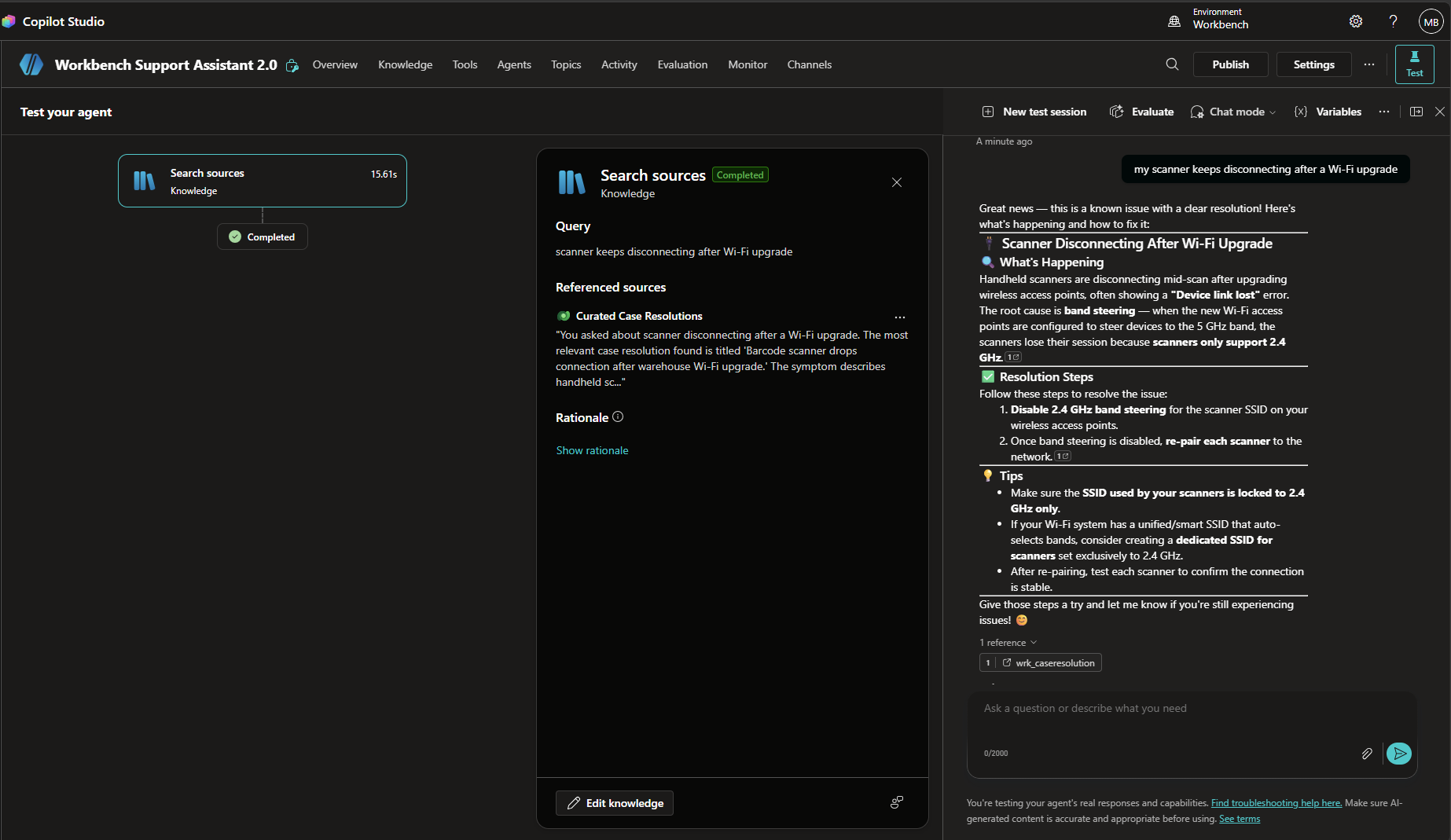
Open the agent in Copilot Studio and go to the Knowledge page. Your source should be listed exactly as if you had clicked it together: name, table, status. Then comes the real test, and no publish is needed. Go straight into the test canvas and ask a question only your table can answer.
When it works, it really works! My test agent answered a scanner-connectivity question with the exact resolution from the seeded row, three citations pointing at wrk_caseresolution records, and the canvas’s activity map showing the knowledge searches with “Curated Case Resolutions” as the referenced source. Grounded, cited, and not one of those records touched by a mouse.
Two behavioral notes for Dataverse sources generally, both documented but easy to miss:
- Same environment only. Copilot Studio’s Dataverse knowledge reads the agent’s own environment. If your data lives in environment A, the agent lives in environment A. Plan placement before you scaffold.
- End-user authentication must be “Authenticate with Microsoft.” Dataverse sources ride the end user’s identity; “No authentication” and “Authenticate manually” agents will not search them, and the docs are explicit about this one.
The bigger picture
Everything Copilot Studio’s maker portal does lands in Dataverse tables, and a surprising amount of the “UI-only” surface is only UI-only until you look at what the UI writes. The same technique has bailed me out more than once: find where the platform stores it, mirror the shape, create it in your solution. In turn, it converts “click this checklist in every environment” into “run the deployment,” and that is the difference between an ALM story with an asterisk and one without.
One more time, because it matters: these are undocumented shapes, subject to change, so verify in the portal after every deployment. But with that caveat honored, a source-controlled agent is rebuildable end to end, knowledge sources included, and that is always a good thing.
If you have automated your own way around a “UI-only” corner of Copilot Studio, or if these shapes have already drifted by the time you read this, please drop a note in the comments describing what you found; undocumented territory is exactly where comparing notes pays the most.
Until next post!
MG.-
Mariano Gomez Bent
Former Microsoft BizApps MVP