
When something in your agent gives the wrong answer or behaves unexpectedly, the conversation trace is your first stop. Not the topic editor.
The execution panel on the left side
If you’ve used the testing canvas for live testing (covered in the previous post), you already know the left side shows topic transitions as they happen. For diagnosis, that same panel is where you start.
Every topic and node that fires during a conversation shows up here in sequence, stacked top to bottom as things happen. That’s your execution log.
Click any block and a detail panel opens. For topics, you’ll see the trigger phrases and a Show rationale link. That link shows the AI’s reasoning for why it selected that topic — useful when the wrong topic fired and you want to understand what the agent was actually responding to.
0:00
If the wrong topic fired, the rationale often makes it obvious why — the user’s phrasing matched something in the wrong topic more closely than anything in the right one. Adding more varied trigger phrases to the intended topic is usually the fix.
Want actual numbers? The testing canvas shows the reasoning but not a specific confidence score. If you need intent recognition scores that are useful for catching borderline matches before they reach production then the Copilot Studio Kit surfaces them via Application Insights and Dataverse transcripts as part of batch test results. More on that in the agent evaluation post, coming soon.
For knowledge searches and action calls, the detail panel shows what was passed in and what came back. A failed action shows an error code here that’s almost always more useful than the generic error the user sees in chat.
Start at the top, not the bottom. When diagnosing a wrong answer, find the first block where something went differently than expected as everything after that is a consequence. The instinct is to start at the wrong answer and work backwards. Don’t. Start at the beginning.
The Thinking… section
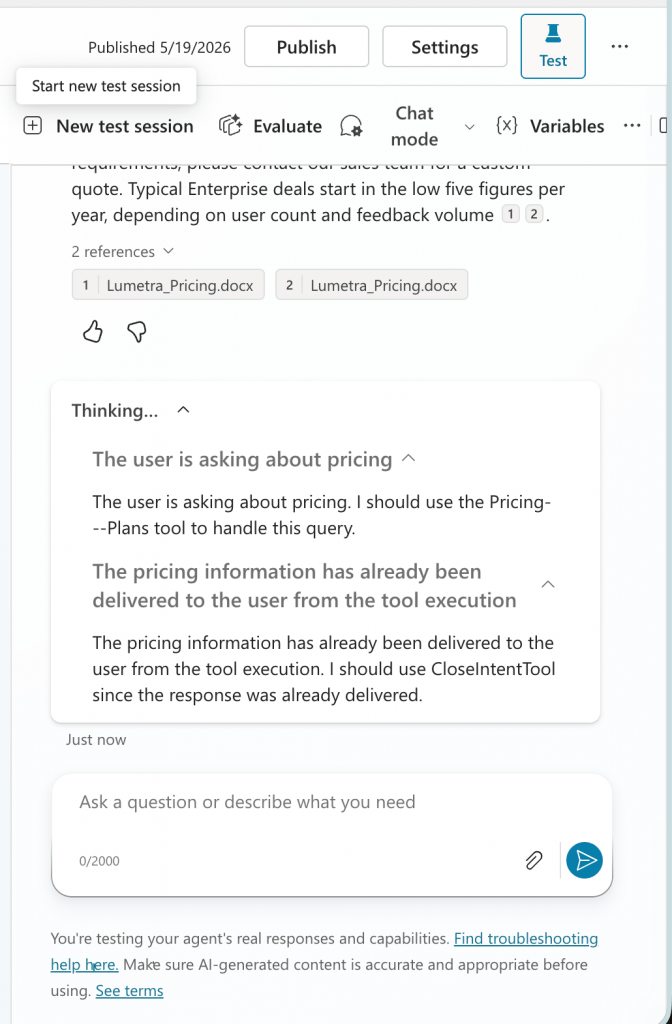
The Thinking… section appears inline in the chat panel, directly below each response. It shows the AI’s reasoning for that specific response – what it considered and what it decided to do.
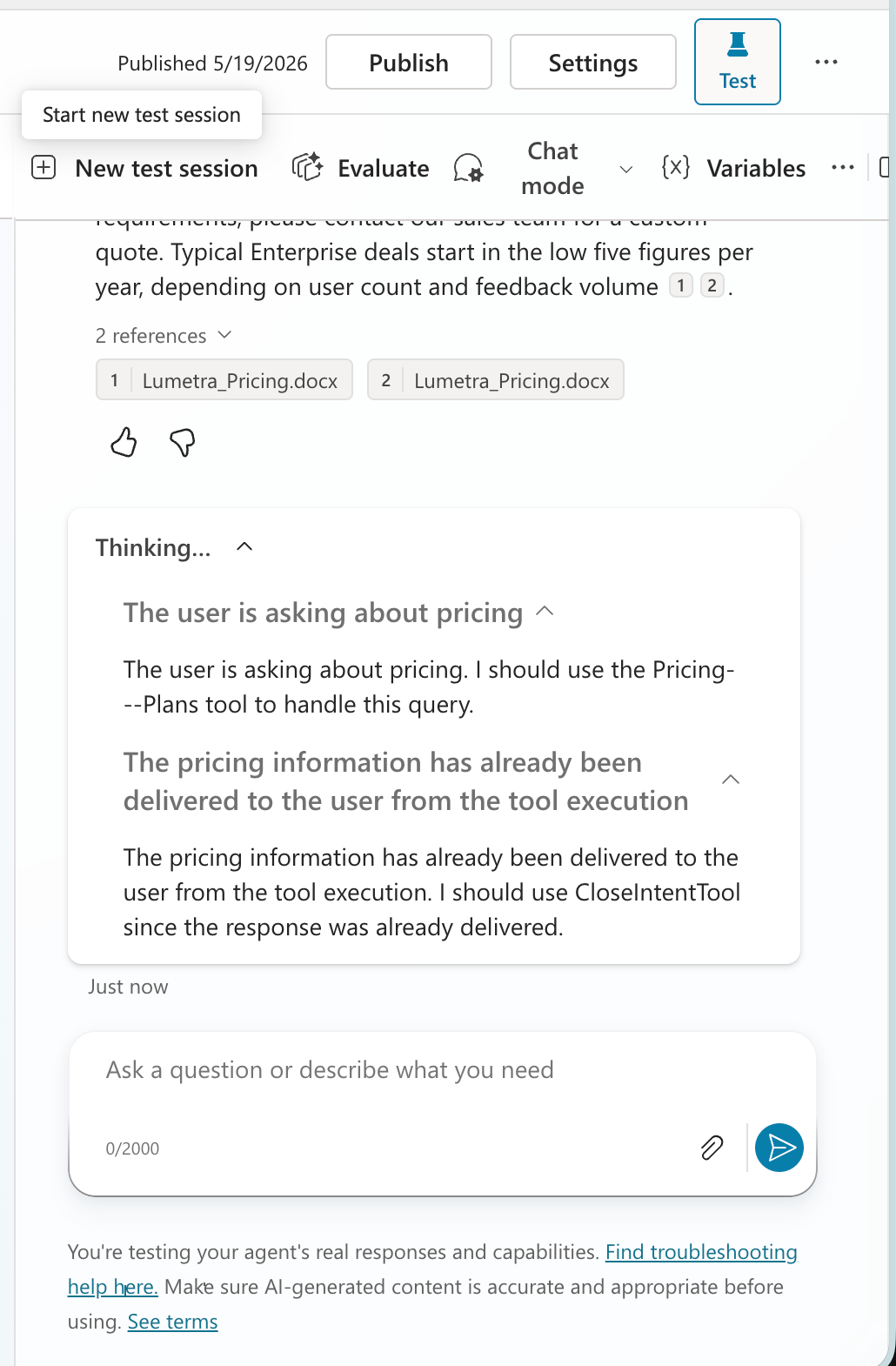
It’s always there, but it only has content when there’s actual reasoning to show. Important: This section only appears when your agent uses generative orchestration or knowledge search, a purely classic, topic-only agent won’t show it. A simple topic-triggered response with no AI decision-making involved will have an empty or minimal Thinking… section. An agent that evaluated a situation, decided to call a tool, called it, and interpreted the result will show multiple steps.
What the steps mean
The most common step you’ll see first is intent evaluation – the agent deciding which topic or action matches the user’s message, and why that one over the alternatives.
If the agent decided to call a connector, Power Automate flow or external action, you’ll see a tool call decision step that shows exactly what parameters it passed. Immediately after, the result comes back as a separate step – what the tool returned, or if it failed, what error came back. That error is often far more detailed than anything shown to the user.
For AI-generated responses, there’s usually a response generation step that shows what went into generating the answer.
When an action fails
The Thinking… section won’t help you here as it shows intent reasoning, not action execution results. The error surfaces in two places instead.
First, the execution panel. The failed block gets a red “Failed” badge. Click it and the detail panel opens with the error right at the top. For example: HttpRequestFailure HTTP request failed with status code 401 Unauthorized or whatever your actual error is.
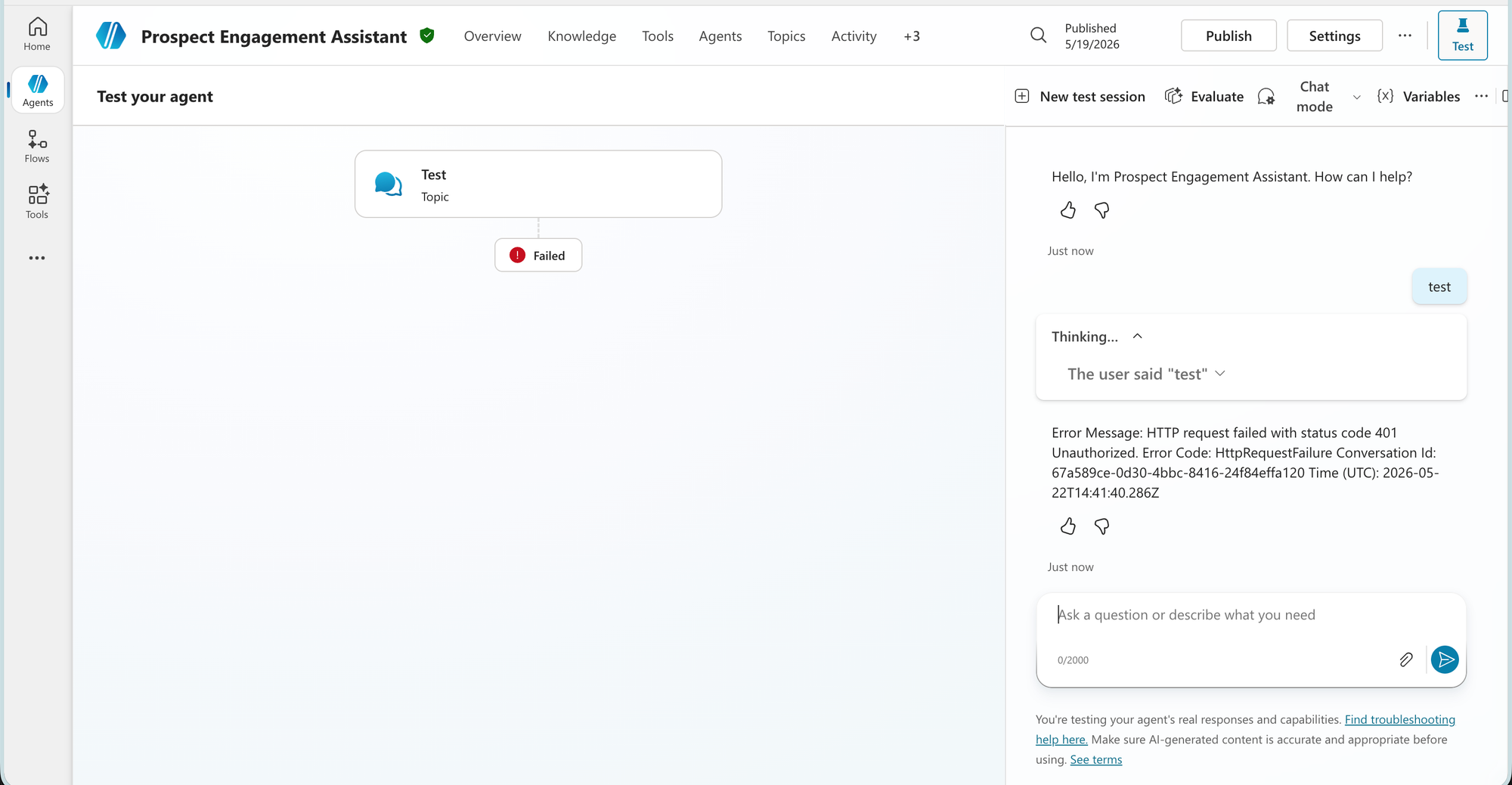
Second, the chat panel. The full error also appears as a response message in the conversation: error code, conversation ID, and UTC timestamp. More detail than the execution panel, and it’s right there without clicking anything.
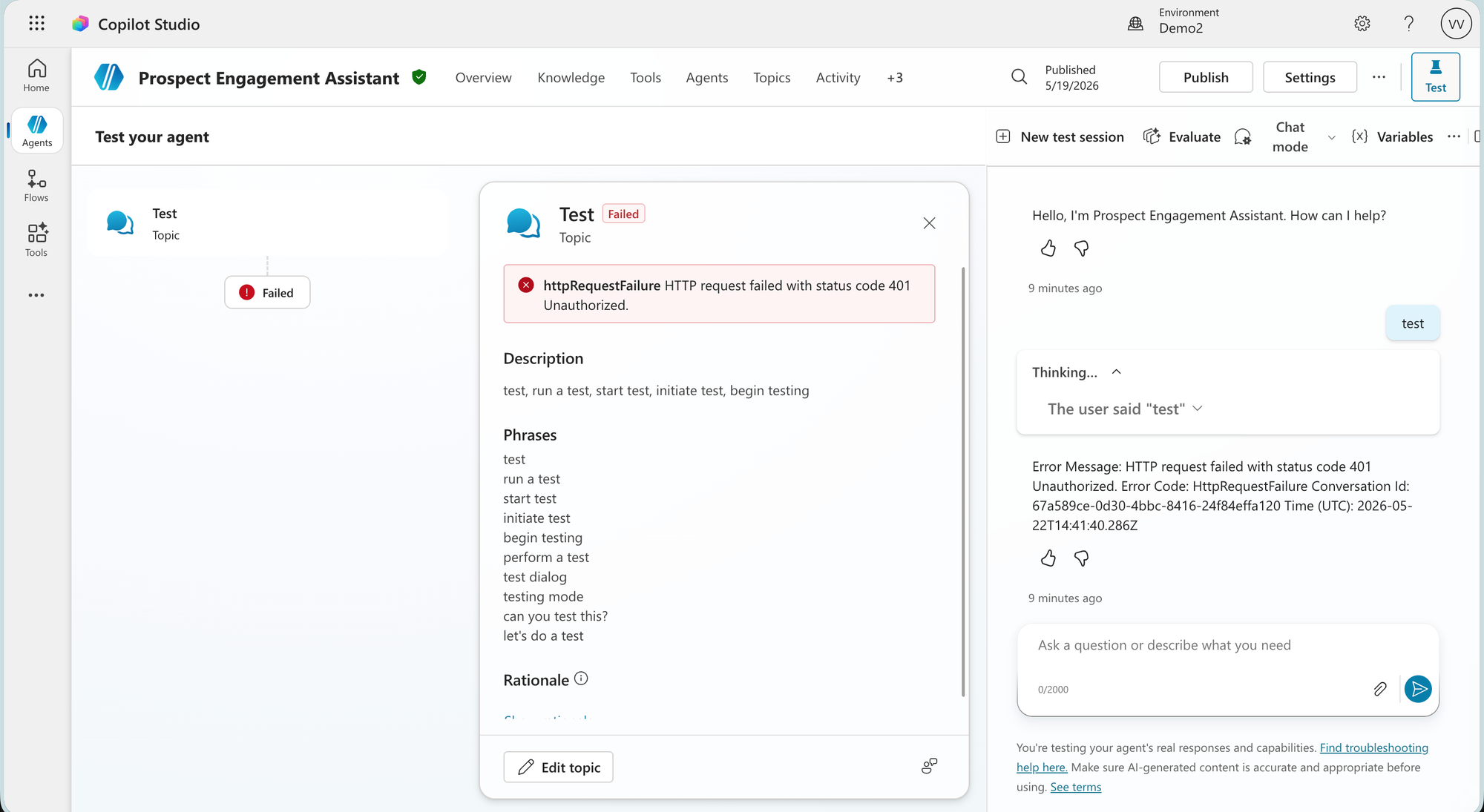
If neither surface gives you enough to go on then “ActionError” with absolutely no useful detail is a real thing, especially with custom connectors – that’s when you go to Power Automate run history or Azure Monitor to hopefully get a better answer 😅
References
References appear below a response when knowledge sources were retrieved. They list the exact documents or web pages the AI used to get you the answer.
No references means no retrieval happened – either the agent didn’t need to look anything up or nothing relevant was found. If a response should have been grounded in your knowledge source but references are missing, the retrieval failed to returned anything. That’s a knowledge configuration problem and you should look them over.
You can click any reference to open the source document directly which is useful for quickly checking whether the retrieved content actually contains what the agent used.
0:00
One thing you won’t see here: why one source ranked above another. The references show what was used, but not the relevance scores behind the selection. If the wrong source is being cited, the trace alone can’t tell you whether it’s a retrieval ranking problem or a generation problem.
Diagnosing a wrong answer
- Run the conversation that produces the unexpected result.
- Check the execution panel top to bottom. Find the first step that went wrong and that’s the cause, everything after is consequence.
- Check the rationale on the topic that fired. Click the block and hit Show rationale then the AI’s reasoning tells you what it was responding to. If the wrong topic triggered, that reasoning usually makes the mismatch obvious. Fix: more diverse trigger phrases in the intended topic.
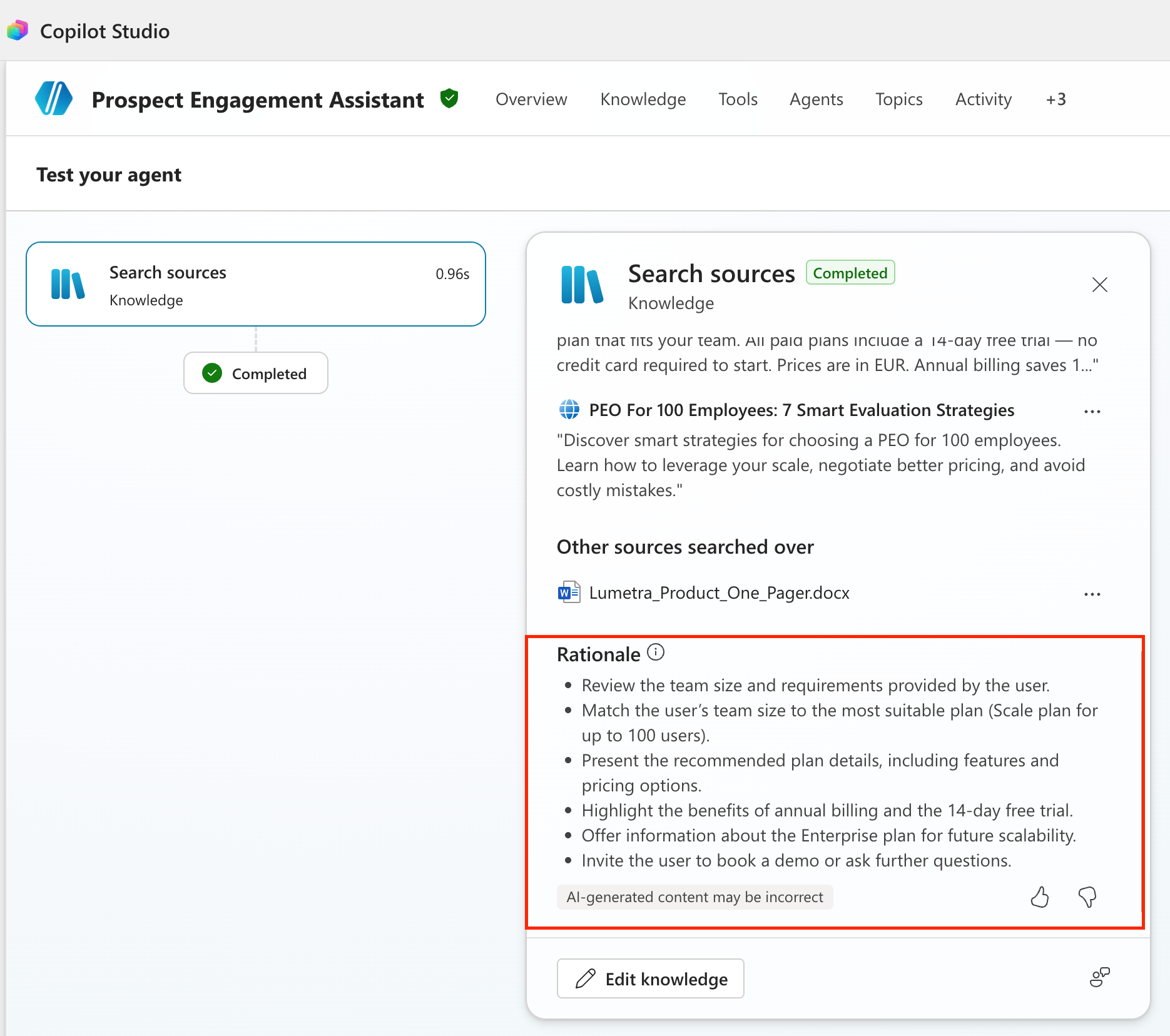
- Check the Thinking… section for the response in question. Look at what the agent decided to do and whether the inputs and outputs of any tool calls look right.
- Check references if the answer was AI-generated. Did it retrieve the right sources? If not, the problem is upstream in your knowledge configuration.
Things to remember
- Run the same conversation more than once before concluding something is broken. Generative AI calls are non-deterministic, so the same question can take slightly different paths on different runs. If the same input takes different paths on different runs, investigate it.
- The execution panel and Thinking… section show sequence, not timing. If you’re investigating latency, you need Application Insights telemetry. The test canvas won’t help you there.
- For agents with a lot of steps, the execution panel gets long. If the problem appears late in a complex flow, try triggering a shorter version of the same path to isolate it.
- Editing the agent while a test is in progress breaks the execution panel 😅. The left side can stop updating or show stale state. Reset and start the test again.
Next: Using the Variable Inspector.