
Embed Canvas apps in Outlook#
Canvas Apps provide an awesome way of presenting tailored UIs to customers in order to enable them to solve their problems in the best possible way. However, a lot of users still love their Outlook client and seem to spend most of their time writing mails in it. Power Apps already provides a built-in Outlook Add-in to get Model-Driven Apps running in Outlook, but there is no such way for Canvas Apps. Wouldn’t it be great to have more options here? 🤔Like embedding Canvas apps directly in Outlook to unlock all options.
With this series I want to show you how you can achieve this 🥳
🙂 What do you get Out-Of-the-Box?#
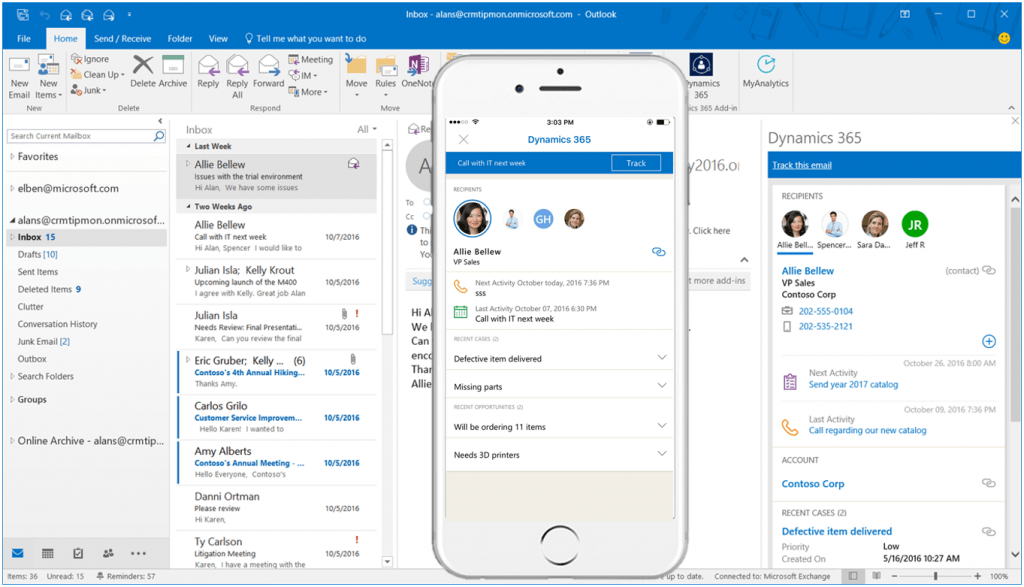
As I mentioned above, if you have worked with Dynamics 365, you might have come across the Dynamics 365 App for Outlook. This is a great standard app by Microsoft which enables you to use your CRM directly from Outlook. It comes pre-installed with Dynamics 365 for Sales, but you can also get it from AppSource.

These features make this app awesome 🔥
- Works on all clients: Desktop, Web, Mobile
- Embedded in mails & meetings. Additional functions for contact sync
- Is customizable because it is a normal Model Driven App
- Enables you to fully navigate your system
So, before you jump into creating custom integrations with Canvas apps always think about if not this app already fulfills your needs.
🚀 What does our goal look like?#
In this series we will try to emulate the look of the default Dynamics 365 App for Outlook. But instead of the Model-Driven have a canvas app shown. Of course, it should also be context-aware, that means it should have access to all mail properties. We can achieve this by creating an Office 365 add-in hosting the Canvas app in an iFrame. It will look like this:

The gray area is all canvas app where you can implement your custom UI / UX. If you’re like me and not in fact an Office 365 add-in developer you will appreciate the main goal of this approach: Minimize logic and UI within the Office add-in, let the Canvas app do the heavy lifting 😎
🔧 Requirements#
For this series I will use the following tools to develop the Office 365 add-in:
- Visual Studio 2019 with installed Office Developer Tools (only available on Windows)
- Microsoft 365 Development tenant to play around with
- Get Power Apps Community Plan within this tenant
- OR: Within this tenant start a PowerApps trial
📢 Next steps#
Now we have our development environments set up, in the next post we will look into setting up the Office add-in to host our canvas app 👌
Check out the next step here Canvas in Outlook 🎨📫 Part 2 – Set up Office Add-in
You find all details about the series in this overview post Canvas in Outlook 🎨📫