

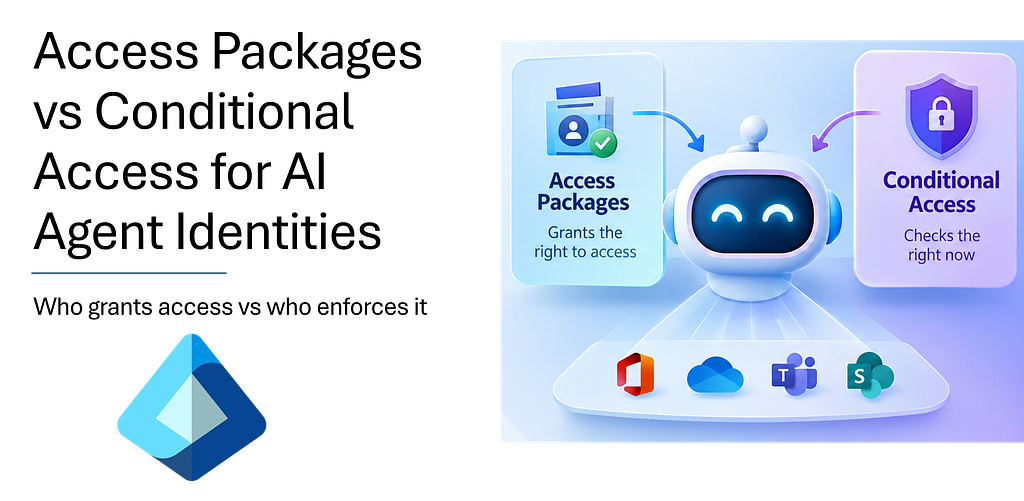

An agent can have exactly the permission it needs and still be the wrong identity to let through the door right now. That is the distinction I wanted to explore in this blog post.
I built a Finance Forecast Agent, gave the agent governed access to Microsoft Graph through an Access Package, deliberately changed the agent’s risk state and watched Conditional Access stop token issuance. Then I marked the agent safe and ran the exact same test again.
The result illustrates two questions every AI Agent Architect needs to separate:
Access Package: Should this agent still have this access?
Conditional Access: Should this request be allowed right now?
Let’s build it and see the difference.
Table Of Contents
- The lab
- Build it yourself: step by step
- Before you start
- Step 1: Create the agent blueprint
- Step 2: Create the agent identity
- Step 3: Create the catalog
- Step 4: Create the access package
- Step 5: Add the API permission to the package
- Step 6: Run the token script and capture the baseline
- Step 8: Assign the agent (Scenario A)
- Step 9: Create the Conditional Access policy
- Step 10: Mark the agent risky and watch it get blocked (Scenario B)
- Step 11: Prove each control separately (Scenario C)
- Step 12: Clean up
- What you proved
- Baseline: no package, no access
- Scenario A: approved
- Scenario B: the agent becomes risky
- Scenario C: the approval expires
- The architect’s rule
- Sources
Two controls, two questions
Entra gives you two controls for agent identities that sound similar and do different jobs.
Access packages answer: what is this agent entitled to, who approved it, and when does it end?
Conditional Access answers: given what we know right now, should this token request be allowed?
The first is governance. The second is enforcement. Treat them as one thing and you end up with either approvals that nothing enforces, or enforcement with no record of why the agent had access at all.
The lab
I built a Finance Forecast Agent as an agent identity from a blueprint. Its job is to read protected data. As a stand-in for finance data I used one read-only Microsoft Graph application permission, User.Read.All, and the call GET /users?$top=1. The agent got that permission only through an access package. The agent gets its token in two steps: the blueprint requests an exchange token naming the agent identity, then the agent identity presents it to get a Graph token. I ran the same script for every scenario, so the only variable was tenant configuration.
Build it yourself: step by step
Before you start
Licences: access packages for agents need Microsoft 365 E7, or a Microsoft Agent 365 licence with at least Entra ID P1 or Microsoft 365 E3. The agent risk condition in Conditional Access is in Preview.
Roles: Agent ID Administrator (to add the blueprint secret), Global Administrator (to add an API permission to an access package), Conditional Access Administrator, and at least Security Administrator for the risk step.
Tools: the Entra admin center (entra.microsoft.com), Windows PowerShell or Azure Cloud Shell, and Graph Explorer (developer.microsoft.com/graph/graph-explorer).
Names used throughout (keep them identical so every step lines up):

Step 1: Create the agent blueprint
Why: The Agent blueprint is the template the agent identity is created from, and it holds the credential that starts the agent’s token flow.
Where: Entra admin center > Entra ID > Agents > Agent blueprints.
1. Select New agent blueprint.
2. Name it FinanceForecast-Blueprint and complete the wizard.
3. Open the blueprint and copy its Application (client) ID into your notes.
4. Open the blueprint’s credentials page and select the Client secrets tab.
5. Select New client secret, enter the description deep-cuts-06-lab, and select Add.
6. Copy the secret Value immediately and store it somewhere safe. It cannot be viewed again, and the Secret ID next to it is a different field that will not work.
You should see: the blueprint in the Agent blueprints list, and a client secret with an expiry date on its credentials page.
Note: a client secret is fine for a lab. In production, use a managed identity with a federated credential instead. You need the Agent ID Administrator role to add the secret.

Step 2: Create the agent identity
Why: This is the identity that will request tokens and that the access package and Conditional Access policy will target.
Where: Entra ID > Agents > Agent identities.
1. Select New agent identity.
2. Agent blueprint: choose FinanceForecast-Blueprint.
3. Name: Finance Forecast Agent.
4. Add yourself as owner and sponsor.
5. Select Create, then open the new agent.
6. Copy two values into your notes: the Application ID (this is the agent’s client ID) and the Object ID.
You should see: the agent’s page listing its Application ID, Object ID and the Blueprint app ID. The Blueprint app ID should match the client ID you copied in Step 1.

Step 3: Create the catalog
Why: A catalog is the container that holds the resources an access package can offer.
Where: ID Governance > Entitlement management > Catalogs.
1. Select New catalog.
2. Name: Finance-Agents-Catalog.
3. Description: Catalog for the Deep Cuts #06 demo: Finance Forecast Agent access.
4. Enabled for users to request: Yes.
5. Enabled for external users to request: No.
6. Select Create.
You should see: Finance-Agents-Catalog in the Catalogs list.

Step 4: Create the access package
Why: The package is the governed way to grant the permission: who can get it, whether it needs approval, and when it ends.
Where: ID Governance > Entitlement management > Access packages.
1. Select New access package.
2. Basics: name Finance Forecast Agent Access, description Time-bound read access for the Finance Forecast Agent (Deep Cuts #06 demo), catalog Finance-Agents-Catalog. Select Next: Resource roles.
3. Resource roles: leave empty. The API permission can only be added after the package has an agent scope, which is why Step 6 comes later.
4. Requests: under Who can get access, choose For users, service principals, and agent identities in your directory, then set the scope to All agents. This is required, because users cannot receive API permissions.
5. For an approver, choose yourself. Real deployments would add an approval stage.
6. Select Next: Requestor information, then Next: Lifecycle.
7. Lifecycle: set Access package assignments expire to Number of hours and enter 4. Leave access reviews off.
8. Select Next: Rules, then Next: Review + create, then Create.
You should see: Finance Forecast Agent Access in the Access packages list.
The policy: The Requests and Lifecycle settings you just chose are the package’s policy. You do not name it separately. In the portal it appears as Initial Policy, under Policies in the package’s left menu, and you select it when you assign the agent.

Step 5: Add the API permission to the package
Why: This is what turns the package into an entitlement to a real permission.
Where: open Finance Forecast Agent Access and use its left menu (Overview, Resource roles, Policies, Separation of Duties, Assignments, Requests, Access reviews).
1. Select Resource roles.
2. Select Add resource roles, then API Permissions.
3. Choose Microsoft Graph as the source application.
4. Select Application permission (not delegated).
5. Tick User.Read.All.
6. Select Update permissions.
You should see: User.Read.All listed as a resource role in the package.
Notes: You must be a Global Administrator for this step.

Step 6: Run the token script and capture the baseline
Why: Before assigning anything, prove the agent has no access. Reuse the same below mentioned script for every later scenario.
Where: Windows PowerShell on your computer, or Azure Cloud Shell in PowerShell mode.

2. In PowerShell, set the secret first so it stays out of the script: $env:BLUEPRINT_SECRET = ‘<secret value>’. It only lasts for that window.
3. Paste the script below with the three placeholders replaced, and run it whole. It requests a token for the blueprint, uses it to request the agent’s token for Graph, prints the token’s claims, and then calls Graph.
$tenantId = '<tenant-id>'
 $blueprintId = '<blueprint-client-id>'
 $blueprintSecret = $env:BLUEPRINT_SECRET
 $agentId = '<agent-application-id>'
 $tokenUrl = "https://login.microsoftonline.com/$tenantId/oauth2/v2.0/token"

 # Step 1: blueprint token (T1), pointed at one agent identity
 $t1 = (Invoke-RestMethod -Method Post -Uri $tokenUrl -Body @{
 client_id = $blueprintId
 scope = 'api://AzureADTokenExchange/.default'
 grant_type = 'client_credentials'
 client_secret = $blueprintSecret
 fmi_path = $agentId }).access_token

 # Step 2: agent identity token for Microsoft Graph
 $tr = (Invoke-RestMethod -Method Post -Uri $tokenUrl -Body @{
 client_id = $agentId
 scope = 'https://graph.microsoft.com/.default'
 grant_type = 'client_credentials'
 client_assertion_type = 'urn:ietf:params:oauth:client-assertion-type:jwt-bearer'
 client_assertion = $t1 }).access_token

 # Show the claims
 $p = $tr.Split('.')[1].Replace('-','+').Replace('_','/')
 $p = $p + ('=' * ((4 - $p.Length % 4) % 4))
 [Text.Encoding]::UTF8.GetString([Convert]::FromBase64String($p)) | ConvertFrom-Json | Select-Object oid, roles, iat, exp

 # Call the protected API
 try { Invoke-RestMethod -Uri 'https://graph.microsoft.com/v1.0/users?$top=1' -Headers @{ Authorization = "Bearer $tr" } | Out-Null; 'Graph call: 200' }
 catch { "Graph call failed: $($_.Exception.Response.StatusCode.value__)" }
You should see: a small table with oid, roles, iat and exp, then Graph call failed: 403. The oid matches the agent’s Object ID from Step 2, which proves you hold the agent’s token and not the blueprint’s. roles is empty because nothing has been granted yet. The iat and exp values are Unix timestamps for when the token was issued and when it expires.

Step 8: Assign the agent (Scenario A)
Why: This is the entitlement being granted through the governed path.
Where: Open the package and select Assignments in the left menu.
1. Select New assignment from the toolbar (the toolbar also offers Extend, Reprocess, Refresh, Download and Remove).
2. In Select policy, choose Initial Policy.
3. Search for and select Finance Forecast Agent. Check that its ID matches your notes.
4. Set the start to now. Leave the end empty to use the policy’s 4 hours.
5. Enter a business justification, such as Deep Cuts #06 demo: time-bound read access for the Finance Forecast Agent. Some screens require it.
6. Select Add.
7. If the request appears under Requests waiting for approval, sign in to the My Access portal (myaccess.microsoft.com), open Approvals, select the request, and choose Approve. Add a short reason.
8. Back in the package, open Assignments, select Refresh, and wait until the status shows Delivered. Note the end date; it feeds your left JSON panel.
9. Re-run the Step 7 script in the same window.
You should see: The assignment as Delivered with an end date four hours ahead. In the script output, the same oid, roles now containing User.Read.All, and Graph call: 200.


Step 9: Create the Conditional Access policy
Why: This is the runtime control that can refuse the agent a token even though the entitlement is valid.
Where: Protection > Conditional Access > Policies.
1. Select New policy. Name: DC06 — Block high-risk Finance Forecast Agent.
2. Under the users, agents or workload identities assignment, set What does this policy apply to? to Agents.
3. Include: select only Finance Forecast Agent. Do not choose All agent identities, or the policy will touch every agent in your tenant.
4. Target resources: All resources.
5. Conditions > Agent risk (Preview): set Configure to Yes and tick High.
6. Grant: select Block access.
7. Enable policy: start with Report-only, then switch to On once you have captured Scenario A.
8. Select Save (or Create).
You should see: The policy in the list with the state you chose.

Step 10: Mark the agent risky and watch it get blocked (Scenario B)
Why: To prove that a valid entitlement does not guarantee access.
Agent risk comes from Entra ID Protection, so you cannot flip it from the policy, and an agent appears in the Risky agents report only once a risk event exists. To set it manually:
1. Open Graph Explorer and sign in with an account that has at least the Security Administrator role.
2. Open the Modify permissions tab and consent to IdentityRiskyAgent.ReadWrite.All.
3. Set the method to POST and the URL to https://graph.microsoft.com/beta/identityProtection/riskyAgents/confirmCompromised.
4. Request body, using the agent’s Object ID: { “agentIds”: [“<agent-object-id>”] }.
5. Select Run query. A 204 No Content response means it worked.
6. Verify in the portal: Protection > Identity Protection > Risky agents. The agent should be listed with Risk state: Confirmed compromised and Risk level: High.
7. Confirm the policy is On and the package assignment still shows Delivered.
8. Run the Step 7 script again.
You should see: the agent’s token request refused. The second request in the script throws:
AADSTS53003: Access has been blocked by Conditional Access policies. The access policy does not allow token issuance.
The entitlement is intact, yet no token is issued. Copy the error text and its timestamp. In Monitoring > Sign-in logs, search for the correlation ID in the error, open the entry, and on the Conditional Access tab you will see your policy listed as Failure.


Step 11: Prove each control separately (Scenario C)
Why: To show that the block came from the risk flag alone, and that removing the entitlement also stops access without any risk flag.
Control run: clear the risk
1. Dismiss the agent’s risk by going to ID Protection > Risky Agents. Select the agent and select Confirm Safe. In the Confirm agent safe popup, select Yes.
2. Refresh Risky agents until the agent no longer shows as High.
3. Run the PowerShell script again. The assignment is still Delivered, so you should get a token with User.Read.All and Graph call: 200. The block was the risk flag, not the entitlement.
https://medium.com/media/6b8c2cd34ebf16a055e23b628328d704/href
Scenario C: remove the entitlement
1. Open the package and select Assignments.
2. Tick Finance Forecast Agent, then select Remove and confirm.
3. Wait for the confirmation: Remove assignment completed. Removed 1 of 1 assignments.
4. Run the script for a fresh token.
You should see: the token is issued, roles is empty, and Graph call failed: 403. No risk flag and no Conditional Access block were involved. Removal is not instant, so if the role is still in the token, wait a few minutes and re-run.
Natural expiry: you can also just wait. When the four hours pass, the assignment shows Expired with its end date and the entitlement is removed the same way.


Step 12: Clean up
1. Delete the agent identity.
2. Delete the blueprint secret, then the blueprint.
3. Remove the assignment and delete the access package and catalog.
4. Turn off or delete the Conditional Access policy.
5. Make sure the agent is no longer listed in the Risky agents report.
What you proved
Baseline: no package, no access
Before assigning anything, the agent could get a token but the token carried no roles, and the Graph call returned 403. We proved that having an agent identity is not the same as having access.
Scenario A: approved
I assigned the agent to the access package. In my tenant the request sat under Requests until it was approved in the My Access portal, then moved to Assignments as Delivered. Re-running the same script gave a token with User.Read.All in the roles claim, and the Graph call returned 200. The oid matched the agent identity’s object ID, which confirms it was the agent’s token and not the blueprint’s.
Scenario B: the agent becomes risky
I added a Conditional Access policy scoped to this one agent: Agent risk is High, grant is Block. By then the agent’s first assignment had expired (more on that below), so I assigned it again and waited until the package showed Delivered.
Agent risk comes from Entra ID Protection, so I could not simply flip it. I set it with the riskyAgent confirmCompromised action in Graph Explorer, then checked the Risky agents report, which listed the agent as Confirmed compromised, High.
With the entitlement Delivered and the agent at High risk, I ran the same script. The agent’s token request failed:
AADSTS53003: Access has been blocked by Conditional Access policies. The access policy does not allow token issuance.
Timestamp: 2026–10–17 20:36:25Z. Entitlement intact, access blocked.
The point to make here: the access package did nothing wrong, and nothing in it changed. Enforcement happened at the token request, which is a different place from where the permission lives.
Scenario C: the approval expires
To prove the block came from the risk flag alone, I dismissed the agent’s risk and re-ran the script about five minutes later. The assignment was still Delivered, the token carried User.Read.All, and Graph returned 200. Then I removed the entitlement. In the package’s Assignments I removed the agent’s assignment (the portal confirmed Removed 1 of 1 assignments) and requested a fresh token. This time the token was issued, the roles claim was empty, and the Graph call returned 403. No risk flag and no Conditional Access block were involved.
A token issued before the change can stay valid until it expires, so I requested a fresh one each time. The contrast with Scenario B is the story: in B the token is refused, while in C a token is issued but carries nothing useful.
The architect’s rule
Use the access package when you need to define what an agent may access, who approved it and when it ends. Use Conditional Access when you need to block token requests the moment conditions fail. Use both when the agent touches sensitive data, access must be approved with an end date, and access must stop immediately if the agent turns risky. Without the package, nothing records who approved the access. Without the policy, a risky agent keeps working until the package expires.
This is basically Identity and Track and Measure working together: know who the agent is and what it holds and be able to prove what happened when asked.
Sources
• Microsoft Learn: Agent Access packages
• Microsoft Learn: Change resource roles for an access package
• Microsoft Learn: Authenticate and acquire tokens for autonomous agents
• Microsoft Learn: Conditional Access for agents
• Microsoft Learn: Microsoft Entra Agent ID APIs in Microsoft Graph overview