

Exchange rates are critical component of global finance operations. Manually importing daily exchange rates into D365FO can be time-consuming and prone to errors.
Exchange rate integrations are often designed as simple file-based processes. However, real-world constraints can make the solution more interesting. In one of my recent implementations, exchange rate files were delivered to an SFTP location, but processed files could not be moved, archived, or deleted after import.
This meant that every day the SFTP folder contained both historical and newly uploaded files. The challenge was ensuring that only the files uploaded on the current day were sent to Dynamics 365 Finance & Operations for processing.
There are various ways to implement exchange rate imports; I’ve shared the approach that fits my client’s requirements.
The Challenge
The requirements were straightforward:
- Files will be dropped in the SFTP folder by the external team everyday at 1130pm GMT
- Read files from an SFTP folder.
- Imported files must remain in the same folder.
- Archival or deletion of processed files is not permitted.
- Only files uploaded on the current date should be processed.
- Exchange rate files are pushed to D365FO through a queue-based integration pattern.
Without filtering, the Logic App would repeatedly process historical files, resulting in duplicate imports and unnecessary processing.
Solution Overview
The integration follows a simple but effective pattern:
- Read files from an SFTP folder.
- Retrieve file metadata.
- Compare the file’s
LastAccessTimewith the current date. - Process only files belonging to the current day.
- Push eligible files to D365FO through an enqueue .
Step 1: List Files from the SFTP Folder
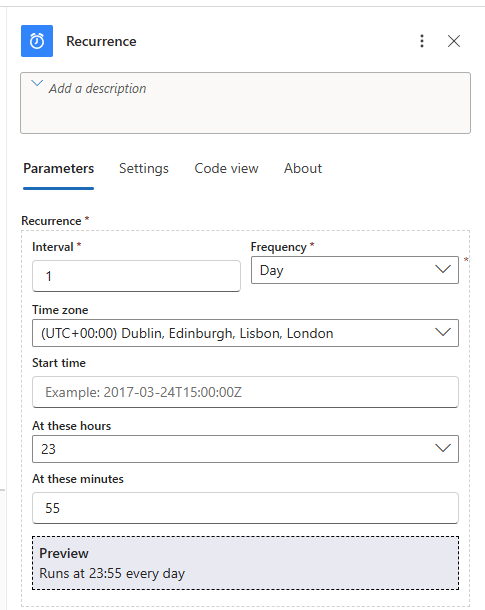
The Logic App starts with the recurrence and then the List files in folder action.
As the files will be dropped at 1130pm GMT everyday, the first step will be recurrence to trigger the flow at 11:55pm (safe side of 20 mins later)

Since historical files remain in the folder, the action returns all available files, including files already processed on previous days.

Add the step with SFTP and enter the necessary details for SFTP connection

I`ve selected the Built-in SFTP connector for my flow

STEP 2: Loop through the files in the for-each loop

Step 3: Validate the File Date
Once files are retrieved, the next step is determining whether the file belongs to the current processing date.
For each file, Logic Apps reads the metadata, specifically ‘LastAccessTime’.

Step 4: Conditional Processing
The condition acts as a filter.
If TRUE
 File belongs to today
- Continue processing
- Push to queue
- Import into D365FO
If FALSE
 Historical file
- Ignore
- No processing
- No duplicate imports
This prevents old files from being re-imported accidentally.

Code view


Step 5: Get the file content
Read the file content using the file path fetched from the fetched step

Step 6: Generate Auth token using Http Connector


As I am using OAuth connection, I am using an auth token for validation.
The placeholders ‘ClientId’, ‘Secret’ , ‘FOURL’ are parameters which are defined in the flow

Step 7: Enqueue the file to D365FO
The auth token generated in the first step is passed in the Header parameters – ‘Authorization’ .Body of the connector is the file content .

The details of configuring enqueue are given in the MS link

All set.. Our flow is now ready to push the files to D365FO.
A quick recap of our flow is given below

Benefits of This Approach
No manual intervention
Processes only current-date files
Prevents duplicate imports
Supports scalable processing
Improves reliability through asynchronous handling
Easy to monitor within Logic Apps