


This blog is part of the series: What is <this tech> and what is it used for?
Copilot answer
Power Fx is a low-code, open-source formula language based on Excel-like expressions for building logic in the Microsoft Power Platform.
It’s used to create app behavior, manipulate and query data, and wire up UI components across Power Apps, Power Pages, Dataverse, and other Power Platform services.
Power Fx lets makers and developers express declarative and imperative logic quickly, enabling everything from simple no-code solutions to pro-code integrations.
Explain it to me like I’m 10 years old
Power Fx is a simple computer language that looks like the formulas you use in Excel.
People use it to tell apps what to do, like move information, change what’s shown on the screen, or react when you press a button.
Because it’s easy to read, both kids and grown-ups can build apps quickly without writing lots of complicated code.
Specialist answer
Matthew Devaney on the topic;
PowerFx is the language you’ll use to create Apps and Agents in the Power Platform.
It’s a low-code programming language based on Excel.
If you’ve built a spreadsheet before you’ll spot many familiar functions!
Scott Durow (who is worse at following instructions than Copilot as you can see by five lines of text), Advocate at Microsoft
Power Fx is Microsoft’s open-source, Excel-like formula language, often referred to as the low-code formula language of the Microsoft Power Platform.
It’s used across many parts of the platform, including Power Apps canvas apps and custom pages, formula columns, functions, Copilot Studio topics and tools, Power Pages liquid templates, the PAC CLI, and more.
Power Fx expressions can be interpreted on demand at runtime or transpiled into target languages such as JavaScript or SQL, depending on the use.
It’s designed to express business logic declaratively while also supporting imperative operations where needed, making it a flexible way to build and extend solutions across the Power Platform.
The open-source Power Fx interpreter library also enables embedding the language into third-party solutions where business logic needs to be defined by users at runtime.
Explain it like it’s my first day on the job
It’s your first day on the job and you’ve been asked to open a Power App. You click around a bit, add a button, type something into a field, and at some point you ask the very reasonable question: how does this thing know what to do when I interact with it?
Power Fx is the answer!
When no code isn’t enough, in comes Power Fx. It’s the code language of Canvas apps and several other areas. Our Canvas apps just would not work if we didn’t have Power Fx, which is why every company who uses a Canvas app, also uses Power Fx.
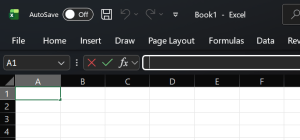
If you look in Excel, you can see it has an fx bar, that’s where Power Fx originates from. So if you’re an Excel superstar, Power Fx might be simple for you. Power Fx is built on the same model as Excel formulas. You describe conditions, calculations, and outcomes, and the platform takes care of the rest. That’s not an accident. The whole point of Power Fx is to make logic accessible to people who already understand the business problem, not just to people who identify as developers.
Power Fx is the logic layer in Power Platform. It’s the part that explains what should happen when someone clicks a button, changes a value, submits a form, or opens a screen. You’re not telling the system how to do something step by step; you’re telling it what should be true when a certain situation occurs. Microsoft will say this isn’t code, it’s different. Personally, I don’t really agree, you need to tell the system what it should do. But it’s up to you to see what you think.
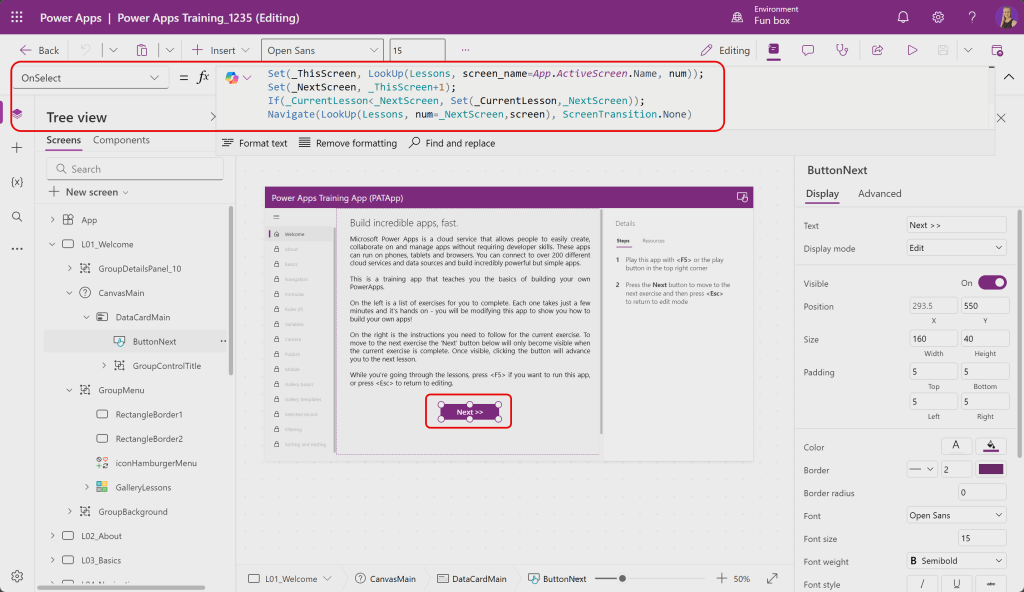
In this canvas app, you can click on the “Next” button and you can see the Power Fx that triggers when you click the button. This formula triggers “OnSelect”, which is when you select/click the button. You can also get Copilot to explain the formula for you if you don’t understand. The Copilot explanation on this formula is: “This expression sets the current screen number based on the active screen’s name, calculates the next screen number, updates the current lesson number if the next screen is ahead, and then navigates to the screen associated with the next screen number without any transition effect.”. As you can see, this one formula which triggers when you click on the “Next” button actually does a lot of things, some calculations, some ifs and then navigates without a transition.
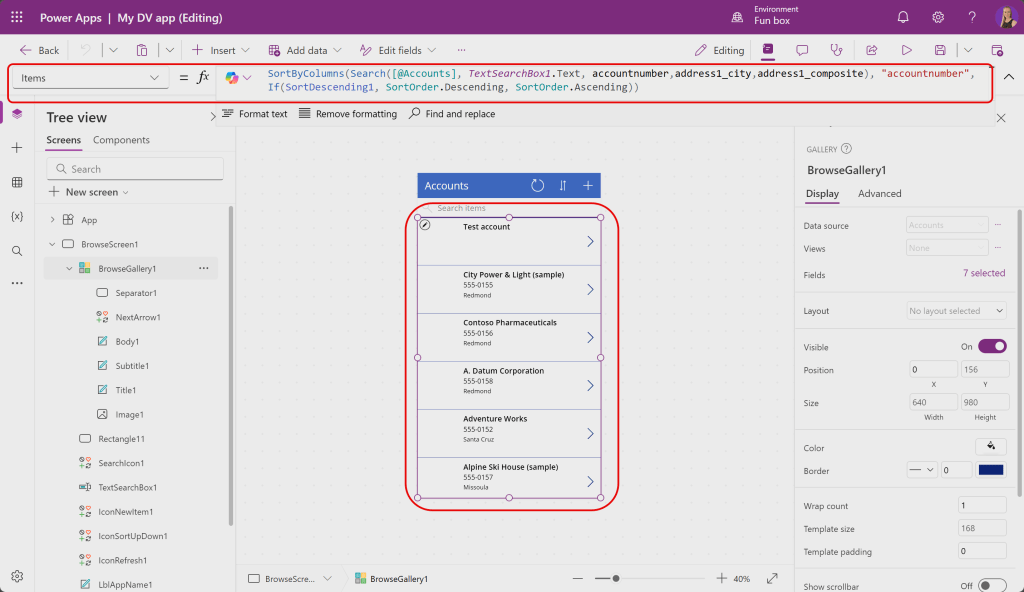
That was using Power Fx on the “OnSelect”, we also have other places to use it. In this screenshot we use Power Fx on “Items”. Here we can decidie which information we want to show in a gallery in a Canvas app. We set the sorting, what we can search by and which order we want the information in the gallery to be shown in. If we didn’t have Power Fx, none of this would work, or we would need to write code for it to work.
You don’t open Power Fx as a separate tool, and you don’t “learn it first and then build something later”. You meet it while you’re building. You want to add a button to save data, a field to validate input, or a screen to react differently based on who the user is, you’re writing Power Fx.
If Power Apps is what users see, Power Fx is what makes it behave like it understands them.
Power Fx is used by:
Use cases with large customers
It’s hard to find use cases for large or small customers as you can’t really see the Power Fx and there aren’t really many stories on it, but we know behind most success stories on the Power Platform, Power Fx is behind and making things work.
Use cases with small customers
It’s hard to find use cases for large or small customers as you can’t really see the Power Fx and there aren’t really many stories on it, but we know behind most success stories on the Power Platform, Power Fx is behind and making things work.
Training material
Matthew Devaney has an incredible library on functions on Power Apps and Power Automate, I highly reccommend saving this: Power Platform Functions List – Matthew Devaney
Learn has good pages on Power Fx, where most of the formulas you can find and need are documented: Microsoft Power Fx overview – Power Platform | Microsoft Learn
GitHub: GitHub – microsoft/Power-Fx: Power Fx low-code programming language · GitHub
Lisa Crosby has a great video explaining it: https://youtu.be/853JOMA-AoY?si=iMKddTGo7_VIHEP4
Great playlist which includes a lot of Power Fx from Matt Collins-Jones: https://youtube.com/playlist?list=PL9aOTzghr-xvXNkLK1VMuj3gmdRx8s48K&si=GkN6pcOdMSd72xrw
Summary
If you work with the Power Platform it’s not often you don’t work with Power Fx. If you want to get anything done or anything working in a Canvas app, then you need Power Fx. Even in Dataverse, if you’re using calculated columns, that’s going away and is replaced with Power Fx.
You need to know about it, you should learn how it works and what you can do with it.

Since march 2018 I have worked with Microsoft’s new HR system, Dynamics 365 for Talent, and gained unique insight in the system and various HR processes.
In august 2018 I was the second in the world to pass the MB6-898 Dynamics 365 for Talent certification.
View all posts by Malin Martnes