

Now Reading: Custom label Print option not appearing – D365FO
-
01
Custom label Print option not appearing – D365FO


Custom labels let you generate labels for any data you configure.
Examples include product, location, or customer labels. Once you create one or more custom label layouts, the system automatically displays a Print button on the corresponding pages.
I haven’t worked much with custom label setup, but I was eager to learn the configuration. Today I had the opportunity when the team reported that the option was missing from the ‘Locations’ form.
At first, I assumed it was just a custom button, but as I explored the functionalities in depth, I uncovered much more information.
The environment was missing the label layouts and label layout datasource.
So, I completed the set ups.
Go to Warehouse Management -> Set up -> Document Routing -> Label layout datasource
Choose the table that will serve as the primary data source for the label. For instance, use WMSLocation to print location labels, InventTable for product labels. It works with custom table and form as well.
Join type – Select the type of joins used when adding related tables. Selecting Inner join retrieves data only if data exists in both joined tables, while selecting Outer join retrieves data from the root table even if there’s no data in the related table.
Note: Forms with temporary datasource can`t use custom label.
Next navigate to Warehouse Management -> Set up -> Document Routing -> Label layout
Select the Label layout type as ‘Custom Label’ and click New.
Enter the LayoutID , Descritption and select the datasource which was created in the previous step.
The below text layout is referenced from Microsoft page where the templates are defined.
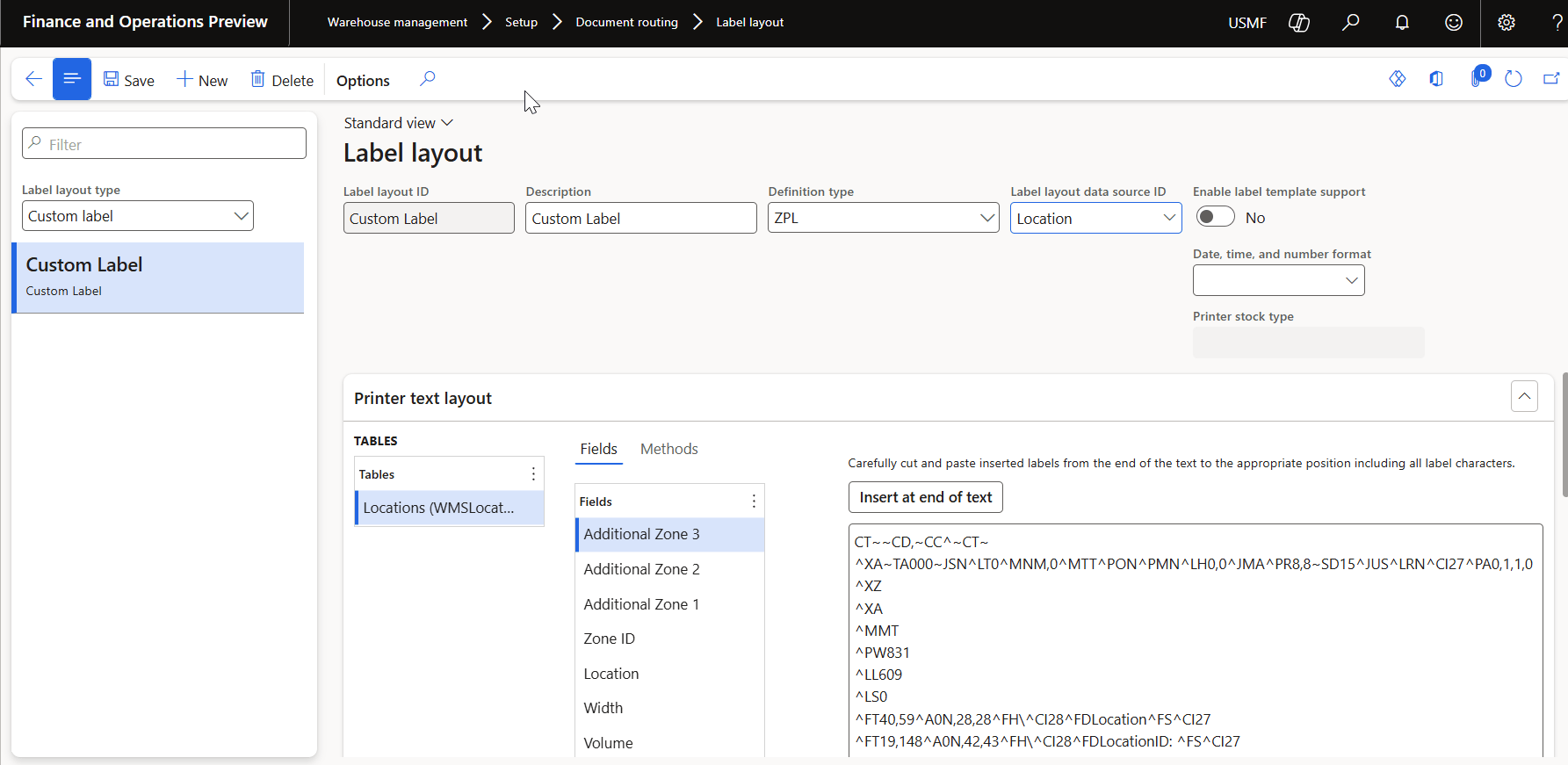
Now the configuration is complete.
Upon checking Locations form , I still see the custom label option missing.
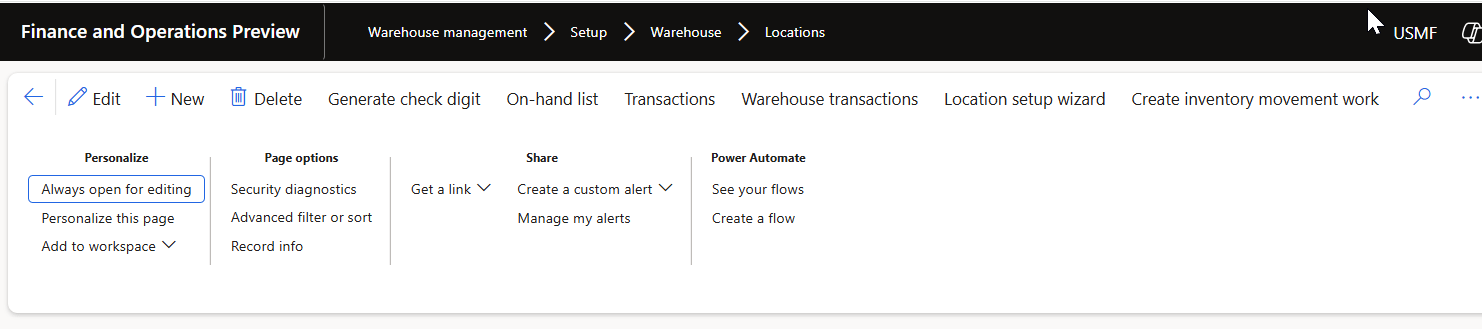
In order for the system to automatically show a Print button on the relevant pages, enable the following parameter in
Warehouse management > Setup > Warehouse management parameters -> Reports tab
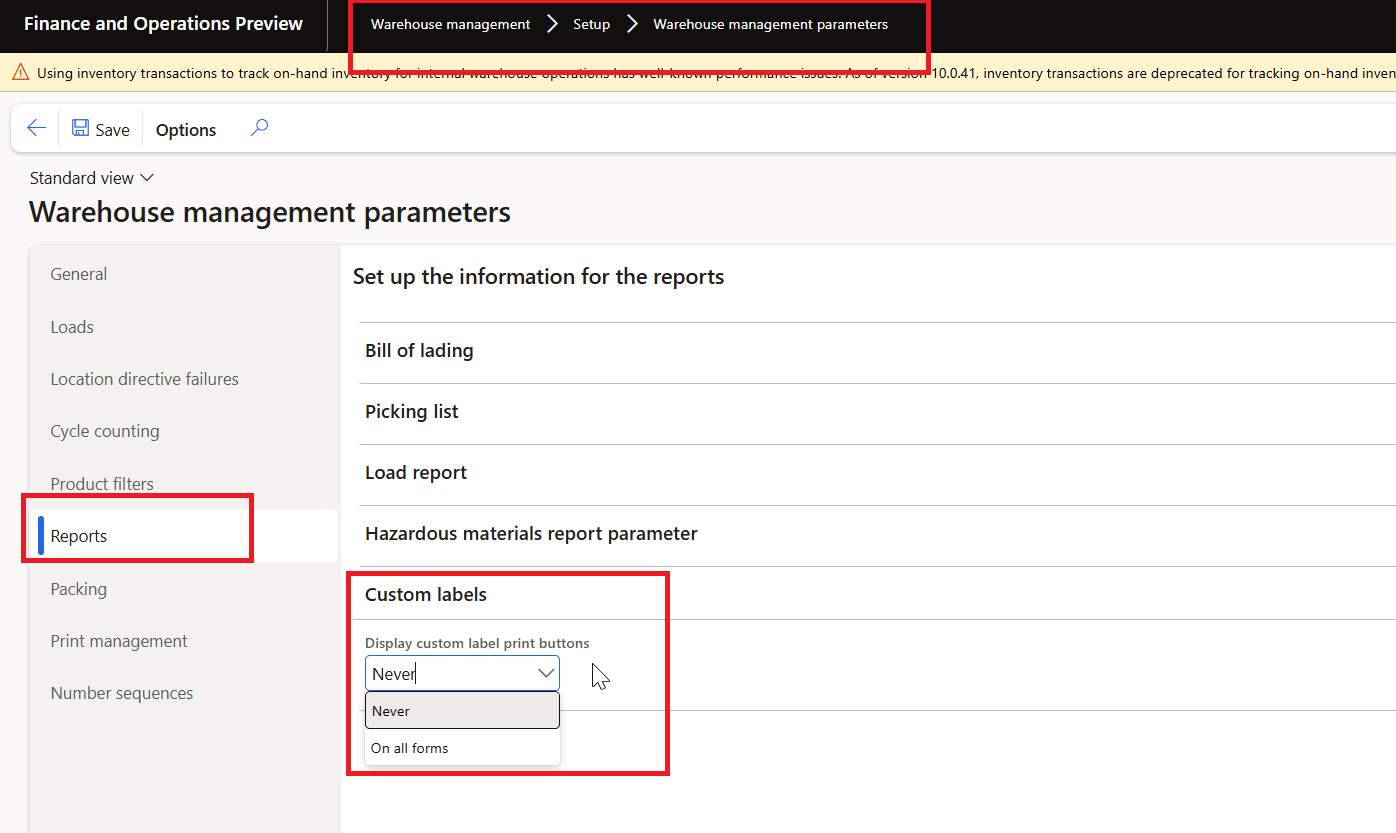
Now the option is appearing

References :
Original Post https://anithasantosh.wordpress.com/2025/12/11/custom-label-print-option-not-appearing-d365fo/


