

Model Context Protocol (MCP) servers standardize how AI agents interact with external systems and data and Azure Logic Apps is the enterprise-ready tool for creating low-code workflows in the Azure ecosystem. Why not mix both together?
This is exactly what Microsoft announced recently. The integration of Model Context Protocol (MCP) servers into Azure Logic Apps Standard bridges the gap between AI capabilities and enterprise workflows, enabling organizations to leverage AI-powered agents directly within their integration platforms.
With Azure Logic Apps Standard you can now create MCP servers for many enterprise applications using the built-in connectors available (same connectors als available for the Power Platform environments) and you can convert existing workflows into discoverable MCP tools that agents can call securely and reliably.
Business Central MCP server using Azure Logic Apps.
Creating an MCP server for Dynamics 365 Business Central using Azure Logic Apps Standard is quite easy. From your existing Azure Logic Apps Standard instance, select the Agents option and here you will see the new MCP servers action:
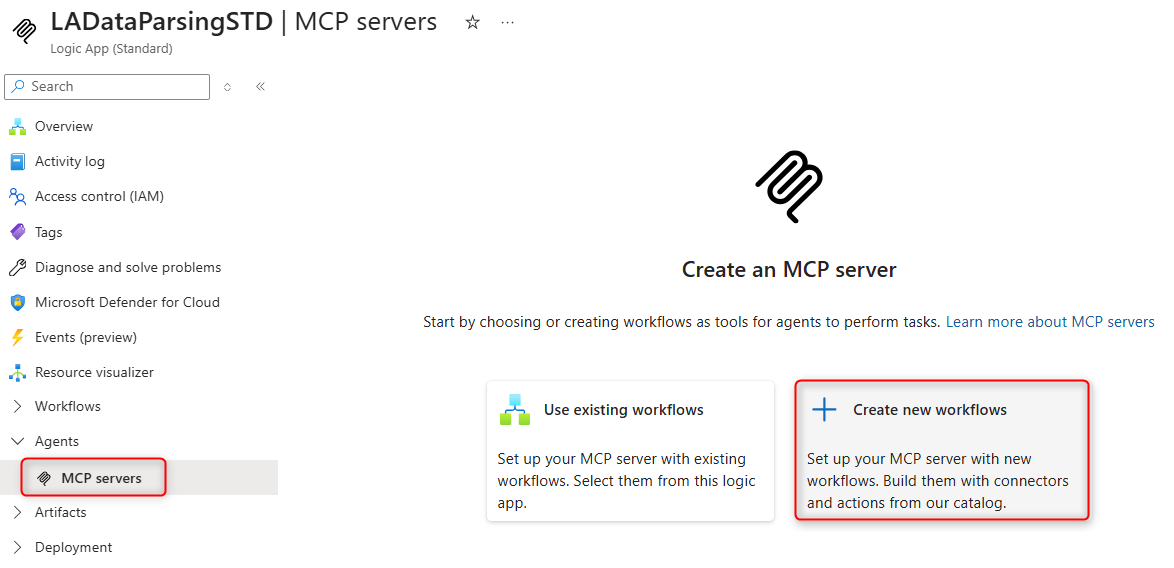
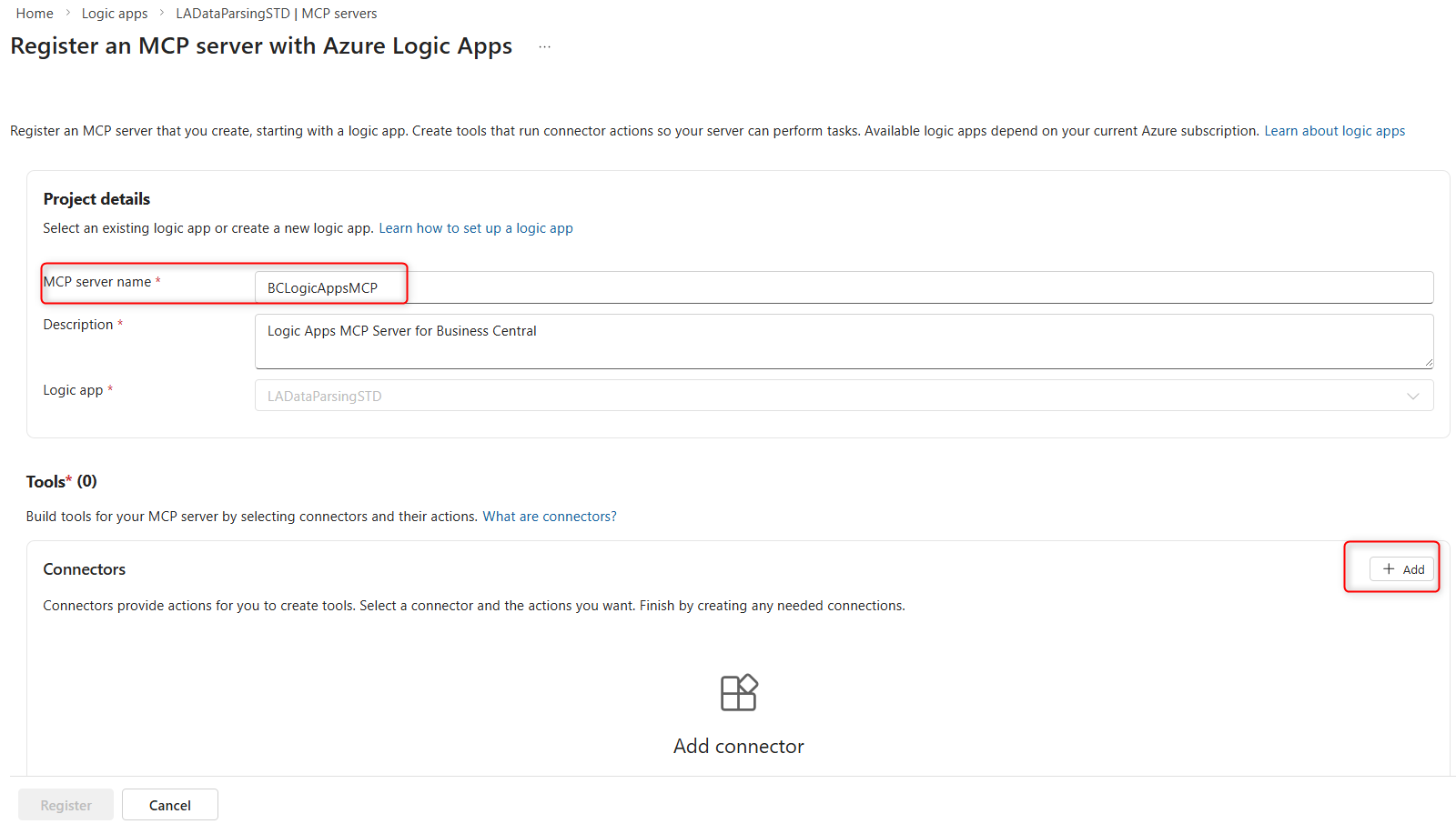
Select create new workflows and give the name of your new MCP server. Then on the Tools section, click Add to add tools for your server (this are needed for your MCP server to perform tasks):
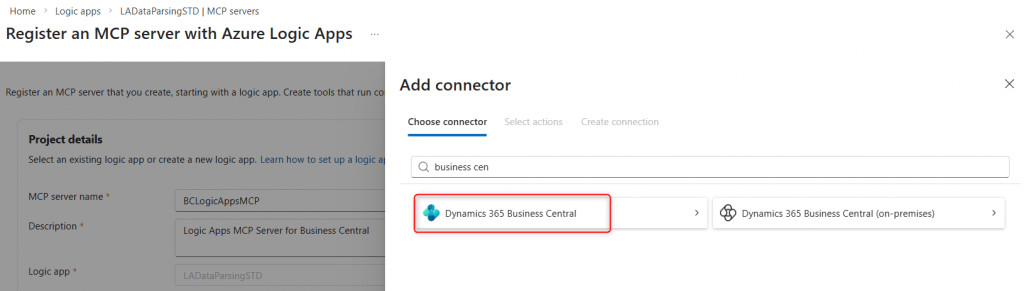
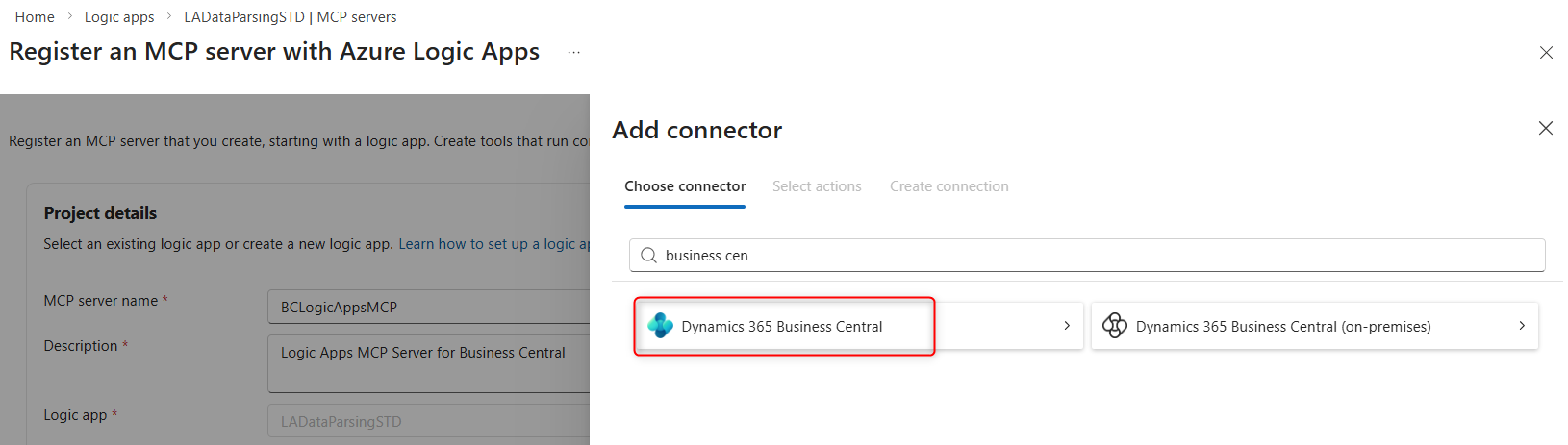
Here select the Dynamics 365 Business Central connector:
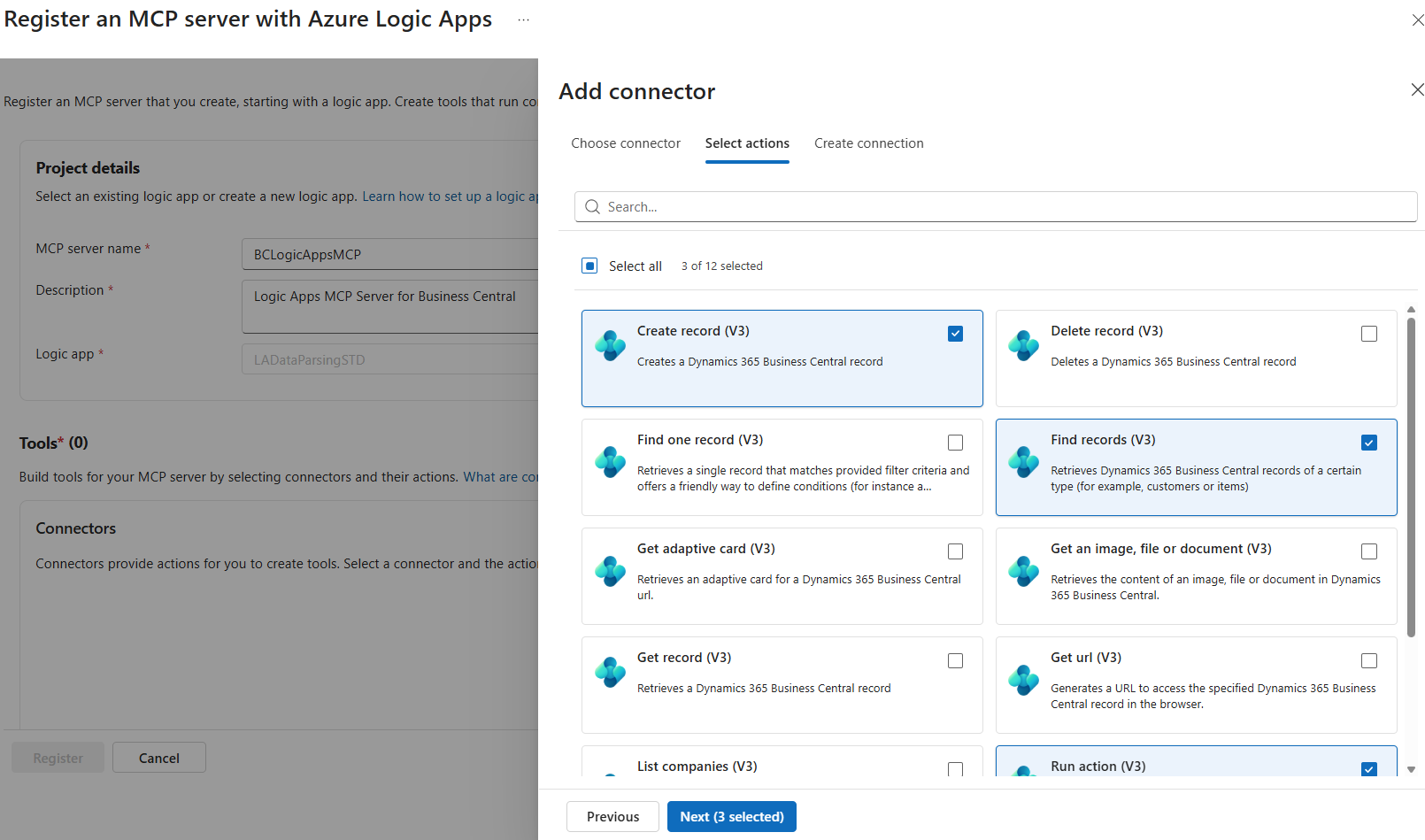
and then select the actions you need for your MCP server. For each action that is selected, a corresponding workflow will be created that enables that connector to be called:
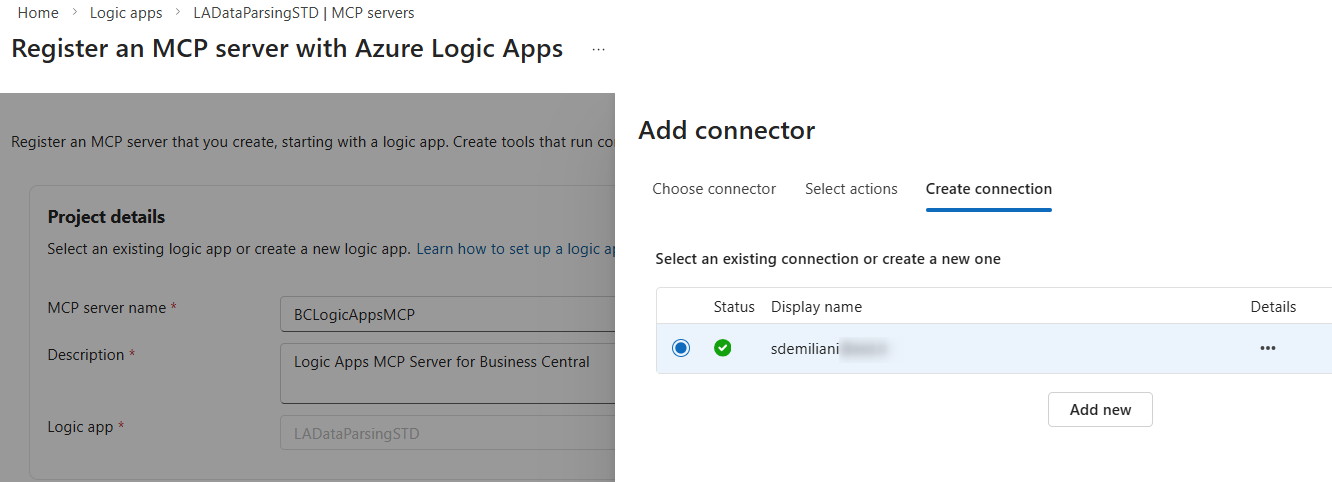
To connect to Dynamics 365 Business Central, you need to setup a connection:
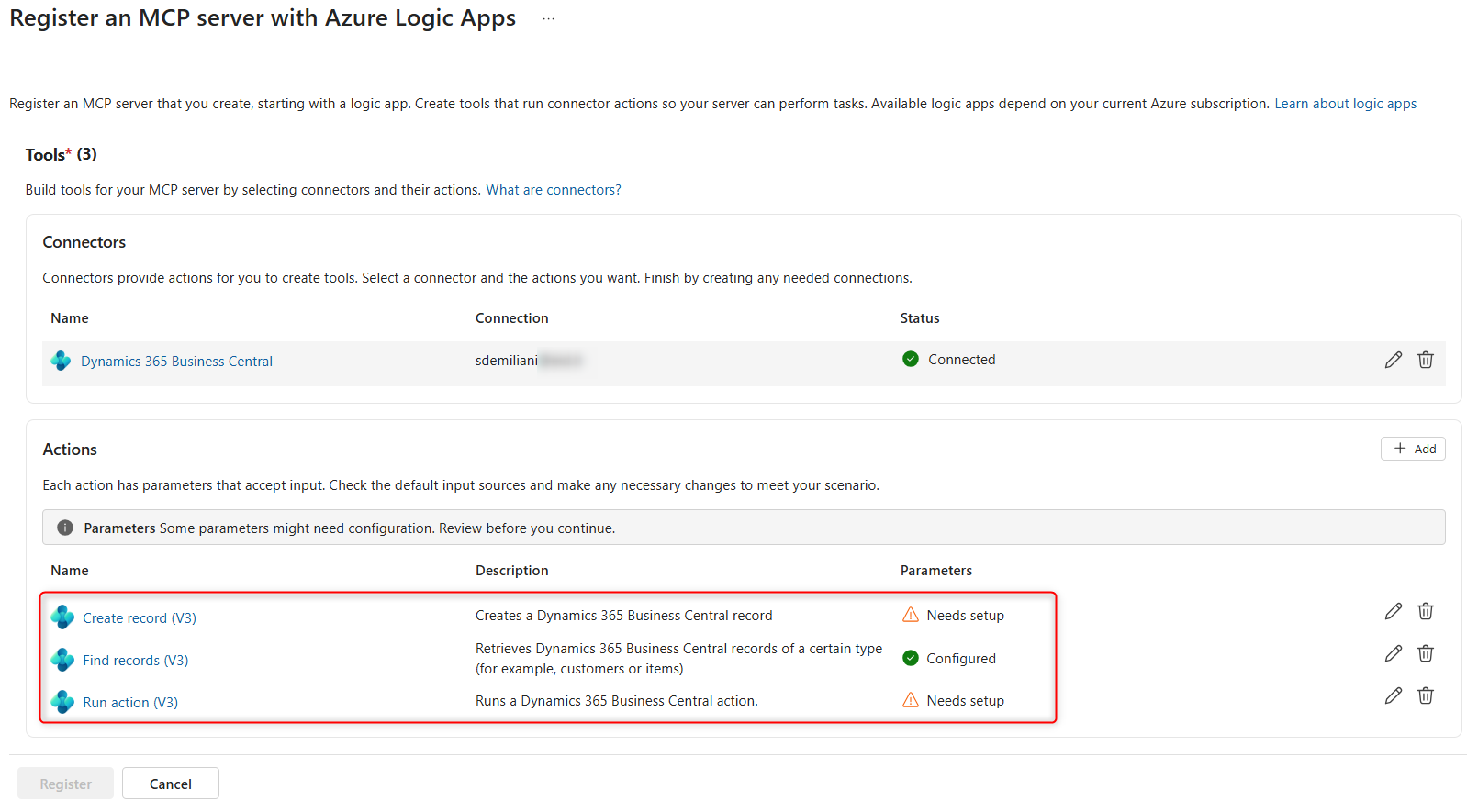
and now you have the actions added to your server configuration. If some of them requires an extra setup, you will be alerted for that:
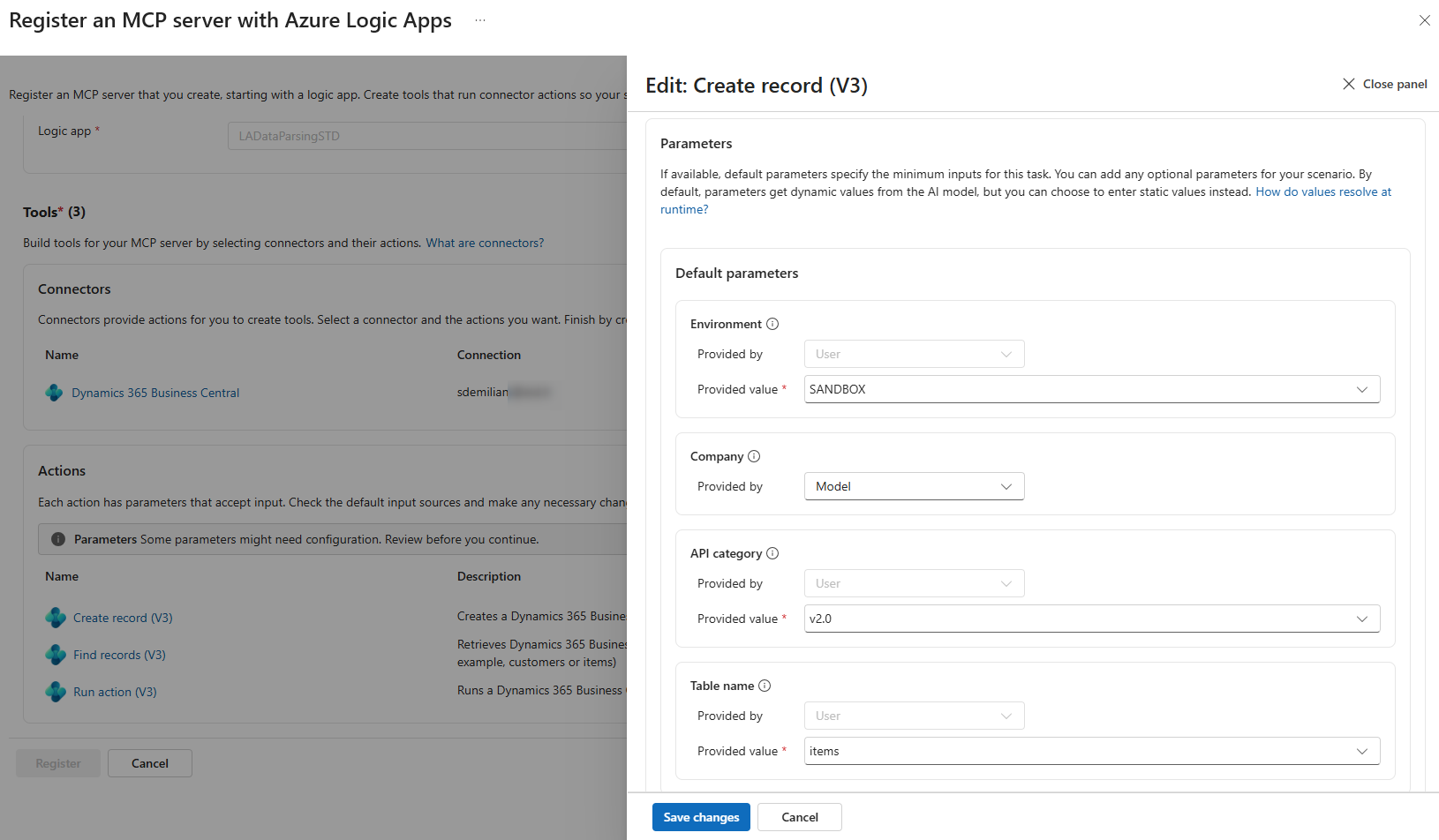
and you need to fill the required extra parameters (for example, here I need to set the table where the Create record action works):
When the configuration is completed, you can see your MCP server configuration with your workflow tools:
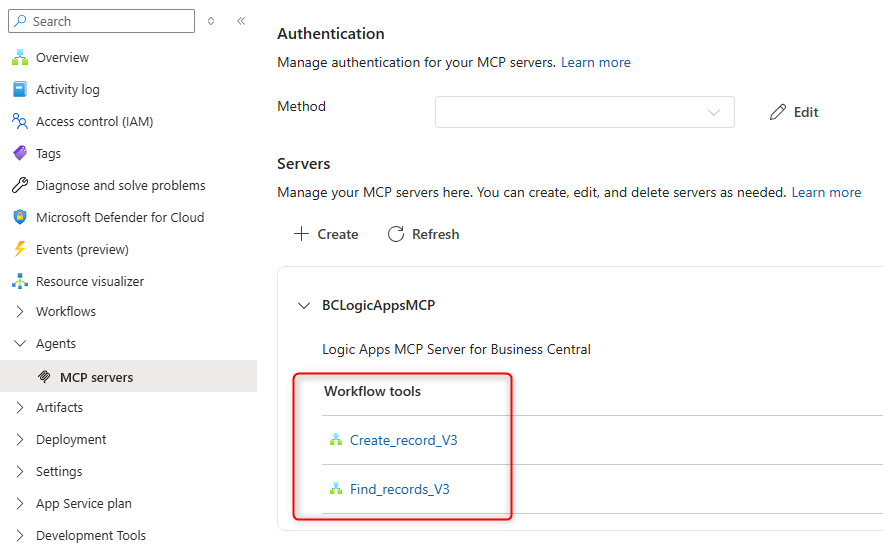
and on this page you can also see your MCP server url.
By clicking on a workflow tool, you can click its name and you will be navigated to the underlying workflow definition, where you can also add additional changes:
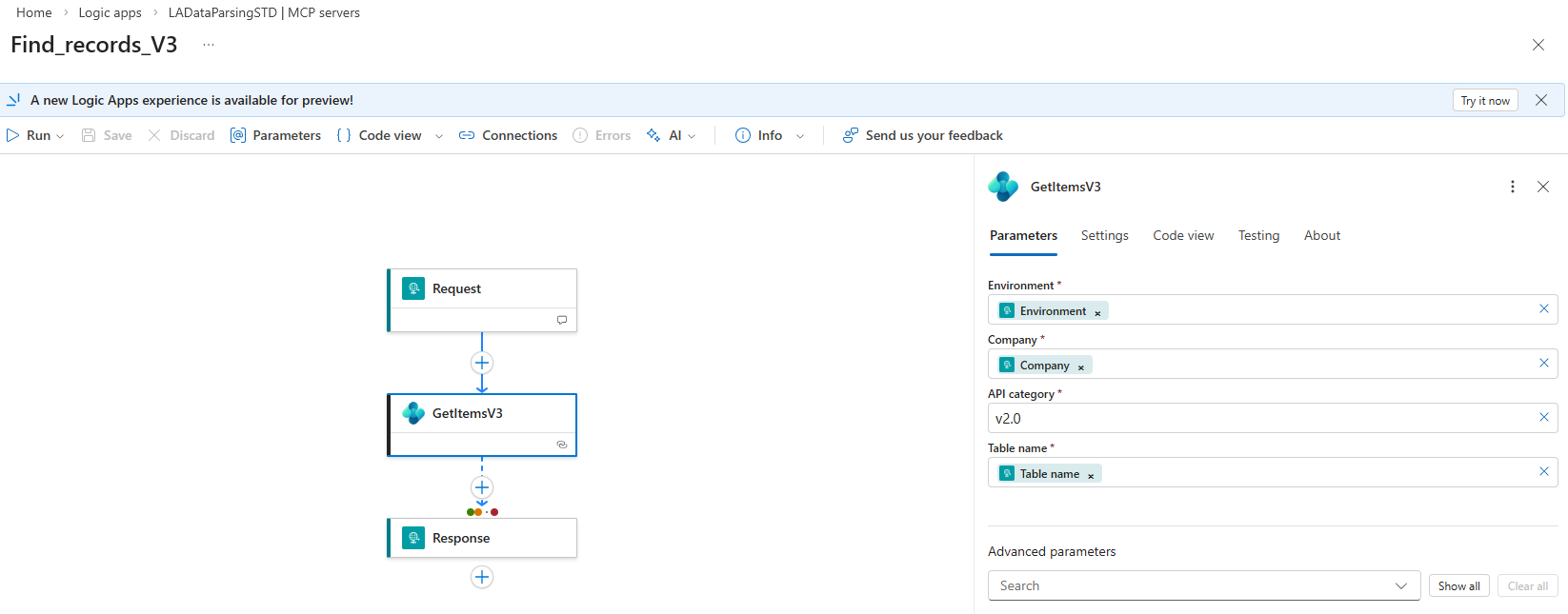
Fro this view you can see that the workflow has a trigger schema automatically included.
Now you need to setup authentication for your new MCP server. On the Authentication section, select Method. Here you will have some options for using OAuth or Key-based authentication:
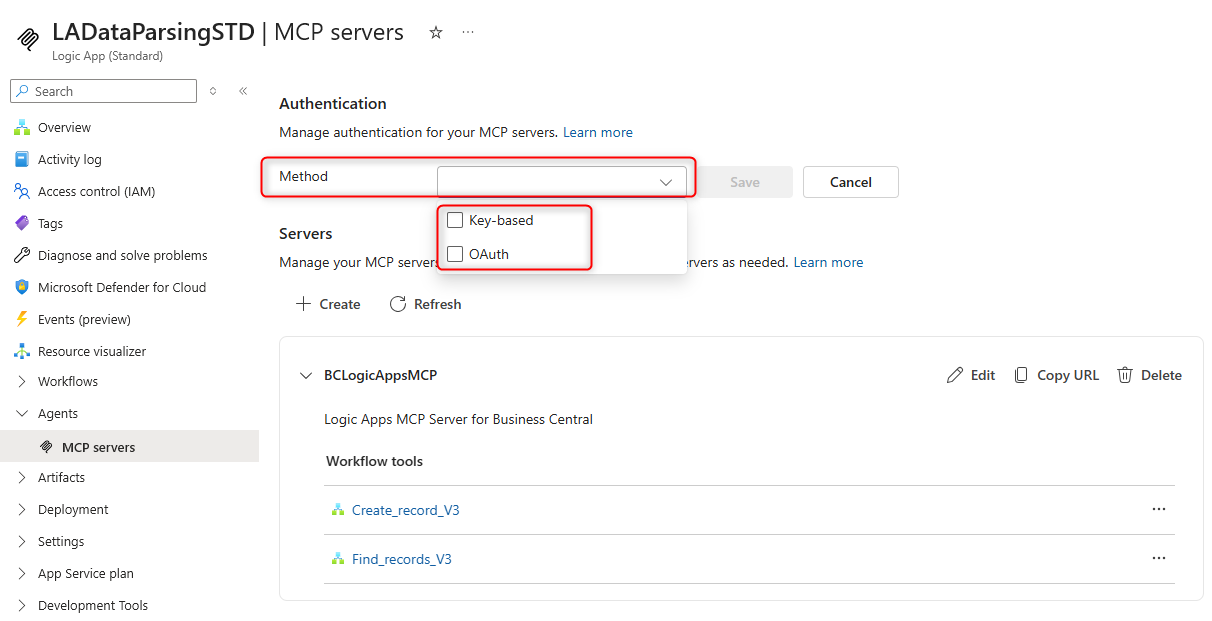
Please note that the selected authentication scheme applies to the entire Logic App and not the individual MCP Servers/tools.
For this post I will use key-based authentication. When you select Key-based from our method dropdown, you have the ability to generate keys by clicking on the Generate key button. From there, select a Duration and an Access Key, followed by clicking on the Generate button;
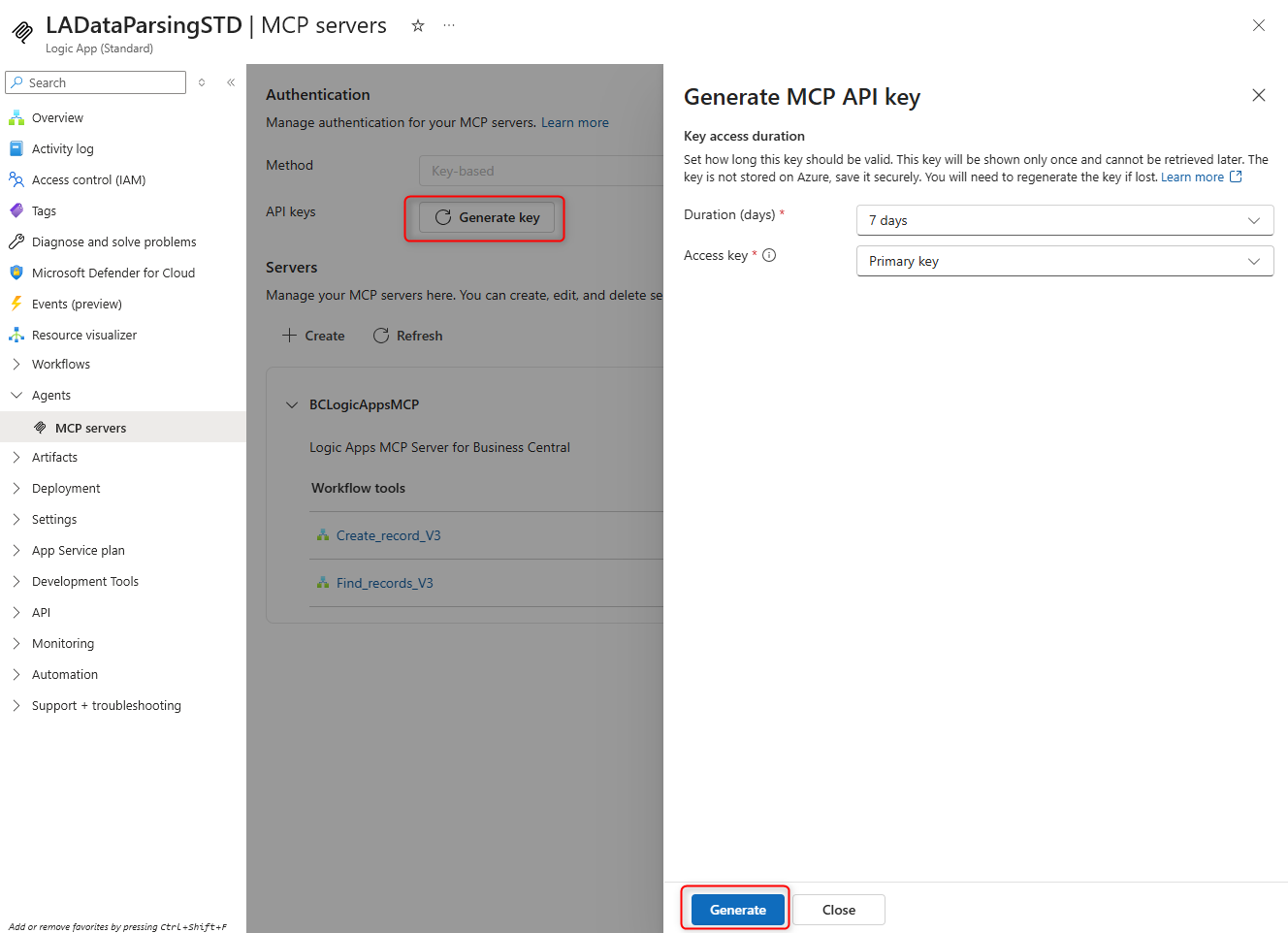
An API key will be generated and (as usual) you need to copy this value because you will not be able to see this value again when you close the page.
Your MCP server can now be used from your favourite AI client tool. Here I will use it from GitHub Copilot.
From Visual Studio Code, select MCP: Add server and then select HTTP as MCP type:

Then add your Logic Apps MCP server url:

and in the MCP server configuration (mcp.json file) add the following configuration:
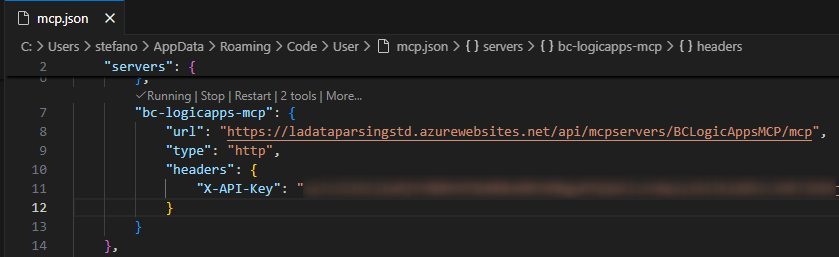
From here, start your MCP server (check that status is running) and you will see the number of tools exposed. Then you can start using it from GitHub Copilot:
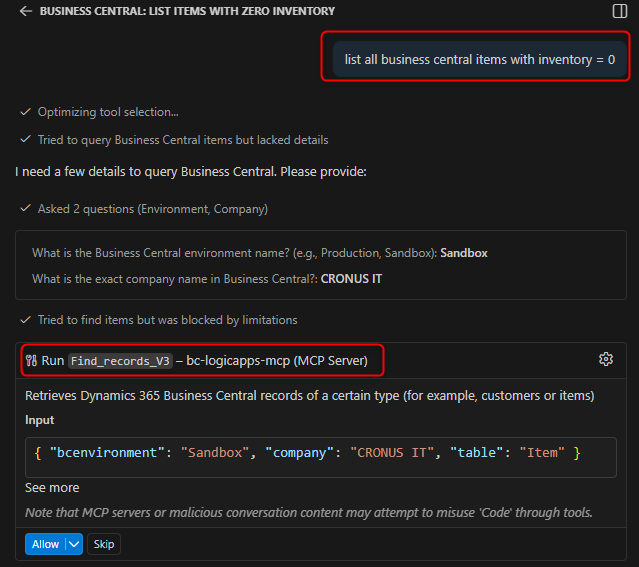
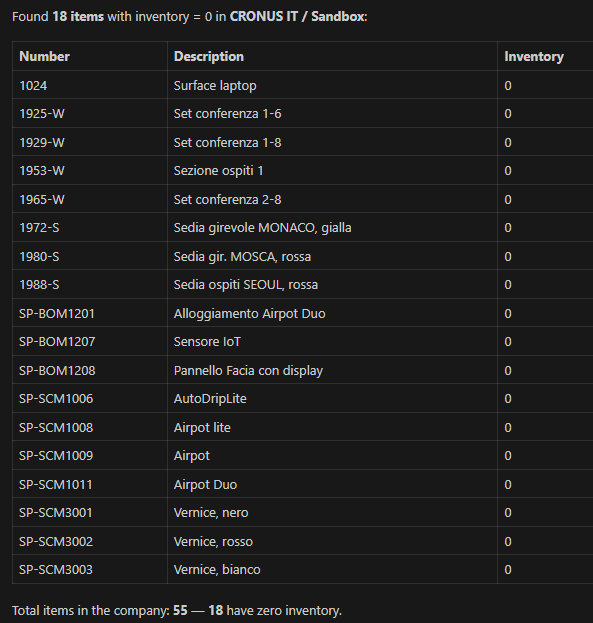
and you can interact with your Dynamics 365 Business Central data from a fully scalable platform:
Conclusion.
By supporting MCP in Azure Logic Apps Standard, Microsoft has opened new possibilities for:
- Seamless AI Agent execution: you can deploy autonomous agents directly within integration workflows without complex orchestration layers.
- Unified context management: MCP servers maintain conversation history and contextual information across workflow executions, critical for stateful AI interactions.
- Data source abstraction: you can connect to databases, APIs, and enterprise systems through standardized MCP protocol rather than custom connectors.
- Reduced integration complexity: you can now leverage shared MCP tools across multiple workflows and applications.
If you need to expose MCP servers that spans across different business applications (Dynamics 365 Business Central and more) and that need to be reliable and scalable, this is absolutely a technology that you need to start exploring.