



Below is our final Power Automate Cloud Flow which uses the HTTP request trigger followed by Response action.
The Allows Users = Specific users in my tenant option ensures that only authorized users in the tenant can trigger the flow while leveraging the security provided by Oauth authentication and Azure AD.

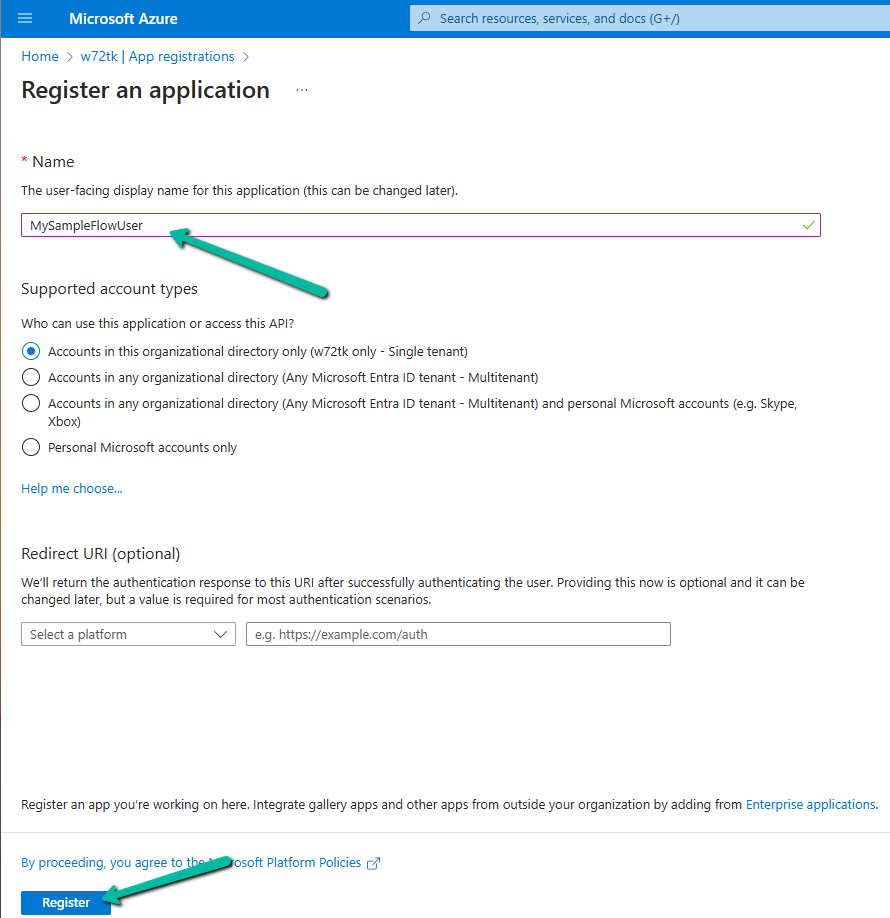
Let us first register an App in the Azure AD.
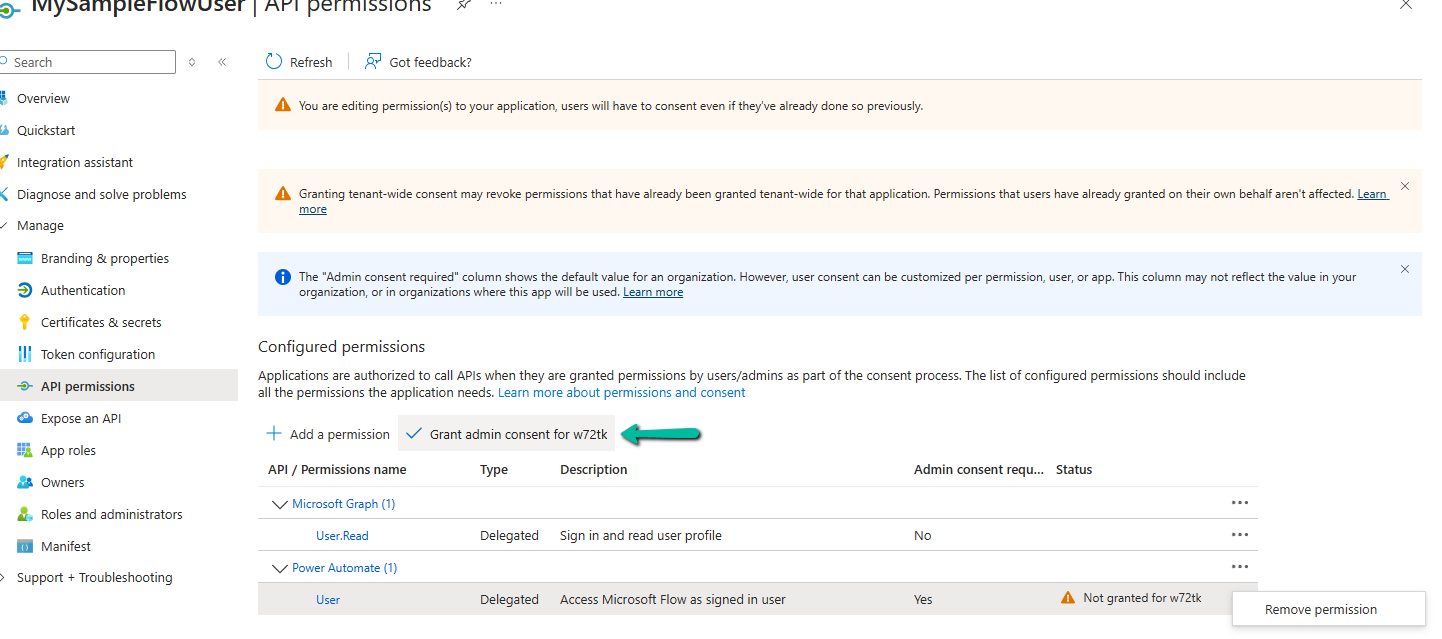
Go to API Permissions → Add a permission.

Select User permission.

Grant admin consent
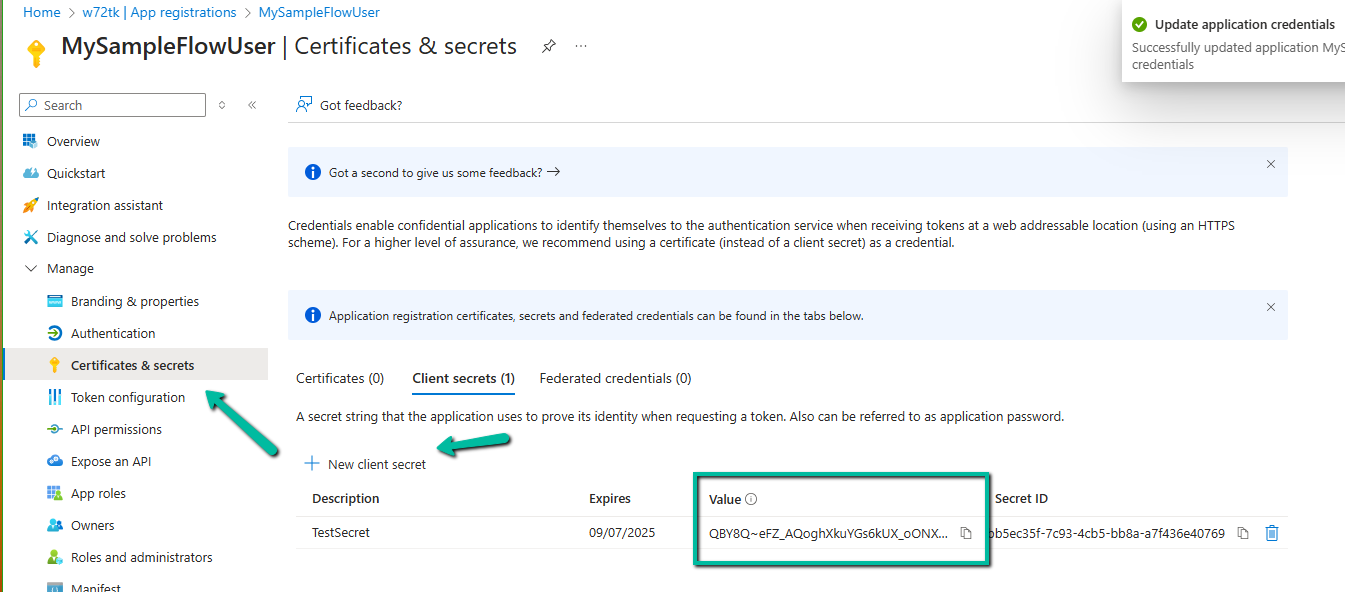
Generate and copy the client secret.
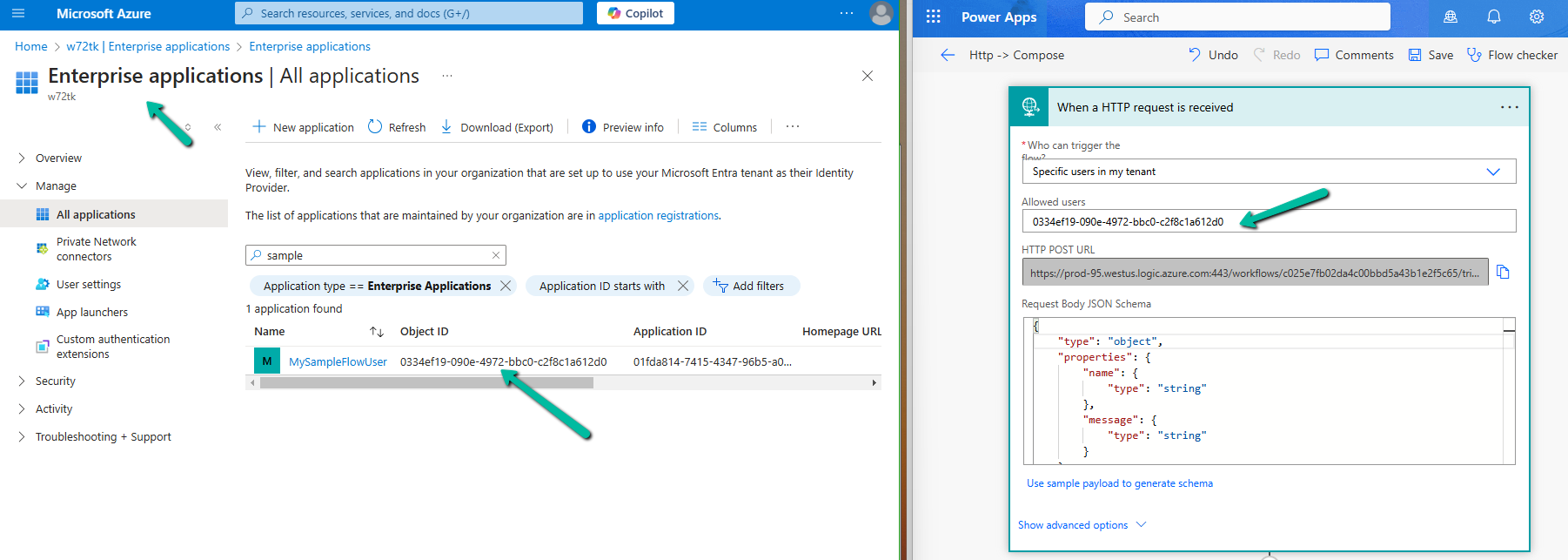
Navigate to Enterprise Applications, search for the app, copy the Object ID of the App, and specify the same for the Allowed users property in the HTTP request trigger.
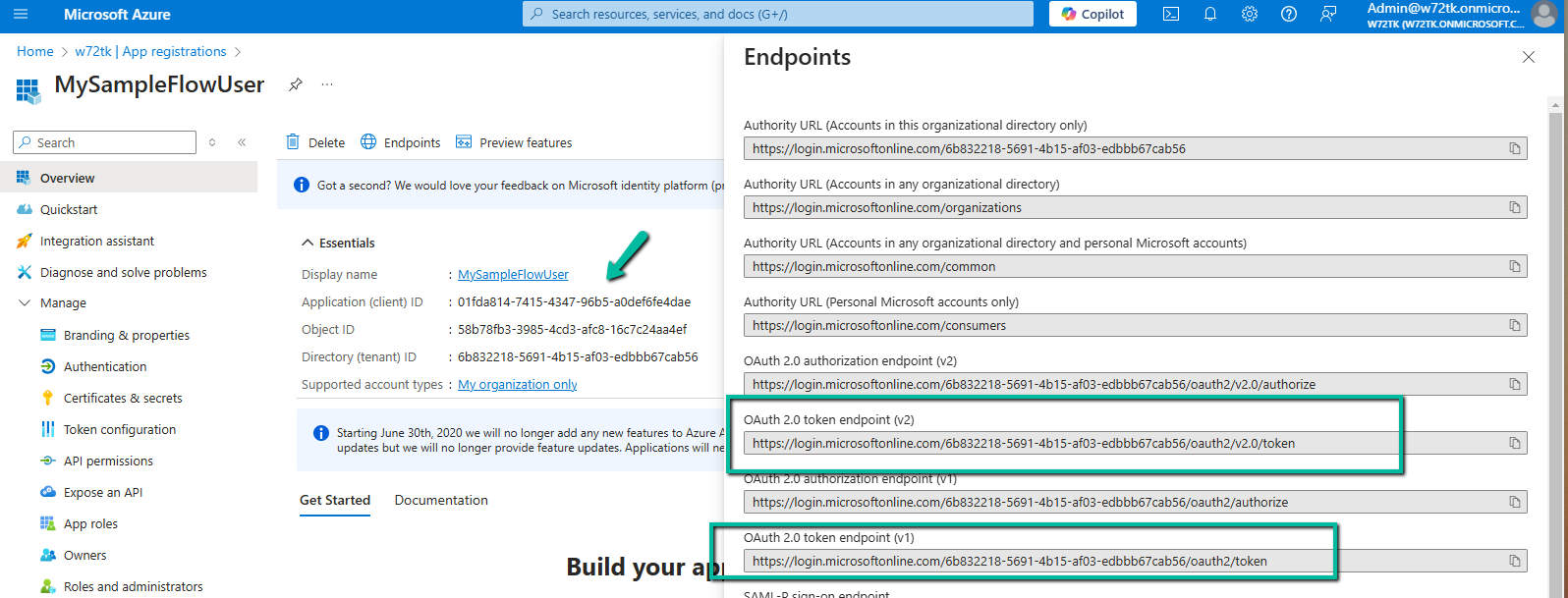
Now let us use the Postman to generate the token and call the flow. Note down the Application (client) ID and we can either use the v1 or v2 Oauth token endpoint.
Specify the following values if using the v2 endpoint to generate the token.
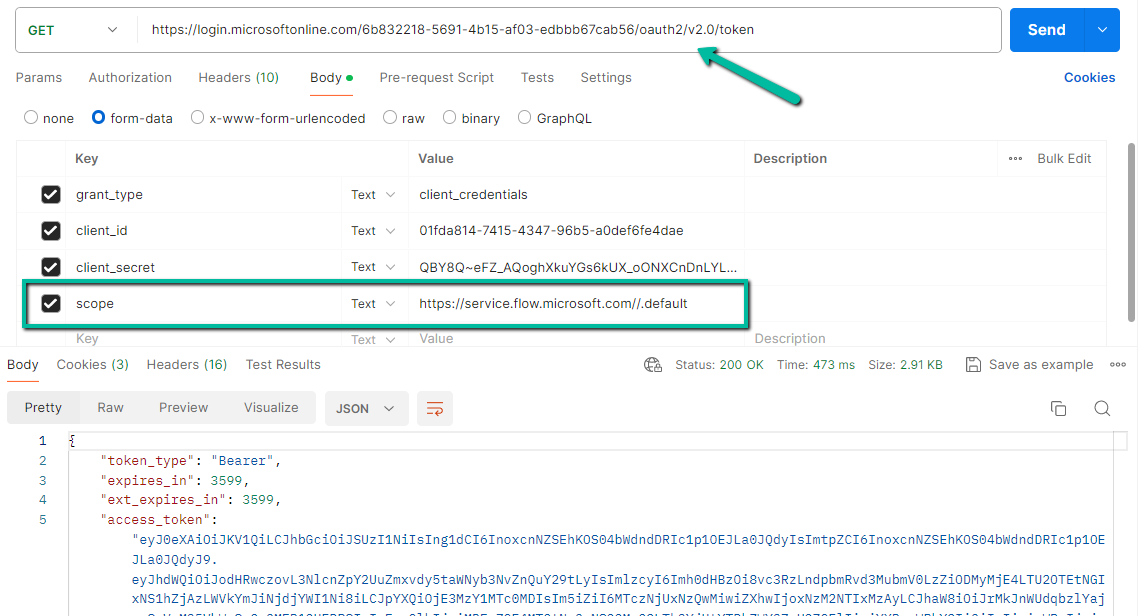
https://login.microsoftonline.com/6b832218-5691-4b15-af03-edbbb67cab56/oauth2/v2.0/token
scope = https://service.flow.microsoft.com//.default
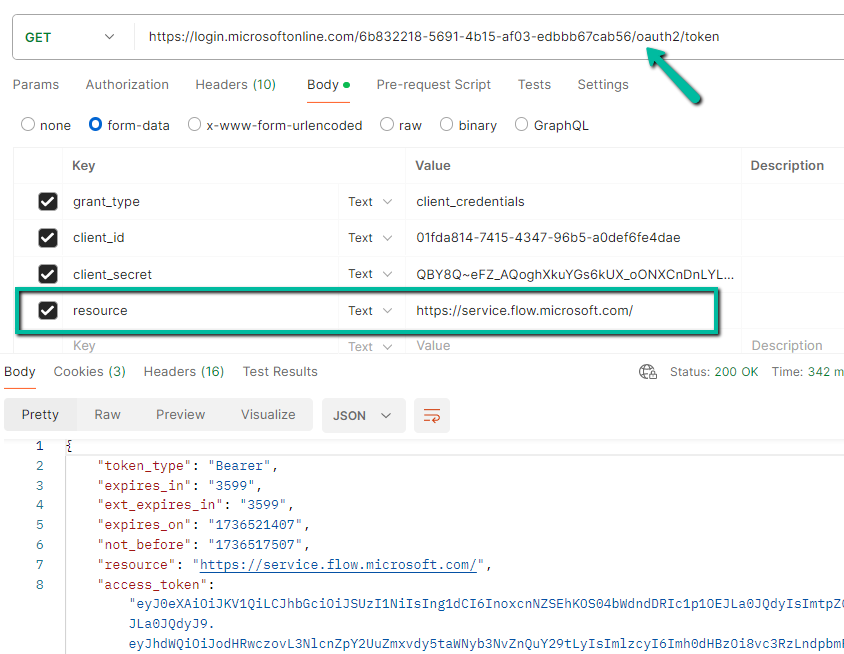
and for v1 token endpoint
https://login.microsoftonline.com/6b832218-5691-4b15-af03-edbbb67cab56/oauth2/token
resource = https://service.flow.microsoft.com/
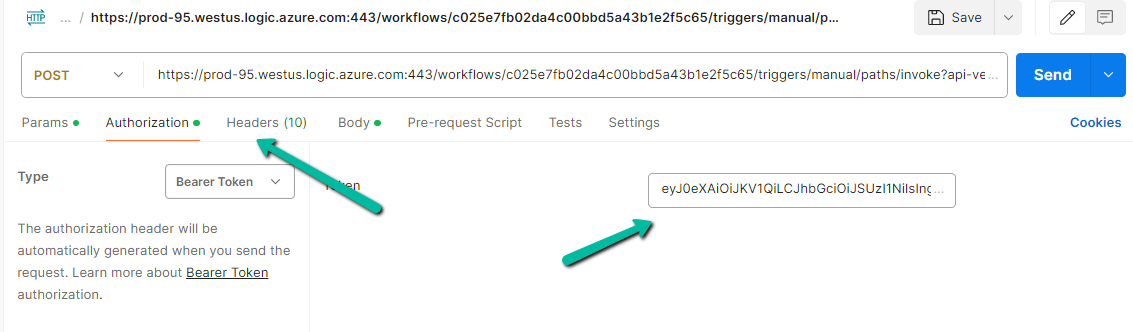
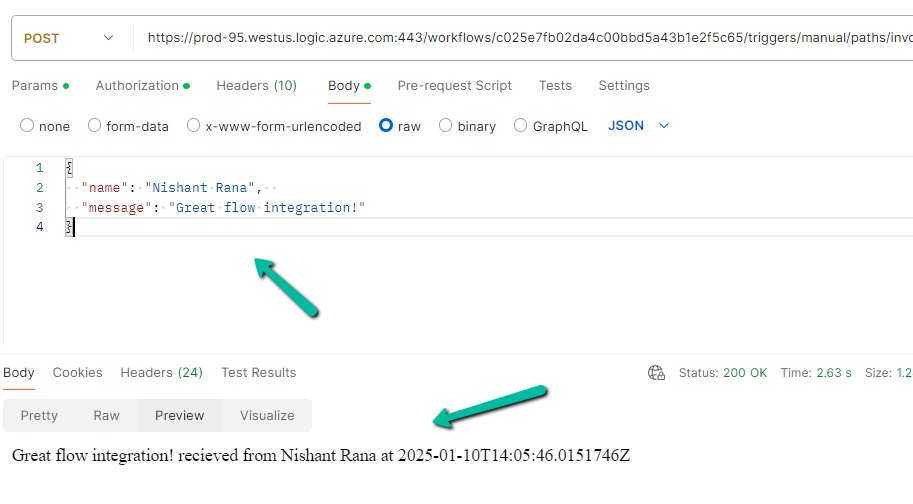
Now specify the URL generated for the HTTP Request Trigger, copy the Token generated, and for the body specify the following value expected.
We can see the response received successfully from the flow.
Get more details
Also, refer
OAuth Authentication for Power Automate HTTP Request Trigger | Dynamic Bites
https://www.beringer.net/beringerblog/microsoft-power-automate-http-trigger-and-restricting-users/
https://manish-solanki.com/how-to-secure-http-trigger-end-point-for-3rd-party-application/
Hope it helps..
Discover more from Nishant Rana’s Weblog
Subscribe to get the latest posts sent to your email.
Share It –

