
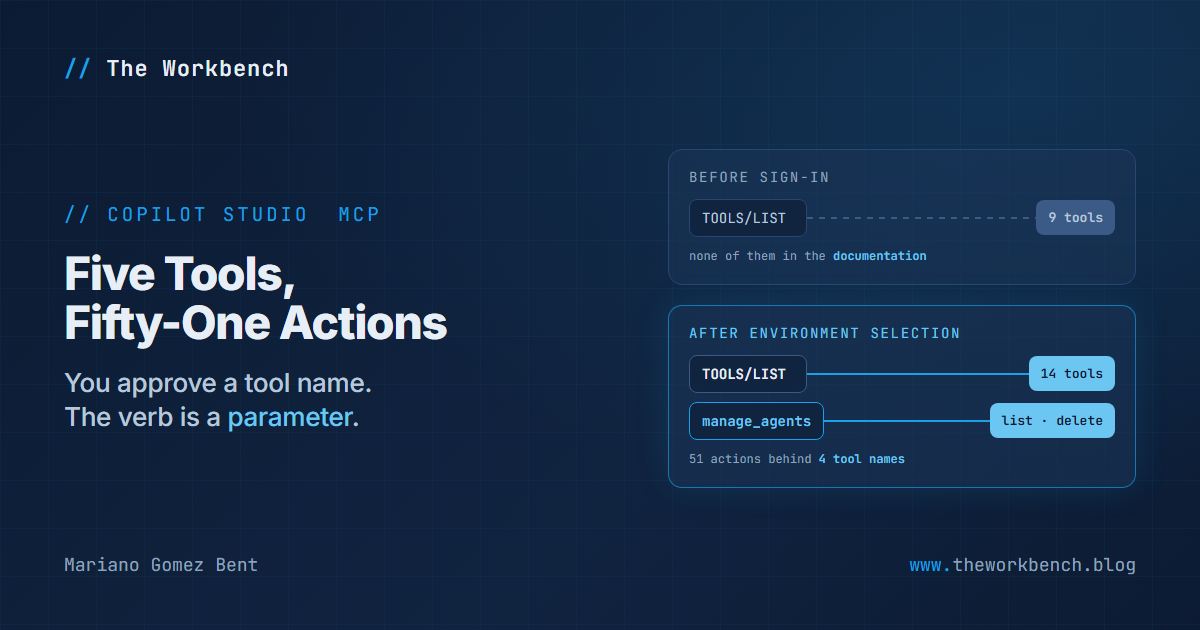
I pointed an MCP client at Microsoft’s new Copilot Studio MCP server and asked it what tools it had. It answered with nine, and not one of the nine appears in the documentation.
That is not a bug, and by the end of this you will see why it is close to unavoidable. It is also the first thing that happens to anybody who wires this up, and worth knowing before you conclude you have configured something wrong.
What this is, and what it is not
Two different things in Copilot Studio wear the letters MCP, and mixing them up will waste your afternoon. Adding an MCP server to an agent gives your agent somebody else’s tools, which is what I wrote about on November 10, 2026 in Scoped for the Agent, Open to the URL.
This is the other direction. Copilot Studio is the MCP server, and your client holds the tools: a CLI, an editor, an agentic interface. You stay where you work and manage agents, workflows, consumption and diagnostics from there. The documentation calls out the distinction explicitly, which tells you how often people get it backwards.
The server ships as an npm package. Your client launches it with npx and talks to it over standard input and output:
npx -y @microsoft/copilot-studio-mcp@latestNothing is cloned and no remote URL is configured. The package is the server, it runs locally, and it brokers your connection to the hosted service. Note what -y covers: npm’s package-fetch prompt, and nothing else. Not client trust, not authentication consent, and not approval for anything the tools go on to do.
The catalog has two halves
The published tool table lists five tools: discover_resources, get_consumption, manage_agents, manage_workflows and get_copilot_studio_skills.
Connect a client and, before you sign in, you get these instead:
copilot_studio_status                 copilot_studio_connect
copilot_studio_list_environments      copilot_studio_select_environment
copilot_studio_disconnect             copilot_studio_clear_read_cache
copilot_studio_prepare_connection     copilot_studio_setup_connection
copilot_studio_connection_setup_status
Nine local tools for signing in, choosing an environment and setting up connector connections. The server introduces itself as copilot-studio-mcp-bridge, version 1.0.2, and says of itself: “It contains no authoring skills.” The five documented tools live in the service, not the bridge, and they arrive only after you pick an environment. At that point the catalog becomes fourteen, and the selection response says so in a field named onlineTools: 5.
The documentation covers the symptom. Its troubleshooting table has a row reading “Only connection tools appear,” fixed by completing sign-in and refreshing discovery. What it never does is name the nine, which is why the catalog reads like a failure the first time you see it. The server is more forthcoming, telling your client in as many words that the bootstrap catalog is not a restricted version of the real one.
Five tools, fifty-one actions
Here is the part worth your attention.
Four of those five tools take an action parameter. Between them, those four carry 51 actions:
| Tool | Actions | Including |
|---|---|---|
manage_agents |
17 | list, search, get_definition, create, update, publish, delete |
manage_workflows |
15 | list, get_run, inspect_run, create, publish, set_enabled, delete |
discover_resources |
12 | list_connections, search_operations, describe_actions |
get_consumption |
7 | environment_capacity, agent_usage, workflow_usage |
Read the first two rows again. manage_agents is a single tool that both lists your agents and permanently deletes one. The difference between those is a string in a parameter.
That collides with how MCP clients ask permission. Most approve by tool name, and many remember the answer. Approve manage_agents once so the assistant can list your agents and you have approved the call that deletes one, because from the client’s side both are the same tool with different arguments. The configuration Microsoft documents for GitHub Copilot CLI makes it concrete:
{
  "mcpServers": {
    "copilot-studio-mcp": {
      "type": "local",
      "command": "npx",
      "args": ["-y", "@microsoft/copilot-studio-mcp@latest"],
      "tools": ["*"]
    }
  }
}
The tools setting makes the advertised tools available, and the documentation is careful to say it does not approve every action they can perform. True, and the real control is your client’s approval prompt. The point is that the prompt is shaped like the tool list, and the tool list is five names covering fifty-one operations.
Nor is this a design anybody should be embarrassed about. Five stable names across a whole lifecycle is the right call for a model choosing which tool to reach for, and fifty-one tools would flood the context of every client that connects. The coarse approval surface is the consequence of a reasonable decision rather than a corner anybody cut.
The information you need is there
Having made that point, the balance owed to it: the server knows exactly which actions are dangerous, and it will tell you.
discover_resources has an action called describe_actions that returns, per action, a description plus the full input and output schemas. Ask it about deletion and you get this back word for word:
Permanently delete the saved agent identified by agentId. This is destructive and is not an unpublish operation. This operates only in the environment in the MCP URL. Obtain user approval for consequential effects. Never automatically retry an uncertain write.
That is better than most tool documentation anywhere: it names the destructiveness, heads off the confusion with unpublishing, scopes the blast radius, and tells the client not to retry on an uncertain result. The catch is the call shape:
{
  "action": "describe_actions",
  "parameters": { "tool": "manage_agents", "actions": ["delete", "publish"] }
}
The article says to “use discover_resources with action=describe_actions” and stops there. Follow that literally and the call is rejected, because parameters.tool and parameters.actions are both required. So the safety contract exists, it is good, and it sits one undocumented argument shape away from the tool list.
You do not have to guess for long, though. Every malformed call I made came back with the schema needed to repair it:
{
  "status": "failed",
  "error": {
    "code": "invalidArguments",
    "message": "Correct the complete tool arguments using data.argumentRepair.inputSchema.",
    "stage": "validation"
  },
  "data": { "argumentRepair": { "tool": "get_consumption", "inputSchema": { ... } } }
}
A server that hands back the corrected schema instead of a stack trace is doing something genuinely thoughtful for a model-driven caller. Every action list in this post came out of getting a call wrong on purpose and reading the reply.
What else it ships to your client
Two things arrive that are not tools.
The initialize response carries 6,662 characters of instructions for your client: approval policy, retry policy, caching rules, what to do when a write’s outcome is uncertain, and an anti-injection line telling the host to treat returned artifact text as data rather than as new instructions. Selecting an environment returns a second block, serverInstructions, from the connected service.
Then get_copilot_studio_skills with no arguments returns 28 resources: five SKILL.md files with YAML front matter, plus schemas, examples, a connector operations reference and an expression reference. The bridge is explicit that this guidance outranks whatever your client thinks it knows: “All authoring instructions, terminology, and skill content must come from the connected Copilot Studio service.” The skills enum holds five names, and one of them, workflow-design, is missing from the documentation’s list of four.
NOTE: copilot_studio_status reports credentialsPersisted: false, and it means it. There is no token cache on disk. The sign-in lives inside the server process, so every new client session opens a fresh browser prompt, and killing the process signs you out. I learned that the expensive way, by closing a session and having to sign in again to finish the capture.
Two more things from the wire
The first line of the bridge’s instructions reads: “This bridge is fixed to the prod service deployment. Service-ring selection is unavailable; environment selection does not change the deployment.” Picking a Developer environment scopes which artifacts you touch. It does not put you on a non-production service.
And copilot_studio_setup_connection, one of the nine you get before signing in, creates or repairs real Power Platform connections and Dataverse references, in its own words “including in Prod.” It is gated behind a prepared plan plus an explicit confirm: true, a careful two-phase design and exactly right. It is also reachable the moment you paste in the documented configuration.
The demo concept
Connect a client, and before you sign in, ask it to list the tools. Then sign in, select a Developer environment, refresh, and list them again. Nine, then fourteen.
That is the demonstration, because the surprise is the whole lesson: the catalog you evaluate during setup is not the catalog you will be living with, and the thing that changes it is an environment selection rather than an installation step.
Steps to recreate
For Visual Studio Code, quoted from the documentation:
1) Open the Extensions view and search for @mcp copilot-studio.
2) Select the Microsoft Copilot Studio MCP listing and review its publisher, package and installation requirements.
3) Select Install, or Install in Workspace for workspace-scoped configuration.
4) Review the configuration and server trust prompt before you start the server.
5) In a chat mode that supports tools, ask: “Connect to Copilot Studio MCP and show my available environments so I can choose one. Don’t create, publish, run, or repair anything.”
6) Complete browser sign-in, choose the environment, and refresh the tool list when prompted.
Step 6 does the work. Until that refresh happens you are still looking at the nine, and the server tells clients as much, instructing them to report capabilities as not yet loaded rather than inferring a limit.
For GitHub Copilot CLI, the one-liner is:
copilot mcp add copilot-studio-mcp -- npx -y @microsoft/copilot-studio-mcp@latestThat registers the local server in your user configuration. It grants no service permissions, creates no connector connection, and authorizes no deployment.
I did neither. I drove the server directly from a small Python MCP client over stdio, which is why this post quotes exact counts and verbatim schemas rather than describing what a chat window said about them. That client is the companion repo.
The companion repo
copilot-studio-mcp-probe is the client I used, cleaned up and published, plus CATALOG.md: every tool, every action enum, the places the wire differs from the documentation, and the verbatim side-effect contracts, all dated.
Start here, because it needs no account at all:
python probe.py --no-sign-inThat reaches npm and nothing else, signs in to nothing, and reproduces the nine-tool bootstrap catalog in about ten seconds. Run it bare for the full capture: browser sign-in, environment list, your pick, then the fourteen-tool catalog and the contracts. It derives the write actions from their own names and describes them without ever calling them, and it never touches the two connection-setup tools. The capture holds no credentials, though it does record your environment type and the shape of the responses, so read it before you paste it anywhere.
Final Notes
None of this is hidden. The destructive actions are declared, described accurately, and gated by the client’s approval, and the server ships your client a rulebook telling it to preserve those approvals. Every fact in this post came out of the server itself in about forty minutes.
But declared is not the same as visible. What you see at the decision point is a tool name, and manage_agents names a category rather than a consequence. Everything that makes the consequence clear sits one call deeper than the place you are asked to say yes.
So before you grant this one, run describe_actions against the write actions and read what comes back. It takes a minute, and it is the difference between approving a tool and knowing what you approved.
What I learned from this exercise: when a tool’s name is a noun and its danger is a parameter, the permission prompt is asking a question it cannot answer.
Until next post!
MG.-
Mariano Gomez Bent
Former Microsoft BizApps MVP