

Until a few weeks ago, Agent Feed wasn’t really on my radar. I’ve built quite a few autonomous agents by now. Some have been allowed to run fully autonomously, while others have had very deliberate points of human oversight: triggering approval flows, drafting emails for someone to review, proposing updates, or creating records that a user then takes over.
But those human touchpoints have typically been quite narrow and tightly coupled to a specific part of the business process. Then I was asked to host an internal training session on Agent Feed.
Which meant I first had to figure out what it actually was.
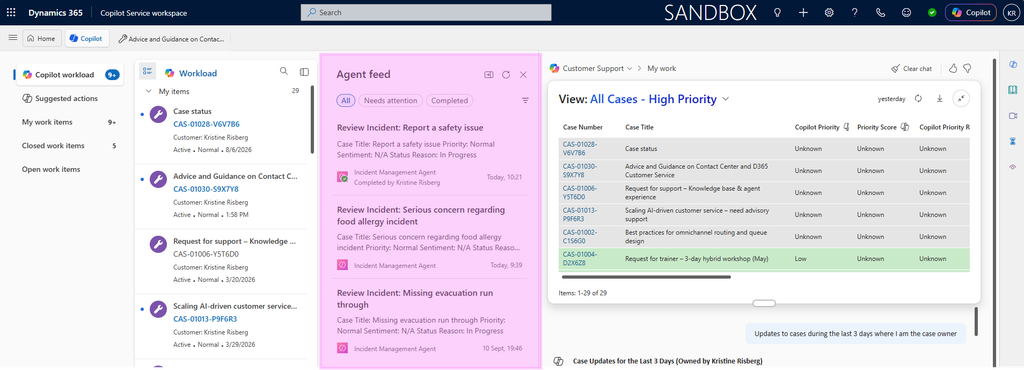
And once I started testing it, I realized that the pattern is slightly different from the human-in-the-loop scenarios I’d built before. With Agent Feed, the autonomous agent can essentially write you a note and leave it as a task inside the application where you’re already working.
What that note represents is up to the process you’ve designed.
It could be:
- I’ve completed this action. Here’s what I did if you want to review it.
- I’ve reached something I can’t confidently determine. I need your input before I continue.
- I’ve extracted this information and prepared a record, but I need you to verify it before anything is created.
- This situation has crossed the threshold you’ve defined for autonomous action. Over to you.
And that last part is what made Agent Feed interesting to me. The task itself isn’t the business logic. The agent decides when to create it based on the scenario, instructions, tools and boundaries you’ve given it.
So the Feed can become the human gateway at whichever point in an autonomous process you decide human judgement is actually required.
As we start giving agents more responsibility inside business processes, I think one of the more interesting questions therefore becomes less “What can the agent automate?” and more “What happens when the agent reaches the boundary of what we want it to automate?”
When should it proceed? When should somebody simply be able to see what it did? And when asking for human review, what does that handover look like? That’s what I wanted to understand.
What is Agent Feed?
Agent Feed is a Microsoft-managed work queue function for supervising autonomous agent activity directly inside a model-driven app. Instead of sending users to another administration or monitoring experience, Agent Feed brings agent-generated work into the application where the operational work is already taking place.

The feed essentially gives us two supervision tracks:
Needs attention contains work where the agent requires human involvement before it can continue.
Completed provides visibility into work that has already been completed, including activities logged by agents for review or audit.
This clearly demonstrates that Agent Feed isn’t primarily an agent administration experience, but an operational human-in-the-loop experience.
The configuration path
Let’s get into how I configured this for my Incident Management Agent. At a high level, the path is fairly straightforward:
- Create or open an autonomous agent in Copilot Studio
- Add the Power Apps MCP Server as a tool
- Enable the task tools needed for your scenario
- Use maker-provided credentials for trigger-based autonomous runs
- Add a trigger and explicit instructions, then publish the agent
- Add the eligible agent to Agent Feed in the app designer and publish the app
There are a few details hiding behind those six steps, though.
1. Create the autonomous agent
I started in the Power Apps maker portal, opened the model-driven app where I wanted Agent Feed to live. In the app editor, open Agents and select + Create agent.

This takes you into Copilot Studio in the environment selected in the maker portal. Do remember to double check the environment, publisher and particularly the solution the agent belongs to before clicking Save. These can be changed through the agent’s advanced settings. (You can obviously also create the agent directly in Copilot Studio and add to the Agent Feed afterwards.)
For my test, I created an agent for incident handling.
2. Add the Power Apps MCP Server
Next comes the component that makes the Agent Feed interaction possible: Power Apps MCP Server.
There’s an important distinction here. An autonomous agent can use all sorts of other tools to perform work. It could query Dataverse, invoke flows or call other MCP servers. But that doesn’t automatically give it the Agent Feed collaboration experience. The Power Apps MCP tools are what give the agent a mechanism for bringing its work to a human in Agent Feed.

If you’re setting up a trigger-based agent to run autonomously in the background, there isn’t an active end-user session available when it starts. You therefore need to configure the MCP tool to use maker-provided credentials rather than end-user credentials. That gives the autonomous run a predefined connection it can use when the trigger fires.

3. Decide what kind of human interaction you actually need
Power Apps MCP exposes three tools that represent three quite different human-in-the-loop patterns. I think of these less as three technical tools and more as three different relationships between the agent and the human supervising it. Tool usage will depend on the type of task being handed over from the agent to a human and will need to be part of your design work, especially if you’re designing more complex processes.
| Tool | What it does | When I’d use it | Feed location |
|---|---|---|---|
log_for_review |
Records work the agent has already completed | A human should have visibility, but the agent doesn’t need approval | Completed |
request_assistance |
Creates a task and waits for human input | The agent is blocked, uncertain or has reached a human decision point | Needs attention |
invoke_data_entry |
Presents extracted structured data for human verification | The agent can prepare data, but a human should verify it before record creation | Needs attention |
log_for_review
This tool is used by the agent, when it has completed an action, to create an informational entry showing what it did. The agent does not wait for the user. This works well for providing transparency without creating an approval bottleneck in lower-risk or easily reversible actions, with secisions supervisors may want to audit.
request_assistance
This tool is used by the agent to create a task because it needs human input before it can continue. For example; the agent cannot determine whether a customer is entitled to compensation. It creates a task explaining the uncertainty and links to the case. When a user/CSR completes the task in Agent Feed, the agent receives a callback and resumes its process. This is the main tool for an asynchronous human handoff.
invoke_data_entry
This tool is used by the agent to extract structured values, e.g. customer name, request details, issue description, relevant dates, etc. The proposed values appear alongside the original source. The user/CSR can correct the values and approve or dismiss the proposal. Importantly, the tool does not create the Dataverse record autonomously. The user must review and accept the proposal first.

4. Give the agent something to react to
Next, I needed my Incident Management Agent to actually run autonomously. I added the Dataverse trigger When a row is added, modified, or deleted for the case entity.

But I didn’t want every Case update waking up my agent. For my scenario, I limited the relevant changes to: Title, Description, Priority, Case Type, Subject and Sentiment and added a condition so the agent only runs where Case Type = Incident.

This is a small configuration detail but with autonomous agents, defining when not to invoke the agent is just as important as defining when to invoke it.
5. Tell the agent exactly how to involve the human
The trigger determines when the agent starts. To determine what happens next we need to give the agent instructions. And this is where we’re moving away from the way I would traditionally think about workflow configuration.

The instructions aren’t a deterministic sequence of workflow steps. The agent’s orchestrator interprets the natural-language instructions at runtime and determines how to use the tools available to it. Which means that vague instructions leave decisions to the agent that you may not actually want it making.
For example: ”Create a task for human review.” Sounds reasonable. The intention is understandable. But we’ve left quite a lot for the agent to infer. What kind of review is required? Is the human simply being informed, or does the process depend on their response? What information does the reviewer need?
Good instructions aren’t about manually orchestrating every tool call. They’re about giving the agent enough context, boundaries and expectations to make the right orchestration decisions itself.
A clearer instruction would describe the expected behavior:
When an Incident requires human review, create a task containing a summary of the Incident and a link to the related Case. The process must wait for the reviewer to complete the task before continuing.
Now the agent has the information it needs to reason that this is an assistance scenario rather than passive review, and can select the appropriate capability from the Power Apps MCP tools available to it.
Then: Save and Publish.
Side note on tool routing being part of instruction design
I do want to point out that even though we’re not scripting the tool invocation, we still need to make sure that the intended outcome is sufficiently unambiguous for the agent to choose the right tool. This becomes even more important as you give an agent multiple tools with overlapping capabilities.
In my own testing, I’ve seen this with combinations such as Power Apps MCP + Dataverse MCP, and Customer Service MCP + Dataverse MCP. If the instructions aren’t clear about the purpose and boundaries of each tool, the agent can become ambiguous in its tool selection. I’ve seen scenarios where both MCP servers were invoked for the same request, even though one should have been sufficient.
6. Add the agent to Agent Feed
With the agent published, I returned to my model-driven app in the Power Apps maker portal. The Incident Management Agent was now available under Agents, where I could select + Add to feed. Then save and publish the app.

One small thing to know: Agent Feed can’t currently be previewed in the app designer. You need to play the published app to verify the experience.
Once added, Agent Feed appears at the top of the model-driven app sitemap and my Incident Management Agent was now working alongside the users in Dynamics.
When the configured Case trigger fires for an Incident, the agent collects the relevant Case details and uses request_assistance to create a task for human review.

That task appears under Needs attention directly inside the model-driven app. The reviewer gets a summary of the Incident and access to the underlying Case, so they can investigate the actual operational record without moving into a separate agent administration experience. Meanwhile, the autonomous run waits. Once the human completes the task, the agent can continue.