


This blog is part of the series: What is <this tech> and what is it used for?
Copilot answer
Power Automate is Microsoft’s low-code automation platform for creating workflows called flows that connect apps, services, and data.
It supports cloud flows, desktop (RPA) flows, and business process flows to automate repetitive tasks, approvals, notifications, data synchronization, and legacy desktop actions.
Organizations and individuals use it to save time, reduce errors, integrate systems through connectors, and add AI or Copilot-driven intelligence to processes.
Explain it to me like I’m 10 years old
Power Automate is like a smart robot helper on your computer that follows rules you give it to do boring tasks for you.
You can tell it to automatically save pictures, send messages, or move information between apps so you don’t have to do the same thing over and over.
It helps you save time and avoid mistakes so you can focus on the fun stuff.
Specialist answer
Matt Collins-Jones, Managing Solutions Architect at Capgemini.
Power Automate is an low-code automation and integration platform, allowing users to quickly and easily, connect to over 1500 existing data source (or more if there is an API) and create automated processed based on conditions from the creator.
It can be used for sending notifications to users, generating invoices or emails, creating a complex approvals process or even personal things like interacting with smart devices like lights or thermostats to make your home more efficient.
Agnius Bartninkas, Chief Operating Officer at Definra UAB. Agnius is the only person who was allowed to have two quotes! He’s one of the people who works the most with Desktop Flows, so he got to say his quote about that as well.
Cloud flows:
Power Automate is a low-code tool with a drag & drop interface for building rule-based flows that perform tasks so that a person does not have to do it manually.It can be used for simple things, like automating email processing, generating Excel/Word documents, etc. But it can also be used for complex scenarios and building enterprise grade solutions.
Desktop flows:
Power Automate Desktop is a tool in the Power Automate suite for automating local desktop applications and websites on a machine.It is a low-code tool with a drag & drop interface for building flows that usually involve UI automation when direct API integrations are not available.
It can be used stand-alone without a Power Automate subscription, but can also be combined with cloud flows for more robust automations.
Explain it like it’s my first day on the job
Power Automate is the magic in the background that just makes things happen. It’s the reason why we don’t have to manually punch in the data in the old legacy system and how we get information from the government systems to our Dataverse.
Power Automate actually consists of four different things:
- Cloud flows
- Desktop flows
- Business process flows
- Process Mining
When most people talk about Power Automate they talk about Cloud Flows.
Process mining
Have you ever wondered where to start when you want to make the business more efficient? Or maybe you’ve got a feeling of what takes long in a process, but you want to get some more data before you put a lot of money into the process. Well, the process mining and task mining helps you see the digital footprints of what you and others in the company do in specific processes.
Process mining analyses business processes across different systems and gives you a view of how the entire process runs.
Task mining is an individual per task basis, like clicks, keystrokes and copy-paste in one application on the users desktop.
Both of these can be super helpful in finding out which steps of the process takes a long time and will benefit from being automated or simplified.
Business process flows
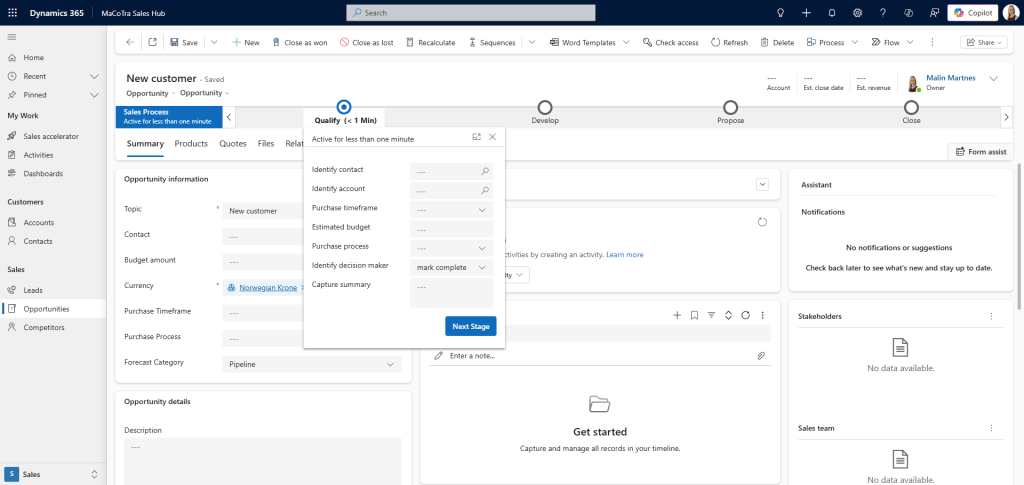
Business process flows have been in Dataverse and Model-driven apps for a long time. It’s a great way to make sure tasks are done, and the same process is followed by everyone. In Dynamics 365 Sales it’s used in opportunities, so sales people have a clear path to tasks needed to be done for each sale. In Dynamics 365 Customer Insights – Journeys it’s in the event record, for the event managers to have control over all the tasks needed for an event.
Desktop Flows
If you go on the start menu on your laptop and search for Power Automate, you will most likely find a system looking like this:

Desktop flows are the robotic process automation (RPA) side of Power Automate. Now that sounds fancy, right? This is where you can have your system work for you on your laptop. You record yourself doing the tasks that needs to be done, the system then has several steps of what you want to do. Then you start the desktop flow, and it can act as you in for example punching in data, or extracting data from the internet and to an spreadsheet.

Cloud Flows
In cloud flows we build flows. These flows always consists of one trigger and one or multiple actions. Something happens that makes something else happen.
In cloud flows you have three different ways of starting the flow;
- Automated
- Instand
- Scheduled

The scheduled one, you tell when you want it to start and how often you want it to run. You can create a flow that runs every single night, or even several times per hour.

With an instant cloud flow you manually have to trigger the flow to run. There are multiple ways of triggering this flow, one of them can even start from a business process flow, which we described earlier in this post.

The automated cloud flow is the one who magically makes things happening in the background. You can trigger an automated cloud flow when something is created in SharePoint, when you get a message in a channel in Microsoft Teams. When something is added or changed in Azure DevOps. When data changes or is added in Dataverse or a multitude of other changes.

Once you’ve selected how your flow is going to be triggered, it’s time to tell the flow what it should do. You can add one or multiple actions to your flow. The flow can be simple with one trigger and one action, or it can have one trigger and multiple actions and even flows that triggers other flows.

Use cases with large customers
Let’s say you have an old system that runs on a server in your basement, this doesn’t have any API’s or other connections to the internet. The old system might be the core of your entire company. A big company spent a lot of resources on punching data in from one system to the old legacy system, it needed to be done, but there were no connectors and the old system didn’t have access to internet. The desktop flow helped automate moving data from one system to another, without anyone having to manually punch the data.
A customer of mine wanted to send contracts to their customers when the opportunity was closed as won. They used Power Automate to fully automate the creation and sending of the contract, as well as storing the unsigned and signed contract in the correct folders in SharePoint.
Use cases with small customers
When I enter a Norwegian organization number in my own CRM system, I have a flow that goes to the official Norwegian government sites and collects the publicly available information about that company, and then puts that in to my Dataverse. That’s just one of the many flows that can be useful both for small and larger companies. How about building a flow from a button that puts in an out of office message and blocks your calendar if you’re sick? Or a flow that starts when you flag an email that then creates a planner or To-do task for you.
Training material
Matt Collings-Jones who’s one of the experts in this post did the incredible feat of posting one Youtube video every day for a full year, pretty much all of them were for Power Automate, go check out his channel: https://www.youtube.com/@MattCollinsJones
Learn getting started module: https://learn.microsoft.com/en-gb/training/modules/get-started-flows/
Applied Skills to show off what you know about building Power Automate flows: https://learn.microsoft.com/en-gb/credentials/applied-skills/create-and-manage-automated-processes-with-power-automate/
Microsoft Power Automate documentation: https://learn.microsoft.com/en-us/power-automate/
Power Automate book in its third edition: https://www.packtpub.com/en-gb/product/workflow-automation-with-microsoft-power-automate-9781836649625
Jeroen Scheper has some good posts on Power Automate: https://jscheper.com/category/powerautomate/
Summary
You can start with simple cloud flows and learn how it work, and then go tackle the more complicated stuff after a while. There are so many use cases for Power Automate, there’s so much potential in what it can help you with. A lot of flows have been created since it came to the market, and more flows will come in the future.

Since march 2018 I have worked with Microsoft’s new HR system, Dynamics 365 for Talent, and gained unique insight in the system and various HR processes.
In august 2018 I was the second in the world to pass the MB6-898 Dynamics 365 for Talent certification.
View all posts by Malin Martnes