
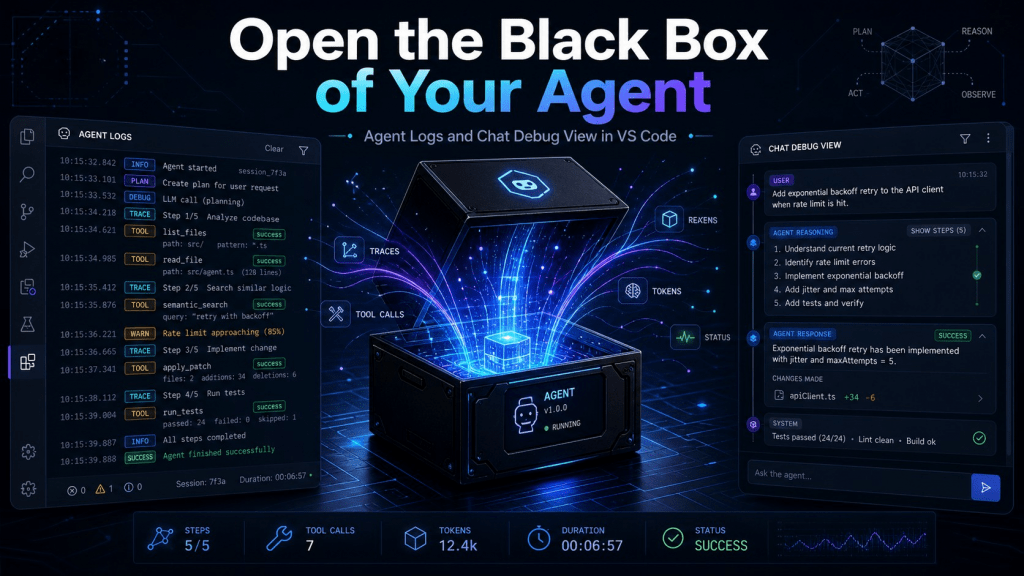
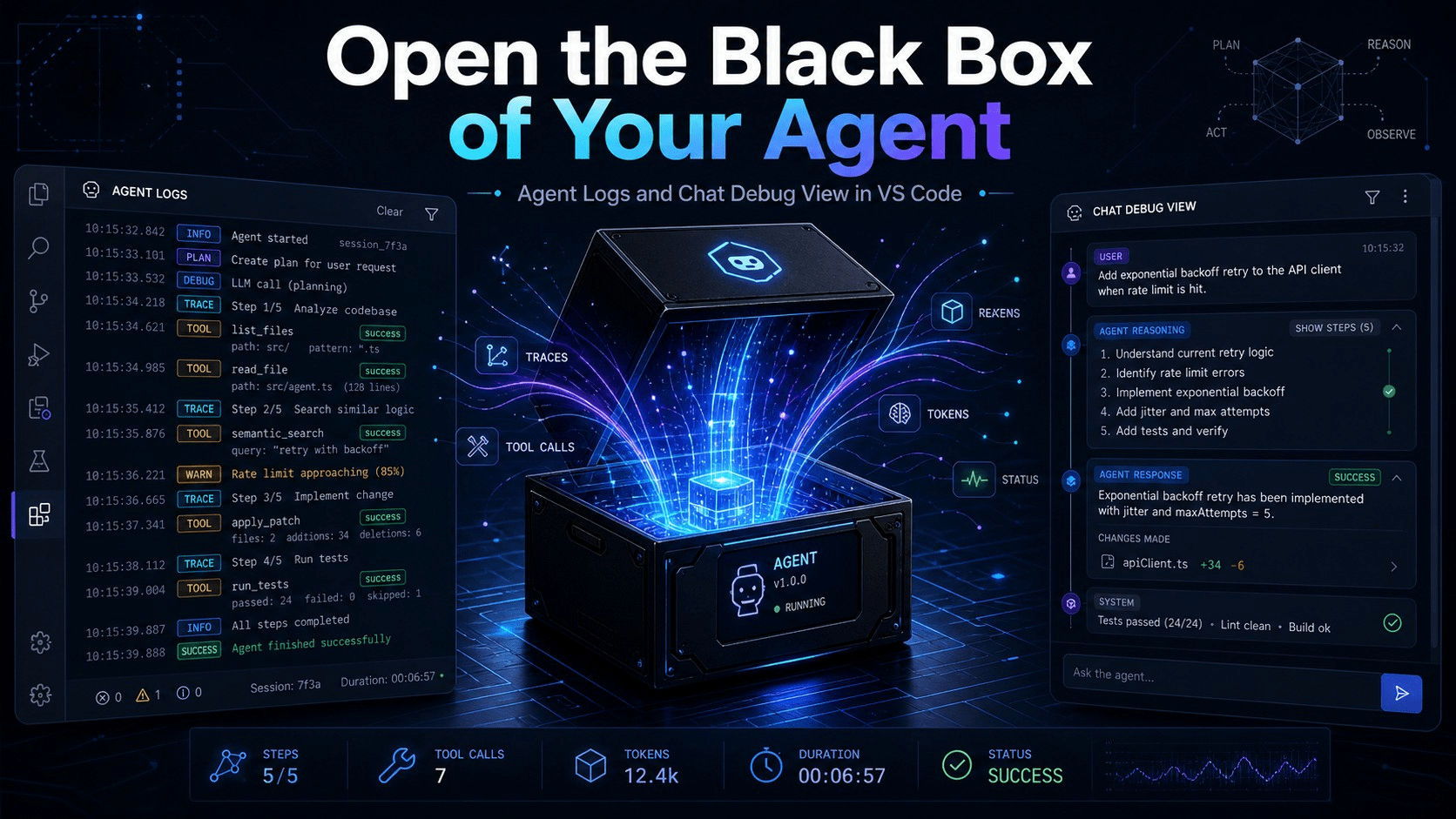
When a Copilot agent responds poorly, the instinct is to blame the model. Spoiler: it’s almost never the model. The problem sits somewhere between your prompt and the response — a skill that never loaded, a file that never reached the context, a tool that failed silently. VS Code recently shipped two tools that open that black box from two different angles. Knowing which one to use and when is the difference between debugging blindly and debugging with method.
What problem they actually solve
A chat session with an agent looks simple from the outside: you type, you wait, you read. Internally, half a dozen things happen: the agent decides which instructions to load, which workspace files to include, which tools are available, which to invoke and in what order, how many tokens each turn consumes, and whether or not it delegates to subagents. When the result is bad, the hard part is not fixing it: it’s knowing where the path went wrong.
The two tools attack this opacity from different planes. Agent Logs operates at session level — chronological, aggregated, oriented to understanding behavior as a system. Chat Debug View operates at turn level — exhaustive, granular, oriented to inspecting a specific model call, word by word. They don’t compete: you use them in cascade.
Agent Logs: the surveillance camera of your session
Open it from the gear icon in Chat → Show Agent Logs. The first thing you see is an aggregated summary: total tool calls, tokens consumed, errors, duration. It’s a health dashboard for the entire session. Below it, two views of the same material: View Logs (chronological list) and Agent Flow Chart (diagram of hand-offs between agents and subagents).
The chronological list organizes events into four filterable categories. Chat customizations records the discovery of prompt files and instruction files: which were loaded, which were skipped, which failed validation. Tool calls captures every invocation with name, arguments, duration, and result or error. LLM model turns measures token usage per turn — total and cached — along with each request’s duration. Subagent invocations documents the agent loop lifecycle: start, finish, and hand-offs.
Two limitations worth keeping in mind from the start. The tool is in preview, so its behavior may change. And the logs don’t persist: they only work for the current local session and disappear when you close VS Code. If you want longitudinal analysis, export what you need before closing.
Chat Debug View: the microscope on each turn
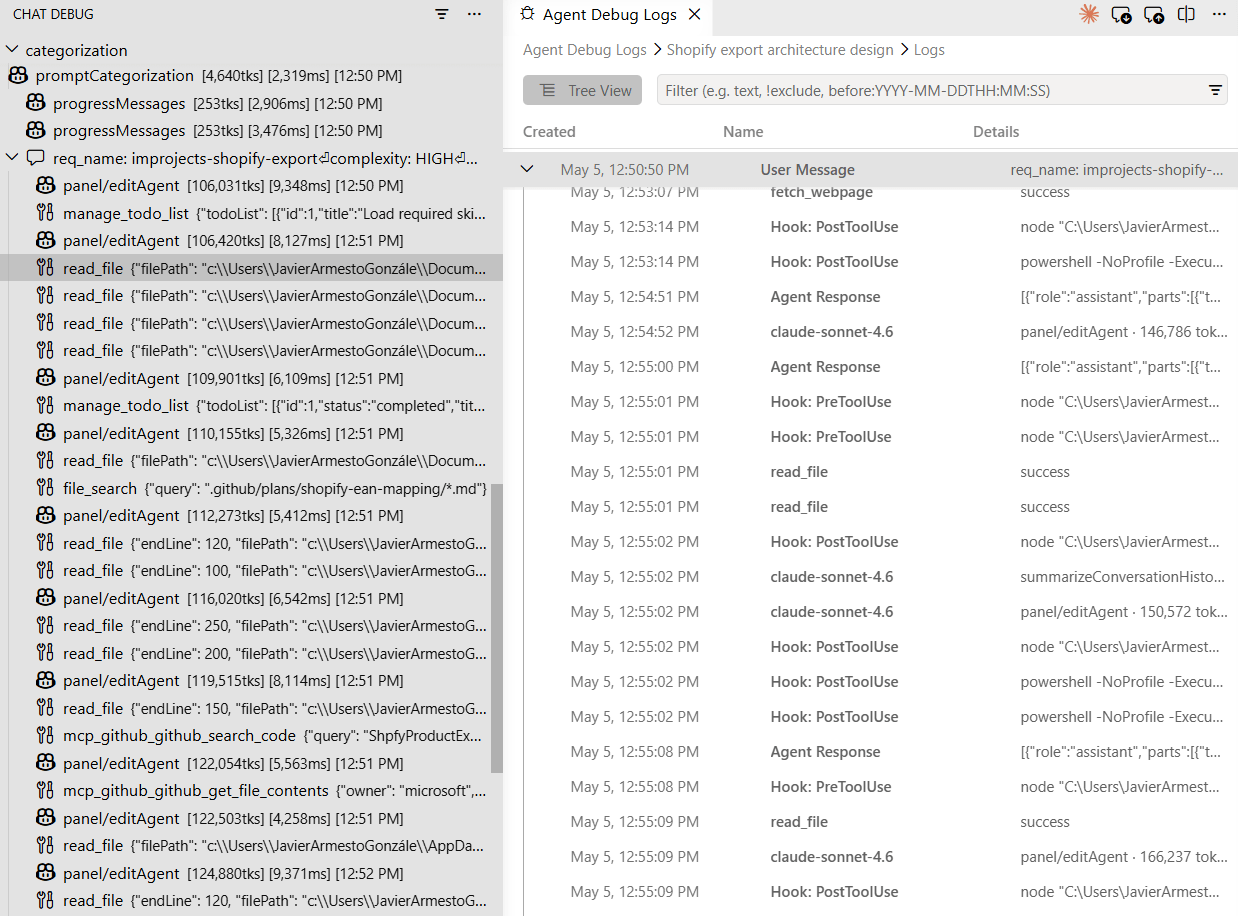
Open it from the Chat overflow menu → Show Chat Debug View, or from the Command Palette with Developer: Show Chat Debug View. Each interaction unfolds into five expandable sections, and each one answers a specific diagnostic question.
System prompt shows the instructions, capabilities, and constraints the model received, including the list of available tools. This is the first place to verify that your custom instructions or agent description actually arrived. User prompt shows the exact text sent to the model, with #file mentions already resolved to real content — useful for confirming that expansion worked as expected. Context lists attached files and symbols: if the file you expected isn’t here, it’s not that the model is ignoring it, it’s that the model never received it. Response is the raw model response, including reasoning. Tool responses shows inputs and outputs of every tool invoked, a mandatory section when debugging your own MCP servers.
The real flow: triage first, autopsy second
The mental pattern that works is Agent Logs as triage, Chat Debug View as autopsy. You locate in the timeline where something went wrong, then dive into the specific turn for the detail. Three real scenarios illustrate it well.
If the agent ignores your workspace files, open Agent Logs and filter by Discovery events to confirm they were indexed. If they were, open Chat Debug View and check the Context section: if the files don’t appear there, indexing isn’t active or the context window is saturated. If an MCP tool fails to be invoked when you expected it, Agent Logs tells you whether it was called or not; Chat Debug View confirms in the System prompt whether the tool is even listed as available. If the response gets truncated, the LLM model turns in Agent Logs show token consumption and whether you filled the window — in which case the solution is resetting the session, not praying to the model.
How to apply it to a real agentic framework
The differential value of these tools isn’t debugging isolated prompts — it’s validating design assumptions in multi-agent architectures. A concrete case: if your framework declares eleven loadable skills and none get explicitly invoked, there are three hypotheses and the right tool for each. They aren’t discovered — Agent Logs / Chat customizations shows you what happened during discovery. They’re discovered but don’t reach the system prompt — Chat Debug View confirms or refutes it literally. They reach it but the model doesn’t pick them — the diagnosis shifts to the descriptions and semantic triggers of each skill.
The difference between before and now is that this chain of hypotheses stopped being observational. Each one has a countable event behind it. What used to be a suspicion drawn from reviewing outputs becomes a claim with evidence, and that changes both how you iterate and how you communicate what you iterate.
References
- Debug chat interactions — VS Code docs
- Manage context for AI in VS Code
- Local agents in VS Code
- Workspace context reference