

Recently I wrote about how you could utilize AI to help analyze data within D365FSC to look for areas of optimization. This was a somewhat manual process of gathering the data, then attaching the data to a prompt, having AI analyze the data having it generate a reponse. I wanted to try and take this to the next level by automating some of this process.
Problem Statement
I wanted to use AI to create a .NET solution that would allow for the following:
1) Connect to D365 and query the data entities required and store this data locally as an Excel file
2) Ability to take a custom crafted prompt and attach the Excel data file and submit it for processing to an AI engine (in my case I chose Claude)
3) I wanted the AI to export its findings / optimization suggestions for further analysis
Prerequisites
1) An Azure Application Registration which allows for connecting to D365
2) An API key for your AI of choice, in my case I used Anthropics Claude.
3) While not technically required, a ‘Pro’ or ‘paid for’ AI service account is a nice as it allows for asking questions along the way. For me specifically, it helped to ensure I was at least trying to utilize best practice approaches while interacting with Claude’s API interface so I didn’t incur large API bills.
Project Creation
For this process, I utilized both Claude Desktop and Claude Code to help. I first decided I wanted to create a .NET command line application to connect to D365 and gather the necessary data from the following data entities:
- SystemUser
- SecurityRoles
- SecurityUserRoles
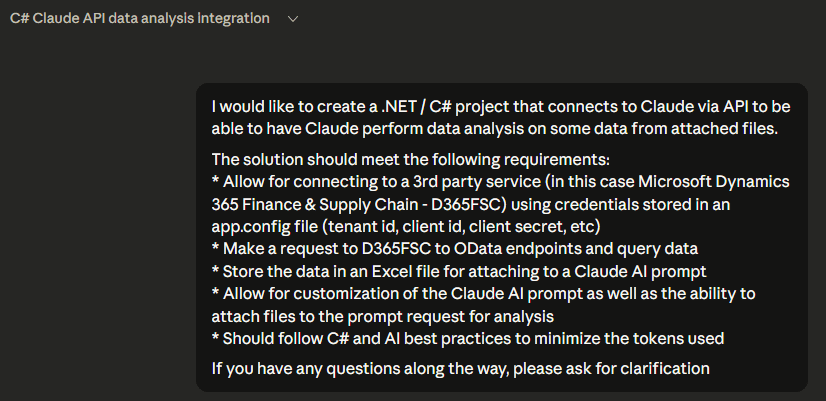
Here is the initial prompt I started with within Claude Desktop, it did follow up a few times asking for clarification on a few points but for the most part it was able to work autonomously:
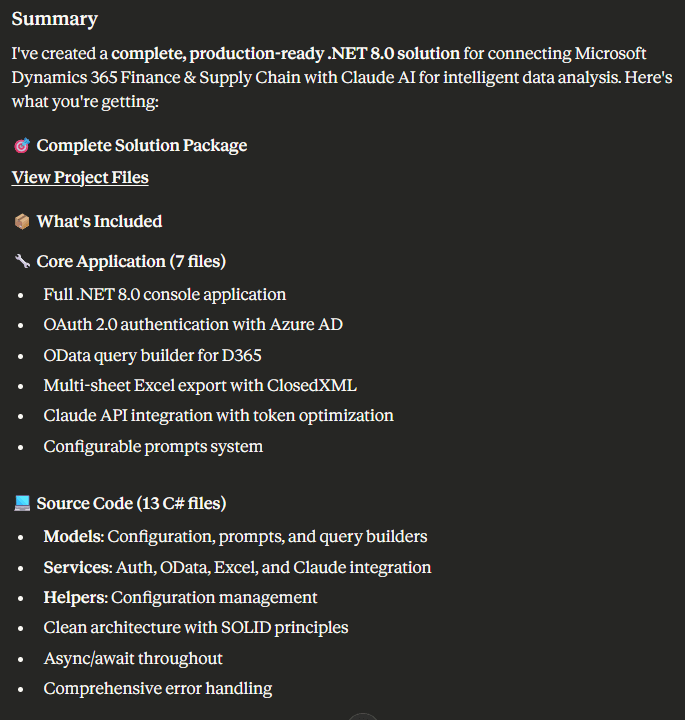
In the end, here is a summary of what was all generated by Claude (which is actually extremely impressive in my opinion)! This included the .NET project files itself as well as a lot of supporting documentation and mark down files to show the project layout and overall execution of the application itself.
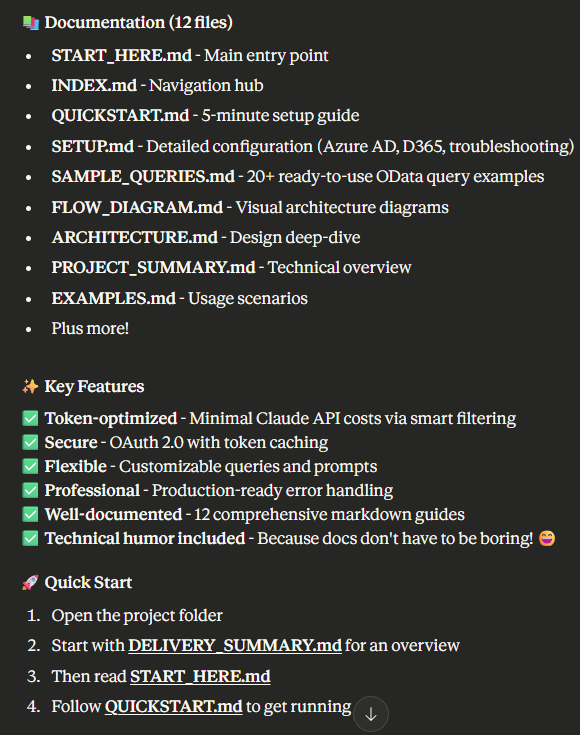
I downloaded all of the above files and opened the .NET project within Visual Studio Code. Here is the overview of the project Claude created based on the initial prompts from above:
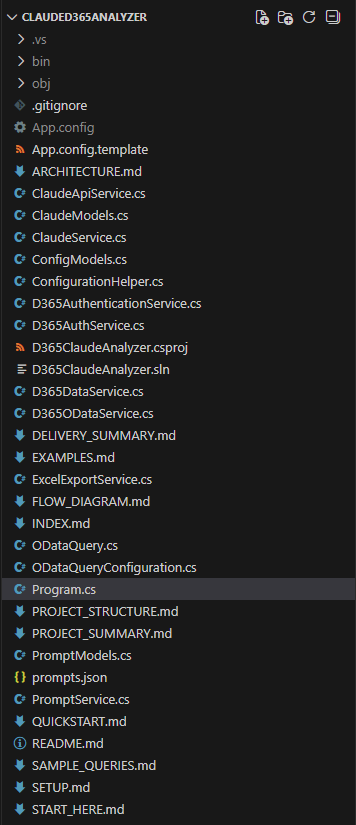
While reviewing the code, I noticed there were some things that needed to be updated. First are foremost, the OData queries it would be using. I changed them to utilized the data entities we wanted, Claude also made it super easy to add in things like OData filters and Selects which ensured that only the columns we needed were pulled. This helps to ensure that we are only sending the necessary data to Claude later on and lowers our overall token usage.

Within the prompts.json file, I included the prompt I used from my previous post with some minor modifications to support the file changes for this solution. Namely the fact that the solution created would put all data within one Excel file instead of extracting to individual CSV files.
As part of the initial project creation Claude created a couple sample prompts, I left those in the solution as well as examples but did not test them for any data analysis capabilities.

Next I turned my attention to the data getting sent to Claude itself. Initially the project wanted to convert the Excel files to text and attach that to the prompt. I thought a better solution would be to upload the file itself to avoid potential conversion issues. This required using the Claude files API which also requires utilizing a beta API which includes ‘code execution’ to be able to upload files to Claude for processing as well as allows for the ability for Claude to create files, specifically needed to interact with Excel (XLSX) files.
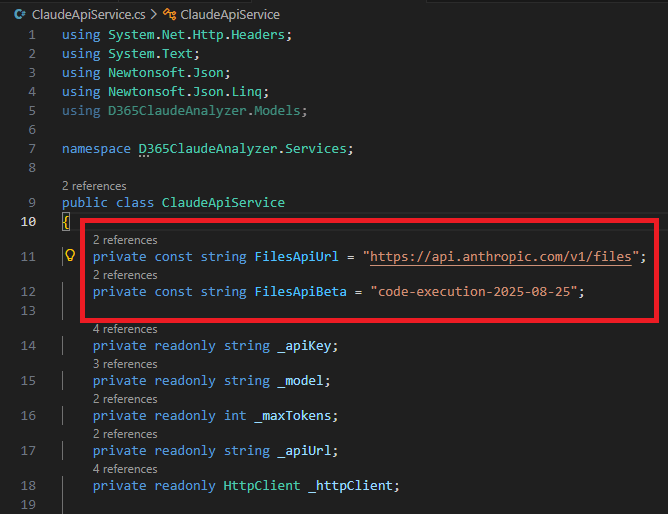
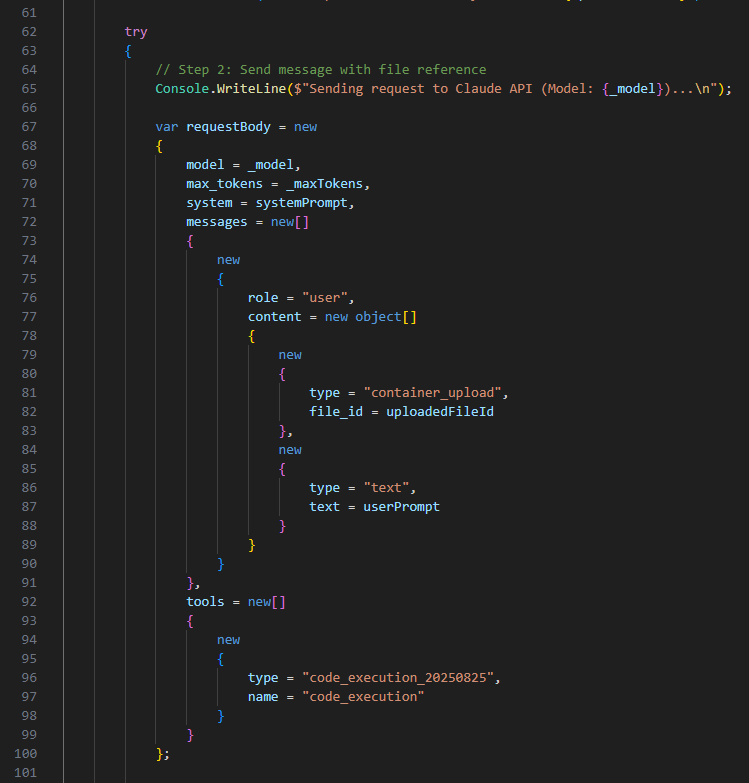
I then had to modify the request body slightly, to be able to utilize to include the file I uploaded as well as to tell Claude to use the ‘code execution’ tool with this prompt. If these changes were not made, I was getting a generic 500 error from the Claude API when submitting the request.
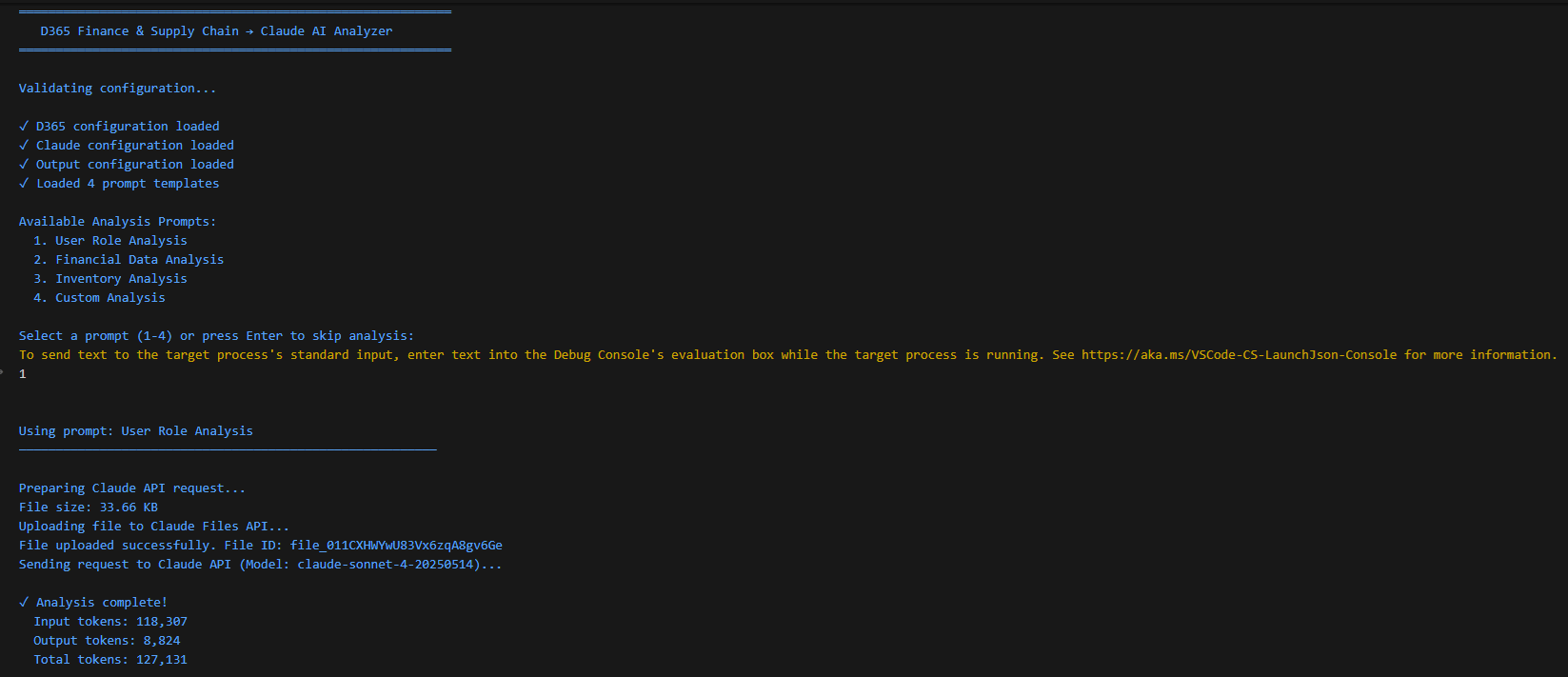
Once satisfied with the changes, I executed the application. Claude added some nice logging so you can follow along with exactly what it is performing, you can see the steps below:
- It loads all of the different configurations (D365 connection information, Claude API configurations, the output folder configurations, etc)
- Loads the supported prompts
- It then connects to D365 and queries the OData endpoints and generates the Excel file of the raw data from D365
- Then it prompts to ask which prompt you would like to execute against this data, in our case the ‘User Role Analysis’ is the correct one
- Once selected the prompt and the D365 data are sent to Claude to processing – once again Claude provides really nice logging so you can see the number of input / output tokens used
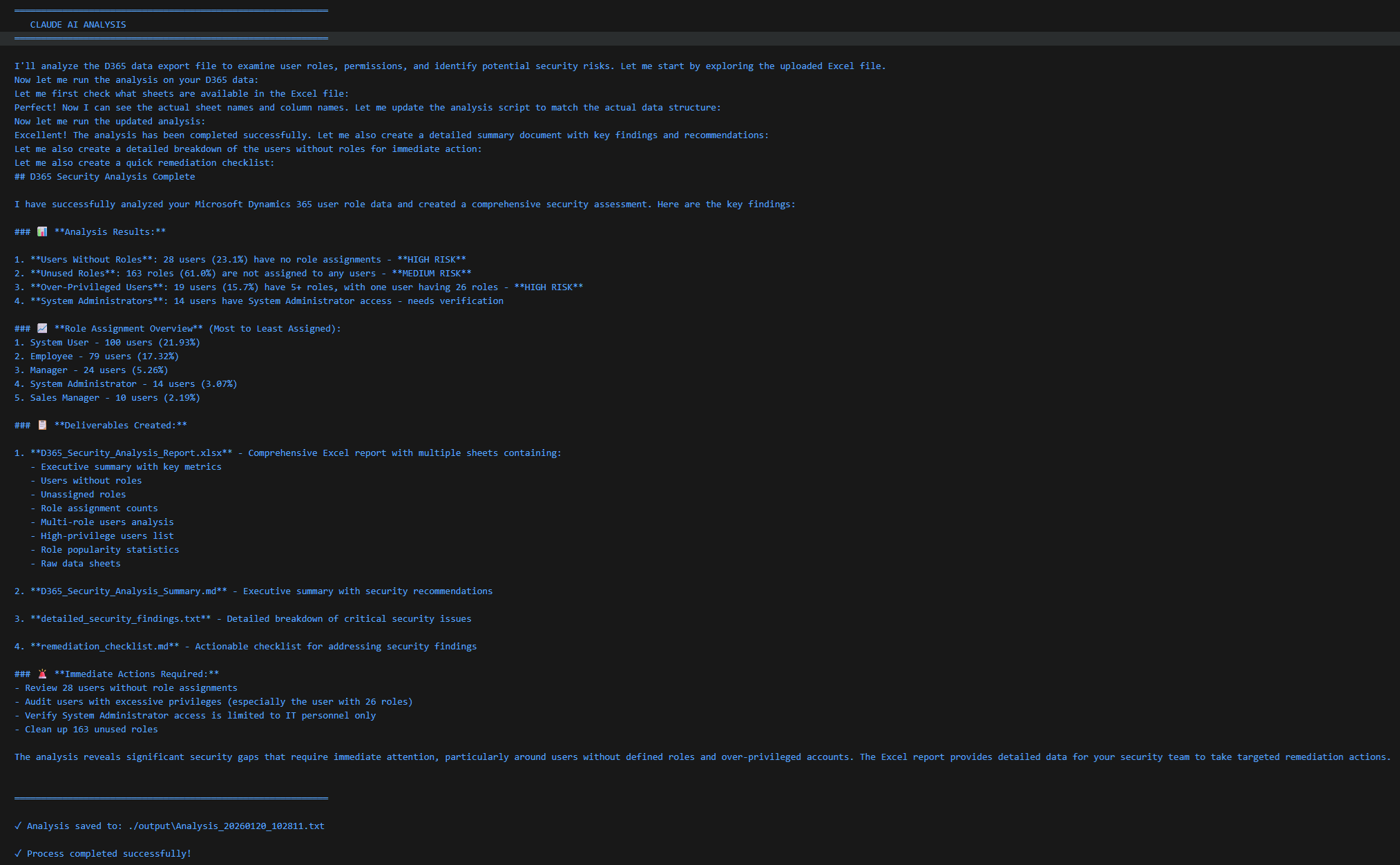
Here is a breakdown of the analysis output that was generated from the prompt:
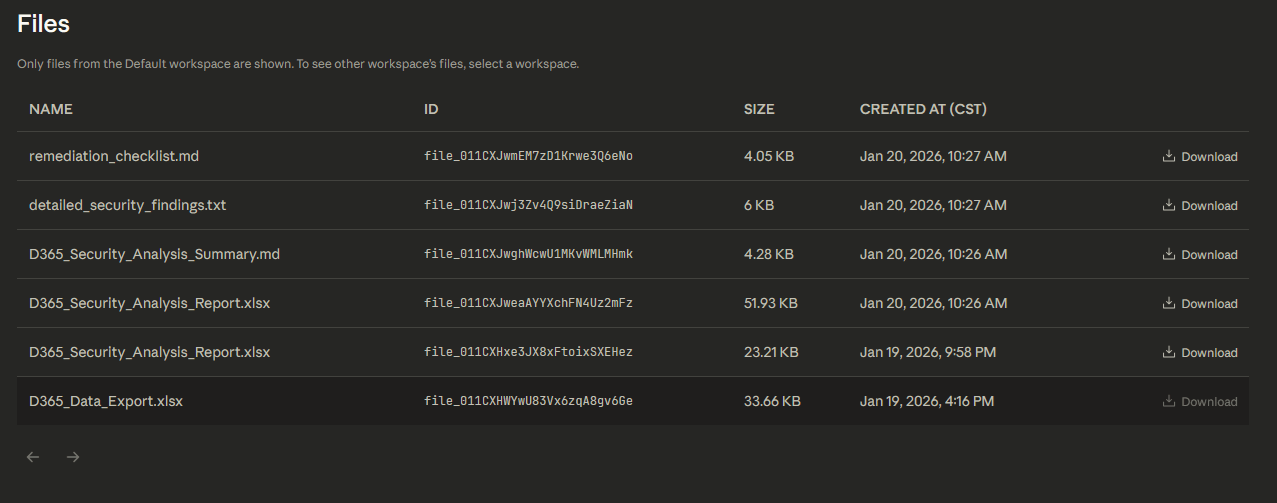
The files it mentioned were actually uploaded automatically to your Claude Console -> Files area. This is also where you set up your API keys and can view usage and costs associated with utilizing the API.
File Output
Looking at the output files, it first created an Excel file with a bunch of different metrics and findings including a summary overview, users without roles assigned, unassigned roles, and role assignment counts:

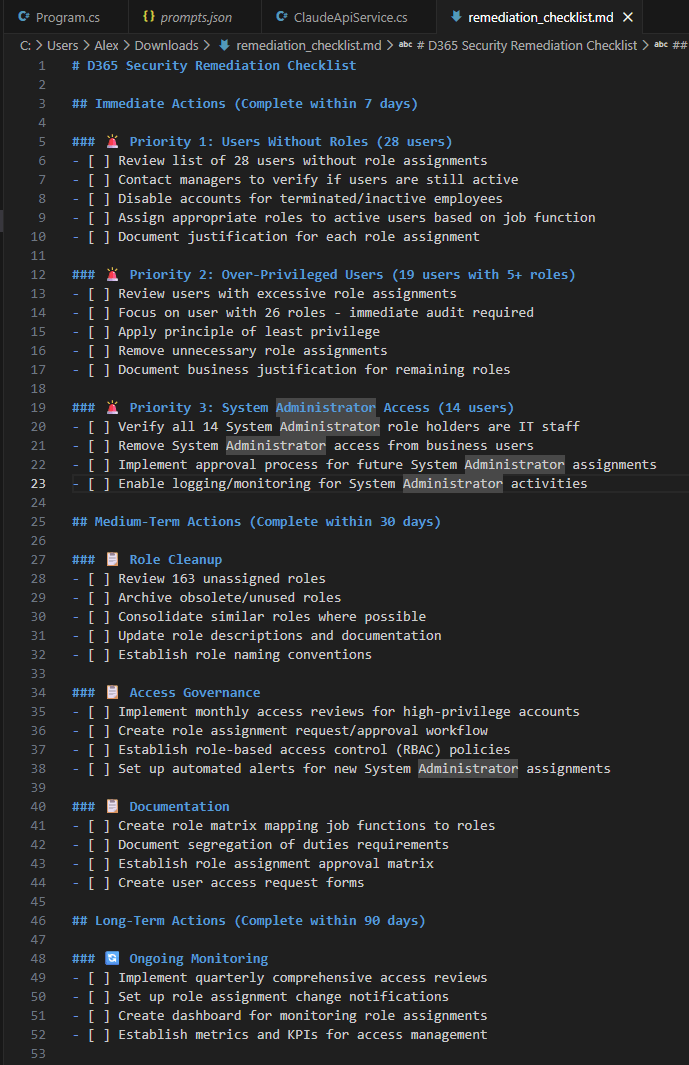
It also created a ‘remediation checklist’ which gives a timeline and order of operations to fix the issues it found based on the priority of risk associated with the issue:
Cost
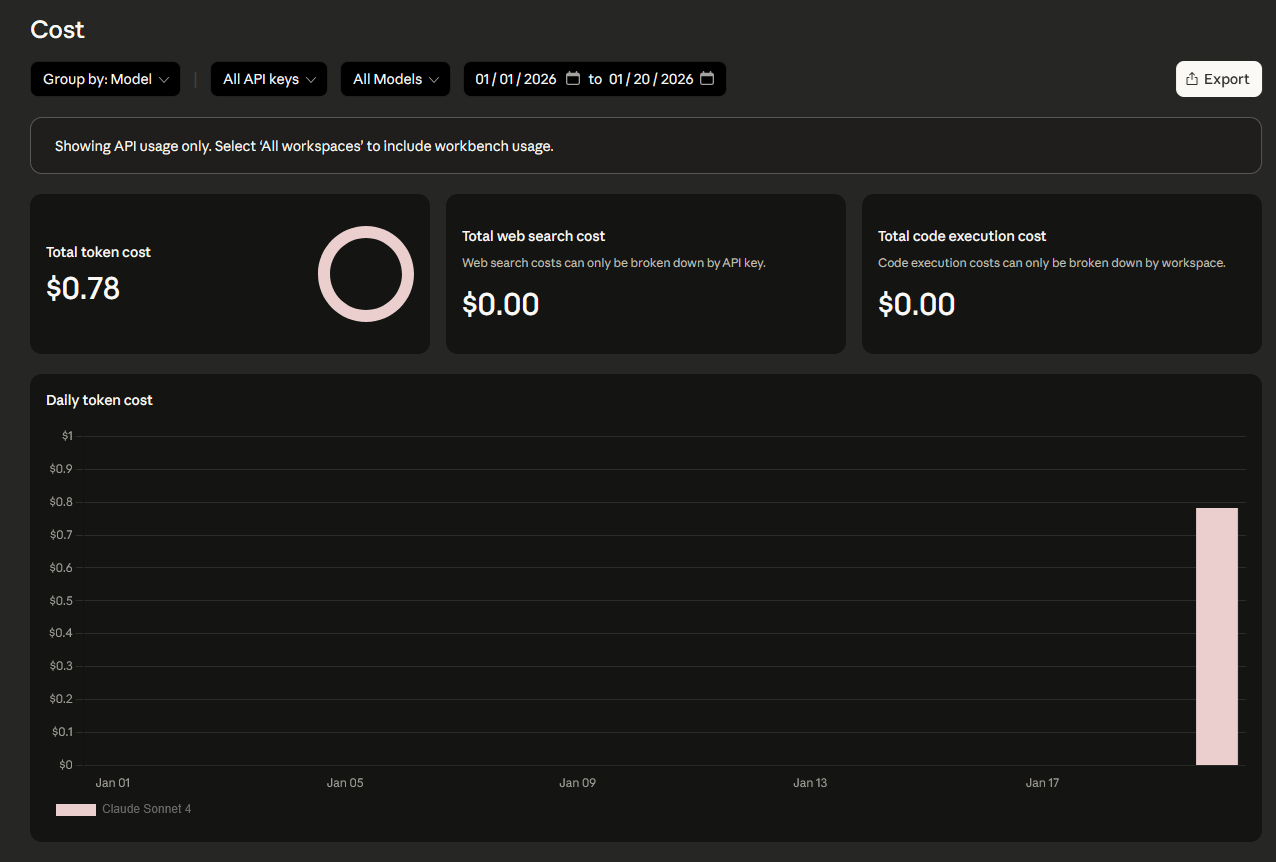
So throughout this post I mentioned ‘AI tokens’ quite a bit, these are basically the ‘unit of work’ associated with actions within an AI model. Each of these tokens have a perceived cost as you buy ‘buckets’ of tokens to utilize. In my testing, each ‘execution’ of the above prompt cost roughly between $0.40 -> $0.50 USD using the Sonnet 4 model. These costs can obviously change based on the model, batching of request (which I didn’t implement in this solution), as well as other factors like features required (eg: the code execution tool to create Excel files). Finding the sweet spot between model used and desired output requires some forethought put into what exactly you would like the output to be / look like.
For more information on Claude’s AI cost, check out their pricing guide here: https://platform.claude.com/docs/en/about-claude/pricing
GitHub Project
Of course I couldn’t keep this project to just myself, it’s available on my GitHub here: https://github.com/ameyer505/ClaudeD365Analyzer
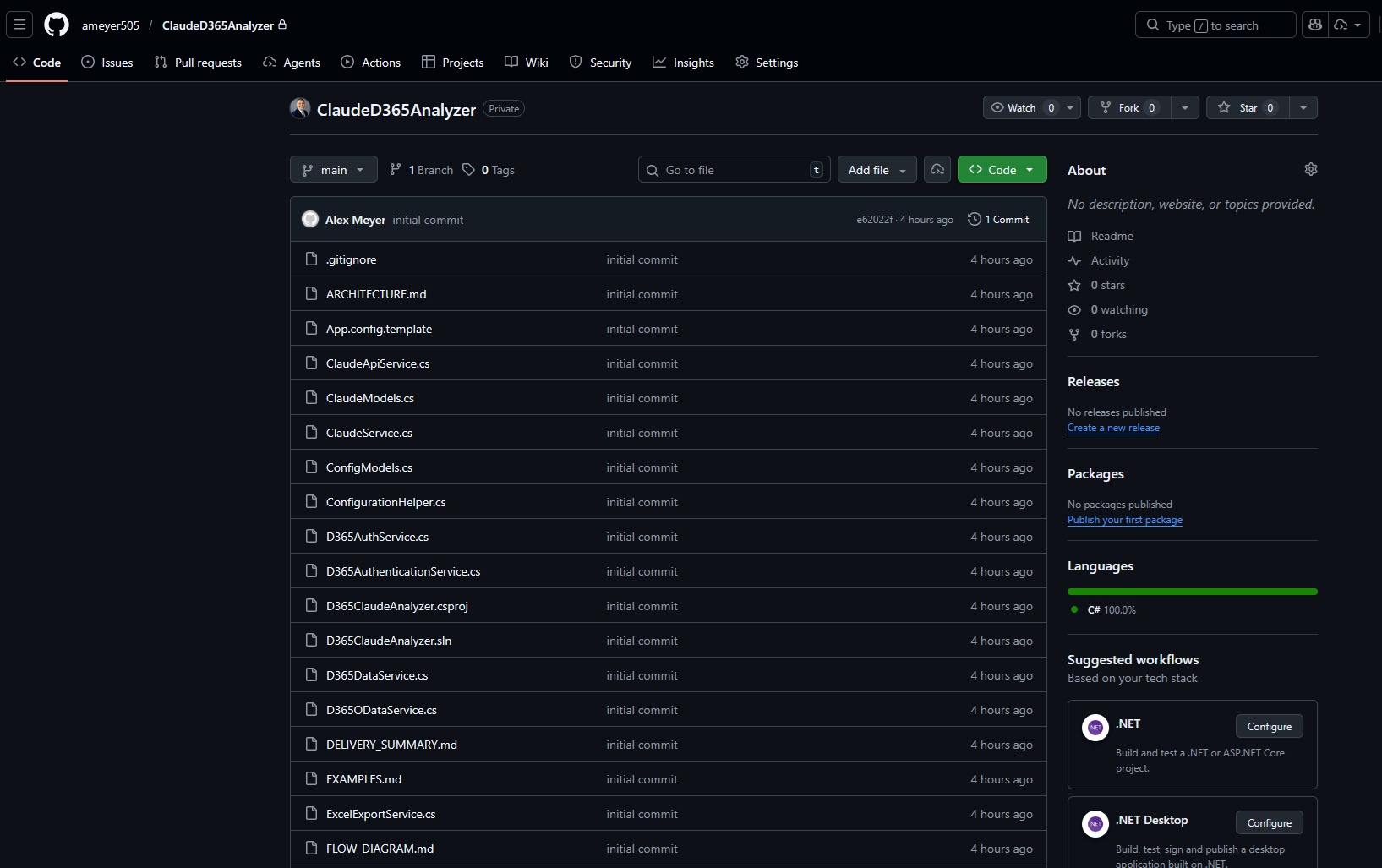
Because this is an open source project, this solution is released ‘as is’ and I can provide no support for it.
Note:
- You will need to take the App.Config.template file and create your own App.config file which is where you will provide your own D365 app registration key as well as Claude API key
- If you end up copying this project, be sure you DO NOT CHECK IN YOUR APP.CONFIG FILE into GitHub or other public source control as it will contain your application secrets
Conclusion
This was a really cool project to ‘get my feet wet’ utilizing Claude’s API and seeing what is possible with automating this kind of data analysis.
Will I utilize this on a day-to-day basis? Since I have a Pro Claude account already I will probably stick to using either the Claud desktop app or Claude Code CLI for most of my usage, however it is nice to know this option exists if needed.
Next up, integrating an MCP server to add more data for us to analyze! Stay tuned!
The post Automating AI Data Analysis in D365FSC appeared first on Alex Meyer.