

Now Reading: GitHub Copilot sessions: obtaining tips for better usage.
-
01
GitHub Copilot sessions: obtaining tips for better usage.


I’ve discovered that few people know some useful hidden things around GitHub Copilot and this is the main reason of this quick post.
Every time you start a session, GitHub Copilot builds under the hood a searchable history of everything you work on and then you can ask natural language questions about past sessions, search something on your coding history or get personalized tips around how to optimize your Copilot usage and save costs.
Chronicle is a session search feature in GitHub Copilot that tracks your chat interactions locally and also can sync to cloud.
For each chat session, GitHub Copilot stores the following data in a local SQLite database:
- Session metadata: repository, branch, working directory, timestamps, and the agent or participant used.
- Conversation turns: user messages (up to 1,000 characters) and assistant responses (up to 5,000 characters).
- Files touched: file paths from tool calls such as
replace_string_in_file,create_file,read_file, andapply_patch. - External references: PR numbers, issue numbers, and commit SHAs extracted from GitHub MCP tool calls and terminal commands.
Secrets such as tokens, API keys, passwords, and connection strings are automatically filtered before data is synced to the cloud.
There are two useful commands that I want to mention here:
/chronicle:tips: Analyze your recent session history (typically 7 days) and suggest ways to use Copilot more effectively. Tips are grounded in your actual usage patterns: tools you rarely use, prompting patterns that lead to better results, or workflow improvements.
/chronicle:cost-tips: Analyze recent sessions to identify opportunities to reduce token usage and Copilot cost.
To use these features, you first need to enable local session tracking on GitHub Copilot (if not yet enabled by default on your system). Optionally, you can also enable cloud sync of sessions to GitHub.com:
Every Copilot CLI session is persisted as a set of files in the ~/.copilot/session-state/ directory on your machine.
GitHub Copilot Chat sessions in VS Code are stored per-workspace in VS Code’s workspace storage, not globally like Copilot CLI.
The path structure varies by OS:
Windows:
C:Users<username>AppDataRoamingCodeUserworkspaceStorage<alphanumerical-hash>chatSessions
macOS/Linux:
~/.config/Code/User/workspaceStorage/<alphanumerical-hash>/chatSessions/
There are some key differences from Copilot CLI:
- Identification: to find the right workspace folder, you can check the
workspace.jsonfile inside each alphanumeric-named subfolder to identify which workspace corresponds to your project. - Workspace-specific: each VS Code workspace gets a unique hash-named folder. Within each workspace folder, you’ll find a directory named
chatSessionscontaining the conversation history as JSON files. - Not project-tied: chat history is not tied to the project folder itself—if you move the project to another machine or environment, the history doesn’t automatically follow. This is a known limitation and feature request.
You can export/import sessions using VS Code’s command palette (Chat: Export Session… / Chat: Import Chat…), or copy the JSON files directly between workspace folders if you’re migrating between machines.
Using Chronicle commands.
When local session index is enabled, chronicle commands will appear on the Copilot Chat.
If you want to receive tips on how to ptimize your last coding sessions, you can just type /chronicle:tips:
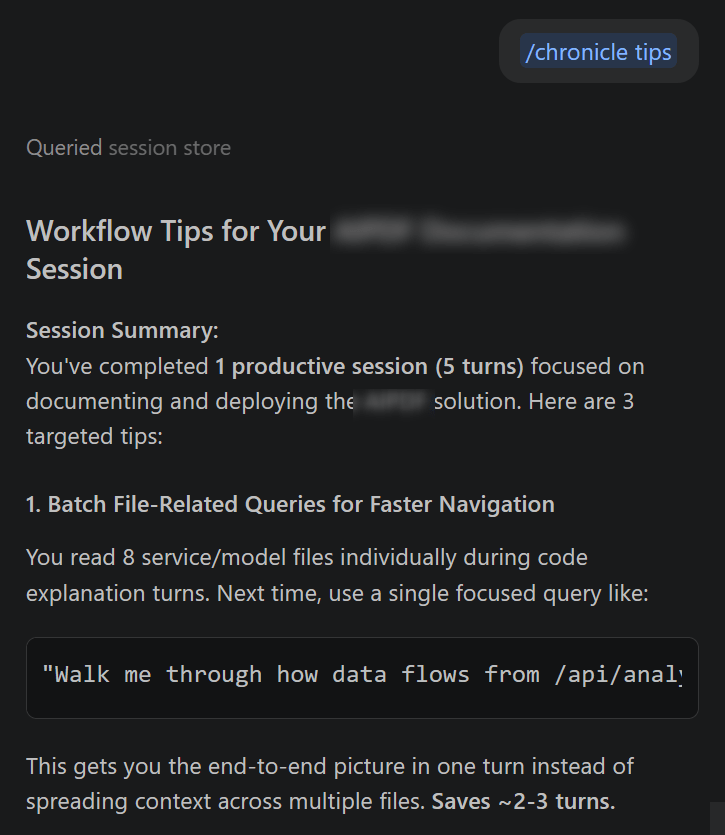
Trust me… this is sometimes useful to review all your coding sessions and learn tips for improvements.
You can also type a natural-language query like “/chronicle what did I work on today?” to discover more about your sessions.
What about optimizing costs?
To receive tips on how to optimize costs accordingly on how you use GitHub Copilot, you can use /chronicle:cost-tips:
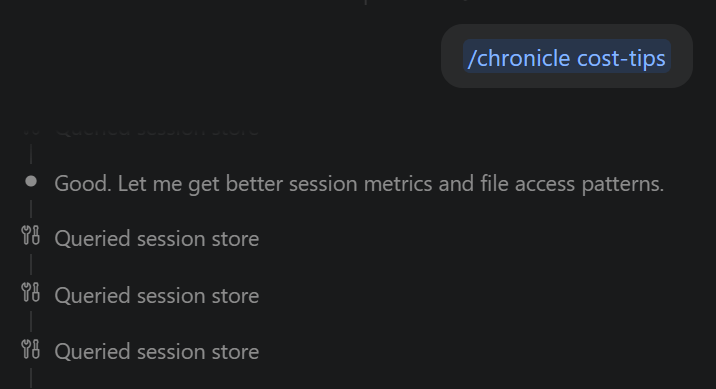
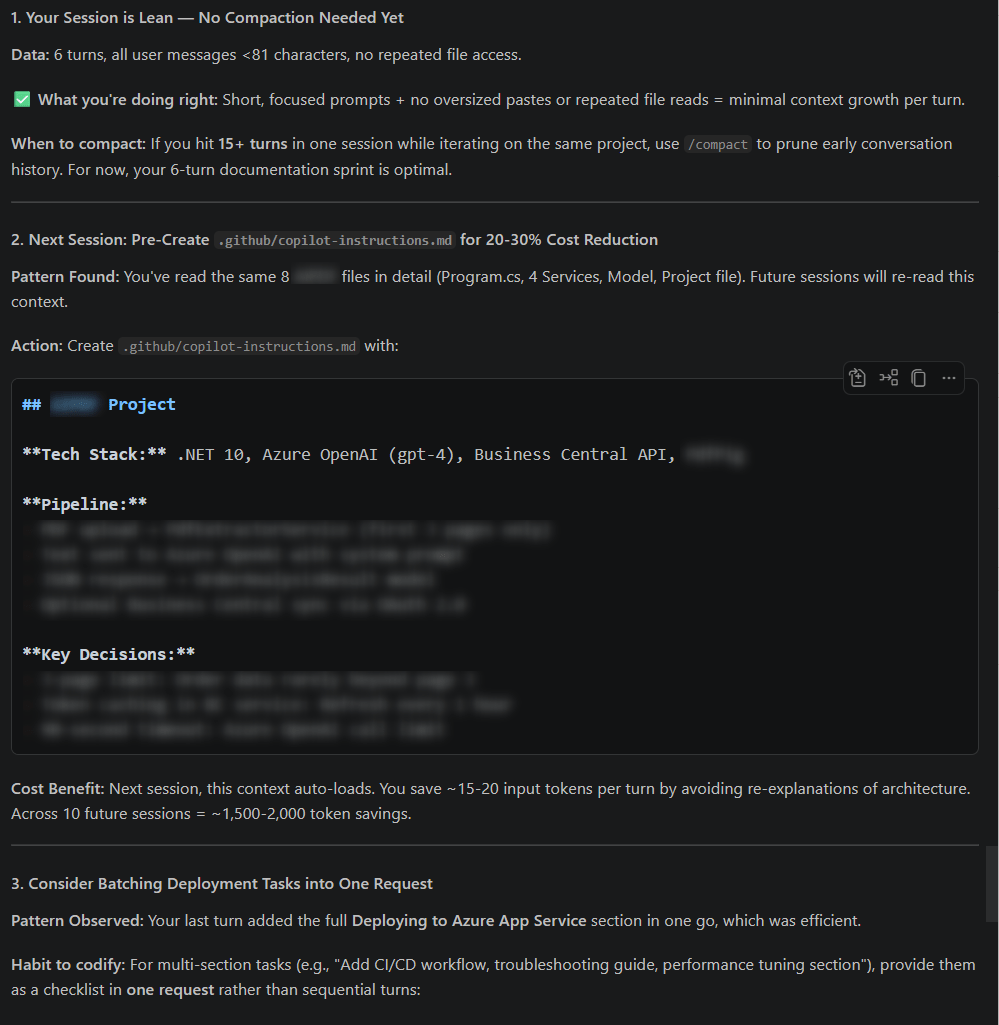
Chronicle will start analyzing your session store and it will give tips on how to optimize token usage in your coding sessions. Here is an example of output in this demo session I’ve started for this post:
Conclusion
Saving GitHub Copilot session history it’s not mandatory but it can be useful on many scenarios. With its local SQLite database of your session history (and a full-text search index), you can instantly pull up context from your previous work and ask something like “yesterday I was working on a bug in codeunit MyBadCodeunit. But I don’t remember what was the bug and what we fixed. Can you remember me?“. You have a full traceability for every developer decisions.
If you want to track your coding sessions and optimize them, now you have some hidden tools worth exploring.
Original Post https://demiliani.com/2026/06/23/github-copilot-sessions-obtaining-tips-for-better-usage/


